I’m making one last attempt to find a solution before I move to different software.
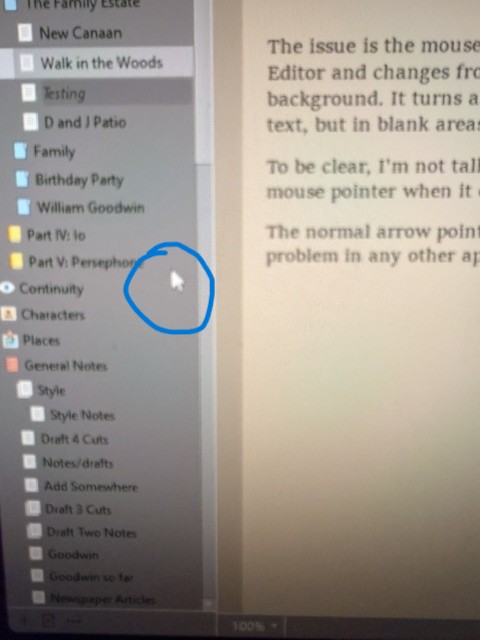
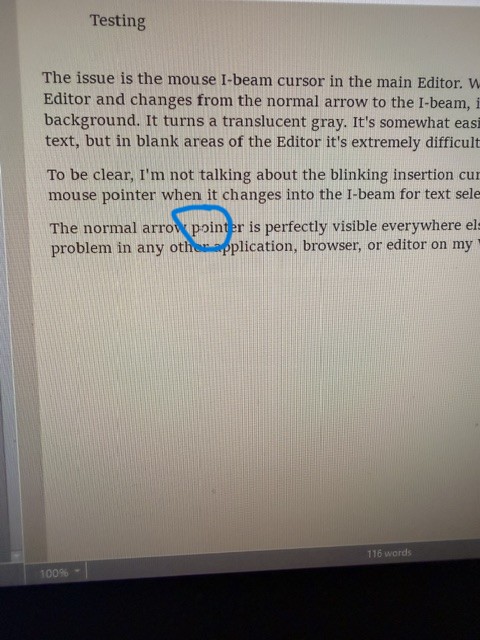
The issue is the mouse I-beam cursor in the main Editor. When the pointer moves into the Editor and changes from the normal arrow to the I-beam, it virtually disappears against the background. It turns a translucent gray. It’s somewhat easier to see when it’s directly over text, but in blank areas of the Editor it’s extremely difficult to locate.
To be clear, I’m not talking about the blinking insertion cursor/caret. I’m talking about the mouse pointer when it changes into the I-beam for text selection.
The normal arrow pointer is perfectly visible everywhere else in Scrivener. I don’t have this problem in any other application, browser, or editor on my Windows 11 system.
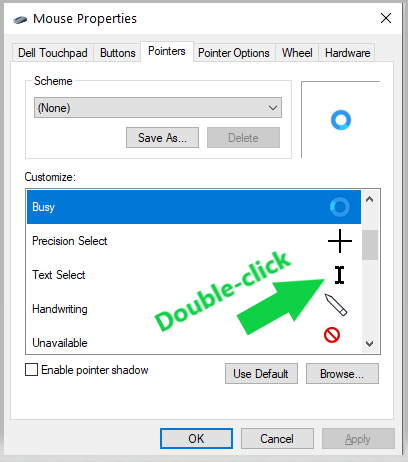
I’ve searched the forum and found older discussions about cursor visibility, but none of the suggestions are relevant. I’ve already been through the Windows mouse and accessibility settings. Those aren’t the issue and I’m not looking for suggestions involving changing Windows system settings.
The problem isn’t occasionally losing the cursor. I’m tired of having to swirl the mouse around to find the I-beam and then move it back to where I was trying to click. The cumulative effect is frustrating when you’re doing it dozens of times every day.
Has anyone found an actual solution for this? Is there a Scrivener setting, Windows-specific fix, or known issue that I’m missing?
Sorry, not the best images. I used my phone since the cursor disappears when grabbing a screenshot.
I notice your interface appears to be customised, did this problem perhaps start happening after you applied a theme? Maybe try Window ▸ Themes ▸ Default briefly, and then apply the theme again (if this isn’t a theme and you’ve heavily customised your settings, then make sure to use the Manage button in the Options window to save your settings first! You can either save them as a theme, or save all of the settings at once at the top of the menu). If the problem returns after applying the theme, you might want to get in touch with the creator of it.
If it is gone even in “Default”, then check the Use block insertion point width setting at the very bottom of the Editing: Options tab. Perhaps the single-pixel default line is vanishing in combination with scaling or monitor settings, and making it a touch thicker will bring it back.
The other option under settings > accessibility > text cursor can add color and markers or increase text cursor size in addition to the mouse settings.