As it says on the tin. Can I import a Markdown file into Scrivener that contains a table and keep the format?
Markdown is plain text. Scrivener will not change it on import. However, Scrivener is not a Markdown rendering engine: you’ll see raw markup in the Editor, not a nicely rendered table.
(The Compile command can convert markup to whatever your output format is, but the Editor can’t.)
2 Likes
You can certainly use pandoc to go from markdown to RTF to import into Scrivener, for example this markdown table:
: Sample grid table.

+---------------+---------------+--------------------+
| Fruit         | Price         | Advantages         |
+===============+===============+====================+
| Bananas       | $1.34         | - built-in wrapper |
|               |               | - bright color     |
+---------------+---------------+--------------------+
| Oranges       | $2.10         | - cures scurvy     |
|               |               | - tasty            |
+---------------+---------------+--------------------+
becomes this “native” Scrivener table via RTF importing in Scrivener:
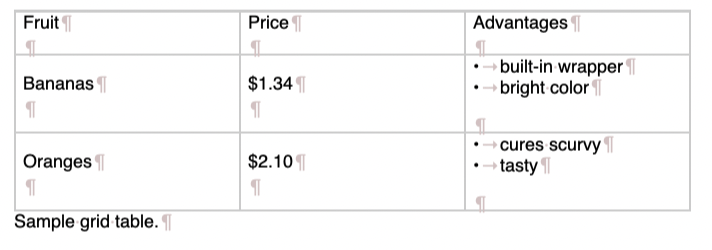
Not all markdown features will have RTF support so see how it works. As RTF is text, you can make this (this converts into the clipboard: pandoc -s -t rtf test.md | pbcopy) an applescript / bettertouchtool pipeline to convert and paste the RTF into Scrivener directly, no need for an intermediate file if you don’t want it.
4 Likes
Yes, this is how I handle it as well, though for Linux users, with xclip instead of pbcopy (I don’t know of a CLI input for accessing the clipboard in Windows, sorry). A few things to be aware of:
- I would avoid rich text lists for anything fancy, especially on newer Macs. I think Windows is a bit more stable in this regard, but for example the bullet lists in a cell, as shown above, is something I have seen cause table corruption in macOS 26, and potentially 15 as well. I wouldn’t risk much more than one para per cell.
- But the nice thing about using Scrivener to write Markdown is that we don’t have to go all in. If we need something fancy that Scrivener’s conversion doesn’t do, or RTF doesn’t support or is fragile like the above, then we can use a Markdown table right alongside others that are rich text. It is the same principle as Markdown in general, of how we can even create tables in the target markup (like HTML or LaTeX) if Markdown itself cannot do what we want. Scrivener just adds another layer we can optionally use, of offering a simple GUI table feature.
- Make sure to go into your compile window, and under the General options tab, tick the setting to convert lists and tables to Markdown. I don’t know why that isn’t a default, or frankly why it is even an option, as the alternative output is basically useless. I keep forgetting to bring that up.

3 Likes
Thank you, everyone!
It’s just that I’m working on a new outlining system, and the output is a .md file. I’m happy to produce an example for everyone to see.
BTW, Amber, I don’t see this on my compile…
Make sure you are compiling to one of the Markdown-labelled options in the Compile For dropdown, as this setting is hidden for non-MD file type production. If you haven’t navigated this area of the compile settings before, there is guidance and screenshots in §23.4.3, General Options. Within that section of the user manual, search for the Markup Options subheading, to read through the checkbox descriptions. Some may be of use to you!
2 Likes
I found it on the MMD settings.
But say I want to import a folder full of .md files into my project and export as a PDF/RTF file to share with a friend. Would it work without any changes?
Out of the box, ODT is going to be your best and easiest solution. If OpenOffice format isn’t going to work though for some reason, then I would install Pandoc, restart Scrivener, and access the Compile For menu again, to select DOCX output using Pandoc conversion. It’s not RTF, but these days most things take DOCX just as well, if not better than.
Honestly I’d install Pandoc anyway no matter if you intend to be working with Markdown. MultiMarkdown is perfectly fine for what it is, a very simple, very fast and very lightweight conversion tool, suitable for embedding in other software. But Pandoc for example can make PDFs without having to install LaTeX, or having to understand anything about it.
1 Like
I already have Pandoc installed, so the link is very helpful! wkhtmltopdf has been abandoned since 2020, but I’m willing to install it and poke around…
1 Like
Ah, good to know, I missed that this article is from 2019, there might definitely be something more up to date out there. It was the first web search hit though. I think at least its concept of a pdf-engine might be fairly customisable these days. I haven’t messed around with it much to be honest, since LaTeX is my comfort language when it comes to spot typesetting.
1 Like
Time to get my hands dirty with CSS to control the look (even if the engine is old).
True, old doesn’t always mean broken! Sometimes things get good enough to do what they need to do and that’s that. If it supports HTML5, that’ll work for a very long time, and tools like Pandoc produce fairly clean, non-problematic HTML to begin with. Where a tool like this might degrade is against websites like Instagram, that are always pushing the limits of acceptable design architecture; fifty-thousand nested divs and crimes like that. You won’t see any of that intentional obfuscation and code rot in Pandoc HTML.
1 Like
So how do I go about post-processing? I mostly use tools like ghostwriter or panwriter to convert .md files.
Is there a way to make a script/code snippet for this screen? I know MacOS has that feature.
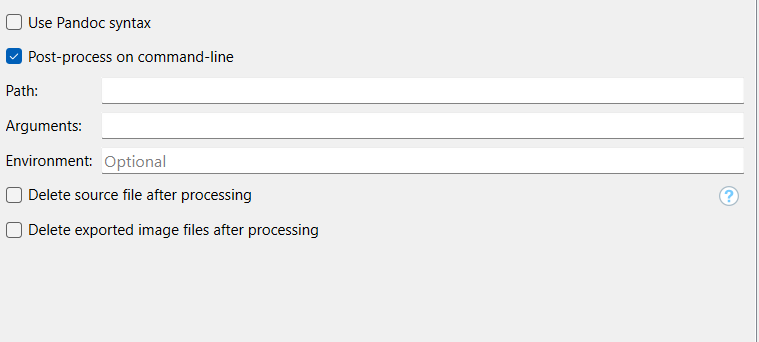
This thread will probably help you get started. As for embedded scripts, we still haven’t added that directly into the pane like on Mac. For now if you need multiple commands, use a .bat file and target that as your Path to execute. But I think for this, you should be able to get it all into one command?
2 Likes
Just to expand the background to import .md files with tables into Scrivener – with pandoc installed, you can use something like panwriter if you want a GUI; and the command itself requires the following switches:
--standalone– this makes sure a full output doc is generated--to rtf– output format--output file.rtfthe name to save the output to (as the suffix isrtfthen--tocan be ommited, pandoc will guess the output format.input.md– the input filename
pandoc --standalone --to rtf --output out.rtf input.md – this is what panwriter is doing for you. With the command-line version it is possible to automate, so you could write a script that would find all .md files and convert each one to an rtf file in a subdirectory etc. Then you could just select all the rtf files and import into scrivener. This is run outside of Scrivener…
PrinceXML is more modern, though it it is a commercial app so it will add a small watermark (easily removed) to the PDF output. There is also WeasyPrint and pagedjs-cli (which seems not available), but if you don’t mind not using CSS, Typst is a 10MB single file which is the most flexible/powerful alternative to LaTeX. Pandoc supports all of these (alongside even more) PDF engines…
2 Likes
I’m interested in Prince, but I wouldn’t know how to hook it to PanWriter.
And Typst honestly seems too complicated if you’re not using the web app.
I agree with that in part. Much as I admire and applaud @nontroppo’s templates, I found tha trying to work out how to convert them to my use was overwhelming because of the involvement of pandoc, lua, ruby, bibliography and the Prince alternative route, so I turned to the web app to get to grips with Typst and initially used my recipe list as text to work on.
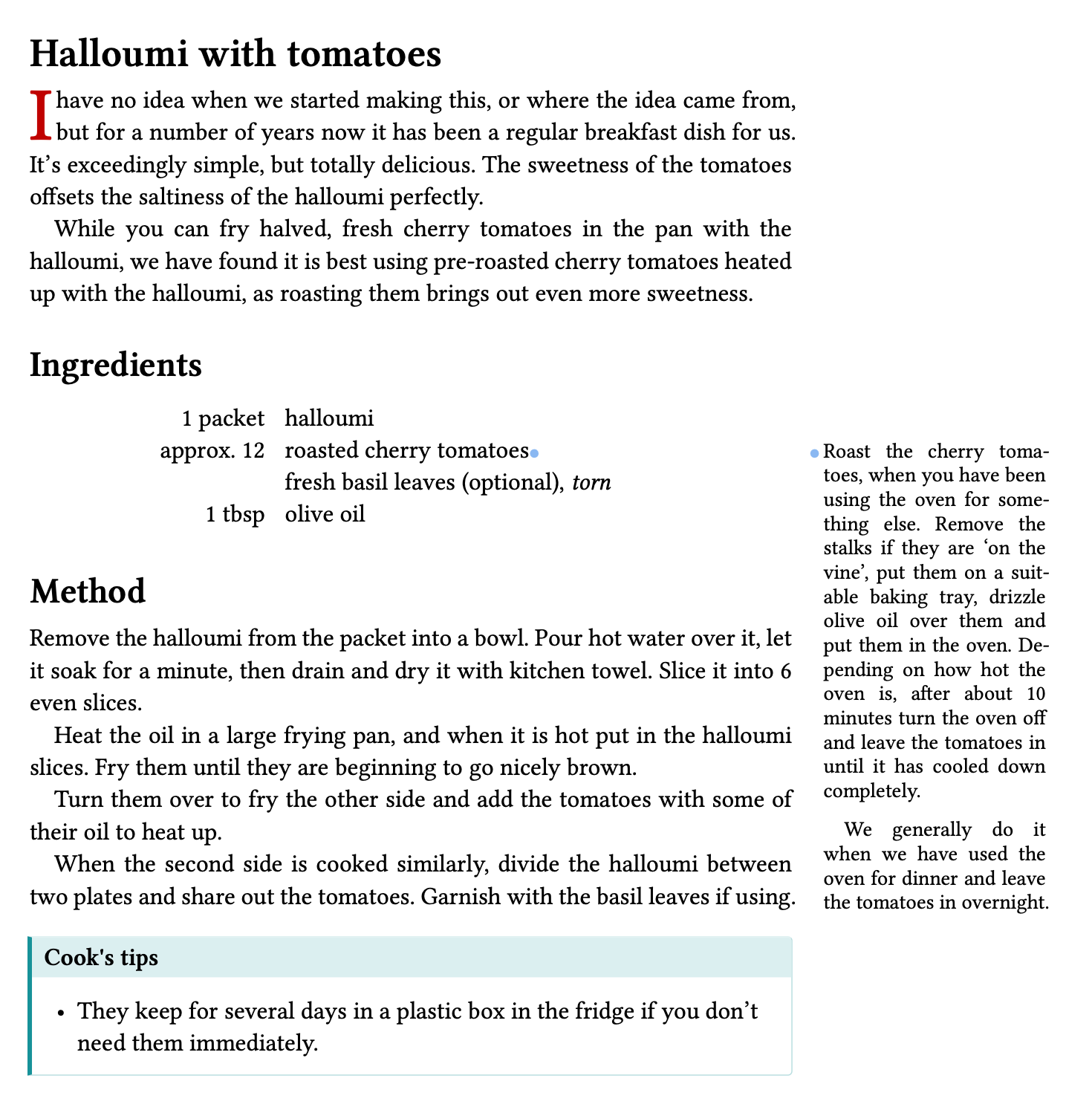
I have now transitioned my recipe collection from the web app to Scrivener with direct compile to PDF. It uses all of the following:
- Dropcaps using the
dropletpackage - Headers managed through the
hydrapackage; - Tip/alert boxes using the
gentle-cluespackage (customised boxes); - Margin notes using the
marginaliapackage; - Recto-verso pagination with no page numbers on the “Contents” pages, page numbers starting at 1 on the main text;
- 4 levels of headers;
- 2 levels of
Outline(i.e. Contents) with leaders and page numbers only on the second level; - Tables;
- Footnotes with full-size numbers at the margin and the text using a hanging indent;
- superscripts modified to be larger, so more visible.
All that is managed through a single (quite heavily annotated) typst metadata file set as front matter in the compiler.
At the moment:
- it doesn’t produce a cover or other “front matter”. I tried integrating
wonderous-bookbut it caused currently intractable (albeit small) layout issues, but I’m happy to create cover etc. using Affinity Publisher and import it into the PDF. - I will set about integrating bibliography, but to do that I think it might be better to go back to Pandoc integration, so that is down the line at some point.
Here’s a sample recipe from the (Scrivener-compiled) PDF:
I’m in the process of producing a Scrivener template from it, currently writing a description of the features as currently implemented in the metadata, and instructions as to how to modify them.
I have also produced another project based on the wonderous-book package with modifications, which again I will transition into Scrivener and create a template from it. It is simpler will be more useful for fiction authors and anyone not needing these advanced layout features.
Mark
4 Likes
Wow, this is extensive. I applaud your efforts too.
It is important to separate import vs. compilation. Your original question was about import, where markdown should be converted to RTF that becomes a Scrivener document. PanWriter can do this for you.
This is not linked to what happens at compile (no need to link panwriter and prince etc) where Scrivener will use pandoc to create a final document. That workflow is mostly identical if you use wkhtmltopdf, weasyprint or prince, you choose which engine to use using the --pdf-engine option in the arguments text field in the Scrivener compiler. If you know CSS then the HTML>PDF option is probably easier, but otherwise Typst is not too hard to learn, as Mark has ably demonstrated.
1 Like