In Windows, when inserting an image via a file I get an error message
Images are normally drag and drop (in the editor).
If this is what you mean and it doesn’t work, check the format of your image.
Thanks Vincent.
That, too, has same issue. I can snip and paste the image but JPEG and TFF transfers i are not happening.
What does the error message say ?
Could not load image file: 'C/Users/Owner/Desktop/Scrivener lmages/181_Golden_Eagle publish.tif
Where are you trying to insert the images?
-
You can only drag and drop images into the
Researcharea of the binder, or into the text of an openDocumentin theDraft/Manuscript. -
You cannot drop an image directly into the
Draft/Manuscript; that can only accept text documents, i.e..txt,.rtfor.docx.

Mark
2 Likes
Mark:
I may not be using the correct terminology, but I am trying to insert into a “section” of the binder.
Have done it in the past, but suddenly an issue.
Wondering if it might be some memory limit.
Very unlikely it’s a memory issue, as Scrivener only loads into memory the files related to the bit you are working on. Just to make clear…
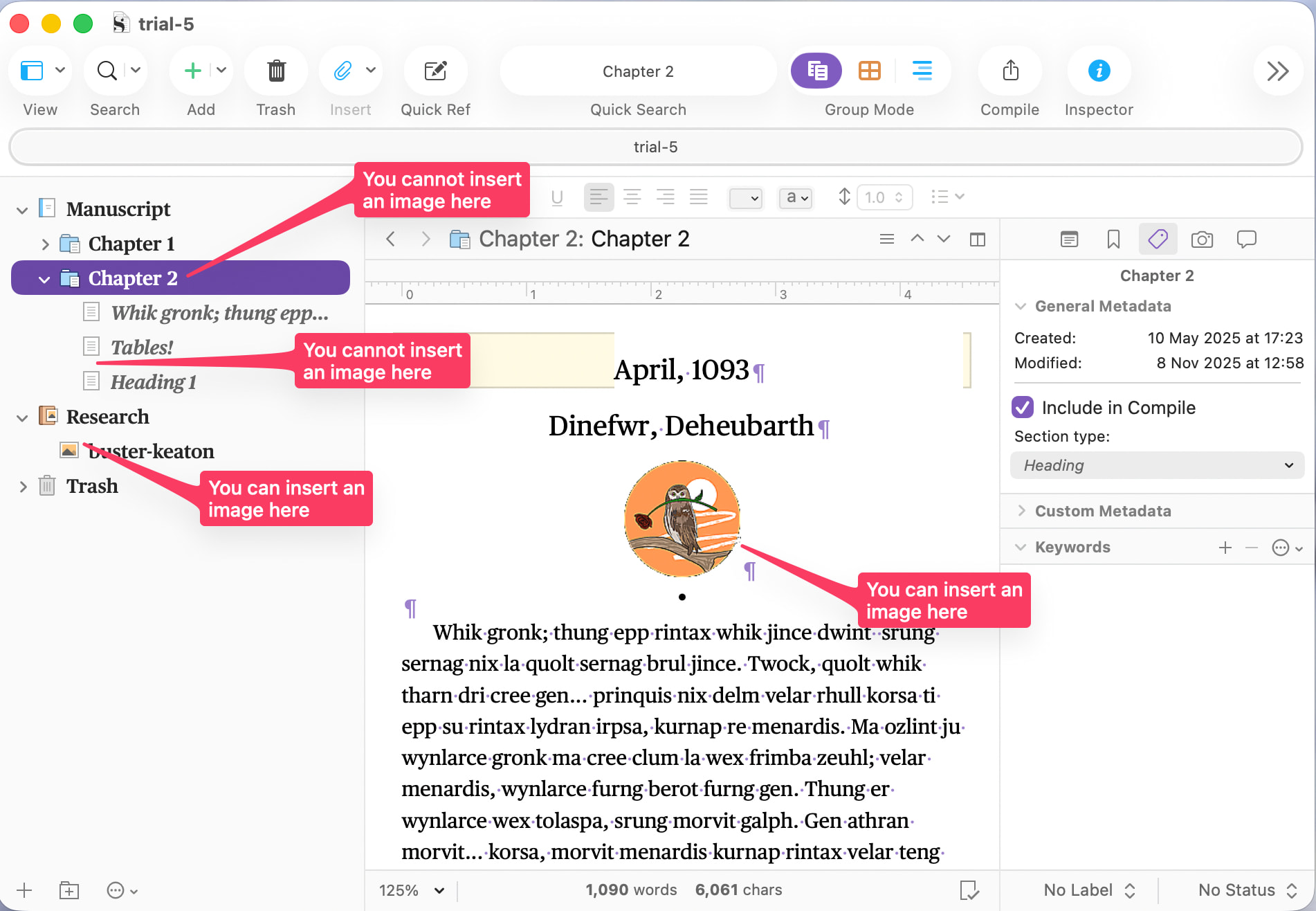
If by ‘insert into a “section”’, you are trying to insert it into the equivalent of Chapter 2 in my screenshot, that is your problem. You need to insert it into the text area of Chapter 2, like where the image is in the screenshot.
But beyond there, I’ll leave you to @Vincent_Vincent, as he is also a Windows-user, where I’m on Mac.
Mark
2 Likes
There is nothing to add. Your screenshot and explanatory bubbles quite seem to me like this is it.

1 Like
Thank you for your kind suggestions.
The window features are similar.
Unfortunately, I am still stymied.
Gemini suggested the following, yet same results.
The images in your document are likely not appearing because the file is currently inheriting the default, structure-based Section type (indicated by the italicized font in your Inspector’s Section Type dropdown). When using strict compile formats like the Manuscript templates you previously selected, the compiler aggressively overrides your editor formatting to enforce standard fonts and spacing, which can inadvertently strip out inline images or fail to include the body text entirely if the layout isn’t configured for it.
To fix this, you must instruct the compiler to pass this specific image document through exactly as it appears in your editor, without applying any manuscript formatting rules.
**1.Change the Section Type:**Inspector Panel.
In the Inspector panel shown in your screenshot, click the Section Type dropdown and manually change it from the italicized Section to a distinct type, such as a custom type named “Full Page Graphic”. You will know this is successful when the type name appears in regular, non-italicized font.
**2.Assign the As-Is Layout:**Compile Window.
Go to File ▸ Compile… and click the Assign Section Layouts… button at the bottom of the middle column. You will know you are in the right place when a new window opens listing your section types on the left and preview tiles on the right.
**3.Link Type to As-Is:**Layout Assignment.
Select your manually assigned Section Type in the left column. Then, scroll to the very bottom of the right-hand preview tiles and click the As-Is layout. This tells Scrivener to push the images directly into the final document without applying any text formatting overrides. You will know this is successful when the preview tile highlights in blue.
**4.Verify Text Inclusion:**Format Designer.
If you are still having trouble, double-click your compile format on the left side of the Compile window to open the Format Designer, go to Section Layouts, and ensure the Text checkbox is ticked for the layout you are using. If only “Title” is checked, Scrivener will ignore the images inside your text editor. You will know this is successful when the images finally render in your compiled output document.
I can’t find the thread, but about a few months ago (certainly not prior to 2025), a user couldn’t import images, and the issue was the resolution.
Try with a simple small screenshot. Or better, one that worked before. If it works, then you can identify the images you are currently trying to import as the problem.
1 Like
FWIW, this is complete nonsense. The compile settings are completely irrelevant to Scrivener’s ability to place an item in the project to begin with.
4 Likes
Lol. I didn’t even bother to read it.
3 Likes
As Stated an image file by itself can only go in the research section, but can be pasted into text. if you try you will see this in windows.
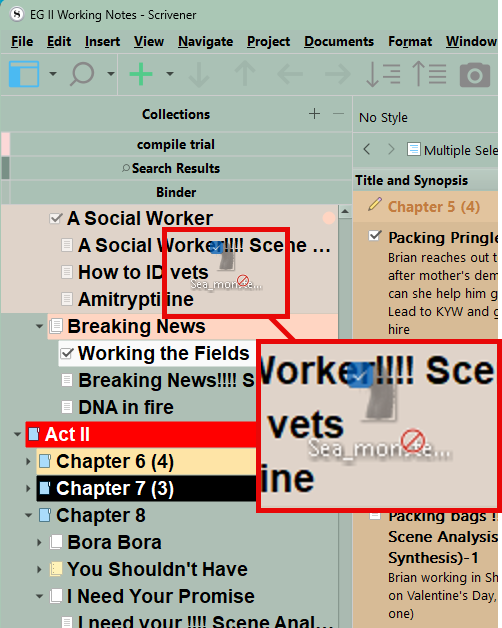
If you try and use Insert > Image while in the Binder, these commands do not work, but do become active if try to use the command INSIDE a text file.
Does Scrivener even support TIFF-files? Usually, these files are large, and there’s a cap image size forced by the platform Scrivener is based on.
So, convert to JPG, and reduce the image file size.
3 Likes
Scrivener for Windows (and Mac last I checked) does support TIFF, but I would still agree with you and convert it to PNG or JPG (the former if retaining quality is more important than file size (I’m guessing the suffix ‘publish’ means something along those lines), or if the image is comprised mainly of thin sharp details, like a screenshot of a table or graph might be, JPEG is terrible at that). It’s not the file size that matters as much as the raster size. Of course the two often correlate, but not always; you can have a fairly small JPEG image that is still too big in terms of raster size.
The problem with TIFF is that is a very complex and broad format, and not everything supports all of the things it can do (they can even use JPEG compression inside of them, and layers, like in Photoshop). So while we can say TIFF files are supported, it probably doesn’t mean everything; might as well just keep it simple and try something else if you’re having problems with a .tif file specifically.
If that doesn’t work, go into Scrivener’s options, under General: Warnings and enable logging. You may well get more detailed information than “Could not load image file”, which isn’t super useful.
1 Like