Scrivener is full of features. Some of them you will never use. However, they are in the menus, the toolbar, the various other info bars.
But if you don’t need them, just don’t use them. Even when you are not in the quiet and heavenly Compose mode, you can make Scrivener into the cleanest, easiest place where to write.
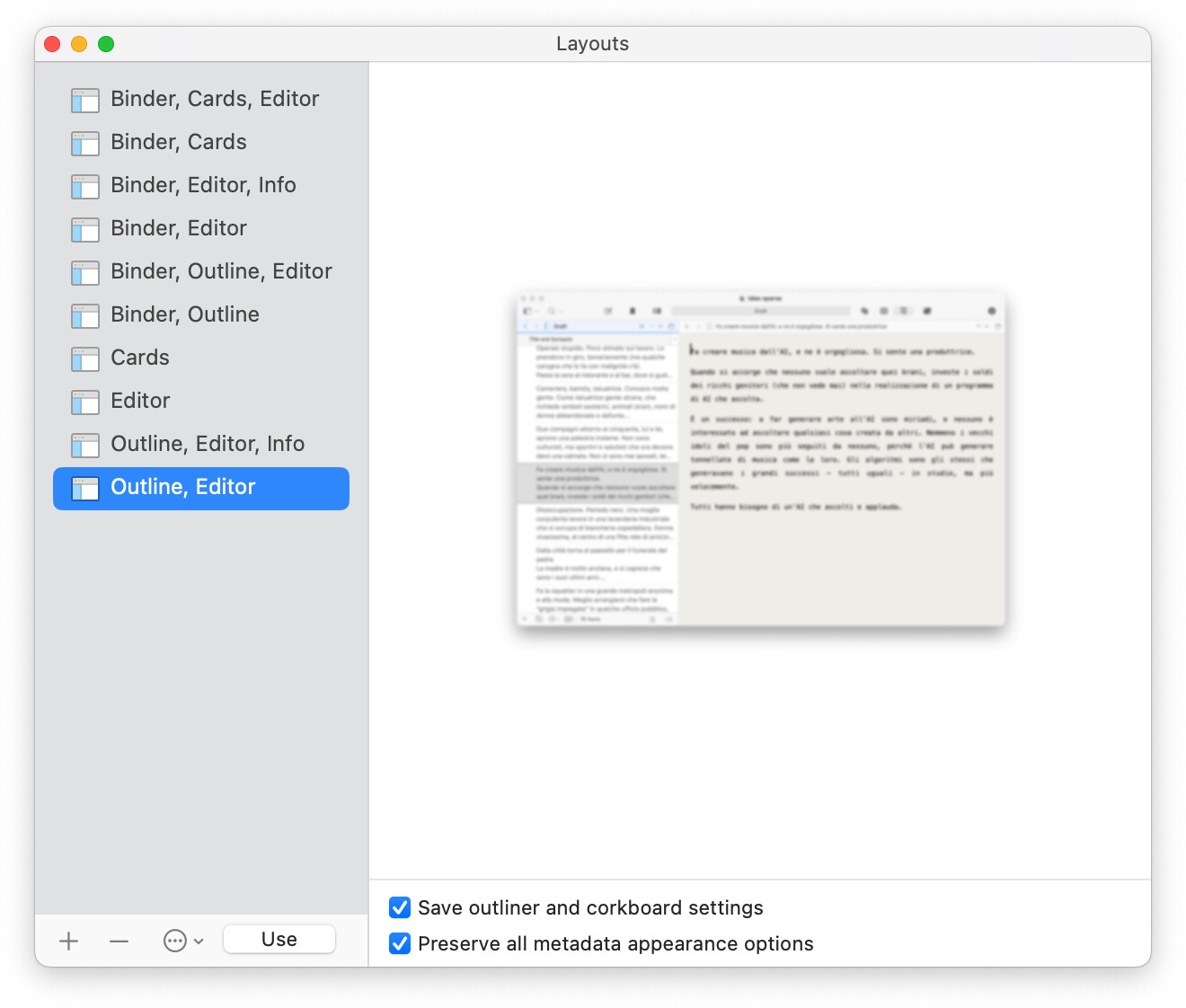
And for Windows users, here is a layout that does that with a single click (you can’t get rid of the menu bar, but you wouldn’t want to because you need that for keyboard shortcuts to work):
To install it, use Window ▸ Layouts ▸ Manage Layouts..., click the ••• button, and “Import layout”. Be sure to check the file extension on the download in your file manager, if you don’t see it in the Downloads folder; some browser might change it.
The Binder is only one of the possible navigation tools in Scrivener.
An alternative is the Outliner. Opened in the left editor, I keep (from the View > Outliner Options menu) its rows at a fixed height, with as few distractions as possible. No icons, no labels, no keywords in sight. It’s a set of mini-cards. I can browse cards arranged in vertical in the Outliner.
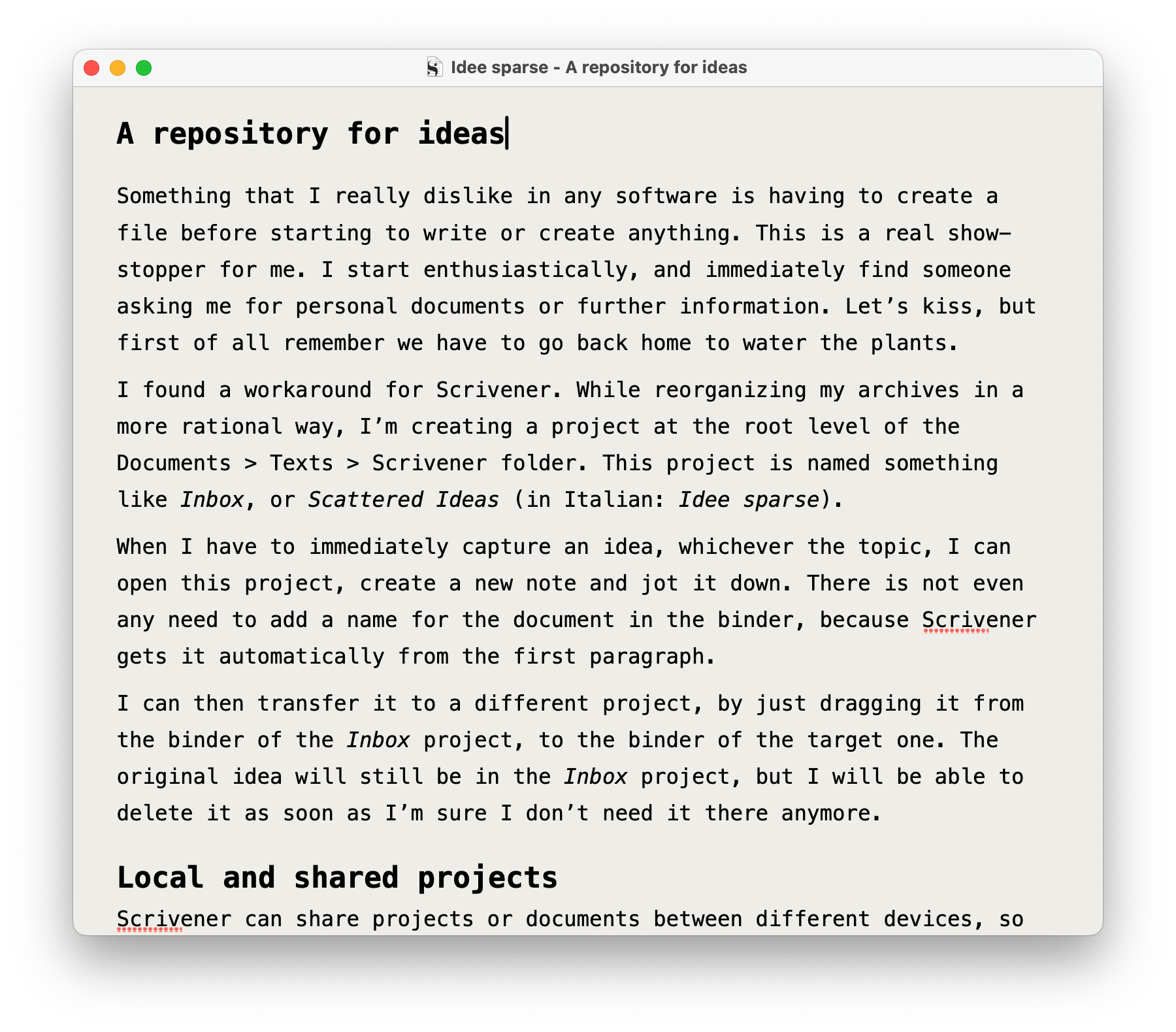
An option in the editor’s footer () lets the corresponding document open in the right editor, when clicked in the Outliner. There is no need to show the Binder.
I don’t have to enter a title for a new document, nor a synopsis. When I want to add a document, I select a document in the Outliner, and right-click to add a new document after the selected one. I can then rearrange them in the Outliner.
Adding text to the document also adds it to the synopsis. I can decide if the synopsis is good as it is (I can see the first few lines of text of the document in the Outliner “card”), or type a different one.
For my scrapbook of ideas (to which I’m working now), I just want the simplest template. In the end, it is just a growing collection of folders/groups and documents. Unstructured documents, with just spare ideas in them. I’ve just dictated a few notes I had on scanned paper notebook pages.
What I do, however, is saving a layout of my set of panes in Scrivener (Windows > Layouts > Manage Layouts > +). I’ll be sure to be able to arrange them in a blink when needed.
 ) lets the corresponding document open in the right editor, when clicked in the Outliner. There is no need to show the Binder.