When I’ve got a document open, I can r-click on a document link and view the option to open document in → quick reference panel. Is there a keyboard shortcut for this operation?
I don’t think it has one by default, but on MacOS you can easily assign one.
The function you are invoking via the pop-up contextual menu, also exists in Scrivener’s main menu system. Navigate > Open > As Quick Reference.
And any function which exists in the menu system can be assigned (or reassigned) a keyboard shortcut. This is a general feature of the operating system (MacOS).
Under the Apple menu on your Mac, head to System Settings > Keyboard > Keyboard Shortcuts > App Shortcuts. There you can specify a shortcut of your choosing for Scrivener for the menu item ‘As Quick Reference’.
[[You posted your question in the ‘Scrivener for MacOS’ subforum, and I answered it as such. However, I notice that your profile identifies you as a Scriv for Windows user only. Either your platform identification needs updating or you posted in the wrong subforum, I guess!]]
2 Likes
Thanks for the tip about creating shortcuts–I was’t aware of that.
Unfortunately Navigate > Open > As Quick Reference wasn’t quite the functionality that I was looking for, as that seems to open the document containing the link I’m interested in, rather than the document at the far end of the link.
The functionality I am interested in is created when you highlight a link wtihin a document, r-click the selected text, and select Open Quick Link in>Quick Reference Panel. I’ve tried entering this into the settings location you mentioned (with and without a space around the GT symbol), but without any luck.
I did some reading on the Mac shortcuts feature you turned me on to, and learned this is probably because the assign app keyboard shortcut doesn’t work for context menu items.
Thanks again.
Nonetheless, thanks for the information.
Would bringing up this context menu via a keyboard shortcut be helpful (enough)? That already exists. Control-Return. 
1 Like
Ooh, that would’ve been just what I was looking for, but it doesn’t seem to work in this case. That key combo just gives me an actual return. I’ll have to look into why it’s not working as advertised.
Which macOS version? I believe that shortcut was introduced in 15 (Sequoia).
Correct, the item must exist on the main menu system of the app. The contextual menu item you are targeting is not in the main menu system (Easily determined by using the search field under the Help menu, by the way.)
BTW, to specify a menu item for the MacOS keyboard shortcut system, you do not enter the whole menu path – just the name of the actual menu item.
1 Like
Windows
Ctrl+Space, under Windows ; with the focus on the binder.
Yes, unless you have to in ambiguous situations (like Edit->Whatever->Yeah / View->Yaddayadda->Yeah).
It’s about links inside the document.
1 Like
Looks like Command-click on a document link brings the target doc up in a Quick Reference panel. I think this is the easy solution you are looking for (on MacOS).
1 Like
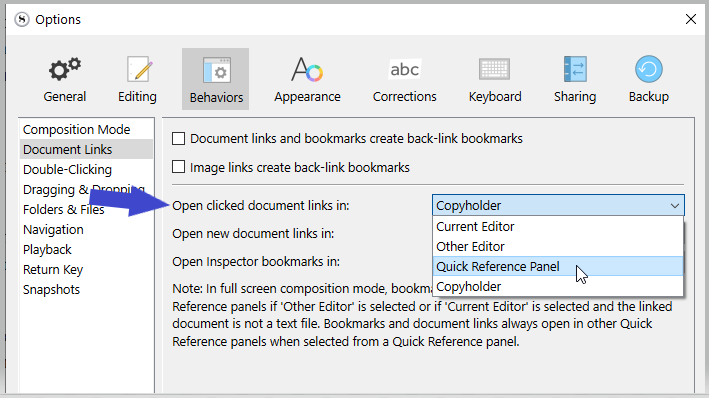
Or that!
I note that command-click on the doc link gets you the quick ref panel independently of the setting Vincentx2 just mentioned (which determines what a simple click on the link does).
3 Likes
Now we need to figure out a way to simulate cmd-click with a keyboard shortcut. I can think of several, but none of them qualifies as “very simple” (without third-party tools).
1 Like
Why would a shortcut be needed if you first need to select the link and there are ways to control what a click on the said link does ?
1 Like
Why would a mouse be needed to select the link?
What you could do using AppleScript is something like that:
tell application "System Events"
	tell process "Scrivener"
		set theSelection to value of attribute "AXFocusedUIElement"
		tell theSelection to perform action "AXShowMenu"
		delay 0.25
		keystroke "o" -- first menu "Open..."
		key code 124 -- right arrow (open submenu)
		key code 125 -- down arrow (2nd item)
		key code 125 -- down arrow (3rd item)
		key code 125 -- down arrow (4th item)
		-- key code 76 -- return (open quick ref panel)
	end tell
end tell
I launch this script via Alfred, but you could also do it using Apple’s Automator (and probably in the Shortcuts app, too). It’s a bit blunt and generously assumes that you actually selected a link first. Just for demonstration purposes. Assigned to F7, no mouse involved at all:
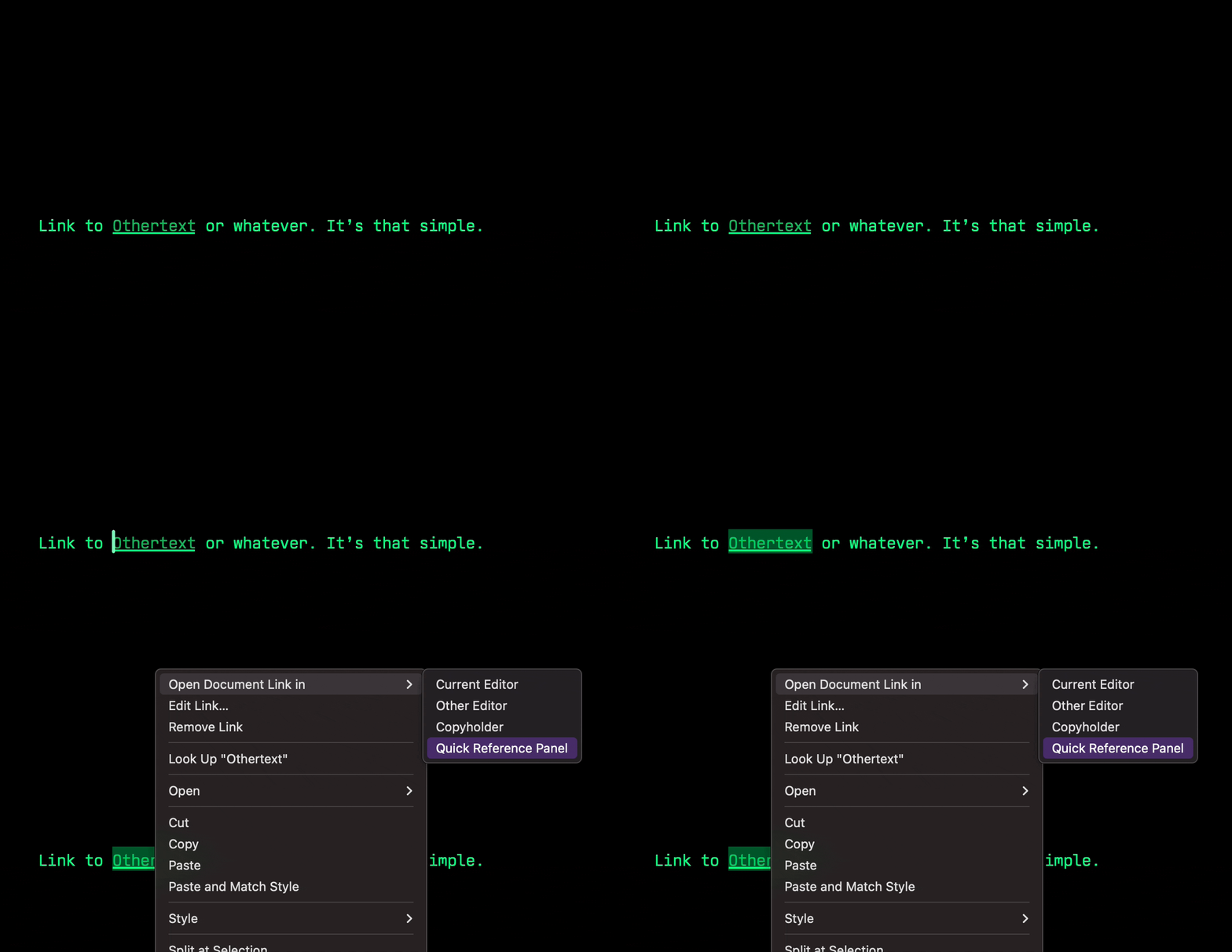
Removing the comment ("-- ") in front “-- key code 76” actually fires up the QuickRef window.
Just in case anyone wonders why...
The wild mix of “keystroke” and “keycode” was the only reliable way to make it work consistently. It should be way easier, even with menu click commands, but it isn’t. Thanks, Apple!  Or maybe I’m too stupid.
Thank you for the info.
I prefer to operate sans mouse as much as possible and was looking for a keyboard shortcut.
Thanks again for all of the responses.
1 Like