I have been asked to write my autobiography by a few people, and so I want to attempt it. I am hoping I can set up a frame work for this using Scrivener, and/or Scrapple. I know I will need a time line, and a separate events line, I am hoping to be able to compare them side by side.
Also, any autobiographer’s experiences with this would be a big helps. Thank you for your time, and reading my post.
I’ve been thinking of writing my autobiography as well, though it’s a ways off as I’m still writing a fantasy novel series. So definitely take the idea I’m about to share with a huge grain of salt…
I have found success in combining Scrivener with Aeon Timeline, particularly leveraging the fact that Aeon Timeline syncs with Scrivener.
For my fantasy series, I plotted the scenes of my novels in Aeon Timeline before working in Scrivener. Once I had my outline to a certain point where I was ready to begin writing, I used Aeon Timeline’s sync function to automatically set up Scrivener for me. At the time, I had minimal experience with Scrivener, and I found that starting with Aeon Timeline and then syncing into Scrivener gave me a huge head start in understanding how Scrivener works. The best part was that everything was already organized in Scrivener in a way that made the most sense, because I had done that work in Aeon Timeline.
Confession
Honestly, sometimes it is better to be lucky than skilled; I had not suspected that by starting in Aeon Timeline I wouldn’t have to fret over how to set up Scrivener for my novel series. It was done for me through syncing!
Based on that experience with my novels, if I were to write an autobiography, I would follow much the same process—organize and outline in Aeon Timeline and, when ready, sync to a new Scrivener project to automatically set up Scrivener to match what I’ve created in Aeon Timeline.
For my autobiography, I would experiment by choosing one of Aeon Timeline’s templates as a starting point. I see that Aeon Timeline doesn’t have an “autobiography” template, but it does have one for fiction called “Story Timeline”:
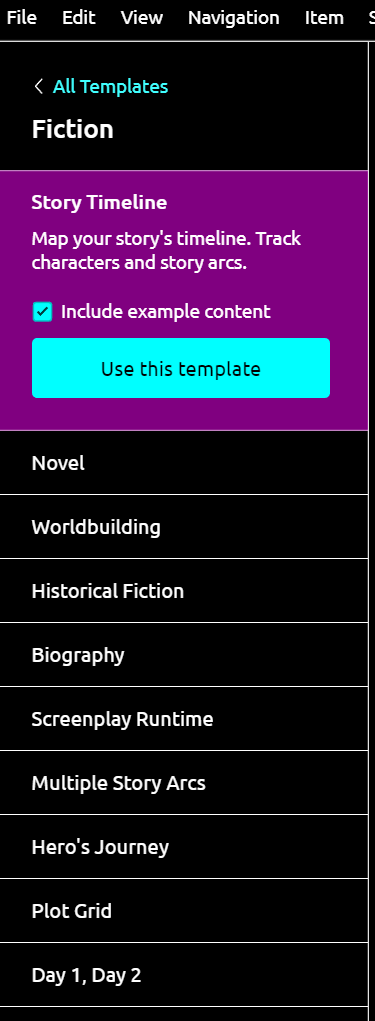
I think I would try that one because an autobiography is one’s life story, no different from a work of fiction except that it’s true. If that template didn’t make sense, I would experiment with other templates or even try setting up Aeon Timeline from scratch.
The nice thing about integrating Aeon Timeline into your workflow is that it helps you organize your life’s events and even move them around in sync with Scrivener.
There is a significant learning curve to using Aeon Timeline, but for a project like an autobiography, I think the payoff could be worth it.
Anyway, food for thought. 
4 Likes
Hi.
Scrivener templates are not restrictive in any way. What I mean is that you can do absolutely anything you want no matter the template (or no template / blank) you started off with.
There is no biography template per se ; personally, I think I would start off with the “General Non-Fiction” one, from the Non-Fiction category.
But as I said, it doesn’t make much of a difference.
[I have a template of my own, for my novels and short-stories, but for everything else I’m a big fan of starting off a blank - no template at all.]
Else, if you haven’t yet, I recommend that you first tour the interactive tutorial.
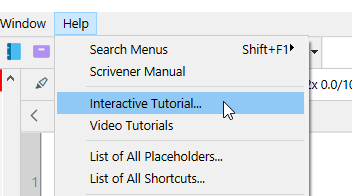
Have fun.
. . . . . . . .
P.S. Yes, if you are willing to add a little to your learning curve and want to up your timeline visualization and handling possibilities, @SCN advice is solid.
3 Likes
Thank you very much for the helps, Vincent. I went to the Interactive Tutorial link in the help menu, but it seems to not work at all. Nothing happens even upon multiple tries. I did get into the Video Tutorials and am currently watching them.
Thank you very much, SCN. I see now that the templates are not needed, although desired. I also see they are interchangeable, for multiple purposes. Thank you again.
1 Like
As an alternative :
If in the menu you go File / New Project, it’ll open the templates panel for new projects.
It is the first template of the very first category.
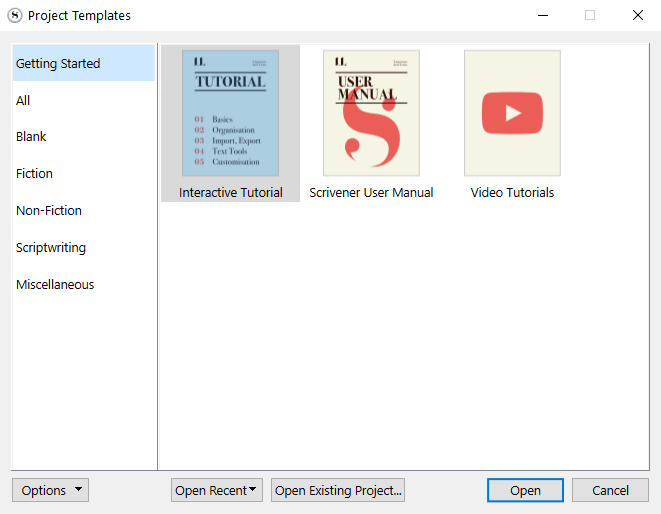
Click “Open”, follow the directions, save it as a project somewhere accessible on your HD.
(I think that there is a way to otherwise reset it in the help menu, but I wouldn’t know how. I can’t remember.)
2 Likes
I was having a lot of trouble opening the interactive Tutorial, that is until I realized, it was already open by default. Apologies.
No worries.
Sometimes I search for my glasses, only to eventually locate them on my face. 
5 Likes