I have never been able to find a way in Scrivener on the Mac to identify the current font. I might think that “Show Fonts” would do this, but as far as I can tell, this only lets you choose a font, but does not tell you the current font. Is there any way to do this? Or if not, could this capability be added? The example of use is that I have some documents in fonts that I like and some that I do like, and I would like to identify the font that I like.
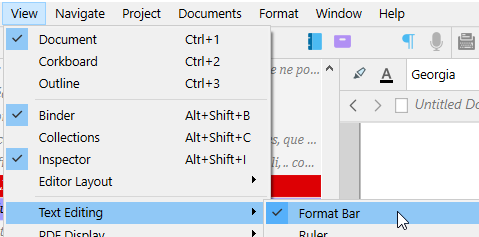
Do you have this turned on ?
. . . . . .
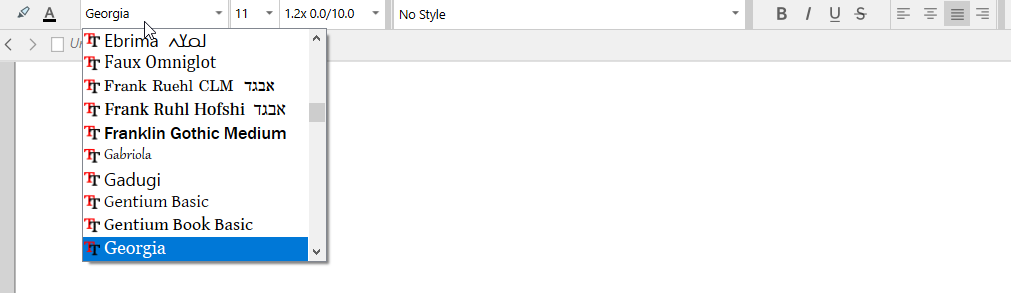
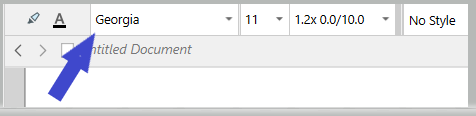
These are screenshots from the Windows version, but I can’t imagine the Mac version not having the font selector. Which tells you the current font at the cursor position.
1 Like

As well as the previous answers about the Format Bar (toggle it on and off with cmd-shift-r, you can also use the Show Fonts dialogue (cmd-t): the selected font is highlighted in the left hand fonts panel – but it may not be visible, so you may have to scroll up and down to find it.
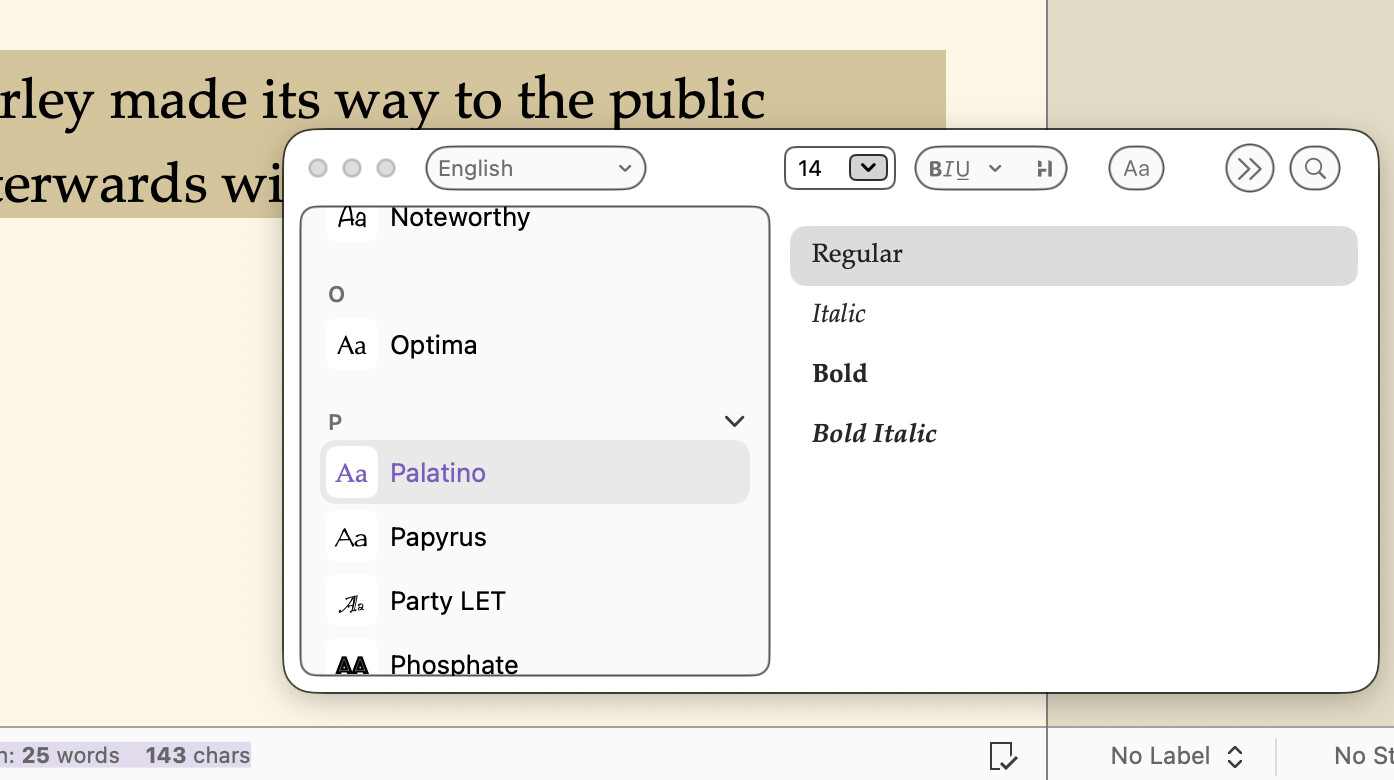
No idea why Apple don’t arrange for it to be automatically shown for the selected text, but there you go…
1 Like
Thanks–I’d not had problem viewing the Format Bar or getting the Fonts window, but it was just that when the Fonts window came up, none of the fonts were highlighted as I would have expected. I’d tried this multiple times, but just tried again, and realized that yes, one of them is highlighted, but the highlighting was just so faint that it was hard for me to see. (Old eyeballs I guess). I’ll see if I can turn up contrast on the highlighting, but anyway now I realize what to look for. Thanks!
I did have the Format Bar turned on, and so was mystified as to why the font didn’t show. I just discovered that it was because my window was too narrow. If you make the window too narrow has mine has been, those three font popups disappear. I have them now. Thank you for urging me to look again!
1 Like
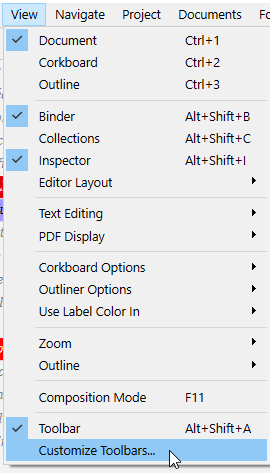
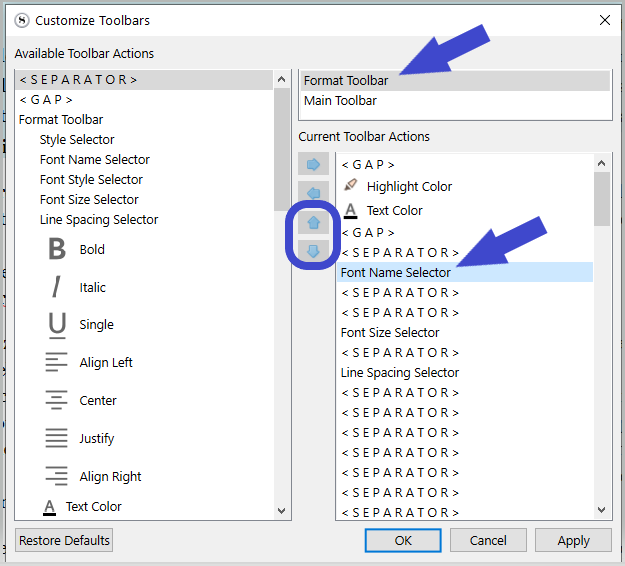
That looks very different from the Mac toolbar. 
Does it ?
Would you please replace my screenshot.
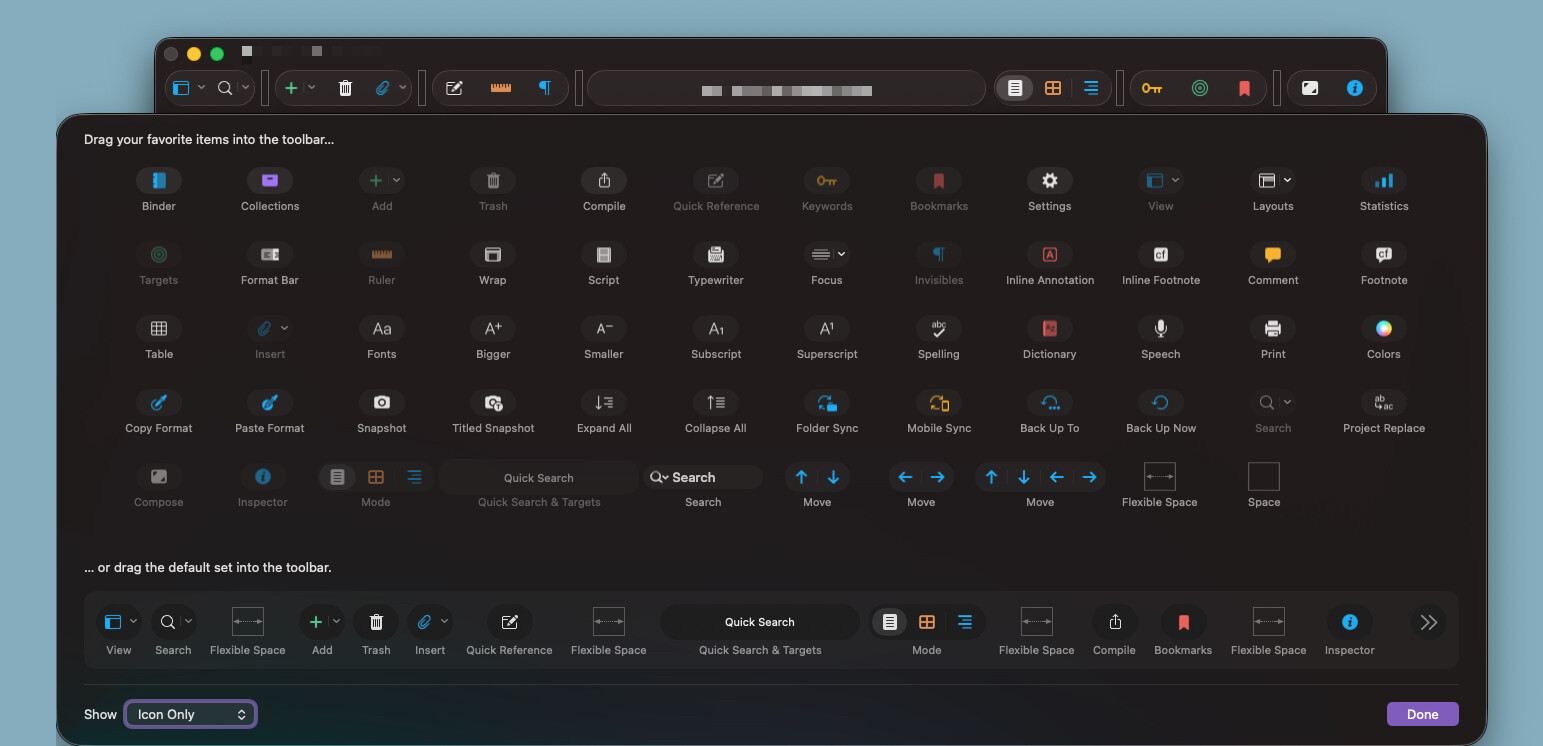
The Mac version doesn’t allow for adding formatting commands to the toolbar. It’s using macOS default behaviors for that, so this is what we’ll see when customizing the Mac’s toolbar:
3 Likes
Most importantly, the Formatting bar itself is one element, either visible or not, and its elements can’t be rearranged.
And, actually, I found that I was incorrect. There is now a way to add the font selector to the toolbar. At least, it just worked in macOS 26.5.1 using Scrivener 3.5.2.
Here’s a new screenshot showing where it could appear:
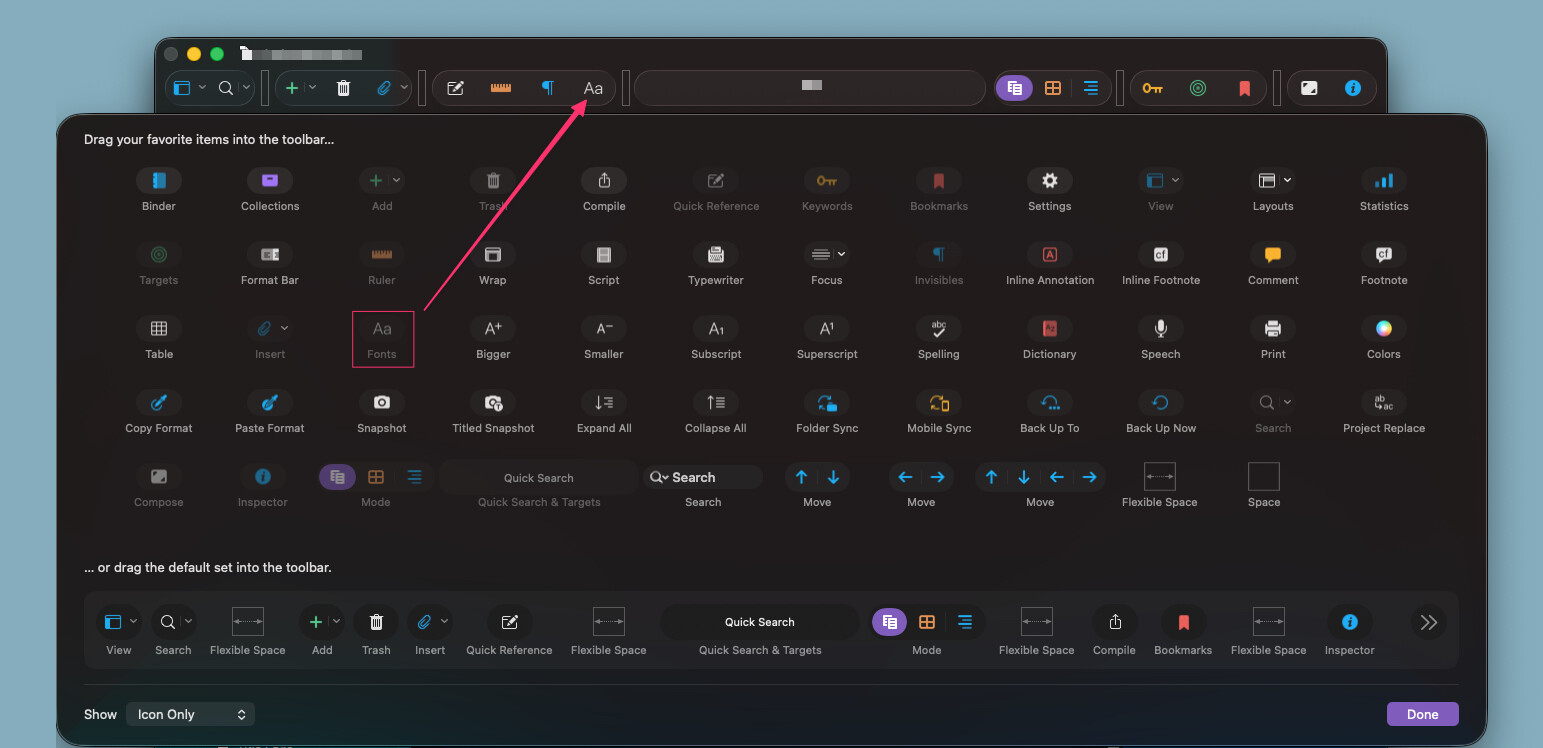
After testing that, I found it will open the font selector on the screen. But that selector fails to show the examples of the fonts, which I prefer seeing.
1 Like
It would make a difference if this was the fonts dropdown menu (like in the Formatting bar), but it isn’t. Just the same fonts dialog that makes the OP squint.
Yep. The Mac doesn’t make that very easy to manipulate or read, unfortunately.
What I’ve found I need to do is enable the Mac’s ability to magnify different parts of the screen. That’s in System Settings and I use a search for “zoom.” There, I’ve enabled the keyboard commands to zoom:
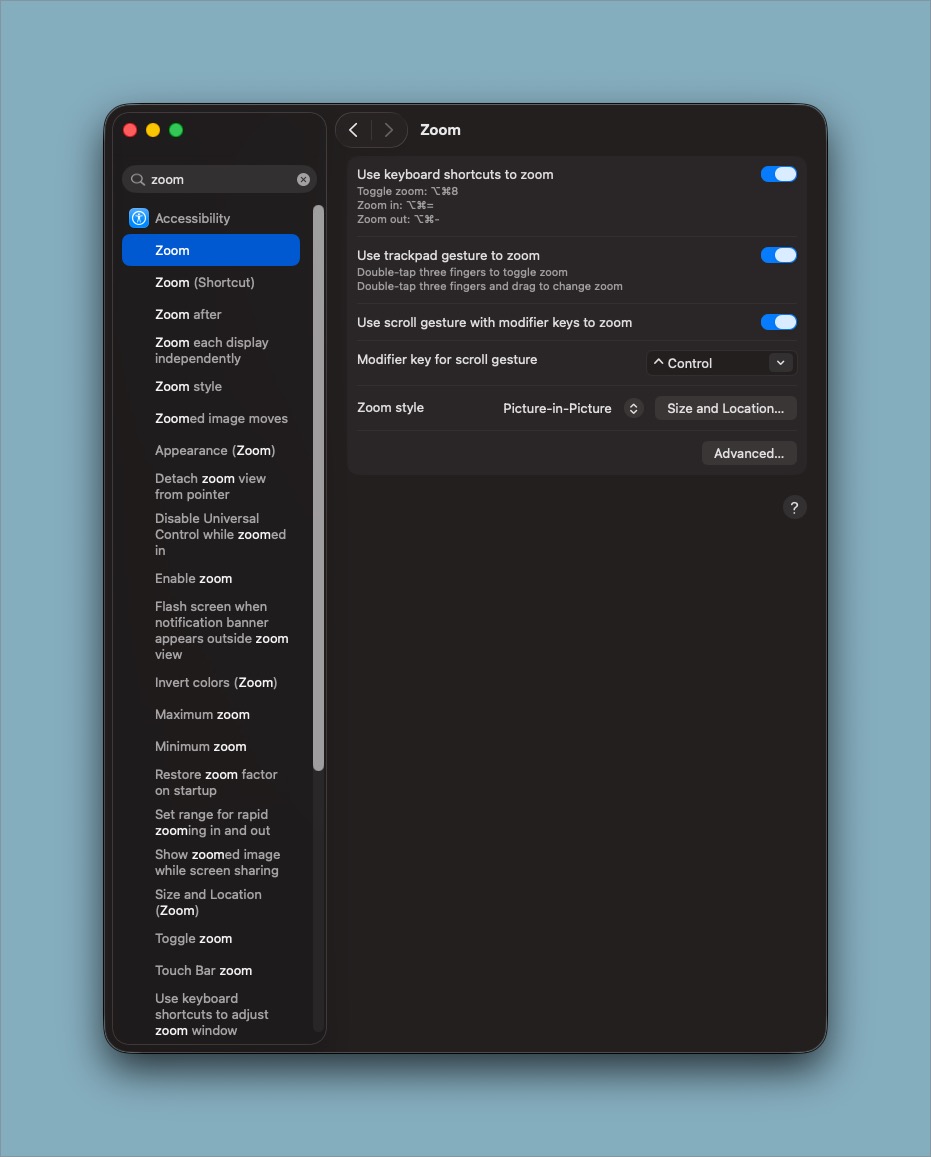
With that setting enabled, I can then use Scrivener’s font dropdown to show the different fonts. With that panel open, I’ll hover the mouse over it and then enable the magnifier using its keyboard shortcut of Opt+Cmd+8 (⌥+⌘+8).
Once the magnifier is open, I can use Opt+Cmd+Plus (⌥+⌘++) or Opt+Cmd+Minus (⌥+⌘±) to zoom in or zoom out on the fonts to read them.
It’s cumbersome at first, but I use those keyboard commands often enough that they’ve become easy to remember.
2 Likes
Thanks so much everyone for the helpful input! It’s all there, now that I know how to make it visible, or at least nearly so.