Is there a way to set a keyboard shortcut for the right click contextual menu item “Link to Document”? I’ve tried usual Apple menu > System settings etc and the shortcut appears in the Apple menu list but not in Scrivener. Tried closing project and restarting Scrivener.
Try ⌘ L
Thank you!
I see ⌘ L shows a different window and appears to be a different process to the right click. If the target is named precisely the window shows the link path and file as default, but if the word/s being linked from occur in more than one chapter title ⌘ L only shows one of them, unlike the right click option that shows a list of possibles. But still useful, thank you.
1 Like
There are two separate functions you might like here. They aren’t precisely shortcuts in the normal sense of the word, but given the open-ended nature of selecting what you want to link to, you’ll need something a little different from that anyway:
-
In Settings: Corrections, look for Automatically detect [[document links]], and enable that. So with this option all you need to do is type
[[into the editor, then the name of the thing you want to link to, followed by]]. The brackets will be removed, and the text between them turned into a link.The part about typing in the full binder name is the most cumbersome part, but there is a general purpose tool for making that better, the shortcut for
Edit ▸ Completions ▸ Complete Document Title. Often you only need to type in a few letters after the brackets to get a short-list of matching names.One nice thing about this method, and why some refer to it as a wiki-link, is that you can create links to things that don’t exist yet, by using a new name. So it’s a bit like the CtrlL / ⌘L method and will even bring up the same dialogue, only with the title field already filled in. All you have to do is hit Enter to create, unless you want to change where it will be created.
-
Obviously, the previous method is going to work best when the link text is meant to match the name of the link target. For cases where you want to link any arbitrary text to something, select that text, and then hit the shortcut for
Edit ▸ Find ▸ Quick Search. If you have the standard toolbar showing, this will move the cursor up to the quick search field (otherwise it will open a window). Type in a bit of the title, enough to see it in the list, and then drag and drop it down onto the selected text.If you try dropping anywhere other than on selected text, it will drop the link with the full title.
This trick by the way is just a side-effect of what happens whenever you drag a binder item, or its icon (for example, from the editor header bar), into the text editor. Almost anywhere you see a binder name printed with its icon can be dragged and dropped to make a link. In this case though, we use Quick Search because of how handy it is for quickly arriving at a copy of the binder item you want to link to.
3 Likes
In addition to @AmberV’s suggestions (for the sake of your sanity, please stop right there), the closest I’ve come to assigning a keyboard shortcut was like:
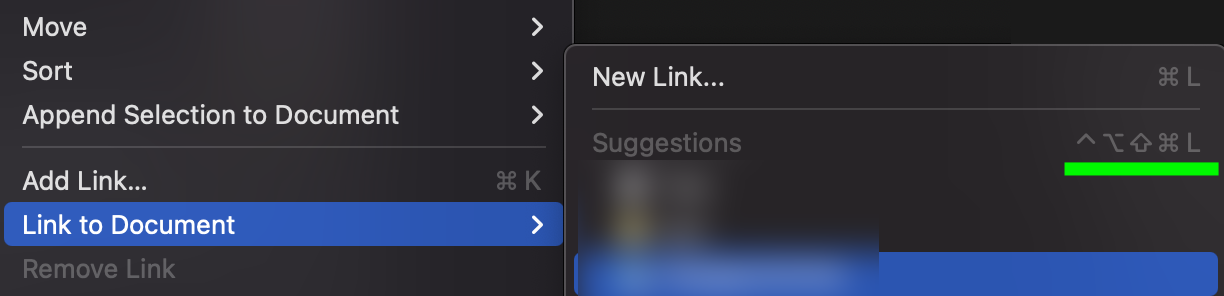
Unfortunately this won’t open the suggestions, this submenu or anything really. Maybe there’s a way to assign a shortcut to the “Link to Document” item itself, so it opens the submenu, but nothing I tried achieved that.
It can be done via automation (Automator, Shortcuts, or via third-party tools), but probably not worth the hassle.
However, there’s a way to bring up the context / right-click menu, which can be navigated using the cursor keys, under macOS 15 or higher: ⌃↵ (control+return).
This was really useful to me, thanks.
1 Like