I want to use keyboard shortcuts for Character, Dialogue etc in script writing mode. I see C is given for Character, but no matter what combination of keys I use, I can’t get the cursor to jump to the right position, and have to keep using the mouse. So I’m wondering if the problem is my Japanese keyboard (though I’m using English language mode)? Please give me a couple of examples of how to use the shortcuts and any possible work-arounds should the keyboard be the problem. And where are these shortcuts explained?
Thanks.
For those shortcuts you need to show the elements menu first by hitting shift-cmd-Y. So for character you would hit shift-cmd-Y to bring up the menu and then hit C.
There are other options, though: opt-cmd-1 to opt-cmd-9 also act as keyboard shortcuts for the various elements; or if you hit return twice you will be offered an elements list from which to choose.
Hope that helps.
All the best,
Keith
Keith–Thanks for the prompt reply. To make sure I understand: After bringing up the elements list, I still have to use 3 keys or take my fingers off the keyboard central position and move over to the list, right? There is no way to hit C (or whatever) with 2 keys? No way to assign a single key for such a function?
If you hit shift-cmd-Y, the menu will pop up at the bottom of the screen. Then you just hit a single key - “C” or whatever.
OR you can hit opt-cmd-1, opt-cmd-2 etc without having to hit shift-cmd-Y first.
And of course, you can use the keyboard system preferences to modify the opt-cmd-1, 2 etc keyboard shortcuts (the menu items for which you will find in Format > Scriptwriting > Change Element To).
So you don’t need to move your fingers off the keyboard central position, no.
Hope that helps.
All the best,
Keith
Is there a keyboard shortcut to engage the different scriptwriting tool options? I know that when you’re writing it relies heavily on tab/enter to move between logical next steps, but if I’m doing something out-of-band, do I have to click the drop-down menu each time?
Pressing Enter twice in a row will bring up the elements menu for you to select from with the arrow keys, or pressing Ctrl+\ will pop up the menu in the corner with each element given a shortcut letter, so pressing that letter will switch the current line to that element.
Might be useful…
gwenhernandez.com/2012/05/29/wri … scrivener/
I get the in-line pop up menu, but my arrow keys do nothing.
EDIT: Okay, turns out the arrows do change the selection, but I can’t see the highlight… I will investigate further. Thanks!
That’s odd. Do you see the selection highlight in the menu at all? Up/Down should move it, then Enter to confirm the selection. Is the selection highlight there but not moving? Can you double-click into that menu with the mouse to change the element? (I realise that’s not any more helpful than clicking from the footer, but I’m just trying to see if the menu is responsive at all.)
EDIT: Ah, okay. Selections are a light grey in my Win8 colour scheme; you might want to check monitor contrast and so on to see if that makes it clearer.
Definitely not a monitor contrast issue. The selection is fully responsive, just invisible. I have a feeling it’s a Scrivener color setting somewhere as I’ve changed all the colors in the default scheme within the program… however, I can’t find a setting that would directly affect that highlight color.
Ah, if you’re on Windows 8 the menu background matches the editor page colour set in the Appearance options. The selection highlight remains the same Windows selection colour, so it becomes increasingly difficult to see as the page colour gets darker, until with black it’s invisible. This is to do with how the colours are set for Windows 8; it affects the visibility of the binder selection as well when the binder colour is darker. We have this on our list, but at the moment the only solution I can suggest is to change the editor page colour.
Yup, that sounds like the issue then, because I use a Light on Black writer scheme. For now the Ctrl+\ hotkey plus a number is sufficing.
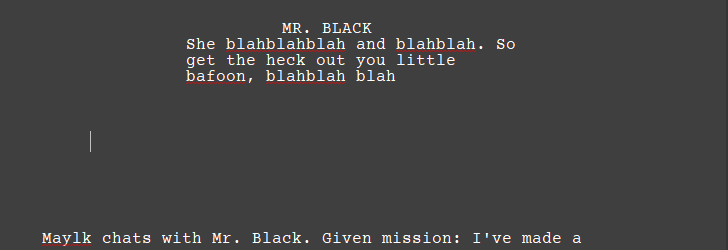
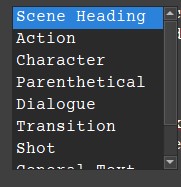
- I’m trying to figure out a way that when you hit enter from the ‘blah’ (last line in Mr. Black’s dialogue) that it goes to the far left and not in the middle (where it currently is, middle of text description and character/dialogue.) When you click your mouse to the desired location, it doesn’t work. When you hit left arrow on the keyboard, it doesn’t work.
- The options box, I’ll just call it… is there a way when you hit enter and this pops up to 1 button select any of those items in the box? I keep thinking there would be a hotkey for this, the obvious would be C, but I can’t figure it out.
Thanks 
Starting with §19.1.1, Selecting the Current Element with the Keyboard, and into the following subsection, the user manual provides the two main mechanisms for switching elements more efficiently. The dropdown menu you show is probably the least useful of them all, since it requires so much arrow key use (or I suppose the mouse, but yikes).
1 Like