Linking to other projects - To create a boxset from multiple books

Hi.

I have multiple books (each in a separate project). I want to be able to compile them into a boxset. Is it possible to link to other projects within a Scrivener project? So that any changes in the individual projects reflect in the Boxset project?

I know I could import each project into the Boxset project but if I do that I would need to duplicate any changes I make to the individual projects in the boxset.

Is this possible? Or on the roadmap?

Thank you,

Paul

are you talking character development, worldbuilding, plot lines If so then you may want a central story bible, where when you change something in the story, add lore, character changes you link back to the story bible and update the changes and use it as the core reference. I do that with mindmaps as the center for a story series.

2 Likes

If you don’t want to bring them all into a single project, probably the best way to do this would be to Compile each book individually, and then use third-party software to assemble the set.

You can use the “include” placeholder in Scrivener to incorporate material from outside the current project, but that isn’t as flexible as the Compile command.

2 Likes

These are full episodes of a series and I want to be able to compile the first 3 into a single boxset. But I like you idea, I might start doing that in general. Thanks for the suggestion.

Thanks. I might have a look at how to add a placeholder and see if that works for me.

To be clear, I would not expect it to work well. The idea behind the placeholder is to incorporate frequently used pieces like an author bio, not entire separate books.

2 Likes

Just to pile on here, if you have one master project, then you can have all of the researching materials in the same project. All the character sketches and location items, and so forth. You can add many levels of separation within the binder tree, and when it comes to compile time you can easily select what subset of the whole you want to publish.

THAT SAID…. You might find it easier to start a blank project and import the current books one by one, rather than mucking with adding the follow on books to the project you have for the first one.

2 Likes

I must be missing something. A boxed set of three novels is just three novels — each with their own pagination. So, there would not seem to be anything different to do than you would do if you were just recompiling each novel. In fact, presumably you already have the compiled output for each novel. Why would you not just use those?

2 Likes

Sorry I should have clarified. I want to combine them into one single epub.

There is a minimum effort workaround.

Name your Manuscript/Draft folder in each book (typically with the book’s title).

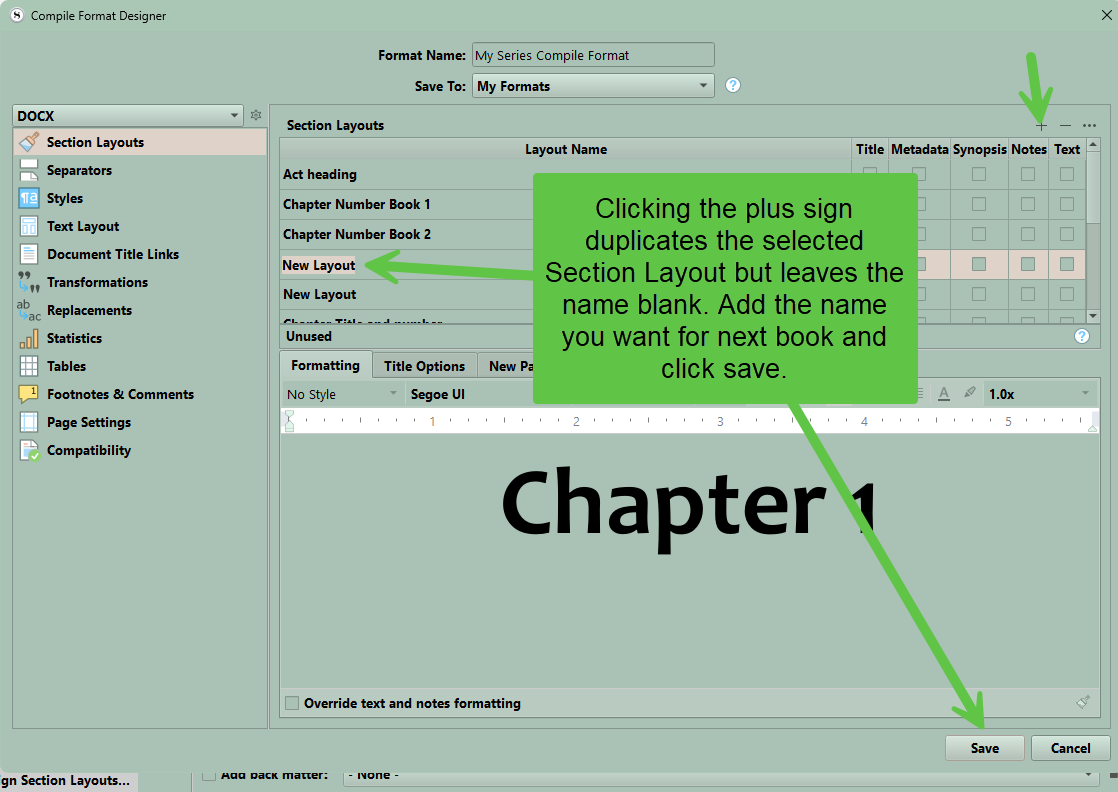
Using the Compile Format Designer settings you have for your projects, you’d want to retain them in your combined project.

So, back up a project. (key)

Then, rename the projects, for example, to Compilation. Strip it of all documents (send the lot to the trash and empty it). Since you can’t delete Research, trash its content. The Manuscript and Trash folders cannot be deleted either.

Open each individual project in turn and drag its Manuscript folder, which you’ve given a name, as a sub-document of Compilation’s Manuscript. To limit editing to one source, always edit the original book; trash it in Compilation when you need to replace it, then drag in the latest update.

It’s now, you’ll run into a problem, because Book 1 runs for 104 chapters (as an example), so Book 2 will kick off with chapter 105. You’ll pick up the same problem if you have parts.

To overcome this, call your Chapter Header in Book 1’s Compile Format Designer “Chapter Header1”, for example, and “Chapter Header2” in Book 2’s Compile Format Designer, and so on. You’d need to do the same with the Section Type in each book and assign them to the respective Section Layout name. These are one-off transactions and are perpetuated throughout the project. Key to this is having the same headers, Chapter Header1 and Chapter Header2 (yes, repeats of the same design) in the Compile Format Designer of your Compilation project. That way, when you drag in the respective books, they’ll find their unique Section Type links to the Section Layouts and kick off with unique numbering for each book. (You may have to assign them each time in the Combination project when they’re replaced, not sure. But then, drag in the new edit before trashing the old should resolve that.) Do the same for parts.

Any other decorations can be left untouched in the Compilation project.

So, once set up, it’s a matter of editing each book in the original project, trashing it in Compilation, dragging in from the original book project, and compiling on the Compilation project.

You could probably sort out everything I’ve suggested in an hour, while trashing old edits in the Compilation project and replacing them each time would take less than a minute per project.
1 Like

Yes. Scrivener will ignore the section breaks if you included a whole compiled book using a placeholder. If you have header/footer info at play in the separate books, it would be displayed in the middle of a page where your parts and chapters separate.

This is interesting, have you actually done this?

Yes, that was a result of a test I ran.
Basically, I renamed an existing project and stripped it of content, except for a single document in Manuscript on which I used the <$Include> placeholder.

So, I typed out <$Include:docName> (twice), one for each book I brought in from a Scrivener compile to Word as RTF (because the placeholder can’t read .DOCX files—produces gibberish).

And I assigned the single document to the Section Text Layout and compiled it As Is. In this scenario, there is nothing else that can be done because Scrivener has no way to identify and separate headers from normal narrative and so on when an Include brings in content. It brings in the batch, but not the separator triggers. Also, since the result is because of the content (two Include placeholders) of a single document, a single document cannot be assigned multiple layouts.

Then I found the solution, as per my earlier post, with challenges and the workaround I proposed. Tested that, too, before posting.

I did the five books in a single project route for 6 months and found it tedious, having to keep Research sub-folders and Bookmark sub-folders, etc. which became incrementally difficult to manoeuvre comfortably. I use links extensively and found I was linking to documents of documents to get to what I wanted, which was a pain. I have since returned to single projects, with commonalities for each, stored in a Series Resources Scrivener project.

So, when there’s enough interest in a Compilation, I’ve now found an easy way to package it with minimum effort.

2 Likes

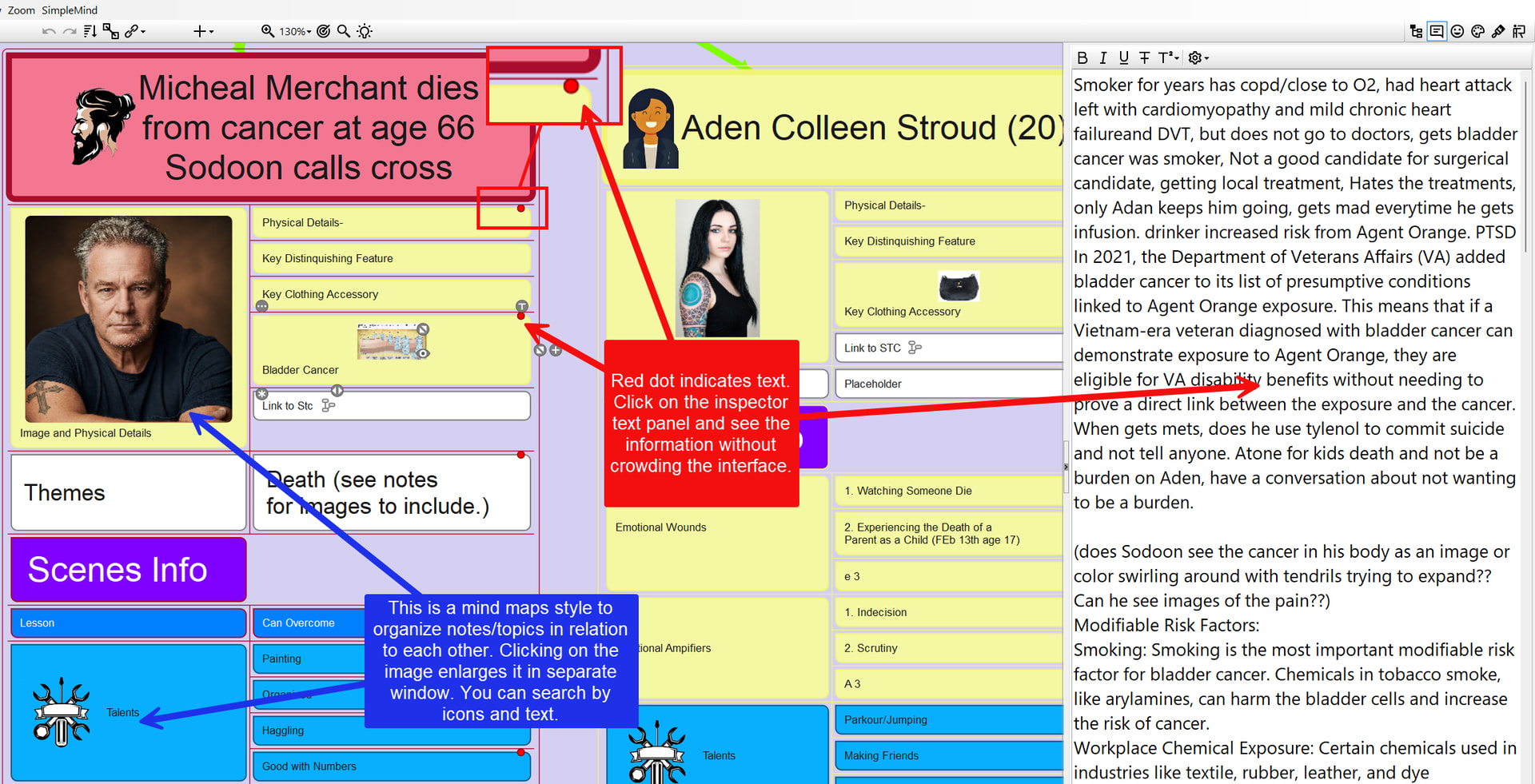
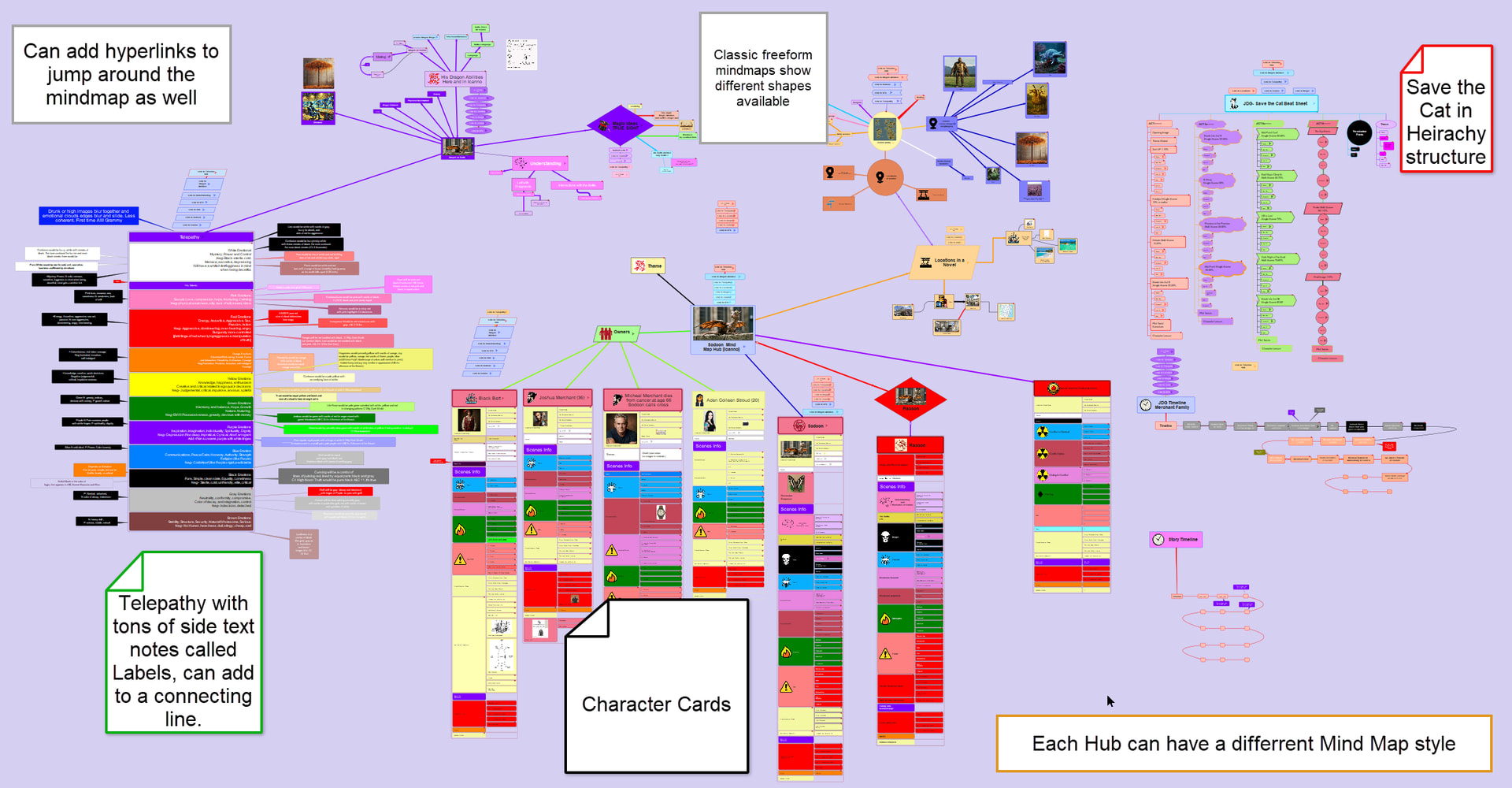
Thanks for this. I sometimes struggle with a common way to store and refer to worldbuilding, characters, and locations for a series. I eventually moved to using Scapple and character and location templates to serve as the reference source for consistency in my Trilogy I wrote. I have since found another mind map software called Simple Mind Pro which is also one time fee with a free trial. It is like Scapple on steriods. The main advantages are notes can have different shapes, text can be hidden in an Inspector type interface to keep clutter down, your note connections can be in multiple colors and types. You can add multiple arrow formats as well. You can have image previews that open to a full image when needed. You can hyperlink to outside files, but also to mind map hubs inside your own mind map.

Below are two sample images

1 Like