How do I make a document that I can print that lists all the Titles of my Chapters I want to send them to a friend
Hi.
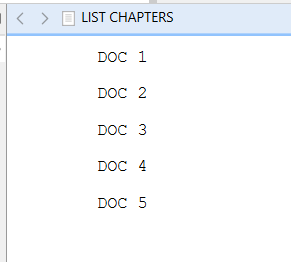
Create a new document, outside of your draft/manuscript folder. (Say, in your Research folder.)
Split the editor.
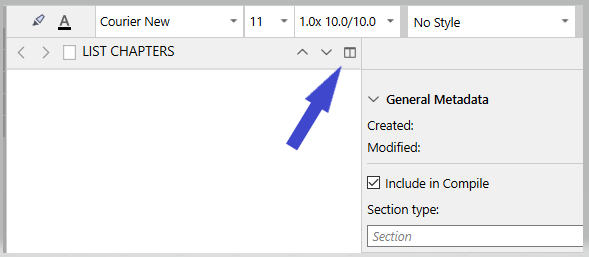
Select all of your draft’s documents. (All of them and later clean up the list, or just the desired ones now.)
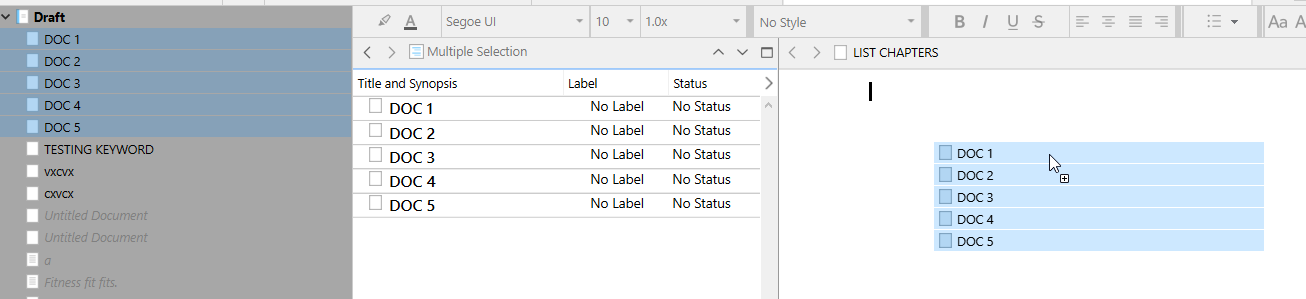
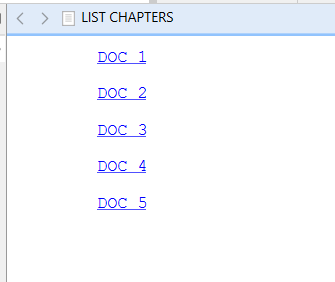
Drag those documents from the binder to that new document, in the editor where out of the two it is still displayed.
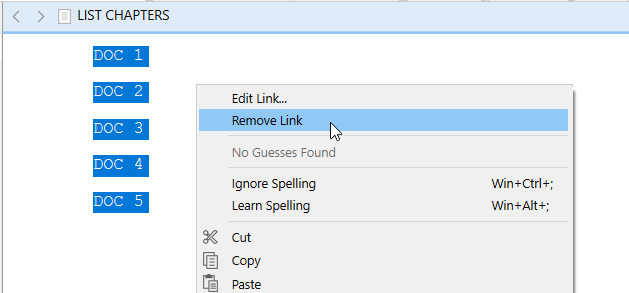
Select all “text” from that list document. (Click anywhere in the editor, Ctrl+A.)
Right click, Remove link.
. . . . . . . . . . . . . .
(BIS: )
1 Like
The most straight-forward way in my opinion is to select the items you want listed, in the binder, corkboard or outliner, and then:
- Use the
Edit ▸ Copy Special ▸ Copy Documents as Structured Link Listmenu command. - The list is now on the clipboard, so you can paste it wherever you want, such as into an email, or back into Scrivener. If you do paste it into Scrivener, be aware that it does create internally linked items by default. Just use the
Edit ▸ Paste and Match Stylecommand to drop the formatting entirely, if you want a plain-text list.
4 Likes
Is it possible to just export the chapter titles from a draft?
I don’t want to compile my entire MS., I just want the list of chapters so that I can make notes the old fashioned way with pen and paper.
Being able to export or even just copy and paste the chapters into another document outside of Scrivener would be extremely useful.
Thanks.
Yes, you can do this…
File > Page Setup- Click on the ‘Scrivener’ line, then on the ‘Outline’ tab
- Make sure ‘Titles’ is ticked, and any other metadata you want and then press ‘OK’ (see screenshot below).
- Now select the relevant documents in the binder and
File > Print. The preview should show you just the titles (and any other metadata you chose. - Choose the print options (e.g. to printer, to PDF etc) as required, then Print.
This is the relevant Page Setup dialogue:

And an example print dialogue (here the Binder documents just happen to be called ‘Chapter 1’, ‘Chapter 2’ etc – yours will reflect your document titles as well.
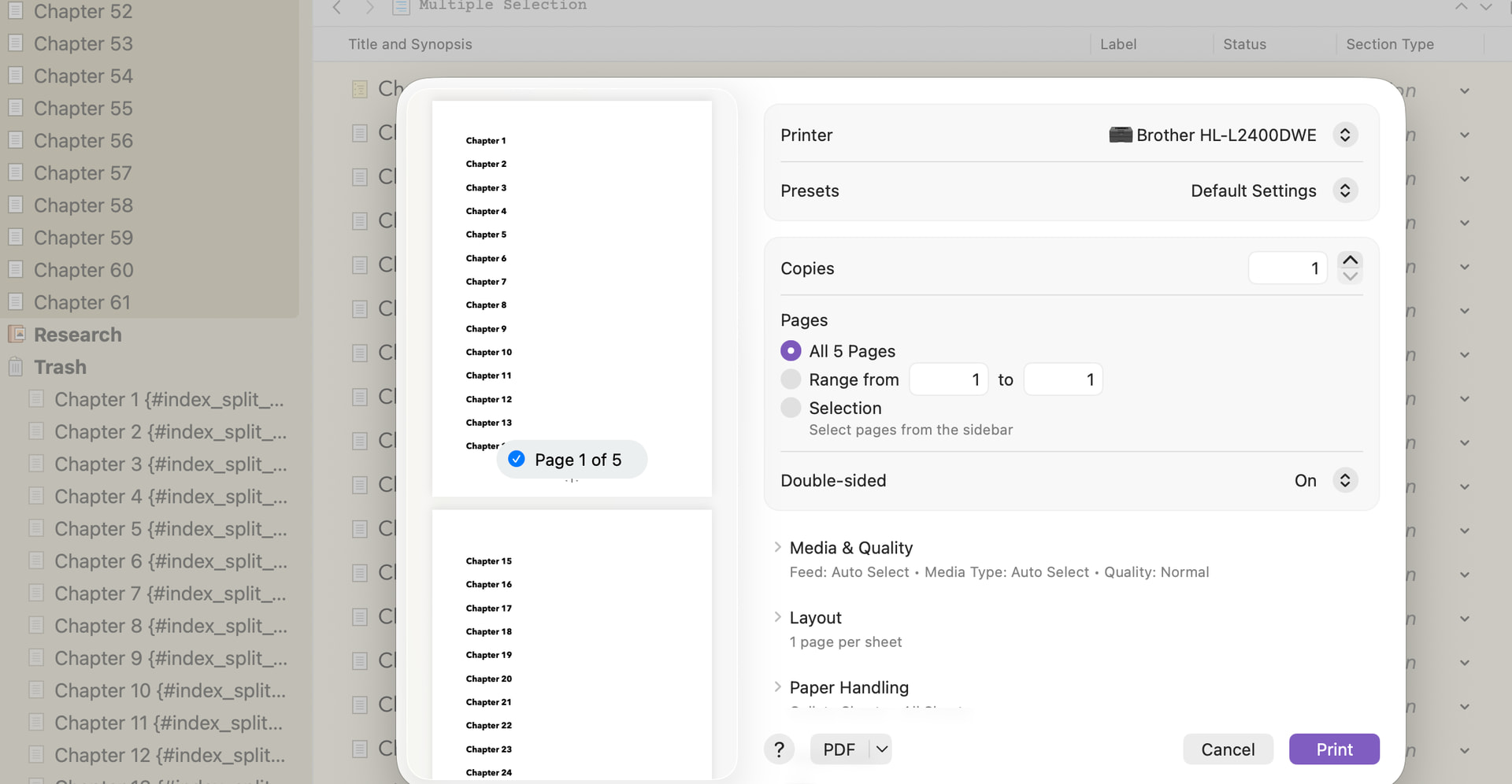
You can also achieve something like this by compiling the document, which is a bit more flexible, but the File > Print method is possibly a bit simpler. Don’t forget to change the ‘Page Setup’ options back when you’ve finished…
(I think the process is roughly the same on Windows, but the Windows Print process may be a bit odd…)
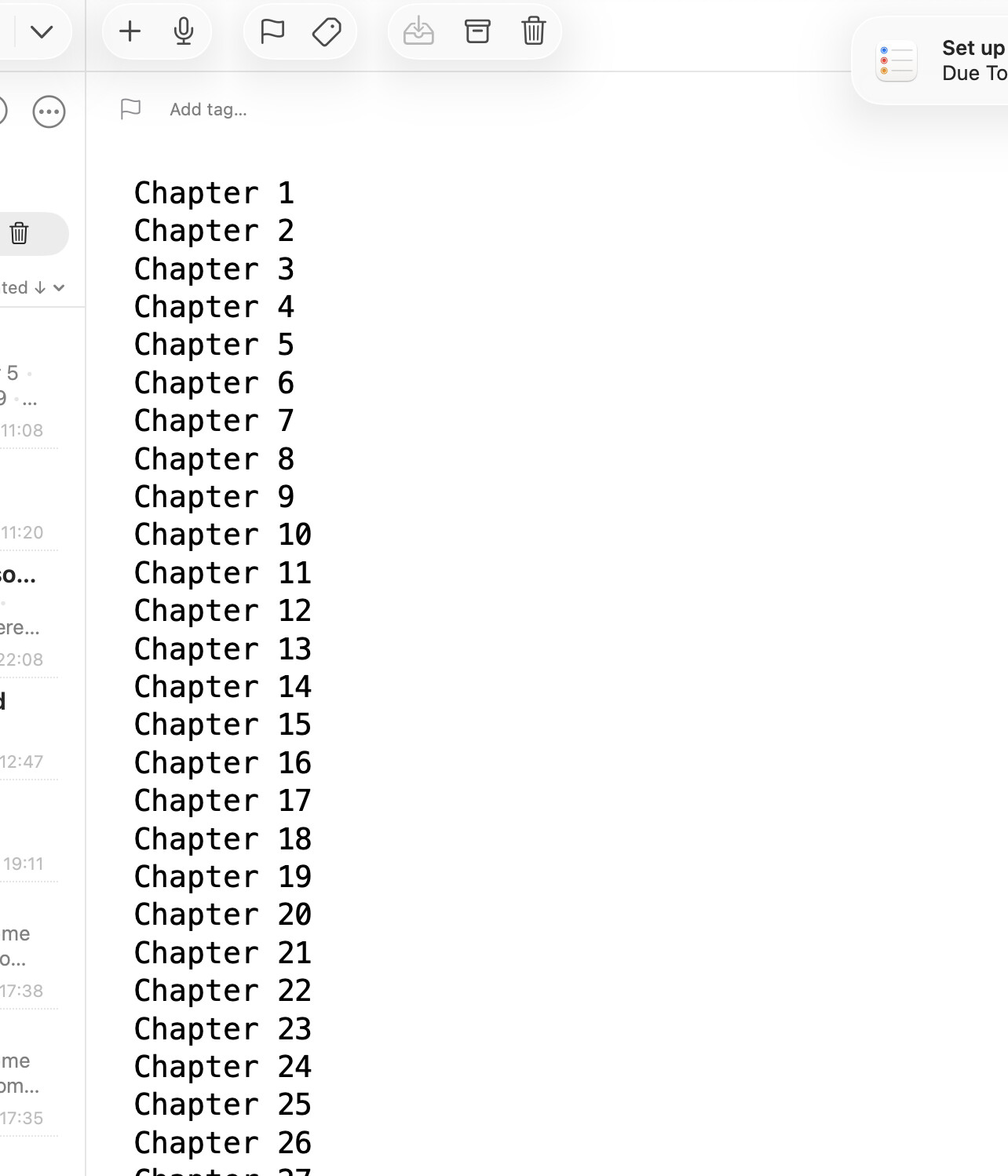
Of course, this just gives you a piece of paper (or PDF) with just the titles. If you want a document that you can work with, then just select the relevant documents in the binder, cmd-c to copy, switch to another editor such as Word and then cmd-v to paste. You’ll get the chapter titles as a simple list which you can then manipulate.
Does any of that help?
3 Likes
Thank you, that’s fantastic! Exactly what I was looking for. 
1 Like
If you’re going to copy and paste a list of binder names from something, then you might as well do it from the binder, in my opinion.
2 Likes