In the course of long research for a book I’m writing, I wrote a chapter that ballooned to something like 40,000 words. I got sense and ruthlessly pruned it back - but stupidly didn’t use the cmd-5 to take a photo of the earlier version.
Now it’s been suggested that this chapter would make a book in itself, with some additions, and that book would be a teaser for the full book.
BUT if I go into Time Machine to reclaim the earlier version and copy the full, un-pruned version of the chapter from three or four months ago, that version of the Scrivener project may overwrite the current version, killing months of work.
I was thinking of zipping the current version and saving the zipped version to an external disk to protect it during the time I have the old version open - but is there also a backup I need to protect? What would it be called? If the current project is called, say, Fix.scriv is there a backup file called Fix.something?
And when I have copied the chapter and, say, saved it into a Word document, how can I get rid of the old version of Fix.scriv that I’ve opened on my computer (and, presumably, its backup too) so that I don’t have the same problem when I return the current version to the computer?
In Finder, right-click on the current project file (My Project.scriv and choose Duplicate, which will produce My Project copy.scriv. (cmd-d does the same thing). You can revert to this file at any time as a safety net.
In Time Machine, find the relevant project again, right-click and choose Restore 'My Project.scriv' to….
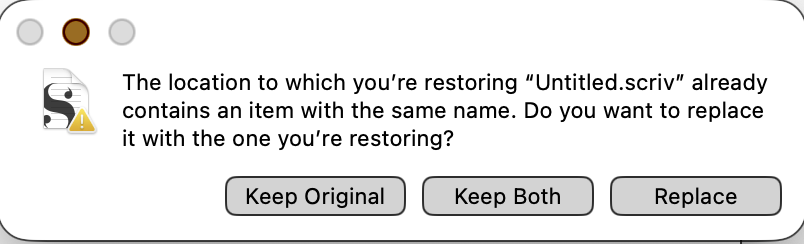
This will copy the older file to the same location, but because the file still exists in the present day, it will ask you which version you want to save. Obviously, you want to choose Keep Both.
This will restore the older version to the same Finder folder, but it will be called My Project (from backup).scriv, so there shouldn’t be any ambiguity as to which file you’re working on, and the current contents in My Project.scriv won’t be overwritten by anything you do in My Project (from backup).scriv.
As a further safety measure, you can now move the (from backup) version to another place in the Finder if you wish.
As long as you duplicate your current project first (step 1) and choose ‘Keep Both’, you shouldn’t have any problems.
Suggestions:
You may find it useful to practice this process on a dummy file first, so you’re confident with it
Take snapshots of the current and restored projects as a safety net first.
because both files now have different names, you can have them both open at once.
You may want to re-read the section in the Tutorial about backups – they’re not necessary in this case because the duplicates, the current file and the restored backup all have different names, so will be automatically backed up under those names (assuming you have the standard settings. But (forgive me) you seem a little unsure about how they work and it’s good to understand them for future occasions.
Some questions first to better understand your starting point for this recovery:
have you ever restored files and/or folders from the system backup made by TimeMachine?
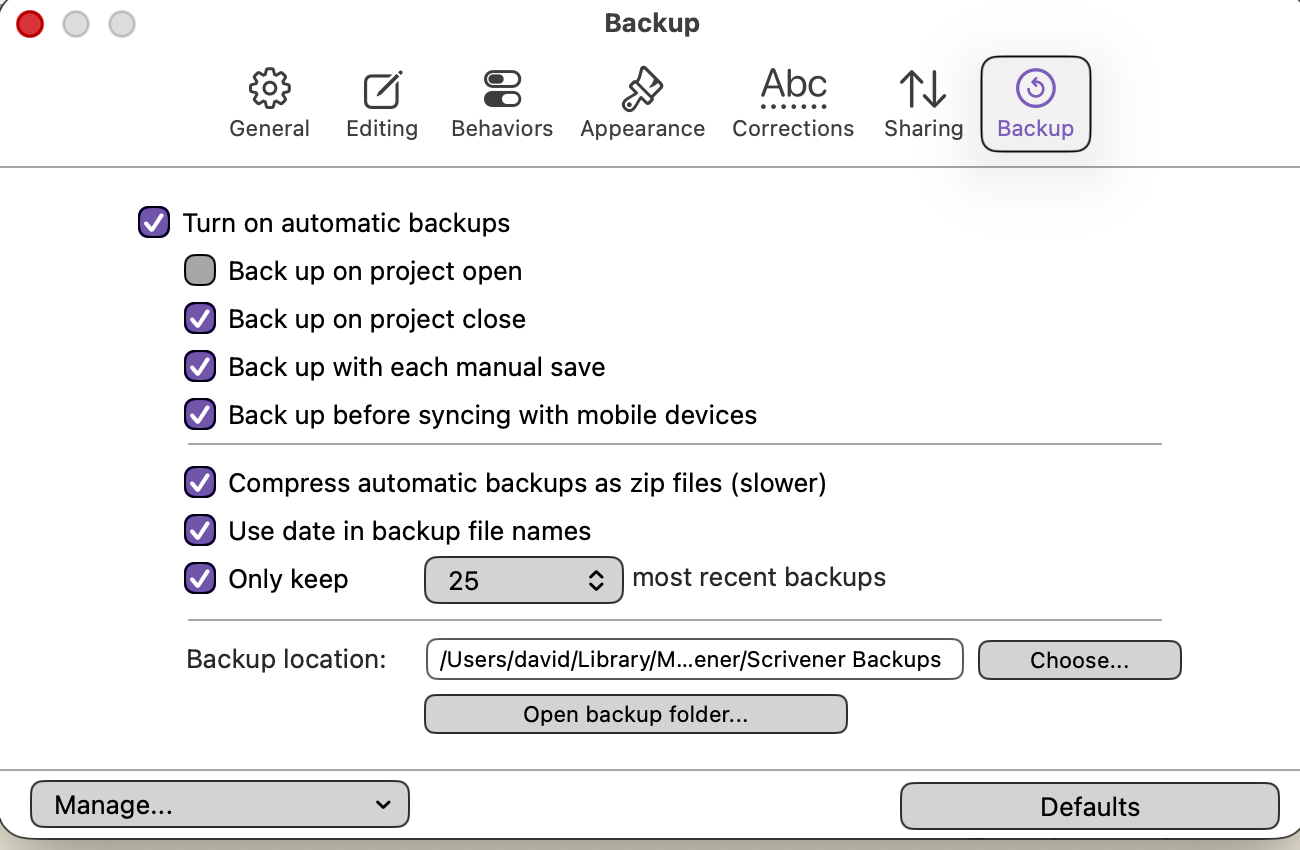
have you setup or looked at Scrivener’s backup settings? a screen shot of the Scrivener settings for backup would help us be specific with you.. Menu: Scrivener → Settings → Tab: Backup
Are you familiar with Section 5.2 of the Scrivener manual about Backups? It focuses on making and restoring backups using Scrivener’s backup regime–hence I’m asking about your setup (or not) of Scrivener’s backup process. Using these backups hopefully is tried first.
Section 5.2 of the Scrivener Manual also has a sub-section commenting on system backups with macOS TimeMachine. When restoring with TimeMachine, after selecting the Scrivener project folder (a macOS “package”) you will be given the option to “Keep Original”, “Keep Both”, or “Replace”. “Keep Both” is probably what you want.
You mention “cmd-5”. What’s that? What happens when you do that?
Where do I find the current Scrivener Manual, please? Up to now, I’ve failed to understand the manual; maybe this version is easier…
I’ve never rescued another Scrivener item from Time Machine before, no.
It occurred to me that I do have an old computer; perhaps I should use this to search for an old version of the project and the document within it?
EDIT: After making the duplicate, should I rename the duplicate so it’s not called the same thing as the original project?
Also, how do you make a photograph of a whole project, please? I do sometimes make photos of individual documents, but didn’t know you could use it for a whole project.
That completely up to you, but with the advice above, esp. from @brookter why start off with something old when you might be able, with TimeMachine, restore somthing more contemporary–depends of course that your TimeMachine backup has the recent backup files you need.
Re your setup and using Scrivener’s backup facility … I guessing since you did not answer that question you don’t have that setup or don’t know. Pity. That’s actually the preferred and best way to “go back” to a backup.
How do you mean something old versus something more contemporary?
I have the current document - something like 10k words - but I need to find the older version - maybe 40k or 60k words. The current document (not project, now, but document) hasn’t been changed since I cut its length, as far as I remember.
This project has many years in it, and many of the years have chapters within them. So the project has changed - I’ve moved onwards and backwards, working on other years; but that chapter in that year is what I need to find in its full-length version.
EDIT: I thought Scrivener had automatic backups? It used to make a backup and call it ProjectName.bak or something like that - I know that changed, but not how it changed.
Ah. If I open something from last December on a 2022 computer (after making a dupe of the project), and it overwrites, it doesn’t matter so much as if I open it onto my current computer and it overwrites the last four years of work on the book.
As I explained in my original post, when you duplicate a file in the Finder, then the duplicate automatically has the word copy added to it, so My Project.scriv sits alongside My Project copy.scriv. If you don’t think that’s enough of a difference in name, then of course you can rename the duplicate to something you find more memorable.
You can take a snapshot (Scrivener’s technical name for what you call a ‘photograph’) of multiple files simply by selecting them in the Binder and press cmd-5. So if you want a snapshot of every file:
Click anywhere in the binder
View > Outline > Expand all (or cmd-8) to expand all the subfolders
Cmd-a to select every item
Cmd-5 to take a snapshot of them all, or Cmd-shift-5 if you want to give the snapshots a specific name.
It does, but you may have turned the feature off at some point, so check in Scrivener > Settings > Backups to make that you have Turn on automatic backups ticked. Review all the other options to meet your need, but I strongly recommend you have at least compress automatic backups as zip files, and use date in backup names ticked.
Here is my backup setup: it’s a good, cautious approach and I’ve never had a problem with it.