I cannot find a way to import a word processor file into Scrivener. There are no menu options to add a Header or Footer. The manual mentions something about appropriate setting. but there are no commands or menu selections. There does not seem to be a way to set the margins outside of Page Preview. Can someone please direct me to ways to do these?
Manual, Chapter 9.1 covers this. You might find Chapter 9.1.6 useful.
But, basically, File-----> Import----->Files and the Finder opens for you to select which file(s) to import.
Are you compiling for output? Headers, footers and margins are added when you are compiling for formatting in something else.
Scrivener is not a word processor like Word, Pages or LO Writer.
“Manual could me more helpful”
The Manual is 900 pages. Search is your friend. The Table of Contents opens nicely in a thorough dropdown menu that reveals the covered subjects in detail.
4 Likes
That’s because margins are not a meaningful concept until you define a “page.”
2 Likes
I am in Page mode and see the margins but they cannot be adjusted by cursor or menu item. How else does someone define “Page?”
I searched for “set margin”, “adjust margin”, etc., and got “no results found.“
I bought Scrivener because I miss Nisus Writer, and Pages has few user-friendly features that I used frequently. There are codes to searches and there are no find features like finding character positions, etc.
LibreOffice is slow and many of the features require a dozen steps for a single action. When I tried to Chat, I was treated like insignificant outsider. I was referred to specific manual pages that had nothing to do with the question.
I used to own Word, years ago, but I found it very user-unfriendly. I loved MS Excel for what it does, but word processing did not seem to be their forte. I have not returned to MS.
After searching for weeks for something for text manipulation, Scrivener was the only one that came close to the features I need. There do not seem to be too many options after this, unless you know one. I want to use Scrivener as a word processor. I think I need to learn ways around its limitations for that purpose.
Thank you for your prompt and kind reply.
I worked out why it does not let me Import. If I start with a Blank template, then it works. I made a template for myself which has the tabs and fonts set up for my next document. When I select that from the template list, Import no longer works.
Don’t use quotes around the search terms.
It shouldn’t really be regarded as one, at least in comparison to NWP, Word, Pages, and LO Writer. For one thing, it is NOT a WYSIWYG editor. It is a writing “environment” where you just write, and don’t get troubled about formatting too much. That joy comes with compiling later on. You can format in Scrivener, but most users basically write and then compile the finished draft for formatting in something else.
If you are just submitting something to an editor, the basic compile to Manuscript can format things in basic Shunn format guidelines.
3 Likes
I don’t use quotes for search, it was just to show what words I used.
If I can’t find another good Word Processor to compile to. I have not worked out the whole compiling idea yet. I know how that idea works in Basic or C++
Have you looked at the Manual, Chs. 15.7 and 16.2?
If I can’t find another good Word Processor to compile to. I have not worked out the whole compiling idea yet. I know how that idea works in Basic or C++
If you haven’t done it, I strongly suggest you do the interactive tutorial in the Help menu. Grit your teeth and do it anyway if you don’t like that sort of thing. In fact, do it twice. 
Scrivener is really, really different from a standard word processor and until you get the major differences you’ll just be frustrated to no end. You don’t need to learn all the features right away (there are so many!  ) but you can use it in a very simple way and just use the simpler provided templates for output.
Put simply, Scrivener provides wonderful ways of manipulating, structuring, and fixing text. There’s a reason why so many professional writers use it. When your text is, cough, done, then you format it by compiling it using the provided templates or your own creations for output to a large number of common file types.
Best of luck!
Dave
6 Likes
Thank you for the help. When I first saw a reference to it, none of this was described, but I think I can learn it.
Did you try File → Page Setup? That will give you the Mac OS setup pane, with a dropdown pane for Scrivener at the bottom.
Correct, this is the domain of the Compile command.
Did you actually create a project from your template, or just select it? Import only works if you’ve created a project to import to.
If it helps, my husband – a software engineer – describes Scrivener as an IDE for writers.
The basic idea is that the writing environment in Scrivener lets you write in whatever format you want, in whatever order you want, with whatever outline structure you want, recognizing that there are at least as many different processes as there are writers. Then, once you’ve got a draft-like object that you’re willing to share with the outside world – or if you want a formatted version for your own use – the Compile command normalizes the formatting, stitches the pieces together, and adds headings, a table of contents, page numbers, etc.
8 Likes
I think the fact that Scrivener needs a 900-page manual speaks for itself.
That Scrivener, as a complex program with a wide array of features to fit users’ needs, merits a comprehensive and well-written manual covering all those features, to supplement all the other training material catering for more basic needs?
I agree.
The shame is that other programs don’t adopt the same approach.
8 Likes
Speaking as a regular user of this forum, I am sorry it came off that way. I looked back at the replies above this point in the thread and know none of those trying to help were trolling if that helps.
Scrivener does have a learning curve and you have found your progress captured in a little bit of a label-misunderstanding I think. Let me see if I can approach the topic from a different direction that might be more illustrative. I’ll apologize now for it getting long winded, or if it comes off as condescending which is not intended.
@paulcoholic – a user of this forum – tried in their own way to lead you to where the knowledge was to be found. I read their reply as polite and responsive to your requests.
@kewms – a member of staff who can speak with authority on the topic – tried a different way to explain more, but from the view of someone that made the tools and how they were designed to work.
@dafu – a user of this forum – suggested to have another go at the Tutorial, but it wasn’t meant poorly.
@Twolane and @brookter – both users of this fourm – chimed in, though I admit neither reply was of much help to you, but neither were dismissive of you. In fact they were agreeing with you.
I think one of the things that new users to Scrivener don’t always pick up on right away is what the tool is not. It’s not Word or LibreOffice. Scrivener composes in text. It organizes a RTF file for every element that has text associated with it, and then bundles everything together in a package that contains everything you’ve fed it. Once you get the words out, then you pretty them up. It’s pretty much the backwards of every WYSIWYG word processor since the original Word for Windows released in the 1990’s. So in a sense margins do not exist yet, because they do not matter during composition.
Many of the features to add margins, headers and footers, styles, and other typical word processing features are applied through the COMPILE process. Yes, I know that it sounds like you have to write in assembler but its really not that bad. While you are putting the output together kind of like a C++ program, it’s not as painful. I’ll use the Tutorial project to demonstrate:
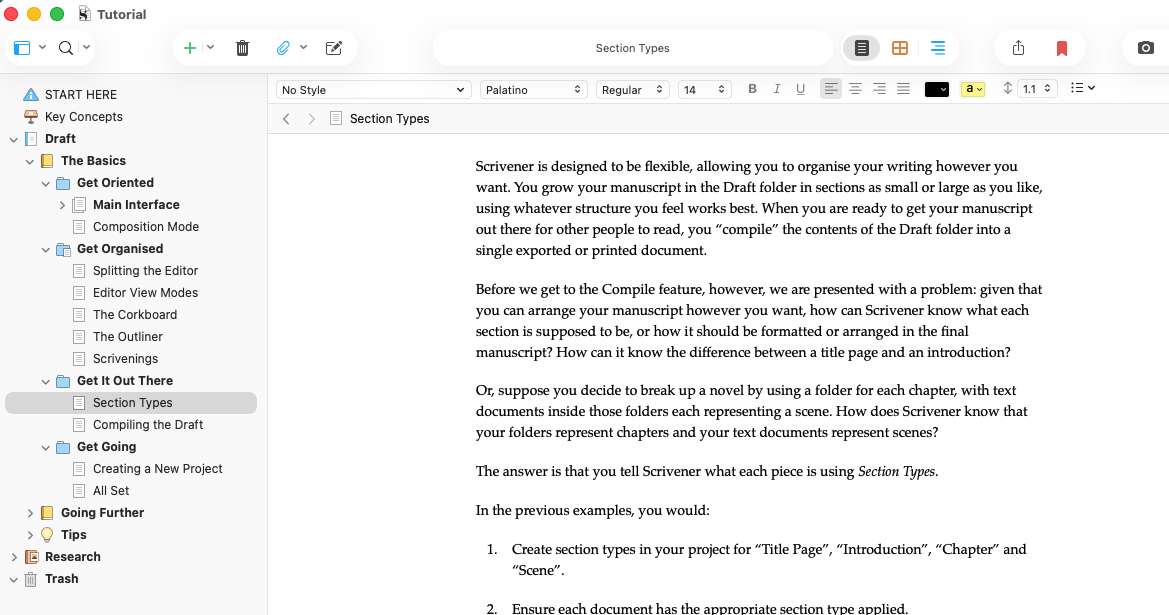
In this screenshot you can see a lot of things that look like a typical word processor, so you can be forgiven for thinking things like margins should be here too. Thing is, you can make adjustments to how it shows up on screen without impacting the final result. (Just as an aside, this was the last section of the Tutorial that I referenced. I’ve been using Scrivener for almost fifteen years now and I still need to refer back to the Tutorial from time to time.)
The margins look sane, but look at what happens when I stretch the window to fill the width of my screen and dismiss the Binder…
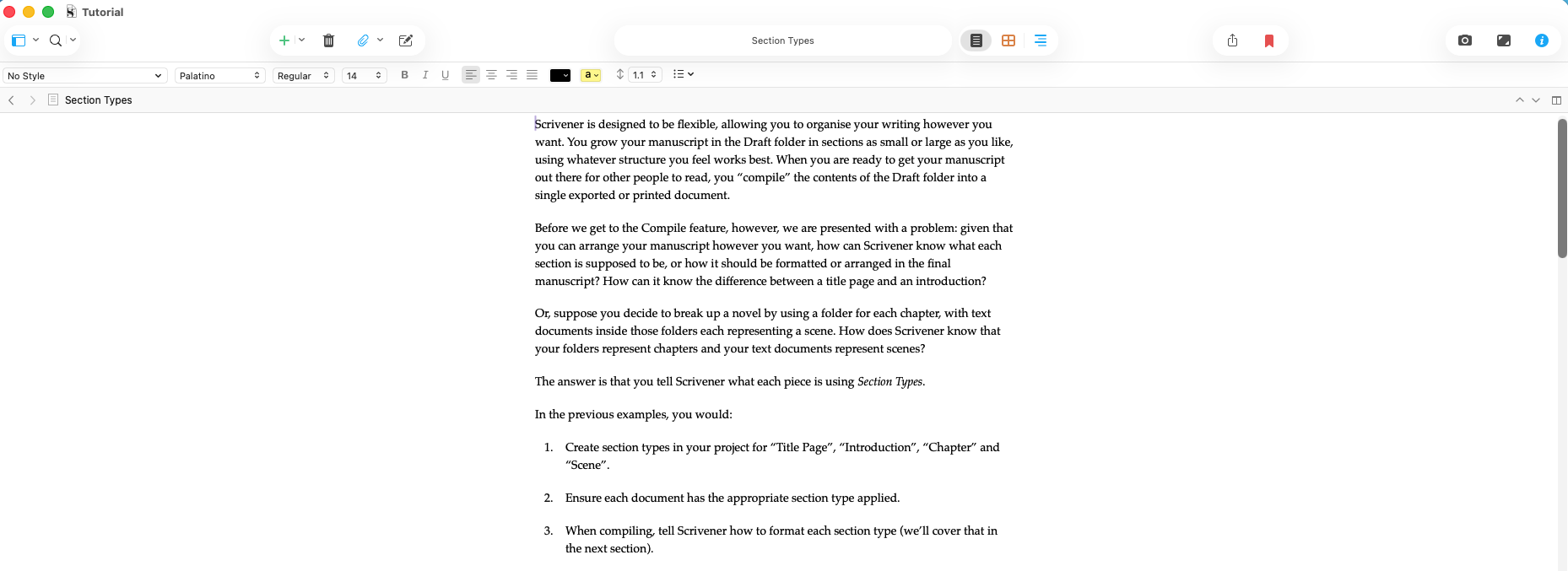
How annoying is that? You have all that wasted gutter space in the margins…
We can fix that on the screen. It’s not pictured, but on the bottom of the Scrivener window on the left is the zoom control. If I changed that from 100% to 250% this is what results.
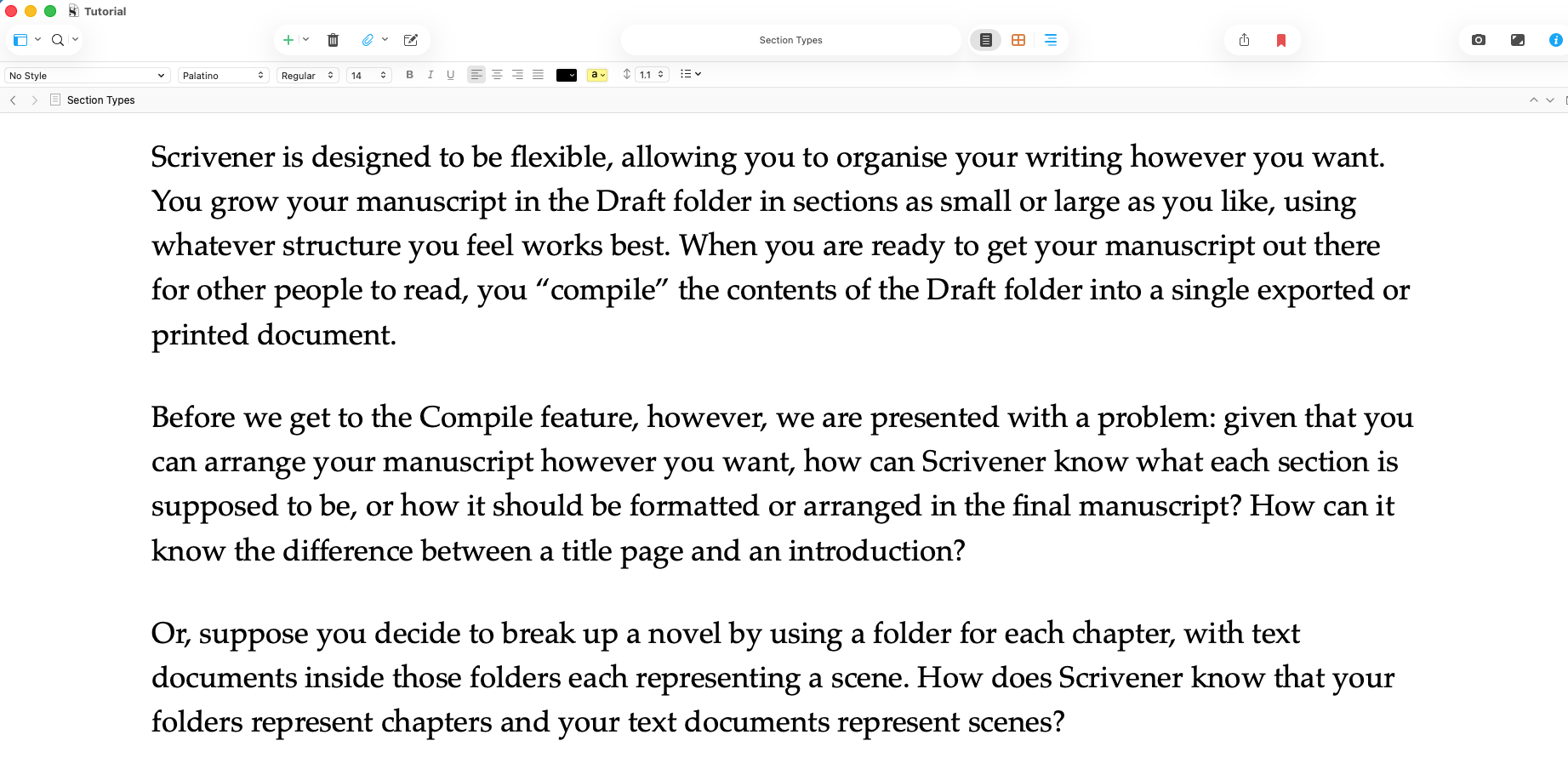
Same text, same text/font settings, and yet those thicccccc margins are now much more reasonable. That’s because during the “coding” stage the text is the focus. Yes, you could apply some formatting here, set a paragraph to a style or alter fonts, and it will work the way Word, Pages, or similar products do.
To show you what I mean, lets move to a different section with a more diverse set of elements. Select the “Compiling the Draft” item under the “Get It Out There” folder inside of “The Basics” folder in the “Draft” heading.

Now click compile (the box with the arrow launching out of it) we get a screen like this:
You have all sorts of options for output types. I’ve selected the Modern format on the left, and then from the drop down I’m presented with a list of options in that format. As you can see Word (doc) is on the list. I’ll stick with a basic PDF for now and will not change anything else. After clicking Compile, Scrivener produces the PDF asked for. I’ve got my setup to launch the compiled title right away so I see this:

Scrolling down to page number 54 of 169 we find the section Scrivener is displaying. The boxed text is formatted for the output space. So the margins on the original view adapted to the output desired.
The hidden power here is that I can generate a different format with a couple of keystrokes rather than an entire afternoon’s work to reformat 169 pages of text. Ergo:
Here I’ve used the Proof Copy format, and you can see headers and footers, page breaks, and other items that look different from the last version. You can also see the page count changed too.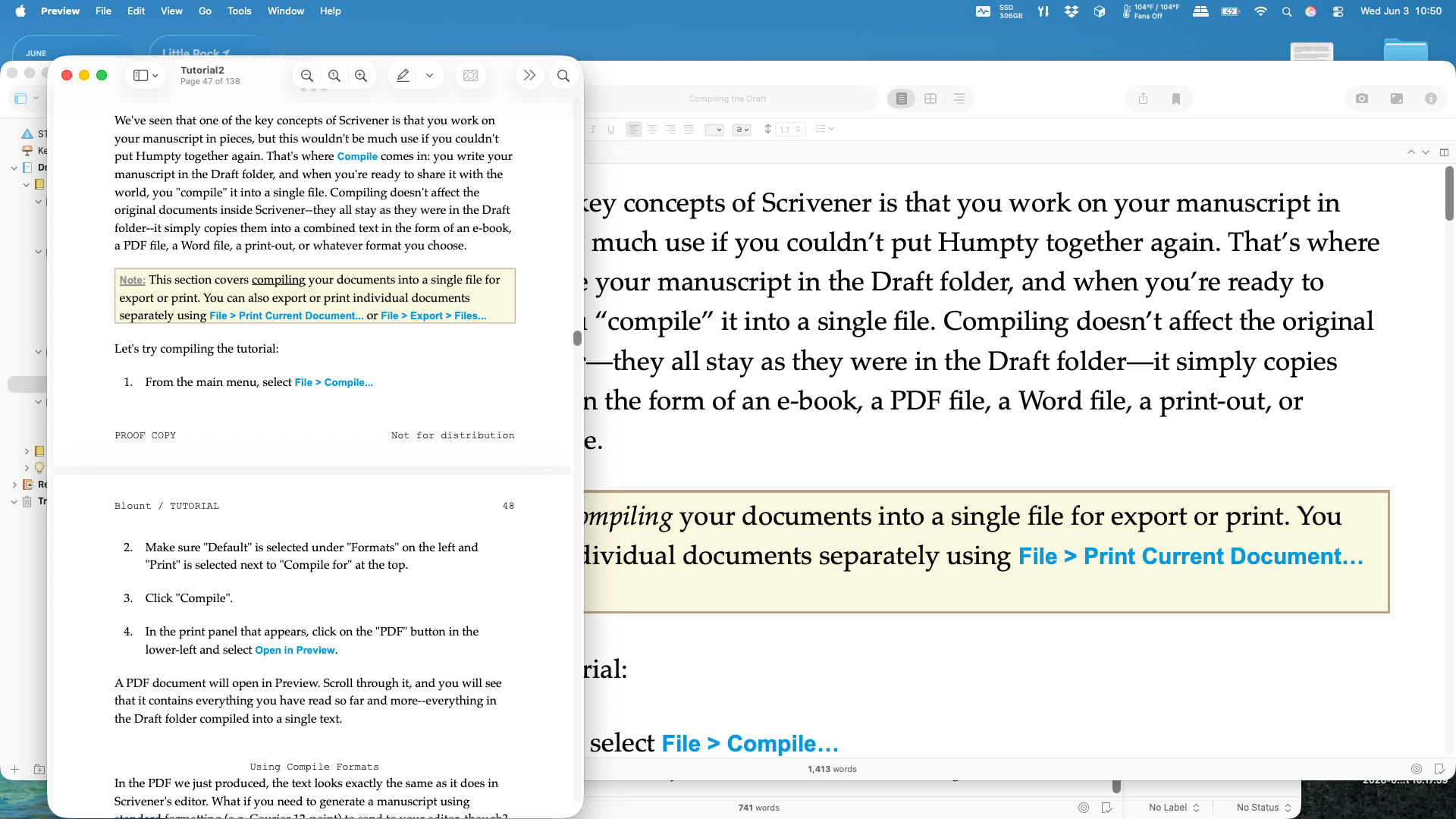
The Tutorial project really is an interactive learning tour of Scrivener, so please don’t take all of our repeated advice to go through it as a griefer blasting you with “RTFM you lousy causal” or whatever dismissive thing is said these days by the inconsiderate.
TL,DR: Scrivener is not the best choice for writing a quick letter or memo. But when you are working with larger documents, like novels, it is superior to anything Word, Pages, LibreOffice, or any other word processing suite offers for organization and adaptation.
9 Likes
Thank you very much for that reply. I does put things into perspective a lot. The others that replied were nice people and I was not criticizing their tone. I only had trouble with the LibreOffice folks. In Pages, Apple has the attitude of “use it the way it is or go away.”
I have been a Mac person since I had an Apple Lisa, so I always look for a WYSIWYG interface. I have manuals that I have never broken the wrapper on. Maybe that is why I get confused when I hunt around for a tool and cannot find it based on what I am used to. I suppose that I have a lot of manual reading ahead of me.
As an example of my frustration, I attached a screenshot of a piece of a document that is in page view. It comes from an RTF file that I imported to Scrivener and changed the margins to .5 inches on all sides. The resulting display shows that, on the upper page, the text ends about 3 inches before the end of the page. Looking at the invisibles, there is no page break or carriage returns that would move the text down to the next page. To me, it looks like the lower margin is not where the settings say it should be and the page is obviously larger.
Where can I go to find out out why my text ends well above the margin settings and other items that I find difficult to understand?
…… sorry the Forum won’t let me attach an image of the page change I was referring to.
I’ve updated your trust settings to allow you to post screenshots.
As noted above, Scrivener is not a WYSIWYG editor. The Page View you see in the Editor is best understood as an estimate.
With that said, a common cause of problem page breaks is overuse of the “Keep with Next” (Format → Paragraph → Keep with Next) command. It’s intended for instance to keep headings together with the text that they belong with. If overused, though, it can cause weird page breaks as Scrivener tries to keep text together but ultimately can’t because the affected block is just too big.
1 Like
I’m sorry to be a pest. but I made a blank project, set it to page view, adjusted the margins in Page Setup to 1 cm around and no other formats or commands. Then I pasted 3 pages of raw text into the project and it will not let me closer than about 2 inches from the bottom of the page. When I go to compile it for printing I have a lot of empty space at the bottom of each page. How can I fix that? Thank you.
Please open a support ticket, here:
Beyond the suggestions already offered, it’s impossible to say definitively without looking at the project. You can email a project by using the File → Backup → Backup To command, and checking the box to create a ZIP backup.
1 Like
When importing text like this, you may have injected unwanted formatting. Lets clean that up first, don’t worry it’s easy and fast.
Click: Edit → Text Tidying → Remove Page Breaks
The click: Edit → Text Tidying → Zap Gremlins
That should strip out anything invisible that is effecting the text you imported. Should you need to insert a page break that was removed, you can do that by clicking: Insert → Break → Page Break
Past that, it’s hard to say. Folder objects default to inserting a page break before the next item in the Binder, based on their historical use as Chapter objects. My guess is that you have created the folders and just imported the external text there without creating as ‘scene’ page to hold the copied text.