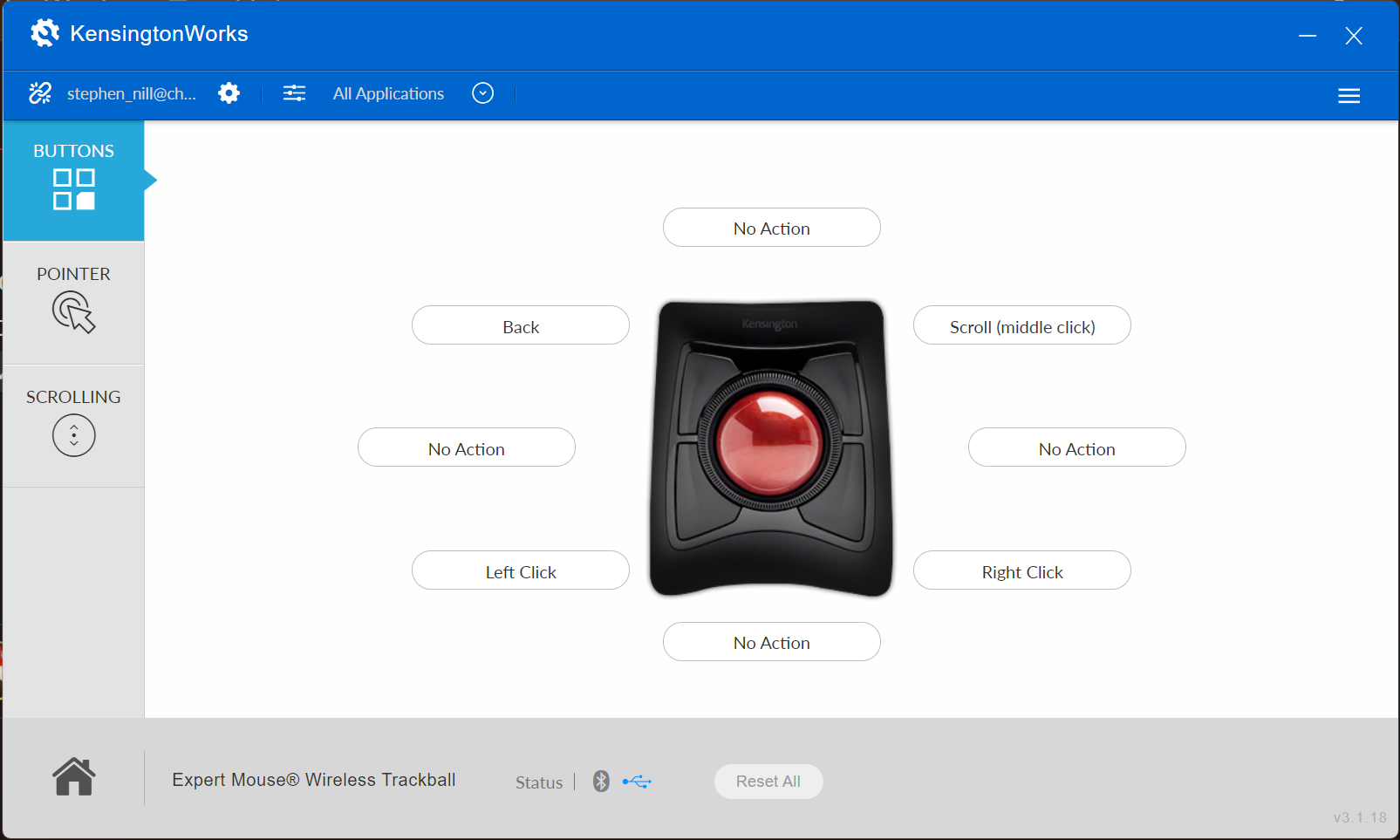
Many mice have forward and backward buttons on the side (which are usually used for browsing). Other text editors e.g., Obsidian allow using the forward and backward buttons for the previous/next document.
Is it possible to allow the forward/buttons on the side of the mouse have the same functionality in Scrivener? Instead of needing to click < > at the top to view the previous/next document viewed. Thanks!
If you’re able to map your mouse to commands/keyboard shortcuts, these buttons equate to Navigate ▸ Editor ▸ Forward in Editor History (Ctrl+])and ▸ Backward in Document History (Ctrl+[).
I don’t think my mouse supports this and even then, I use the forward/background buttons regularly for web browsing so mapping them to Ctrl + [ / ] would break the functionality for web browsing.
My currently workflow is reviewing a lot of documents and scrolling through the text, so it would not be efficient to do the keyboard shortcut Ctrl + [ / ] and then move my mouse to scroll. The most efficient way is to press the side button, scroll, and click where to edit.
@shortbubble: Assuming you’re on Mac, you need Keyboard Maestro.
With KM you can assign macros to be app specific – i.e. your fwd/back mouse keys will work in one way in Scrivener and a completely different way in your browser, automatically.
For instance, I have a number of simple macros that only work inside Photoshop and another collection for Final Cut Pro.
KM is the 8th wonder and will take you wherever you want, from simple key re-assignments to sophisticated programming.
Seeing as how this is a Windows category thread, the above probably won’t work, but something with AutoHotKey is probably the closest analogue to Keyboard Maestro approaches. If it is a Logitech mouse, they are probably button events 4 and 5.
Otherwise, it may be possible to find a more user-friendly mouse customisation tool that supports your hardware (maybe even from the manufacturer, though in my experience those tend to be awful).
The main issue is that our software doesn’t listen for extended button events and attempt to interpret them like some browsers will. It’s probably not impossible for us to listen to them and do something with them. I’ll make a note of it for us to look into at some point.
What kind of mouse do you have? If you do have a Logitech, if you go in the Logi Options+ app, you can map the buttons by application. If you set the side buttons to map to the keyboard shortcuts @MimeticMouton mentioned, it does work! And then it only does that when you’re working in Scrivener, so you don’t lose the functionality you’re used to in other programs.