How do I start multiple instances of either Scrivener (e.g. multiple executable processes running) or multiple instances of a Scrivener project or as a last resource split view that allows documents to be open side by side (choice of vertical split or horizontal split)
Not that it should matter but the reason I need this is that I am writing scientific articles. While working, I write things that are mostly “ready” in the target documents: intro, method, theory etc. While doing this, I sometimes get new ideas, that I want to get down on paper so that I don’t have to waste mental resources on them, until I am ready to refine them and decide on where to add them into the “mostly ready” structure of documents.
Then, as I start either refining newer ideas or when I start merging them into the “mostly ready” documents, I want to have two (or more) documents open, from within the same project, at the same time.
Hi.
To have multiple instances of Scrivener, multiple projects, visible/sizable/positionable, simply open all of these projects.
→ You can’t open the same project twice.
But you can split the editor in two. (Top right corner.) 
As for note taking, there is a little extension to Scrivener that could serve you well as per your description of the process.
Either use this, or have a dedicated project, or use the Research folder of your real project + split editor.
(By the way, with copyholders, you may have up to four “editors” inside a single project. Five if you use the bookmarks panel too. – Quick reference panels make that number virtually unlimited.)
2 Likes
Thank you, I really appreciate it!
The split window seems like a reasonable solution.
If I need more control, I will move the notes to a separate project.
Awesome product 
1 Like
When splitting the editor, if you hold ALT, it’ll toggle the split icon for top/bottom or Left/Right.
. . . . . . .
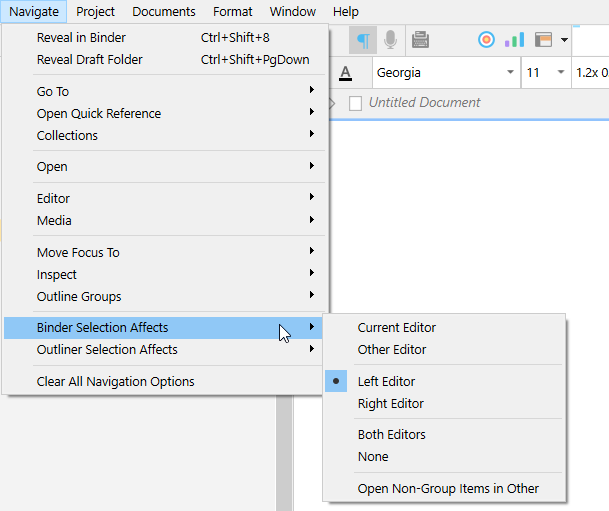
Below is where you set where a binder selection goes - which editor :
This setting sticks. (Holding ALT while selecting a document in the binder will open that document in the opposite editor than the one currently set. – True for the first four options.)
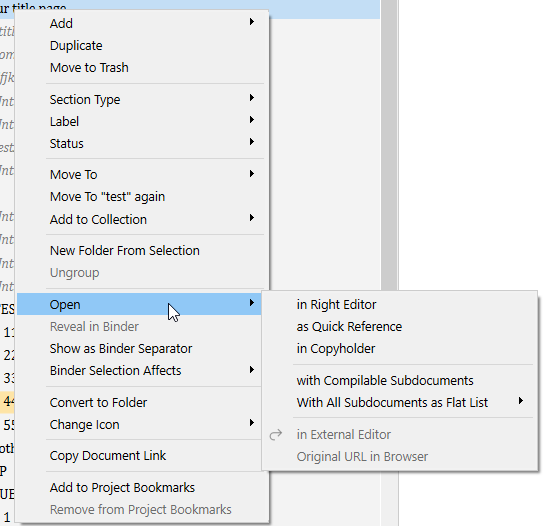
Else, you may right click your desired document in the binder, and :
2 Likes
Thank you, that is a very helpful feature I would not have easily discovered!
1 Like
Happy writing
. . . . . . . . .
1 Like
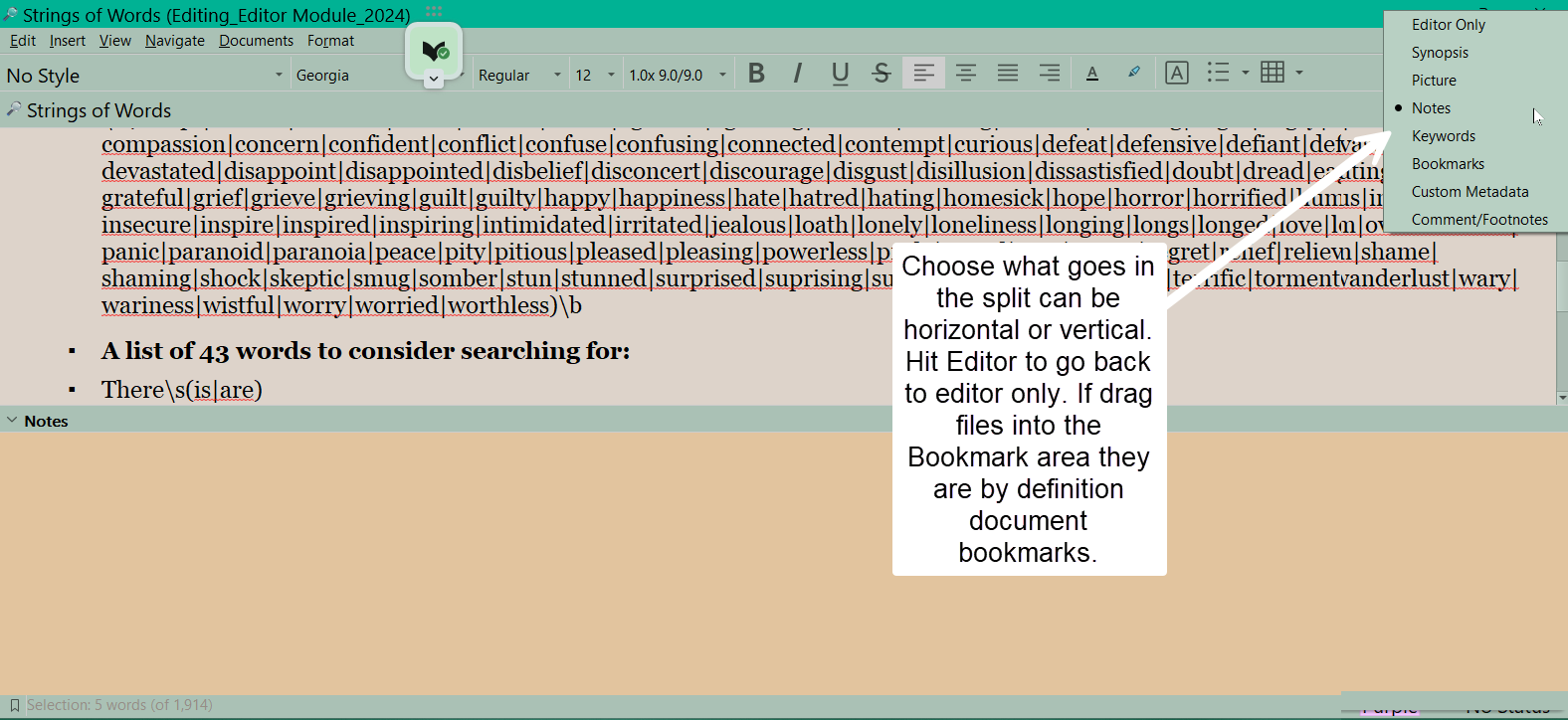
Also consider if have a multiple monitor setup to use quick reference panels which can float on a second monitor while the main project is open on the first monitor (could be in split view). The quick reference panel can itself split to open a notes section for the document to jot down notes to self, or a bookmark section where you can drag in documents from the main project which may be needed reference info for that section of your scientific paper.