New Compile format: variable depth for docs and new page for each before all the titles (help needed)

Now making my second custom compile format :smiling_face_with_sunglasses: , I would need a bit of help here :sweat_smile: .

Previous format was for the “synopsis”, or mainly the skeleton (only the list of the docs with the hierarchy, plus some meta data).

This new format is for the whole draft manuscript, a novel but being an early draft it has some specifics: no chapters yet, text in 110 files, “units”, organized in a varying depth in a hierarchy of Movement - Episode - Segment (from high to low). Short movements have the units right below, other movements have episodes within, the largest have segments in some of the episodes. And so the files/docs/units are in any of those levels, depending on the hierarchy.

Movements are the folders below the Manuscript, and then, for those that don’t have the units right away, subfolders are for the Episodes containing the units, and so on with the next level.

What I try to do:

I need a new page for each unit (only the units have text), and before the text, the title of the unit (doc name in the binder).

But I want to display on the same starting page the other titles as well, those from the movements, episodes, segments. As if we had the folder name of the path displayed once for the first units in the nested folder.

In other words, all the folder and documents names will be displayed once, along with the text of the documents (units), but I don’t want a page break after a title without any text.

If I format the units with a page break, the page before I will have the movement/episode/segment alone without text. Not good. I want them on the same page as the unit’s first page.

Overall I would have:

Movement A

Unit Aa

(text)

=======

Unit Ab

(text)

=======

Movement B

Unit Ba

(text)

======

Unit Bb

(text)

======

Movement C

Episode X

Unit CXa

(text)

=====

Unit CXb

(text)

=====

Episode Y

Unit CYa

(text)

======

Unit CYb

(text)

======

Episode Z

Segment U

Unit CZUa

(text)

======

Segment V

Unit CZVa

(text)

======

Unit CZVb

(text)

I hope it’s clear.

Thanks for any help on this!

Edit: re-reading my post I think maybe the solution is to use a page break at the end of each unit (after the text), I’ll check if it works.

Alternatively: it would be nice to have for each unit a reminder of the “path” they are in.
That’s exactly what I was gonna suggest based on your list. (Although the automatic separator is inserted before, not after. You’ll have to have it triggered by what follows. – Or insert them manually in your documents, in the editor. Or in the section layout’s suffix, which will add a page break after each and all of your “units”, unless you create a section type and layout for the “with” and another one for the “without” documents/files.)
(Also note, if you look in your compile format’s separators tab, that you can have a different separator be inserted depending on whether it is two documents/files of the same section layout or not. – If that still isn’t enough, use more section types to more section layouts.)

Not sure what I understand is precisely what you mean, but likely you could achieve such, using placeholders.

1 Like

Your “units” in Scrivener are called Sections in the manual.

Using Section Types, your Binder hirarchy should not matter. Assigning a Section Type to a Section Layout with a specific set of Separators should solve the problem.

3 Likes

I don’t see how to do this (make a bread crumb line to show the nested location of the document) with placeholders. There is a <$levelN _title> placeholder which could give you what was wanted on, e.g., a fourth-level doc using:

<$level1_title> / <$level2_title> / <$level3_title>

But you would not want to include this manually in every doc, adjusting for its current nesting level. And you can’t have it automatically superadded, because there is no obvious way to set out a template that works for every document no matter its position.

A simple <$hn> will give you hierarchy numeration, which gives you the position of the document, but would not feature the names of the enclosing folders.

1 Like

I managed!

Using the “Override separator after” : “Page Break” (in the Format Designer, Separator, Section for my “Titled Units”.

And removing the Page breaks everywhere else.

It works.

a <$levelN _title> placeholder

I’ll give it a try to have it in the header of the pages, rather than in the page’s content itself. Along with the page number.

Thanks for the suggestion!

It was not really a suggestion. I was suggesting that there was no non-manual way to do it.

On a second thought, I considered that you might be able to include in the prefix for the section type of the “unit” docs a placeholder string that just included enough levels to cover any case.

My expectation was that on a doc which was, say, at level three, the placeholder call for deeper level titles would just be replaced with empty string. That would make so much sense. But something peculiar and unuseful happens instead. The call for titles at levels higher than the doc in question, just get you repeats of the document title itself.

So, yeah, I don’t see any handy way to build into your compile setting an effective breadcrumb string.

1 Like

1 Like

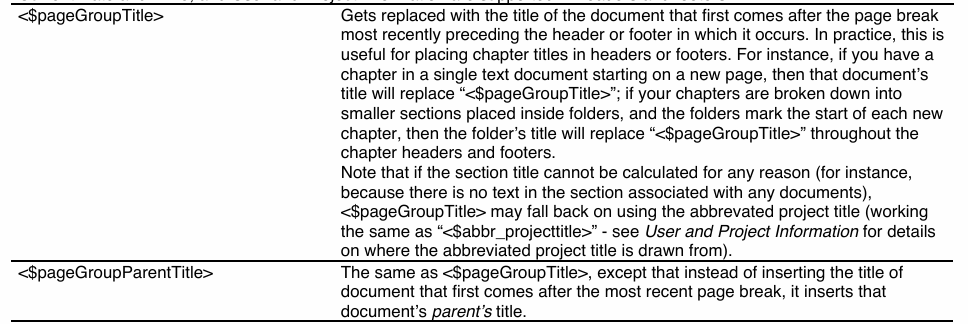
Ah yes… Well it doesn’t work the way I tried, and the placeholder documentation tells so: “(note that they cannot be used in the Compile panel’s header and footer fields)”

Placeholders work in the section layout’s prefix/suffix and in the title’s prefix/suffix.

If I properly understand what you want to do with the path, you want to design your placeholder combo in the section layout’s prefix.

. . . . . . . . .

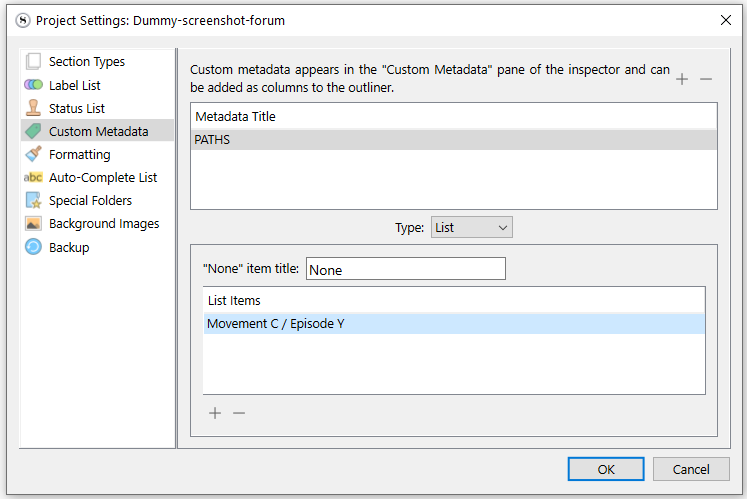
A simpler way to go about it (although a little more time consuming), would be to create a text custom metadata field and write it in there for your documents, and at compile use the corresponding placeholder.
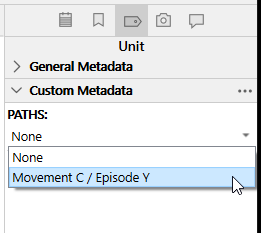
Alternatively, if it is redundant, you could use a list custom metadata field rather than text, and build the list of parents/paths in there, picking the right one from that drop-down set of choices for each document. Again, using the corresponding placeholder at compile, in your section layout’s prefix.

image

. . . . . . . . . .

Another option :

Write them paths directly in your documents. (They’ll end up between your documents’ title and text.)
Use a style for those, which will allow you to format them as you want, and also to have them automatically removed from compile when you compile a version in which you don’t want them.

. . . . . . . .
If you want this in the header, at the top of your pages, I don’t think trying to do it in Scrivener is the smartest approach. (If doable, even.) I’d keep that for the post-compile stage. The finishing touch, in another app.
If there is a placehoder that would otherwise allow this, I don’t know which. (I am not saying there isn’t. – Some clever trick, perhaps.)

1 Like

Thanks for the guideline! It’s just a nice to have result I was trying to get for the transitional draft print, so I won’t make long manual tweakings to force it into Scrivener.

But what you’ve shown is interesting for other matter (and I’m grateful for the effort!)

1 Like

Perhaps you could then look at it somewhat differently.
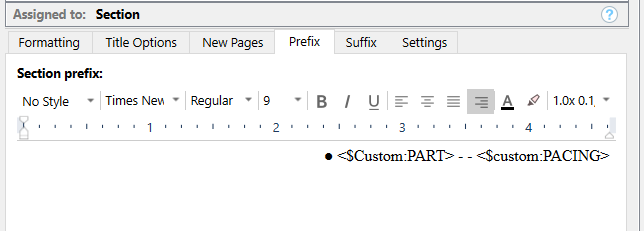
If it is only for early drafts, for you only as a reference, the way I go about it is that I have created (in my project template) a “Pacing” custom metadata.
It allows me to identify roughly where a doc sits in the story. You can change that metadata in bulk in the outliner.
It is a list custom metadata field, with things like “Intro” “Act I” (you get the idea). So I just pick from the dropdown – no need to type in anything.

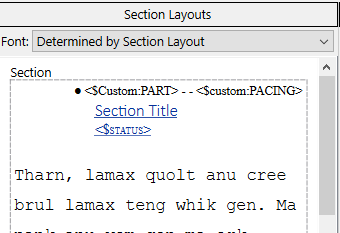
In my compile format, I have the placeholder for that field in my section layout’s prefix.
This way, if I print only a couple of documents for longhand editing or composition or rewriting, I have a cue as to where it belongs as regard to the whole manuscript.
Perhaps that would be enough for you. (?)

Roughly, it is almost what you wanted, the difference being that you don’t have to handle a complex path that changes from document to document, and from project to project.
If you have a “Pacing” field that says “Confrontation”, it means what it means, no matter what the story is.

2 Likes

I see.

This is inspiring.

Actually, I might set this timeline info in a metadata of each text doc. For most units, this is a stable info, not updated, not changing. It’s just that I don’t feel like browsing the 110 files to set it, at the moment, but eventually I’ll get it done for those. But there are about a quarter that are not yet well positioned in the timeline, and so I’m moving them a bit in the folder tree (trying to find when the scene could fit).

I wasn’t clear about my need, so here is a more concrete case (that I made up for the example):

(movement=) Seaside trip
(episode=) Day 1
(unit of text, here a scene =) Arrival
(unit of text, here half a scene=) Confrontation
(unit of text, here half a scene=) Making peace

(episode=) Day 2
(segment, 1**=) Morning
(unit=) A new discovery
(unit=) Setting a goal

(segment=) Afternoon
(unit=) …*

1*** because it’s a long day with a lot of texts, I need to divide the episode to tidy all this

And so what I was interested into being automatically printed, for an easy review:

A reminder that the part (unit) “Setting a goal” was in the

Seaside trip / Day 2 / Morning

Which is also the folder hierarchy that I use for organizing and moving around the units.

All this is temporary, when the manuscript is close to completion, and all units settled in place, I’ll make chapters based on a completely different criteria, keeping only the order of the text.

Logical.
The only thing I would then add to what I previously said is that I often use my project’s binder as a reference too.
If you need to know where a scene currently sits and don’t want to set up paths manually (which is understandable), then I’d say use the binder as a visual reference. The fact that you’ve compiled doesn’t render it useless.

2 Likes

This is because of my workflow which is not 100% inside Scrivener:

I prefer to do the thinking and the main writing at ease without the PC, distractions, etc. So I move these tasks to the Remarkable 2 device.

Thus the need for the Outline compile before: an enriched binder copy.

And the full draft print now: for offline reading on the paper tablet, handwriting on it or typing new larger parts, thinking of the order, etc. And for a bit of motivation seeing the future baby. ^^

1 Like