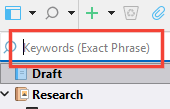
Clicking the ‘Project Search’ button (or Ctrl+Shift+F) used to open the ‘Project Search’ field with the words ‘All (Any Word)’ just above the Binder, and allowed me to do project-wide word searches. However, currently the words ‘Keywords (Exact Phrase)’ appear in the search field instead, and ordinary word searches return no results whatsoever.
Strangely, I am now able to do keyword searches from the Project Search field, which previously I was not able to do.
This change happened after I did a keyword search using Project > Project Keyword, then selecting a keyword from the keyword list, then clicking the ‘Search for keywords in the project’ button in the bottom right corner of the ‘Keywords for ’ window.
I seem to be encountering a ‘sticky filter state’, which prevents Project Search returning to ‘All (Any Word)’ mode when I select ‘Project Search’ from the dropdown menu, which prevents it from returning any search results from my actual documents. I have tried everything I could think of, but to no avail.
The other search options in the dropdown menu (‘Search in Document’, ‘Find by Formatting’ and ‘Project Replace’) work alright, as do the ‘Search Modified Dates’ and ‘Search Created Dates’ searches.
How can I get out of ‘Keywords (Exact Phrase)’ and back into Project Search (‘All (Any Word)’) mode?
This problem is affecting only one of my projects, ie Project Search works as usual in all my other projects.
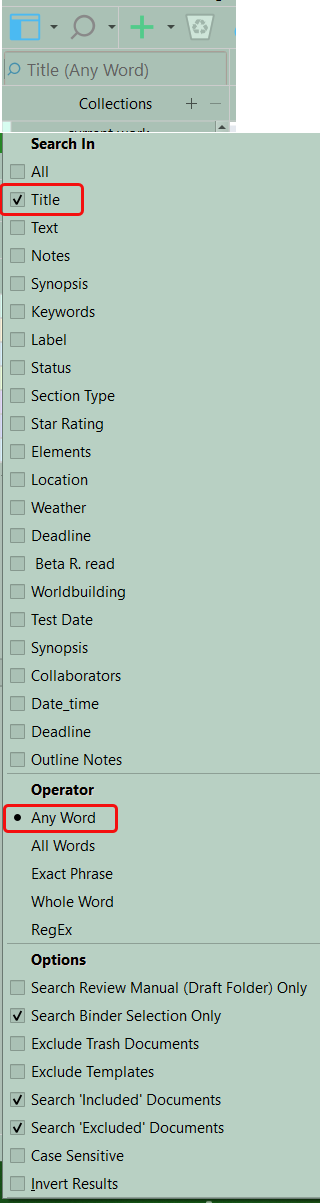
Have same windows build and search will stay the same till you choose different parameters and shows the paramaters in the project search field if open.
Start with title and any word and will stay this way till change parameters
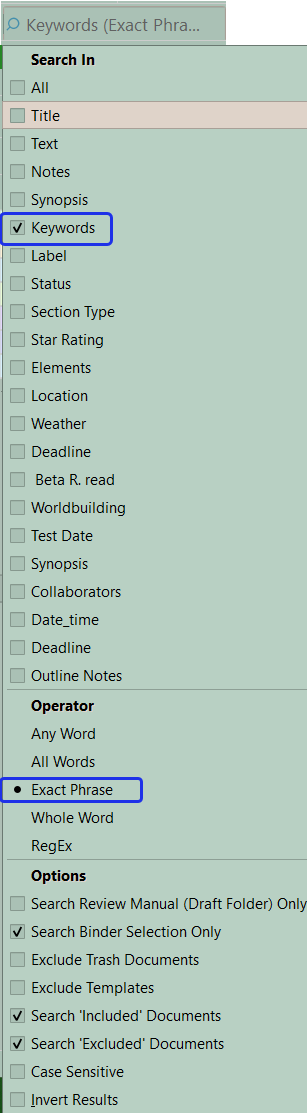
now go to keywords and exact phrase and see this in project search field after changing the parameter till make new choices.
changed to keyword and exact phrase and now see.
It’s the former: in ONE of my projects, when I left-click the magnifying glass symbol to the left of the ‘Project Search’ search field, which currently displays the words ‘Keywords (Exact Phrase)’, NOTHING happens. In my two other projects, I get the same long dropdown menu as in the pictures you uploaded, with the three different categories of options: ‘Search in’, ‘Operator’ and ‘Options’.
I never had this problem before, until I did a ‘Keyword’ search using Project > Project Keyword etc.
I am trying to avoid re-installing Scrivener.which will probably fix the problem.
Why not create a blank project and drag all the files over to the new project, drag your keywords, labels, custom metadata as well. Now see if search restored.
Another option, though would save project before, is to hold the alt key and click the file tab and see option to close project and clear interface settings which restores Scrivener default options.
If it’s just a problem in one project, please follow these instructions to reset your project’s displays:
Open the project in Scrivener and create a backup using File → Back Up → Back Up To. If these steps don’t solve the issue, you will be able to restore the original project from this backup copy.
Go to File → Show Project in File Explorer, and then close Scrivener.
In File Explorer, navigate into the project folder then into the “Settings” sub-folder.
Delete the files called “ui.ini” and “ui-common.xml”.
Try opening the project again and see if the problem continues.