I have been using Scrivener for a few months now and I really like it, but I am having problems with printing certain sections. I have set up my novel with Chapters as folders and in each chapter is a text doc for each scene and each scene is numbered. I may be missing something, but I like the ease of moving the text documents around if I want to move a scene instead of having to go into a text doc with all the scenes written in it and having to rearrange an entire chapter document. My problem comes with printing. As I understand printing is done through the ‘compile’ command, but when I set it to print the folder, it prints empty. I have to print each scene separately it seems. This is annoying. I am allowing beta readers to read my novel one chapter at a time so I would like to be able to print out an entire chapter without having to set it to print each scene. This is also a problem when I want to copy an entire chapter at once to put into a word doc, but cannot. I have to copy one scene at a time into a word doc. What am I missing? It seems that these things should be easy, but I can’t find the solution.
The simplest way to compile a folder (chapter) at a time is to select that folder from the “Compile” dropdown at the top of the contents pane on the right of the compile window. Rather than choosing “Current Selection” (just a guess that it may be what you’ve been trying), navigate the binder hierarchy there to select the folder from within the Draft/Manuscript contents:
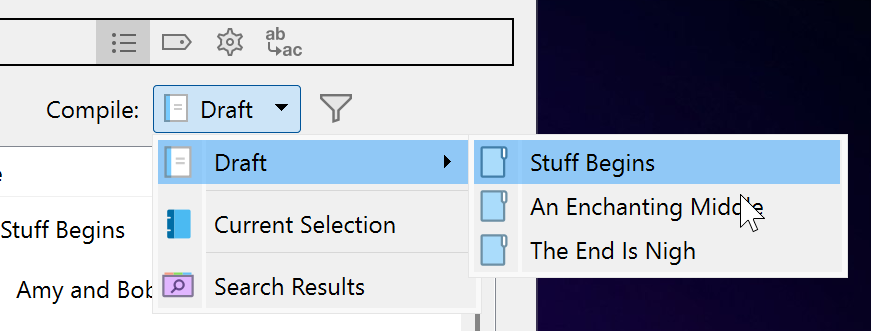
With the folder selected, you should see just its contents in the area below, where you could further refine if needed by ticking individual items for inclusion/exclusion. If the folder itself also contains its own text that you want to include, tick the box above to Include text of containing group.
If you’ve already selected the folder this way but the compile is comping out empty, you can check whether the documents are being inadvertently filtered out by checking the funnel icon to the right of the dropdown menu. (If that’s on any setting but “Included Documents” without further filtering, it should appear in blue; it’s off in the screenshot above. If it’s blue, click it to adjust the settings.) Or if the contents aren’t even appearing here, check in your binder that the items are actually inside the folder rather than accidentally siblings of it.
This is unfortunately a limitation of the way Scrivenings (multiple documents) are assembled in the editor on Windows; it’s not possible to use the regular “Select All” to grab the text from multiple documents. Instead, once you’ve loaded the documents together in Scrivenings mode, right-click in the editor and select “Copy All Documents”.
Thank you. Both of those worked for me. My next question is, when I do the compile and print a chapter in word doc, it shows brackets [ ] between scenes which are obviously showing the break between text docs. I printed some chapters out and gave to a friend, but she said no brackets printed and it was hard for her to see a scene change other than an extra blank line. These brackets are not something I added, and I cannot erase them in the word doc, even if toggle the ‘show/hide character’ button. This must be a setting in Scrivener, but I cannot figure it out.
The brackets are a display feature in Word to show bookmarks. Scrivener uses RTF bookmarks as anchors for cross-reference links—for instance, if you create a linked table of contents in Scrivener, that will use the RTF bookmarks on compile to jump to your sections.
You can edit your compile format to deselect the “Include in RTF bookmarks” option for the section layouts you’re using if you absolutely want to be rid of them; or you could disable the display in Word; or, if they don’t bother you since they’re non-printing markers, you could leave it alone. 
- To edit the compile format, right-click the format and choose “Edit Format…” (or “Duplicate & Edit…” if it’s a built-in format), then in the Section Layouts pane, select the layout you need to change (the ones currently in use are bolded), click the “Settings” tab below, and then deselect the RTF bookmarks option. You’ll need to do that for each of the layouts you want to edit. The option is only available for word-processor formats, so make sure the correct format (I’m assuming DOCX) is selected in the dropdown at the top left of the compile format designer. It’ll open with whatever was already chosen as the “Compile For” format, so you should be fine. Save your updated format for future bookmarkless compiles.
- To hide the bookmarks in Word without deleting them, go to File > Options > Advanced, then deselect “Show Bookmarks” under “Show document content”.
Another way is to make a collection. right-click on a document or group of document and choose add to collection and name it something (Beta Readers , etc) Then you can choose to compile the collection of anything you choose when you want.
First create the collection
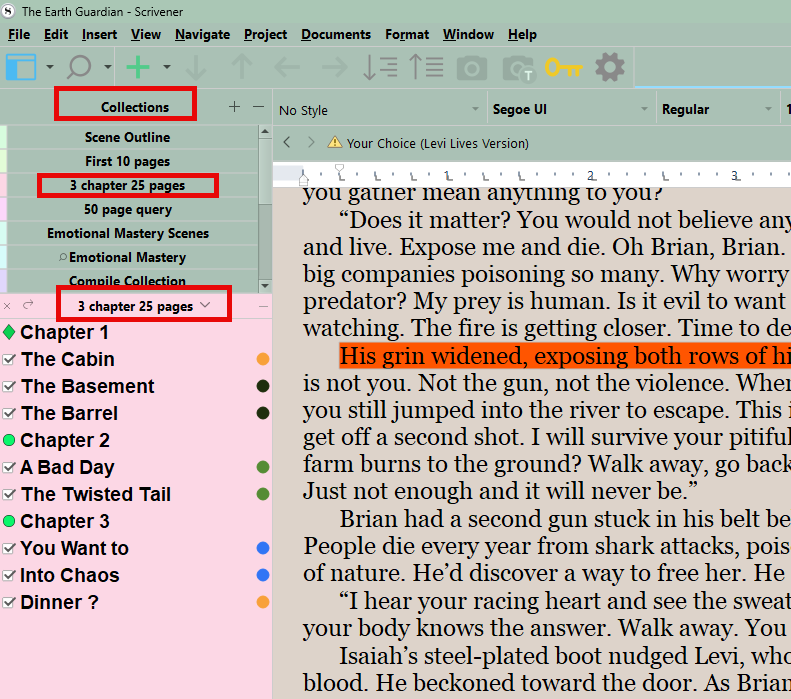
Then when compiling choose the collection you want to compile (see below). You could create different versions based on your needs.
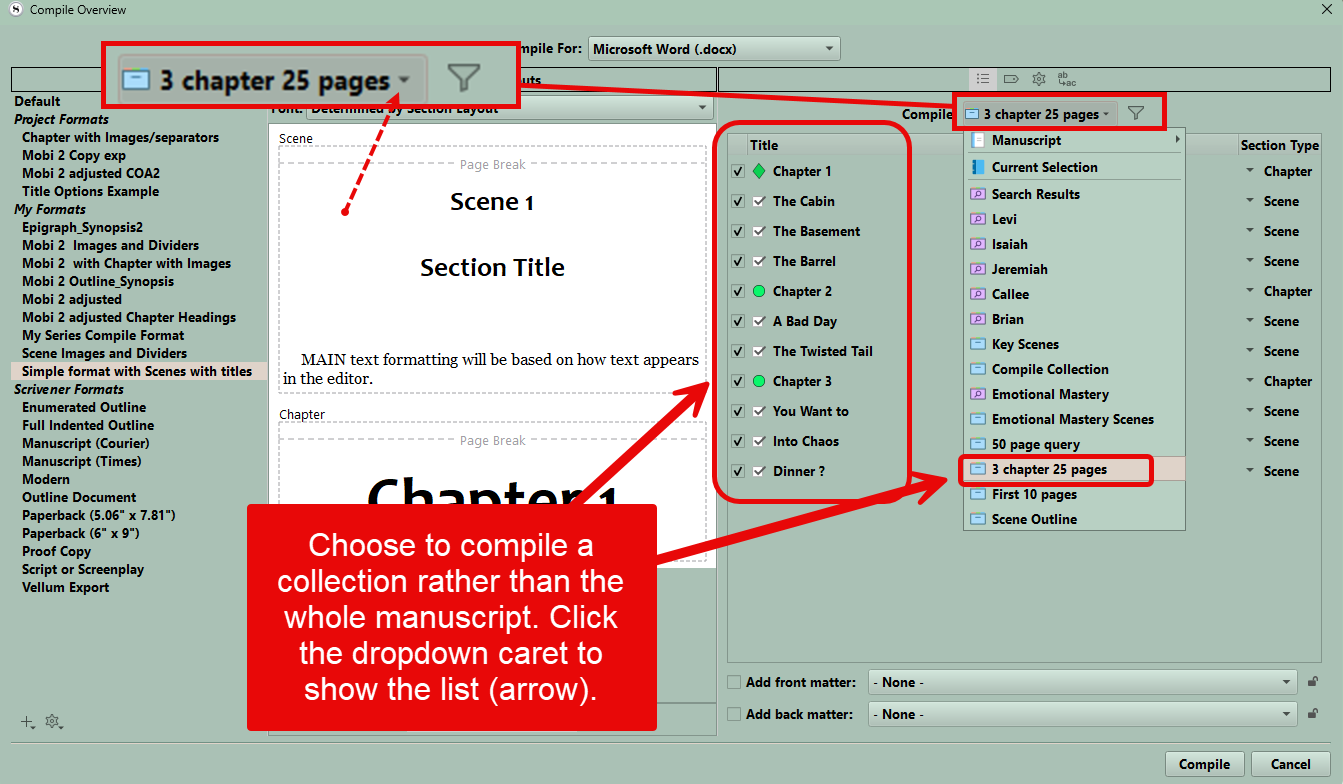
yea! It worked. Thank you.
This sounds very useful. Thank you. However, I followed your instructions to make the collection and I chose that collection to print, but upon pressing ‘save’ in the Window’s folder of my choice, Scrivener just shuts down. I tried it several times and still Scrivener shuts down upon pressing the save button. It may be a bug in the program, I don’t know, but at least I know now what ‘collection’ is for.
You don’t want print you want to save as a pdf, word, or epub. You can then print the saved compile result if you want.
I’ve tried several ways of saving it - docx, pdf, rtf - and each time Scrivener shuts down.
Very weird. Compile will close. You could send your project to tech support.
That’s what I thought. It only happens when i try to save the collection in a Windows folder.
What’s that mean? Collections are incorporated in the Scrivener app. You can compile the collection to anywhere on your computer, but keep it away from your project folders and project backup folders.
Create a folder anywhere and have your saved file save there. It’s pretty easy to do that on Windows using File Explorer. If all else fails, save it to Downloads. It’s an odd suggestion, but it’s easy to remember and won’t fail.