I am writing a paper that I will present at a conference and distribute as a handout. I will probably not have time to prepare a separate oral version and, instead, I will read through sections of the paper. I want the audience to be able to follow my presentation using the handout and, if they find any ideas interesting, read the rest of the paper or part of it on their own.
Thus, I need to clearly distinguish on the handout which parts I will read aloud and which I will not. For instance, by using a different typography, font-size, or color (grey). But how should I do this in Scrivener? One option would be to create different sections and compile accordingly. But if I plan to read aloud, say, one sentence of one paragraph and skip the rest, it would be distracting when writing to separate a single paragraph into different sections, and it probably will not look like one paragraph after compiling.
I feel playing with styles is the way to go. I have not yet used styles, because I write in Markdown and always compile for MultiMarkdown. Is writing in Markdown compatible with using styles? Or are there Markdown-only options to achieve the result I want: same paragraph, but different styles in the compiled document?
I would use character styles to mark the text you want to separate. You will then be able to format it as you wish on compile. In particular, you can go to the Styles section of the Compile dialog, and change the font size and color of that style.
Character styles are one of the reasons why I’m happy Scrivener didn’t go to the Markdown way in the editor. They are very difficult to handle in Markdown, and extremely easy using Rich Text. They can in any case be converted to viable Markdown syntax when compiling.
On the assumption that you can print in colour in sufficient quantities, might I suggest the humble yellow highlight.
If you can’t print in colour (it’s more expensive, especially if you need to print a lot), I’d suggest underlining as the most visually distinguished option.
As someone proficient in Scrivener, I’d personally still be tempted to just write the thing in Scriv and then export to add the highlighting afterwards.
You could use a character style bold or underline, or both, the advantage is you have no character styles in the text, you can when done convert text to default formatting and have the option to remove all styles.
Or if don’t want to mess with project that way, use the Menu command File > Save As and save the lecture project as new Project ( Give it a memorable name Project Markup, and this is now separated from original source project and you do anything you want in this and discard when lecture is over, or save if plan to give the lecture again.)
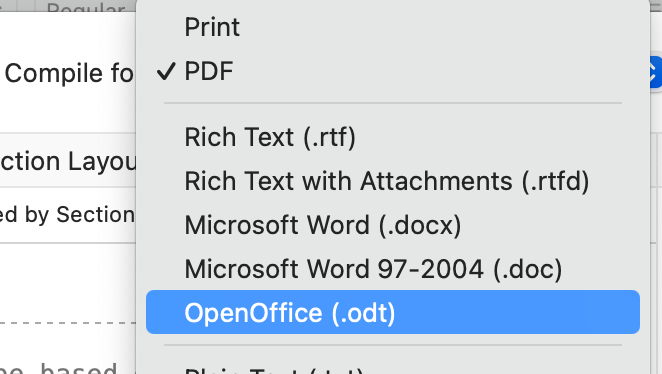
In the compiling options, how can I make Pandoc interpret those character styles as different styles in the output document (odt)? I learned here how to produce an ODT template with customs styles for metadata, but I am confused about how to do this with character styles.
This is a reasonable workaround. I still would like to explore an option within Scrivener to reduce time at “post-processing” and allow for last-minute changes.
This is how I used to work before: one project for the oral version, another project for the written one. But changes made in one are not automatically reflected in the other, and in this specific situation, the oral and written versions are essentially the same; the only difference is what I will read aloud this time, which may differ from what I choose to read on the next occasion. And between these two occasions, lots of things will change in the paper.
One final option is to use snapshots. Markup with bold underline and save as titled snapshot. When done lecture rollback to previous snapshot taken before changes.
Yes, styles are designed from the ground up to be useful to markup-based writing methods. In fact, the stock compile Formats have a few examples of how they can be used:
Open File ▸ Compile..., and double-click on the “Basic MultiMarkdown” compile Format.
In the Styles tab, select Addition, Deletion or Highlight, and observe the settings in the Prefix/Suffix fields, to the right of the style list. These are using the CriticMarkup markings for basic editing notation, but they illustrate how you can insert custom markup.[1]
Paragraph styles, not demonstrated, are also capable of enclosing series of lines in a block marker, which opens up the notion of paragraph styles, with Pandoc:
::: {custom-style="Highlighted"}
Here is where the text marked in Scrivener with this style will go.

This is the second paragraph in the series that was marked with this style.
:::
A tip: I tend to write up the markup I want in a text editor and then copy and paste it, as that’s the easiest way to get carriage returns into these tiny fields.
You asked about character styles with Pandoc: you want to put [ into the prefix field, and ]{custom-style="Highlighted"} in the suffix field. Although, I have had less luck with custom-styles working in Pandoc’s ODT output, and feel that its DOCX output is more mature for custom styling. Fortunately it opens just as well in LibreOffice.
Of course for something like this, you might even just insert asterisks into the fields instead of going down the more complicated custom style route, and building a template for it. That’s of course an option, but for personal use, just to make it easier to find the segments of text you want to read aloud, bold may be all you need.
So as you can see, another advantage to using styles with markup is that if you don’t add a matching style name to the compile Format settings, then nothing happens at all. You can have a Format that annotates the text for one purpose, and another that disregards these kinds of marked up paragraphs and prints them normally.
The Highlight markup might even be perfect for this particular use case, and it’s good to know that CriticMarkup works out of the box with MultiMarkdown (although sadly not with ODT). ↩︎