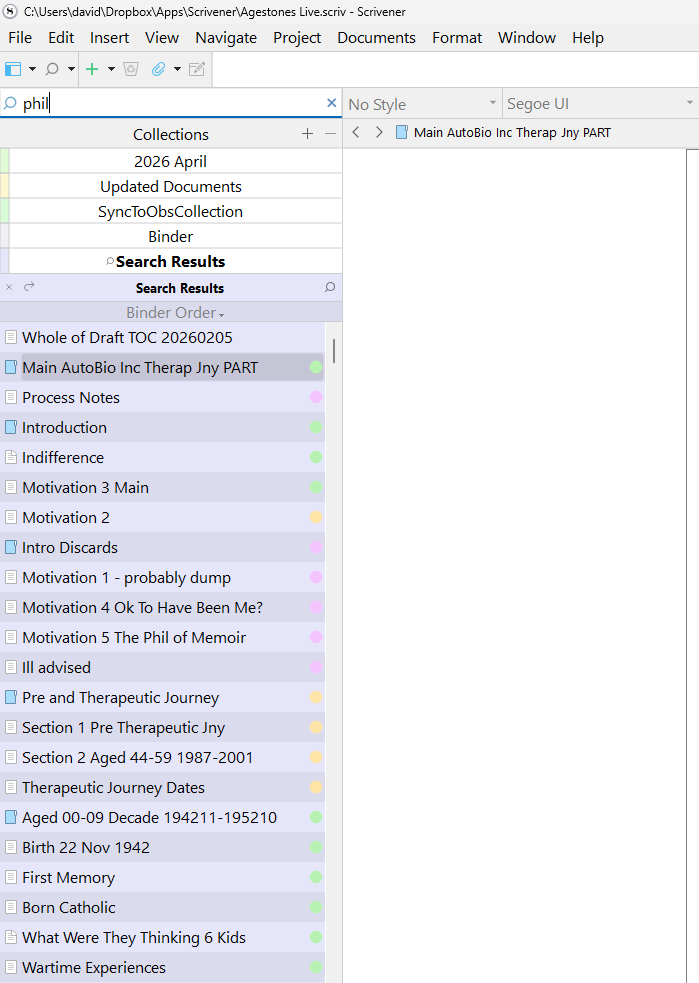
The results shown actually appear when I enter the first character of the search parameter, ‘p’ and the results appear to consist of every text item and folder under Main AutoBio though I haven’t verified that one-for-one.
For comparison, when I do a Quick Search, it operates normally (so no screenshot). As I enter the letters of the search parameter, the results are whittled down and the final result shows 2 items with ‘phil’ in their title and several occurrences of ‘phil’ in text.
However, if I click the “Project Search” button below the Quick Search results, it behaves the same as Project Search invoked in the manner first described in this topic.
I’m running Scrivener Version: 3.1.6.0 (2862669) 64-bit - 02 Sep 2025 on Windows 11. I have several years intermittent experience with Scrivener and this is the first apparent fault I’ve had.
If you click on the magnifying glass in the left of the project search bar, you’ll be able to adjust the search settings—scope, operator, and additional options. My guess is you have “Invert Results” ticked in the options near the bottom, so you’re getting hits for everything that doesn’t match your query.
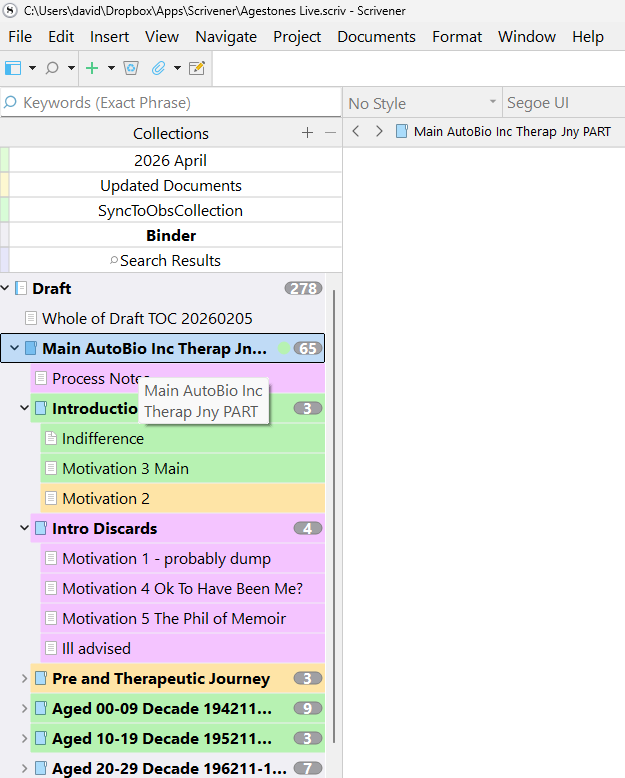
You’ll probably want to adjust some of the other settings too; for instance, going by the first screenshot, the current scope is “keywords”, but if you’re finding what you want in the Quick Search, you probably want this to be “All” or limited to “Title” and “Text” (which is all that the Quick Search looks in). If you hold down the Alt key when clicking the magnifying glass and then the Search In choice, you can tick multiple options (though unfortunately you will have to do it one at a time; the menu will close between).
You could also just select “Reset Search Options” from the bottom of the magnifying glass menu to get it all back to the default state and then go from there.