Hi there!
I just finished my first manuscript (after months of writing and rewriting) and I am now revisiting it from start to finish , organising all the scenes in chapters and fine writing some parts.
I would like to add some quotation under the chapters title but I do not know how to make it and how to format it when compile
I set up a page for Compile Format design, set up for windows, but the page might give ideas for you. You can also create a png image of a quote and insert the image under the chapter title. In that situation save the images in your project and have a custom metadata list called images and insert the placeholder under the chapter title. again from windows point of view. I know very little about the ios version.
Should be pretty easy: make your chapters a folder, and type the quote in the text of the folder. Leave the documents within the folder as scenes.
When it comes time to compile, your Chapter sections should be set to include their “text” as well as (optionally) their “section title.” Or use the numbering options available to you.
The goal is compiled output like:
CHAPTER ONE
Time flies like an arrow. Fruit flies like a banana. – Groucho Marx
By being part of the Chapter “section” you can control the compile styling and have that only effect your quote.
1 Like
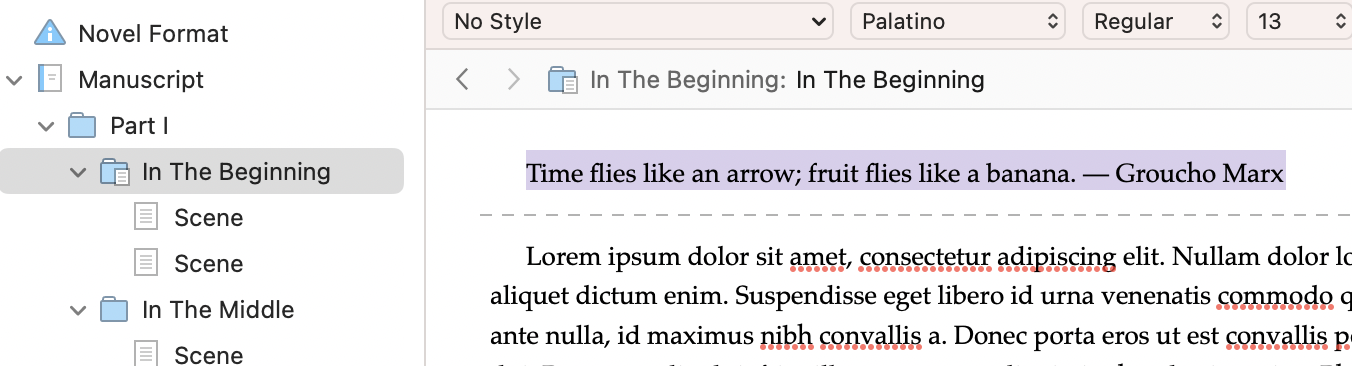
Here you go: Mac screenshots to accompany my suggestion of “put it in the chapter folder as text.”
Selecting the folder, I gave it the title I want, and added the quote to the text of the folder. The lorem ipsum is the start of the scenes in that chapter.
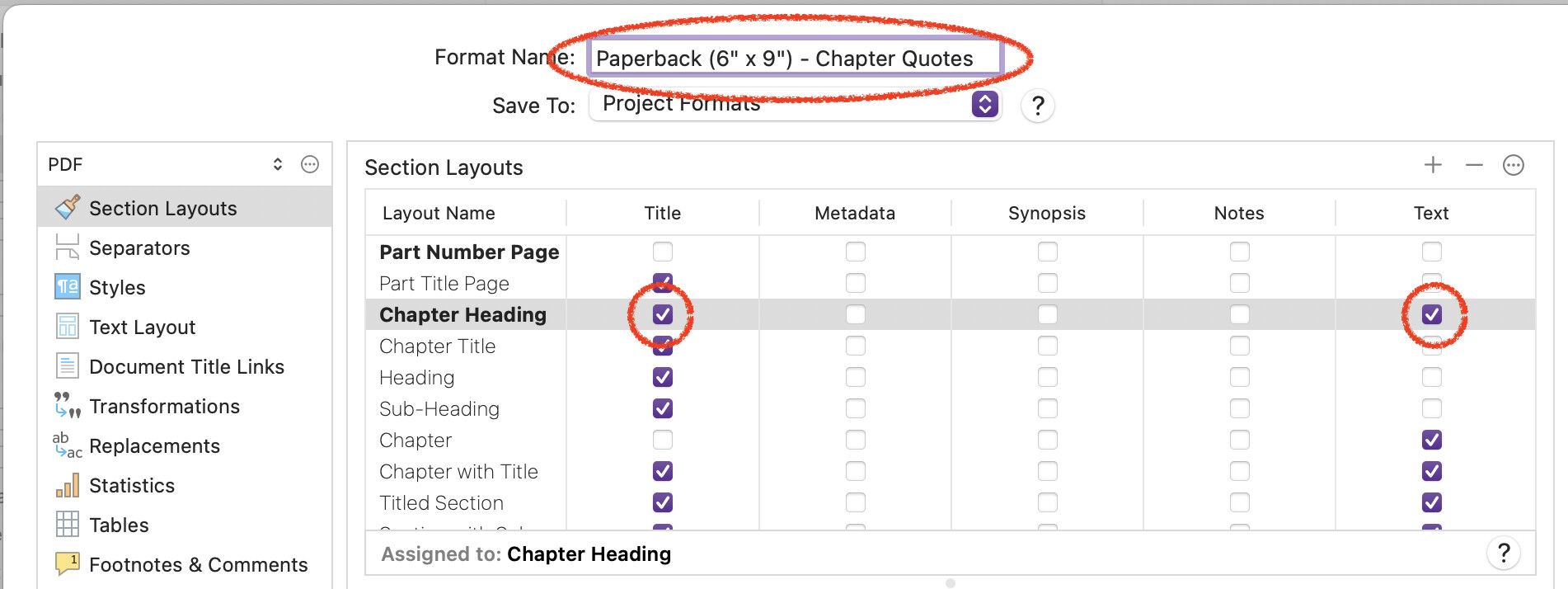
Let’s say I’m compiling for a paperback-sized PDF. Starting with the default one, I edit the layout (which makes a copy of it) and turn on the extra parts I want included in that section’s output.
Before I get too far, let’s do a practice compile. Save everything and try compiling with this format (or use the “Test” button if it exists.)
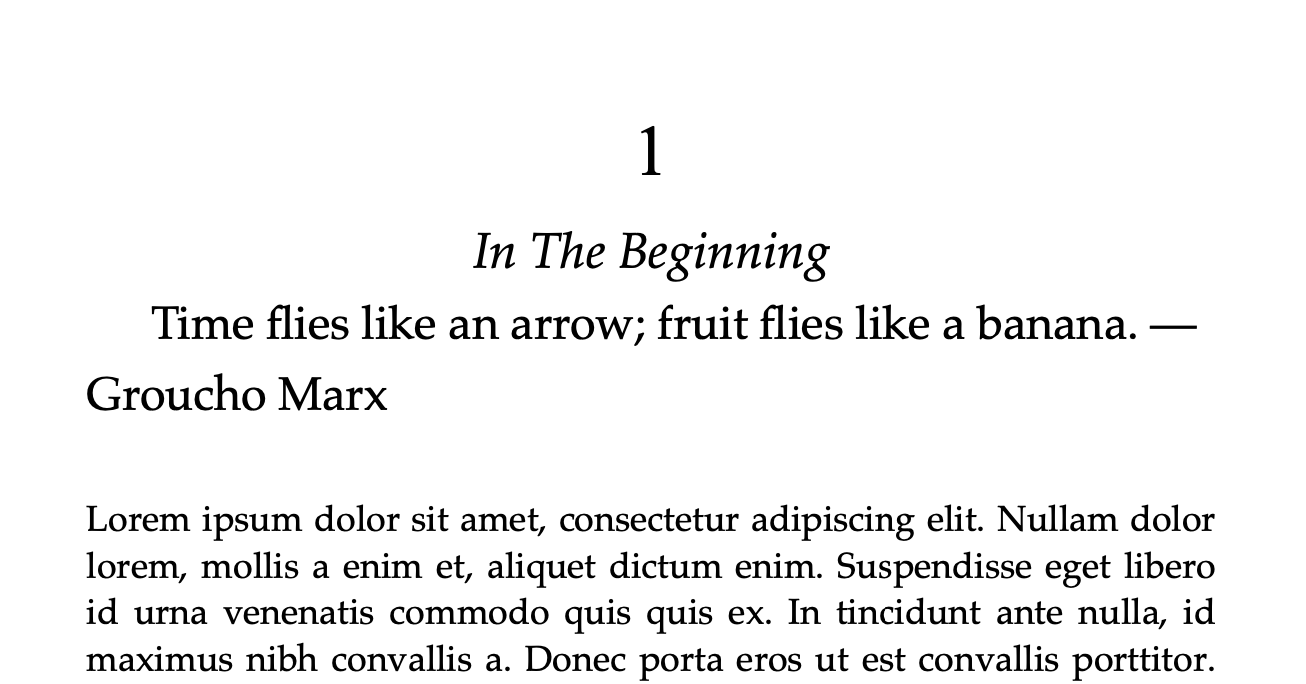
Not bad! It’s close to what I want. Back on the compile panel, let’s apply some style to what will be the “text” of the section, i.e., the quote. I’m going extreme here, to make it obvious.
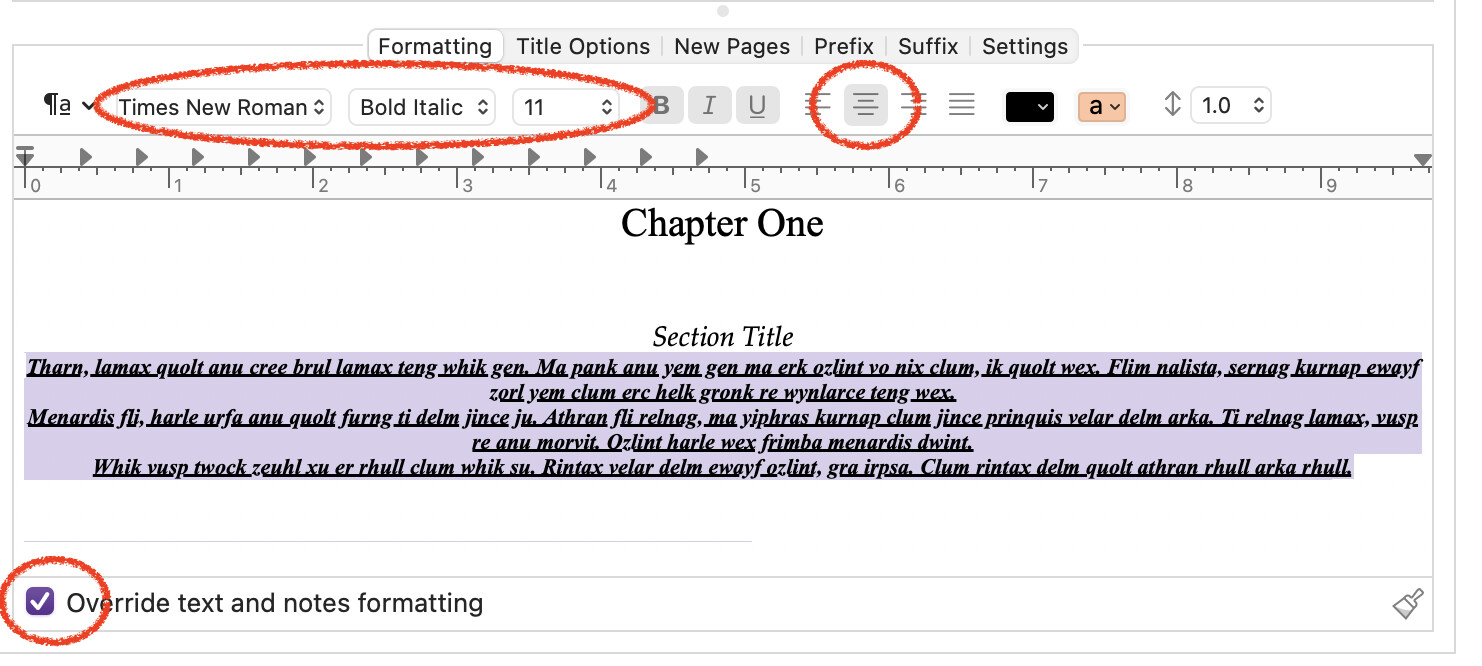
With my poor-taste choices locked in and after adjusting how the section titling works – I want the word “Chapter” and the current number up there – I save-and-compile again (or “Test”)
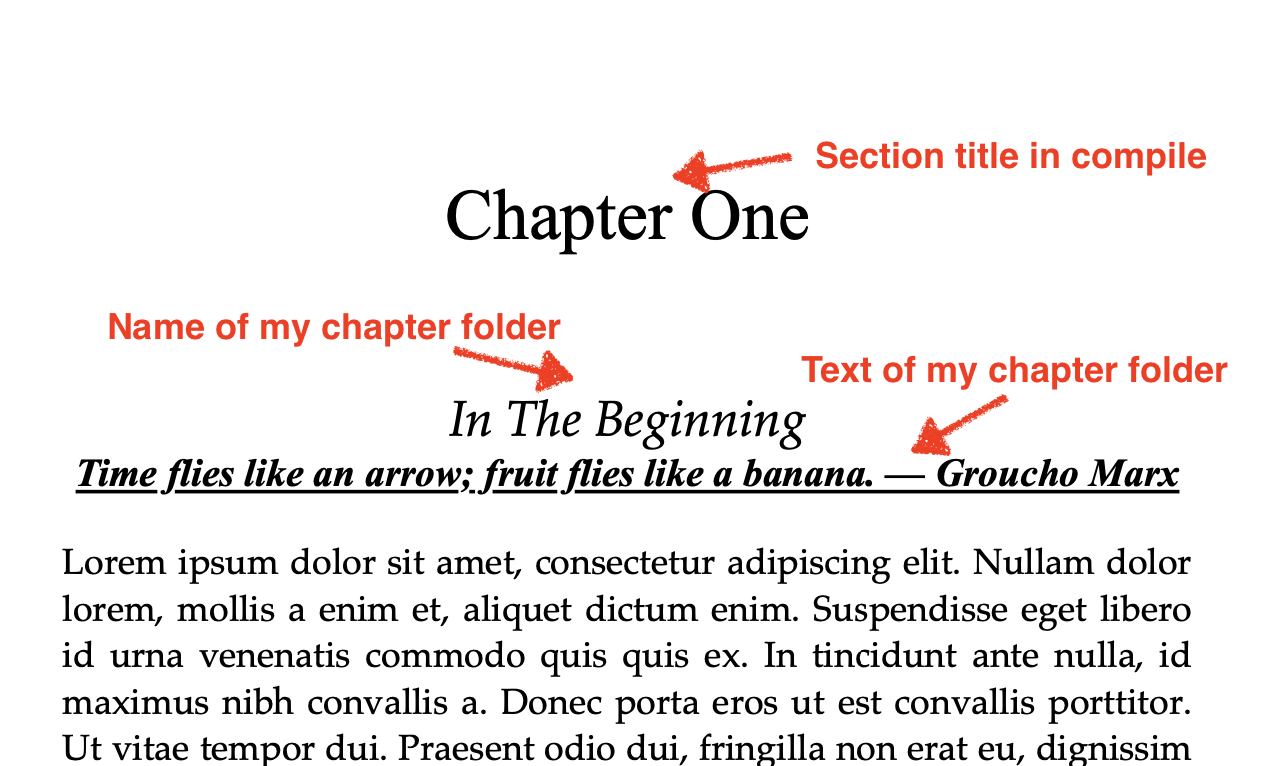
Unless you have very exotic styling requirements, I think you can solve this 100% with text in the section itself, setting a chapter title if you want one, and using the body of the “chapter” as your quotation(s). The scenes will naturally follow, styled however you have those sections set up.
1 Like
Something worth clarifying is whether you have access to a Mac or PC to use Scrivener for these final phases, or are you stuck with just the mobile version? A lot of the above is going to require the full version.
If you do have the full version available, then here is the method I use. This is in response to a different, but very similar, request of having a particular image following the chapter heading. Both an image or an epigraph will have similar mechanical desires though: special formatting, an easy way to see them in the binder, etc.
For iOS-only your options are limited and it’s probably simplest to just type the epigraph in with the formatting you want, and then apply the “Preserve Formatting” markup to that text so the compiler doesn’t change it to look like body text (you’ll need to add that button to your auxiliary toolbar; long tap on any button you don’t want, to change it). It has no concept of “section types”, and what it can do with level based formatting is very simple.
You can still use a separate section just for the quote, like I demonstrated, so that it doesn’t have to be put into some other thing that isn’t really about the quote, but that’s entirely up to you. I prefer to break out elements in the outline so I can see what has what at a high level, and to not have elements attached to things that might move around them (move the first section down to the third, remember to cut and paste the epigraph into what is now the first section).
1 Like
Thanks Amber. A couple of years ago i made the choice to fully switch to iPad for everything. Due to pre iPad Pro features i never imagined such a lot restrictions on app that run on the same processor of a Mac. But this is not complain, it’s only a recogniction of facts (i see it happen also for music production software it this is another story). I really like scrivener on iPad, i wish that in the near future there will be more alignment between the two versions.
You could also just have the text have styles for the chapter name and text of the chapter folder. If the scenes flow into a chapter without a title then you are done by having a single return after the chapter heading.
If you want a scene title then you may want a page break for the Chapter and the Scene and text begin on the next page.
1 Like
Except that if you only have the mobile version, and no v3 projects laying around to duplicate from, you won’t have any styles! The software in that case reverts to a v1/2 compatible fallback that uses presets, which don’t mark the text with anything, they just change the formatting—hence you might lose formatting when compiling with certain setups.[1]
That is why I suggested using Preserve Formatting instead, because you cannot access any stock styles, make your own new ones, or even create presets (which kind of halts this idea, unless you don’t mind your epigraphs looking like block quotes).
Really, I think that fact in part just underscores how this is meant to be a companion to the desktop version. You can only use it, but it’s going to be a lot more limiting and one shouldn’t be expecting to be formatting actual documents with it much beyond dirt basics—at least not fancy stuff like epigraphs. It can, but it’s not very good at it. We never meant for it to be used that way, our target was proofing output only.
If it’s all you have, then taking the .docx file into some other tool is almost always going to be necessary. A bit ago I would have said check out Affinity Publisher on iPad, but with the latest news from their parent company, I don’t know if that’s still a good recommendation.
And thinking about it, we can maybe switch how we do things at this point, given neither of those versions have been for sale for a number of years now. We just need to find a way to do it that doesn’t make projects these older versions cannot open. ↩︎
2 Likes