Recovering from crash, recreating project from backup post-crash

I had three projects opened. They had been opened for a couple of days.

At one point when I switched to one of them, Scrivener became nonresponsive.

I waited but it never returned.

I was able to switch to the other two opened projects and close them normally.

I eventually terminated Scrivener from Task Manger.

When I tried to open the previously nonresponsive project, Scrivener was unable to open it. I tried by double clicking in Explorer, and also via the Open Existing Project Project dialog.

Note: After the crash, the Open Recent list was completely empty, but after the failed attempt to open the crashed project, that project name became listed in the Recent list, even though it never actually opened. Does this tell us anything?

I do not open this project often, and when I do I make few modifications.

I have a back up from some months ago, so the differences between the backup and the last working version would be relatively minimal.

If there is some way to get the corrupted project opened, I’d love to know what that might be, as I saved a copy of the full project folder of the corrupted project.

In the mean time here’s what I’ve done:

In Explorer, I’ve identified all the content.rtf files in the corrupted project that are timestamped after the date of the last backup.

In doing that I’m assuming that all content that a user actually types into binder documents goes into a content.rtf files? Is that correct? And if so, do I now have the content I need to in effect “update” the backup project to what the corrupted project would have been if properly saved?

Thank you!
Hi.

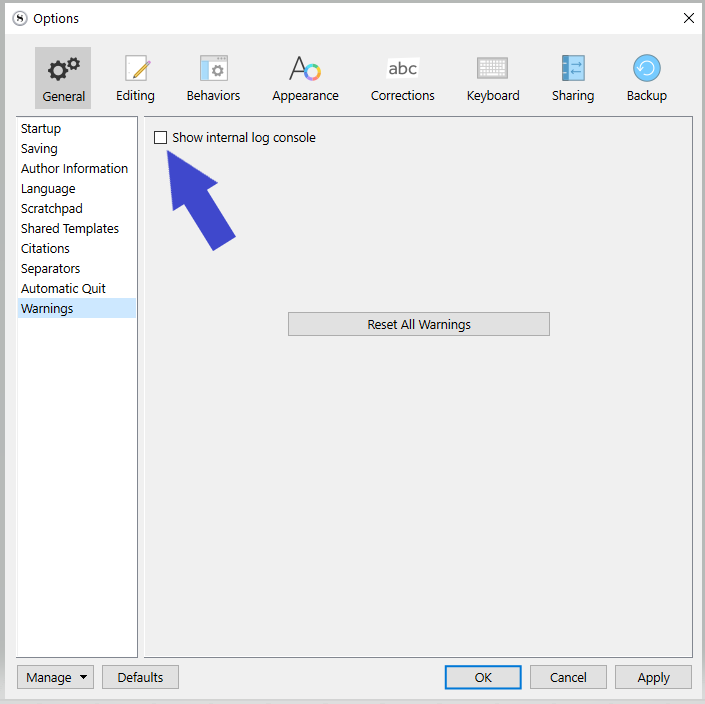
Turn on the log console, in the options.

Try to open your now faulty project. You’ll see what it says when it stalls.
The support team might then know exactly what’s wrong and how to fix it.

. . . . . . . . . . .

More or less, yes, I would think so.

1 Like

Hey Vincent. Thank you! Very interesting.

It gets hung at the same spot every time. When I scan the log, nothing stands out as an error, then there are a number of Warning lines about QtToolbarManager (can not find QAction with matching text string etc…) and then starts to load documents. The very first one listed I know to be exceptionally large and in need pf either splitting or spinning out to a project of its own (365k words. yes.) That file is followed by eight or nine others, then it konks out. Nothing stands out to me as an error. The log file shows the processing time needed for each file. The large first one shows it needed 3.362 seconds. The others show either 0.000 seconds or just a 1 or 2 ms.

Interesting that other files loaded after the big one, which one might think would be the culprit and where the process would stop. Hmm.

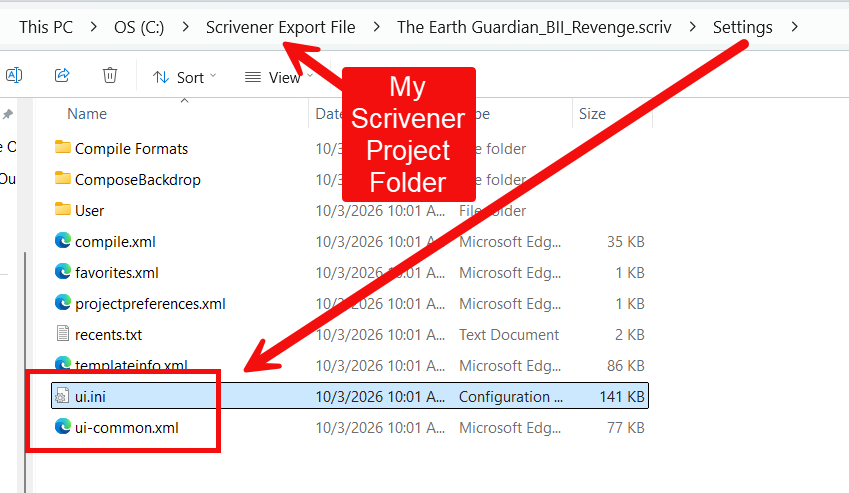
You can also try clearing these files Now open the Scrivener Project and then open the Settings folder and find and drag the “ui.ini” and “ui-common.xml” files to the Trash. This resets project interface settings.

Now back up a level and right-click on the scrivx file for the Scrivener Project and see if the problematic Project will now open in Scrivener.

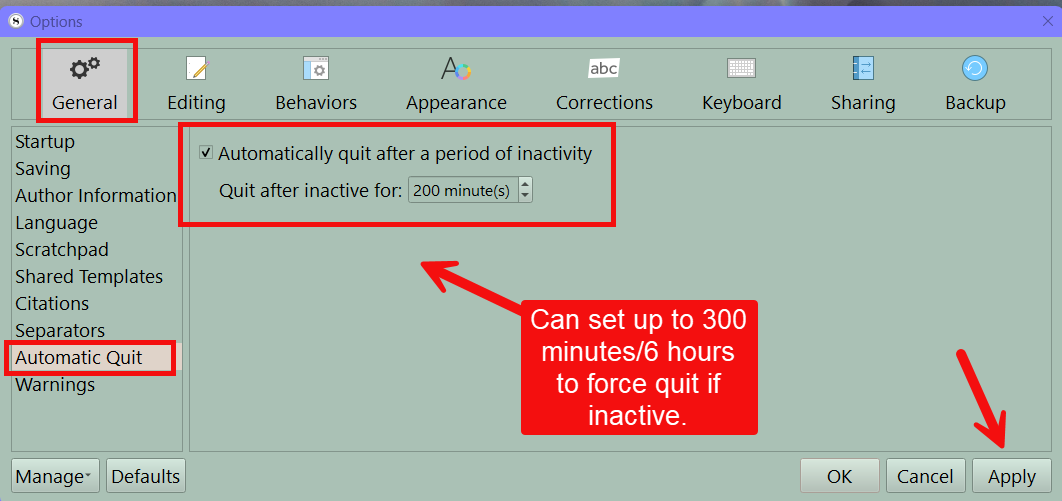
The other thing is set your project to automatically close when inactive X minutes in options settings

Resetting the UI file will also negate its attempt to reload whatever content might be in the editor that is causing the crash. If that does allow it to open, it is likely it will crash again if you select the same item. So what I’d do is use Navigate ▸ Editor ▸ Lock in Place first, so you can freely click in the binder without anything loading.

Locate the suspected file and right-click on it, then holding down Ctrl to enable the “Reveal File Location” troubleshooting command. This will open File Explorer to the content folder, and I would just drag this whole folder (from one level up) to Desktop or somewhere else temporary, and then reload the project. The item will be empty, since you’ve cleared all of its content files.

Having those as separate files now, you can try to clean them and re-import. That could be done in a test Blank project to mitigate risk, and if you get everything imported so that it doesn’t crash, then you drag that restored binder item back into the main project. Restoring it in stages will help determine where the corruption is. It’s probably going to be in either content.rtf or notes.rtf, since those are the most susceptible to either having odd formatting or bad images. If one of those causes the blank project to crash, then trying to recover the content into a fresh new RTF file with Word is how I’d go about it.

1 Like

Thank you all!

I will try taking those steps on a copy of the corrupted project and see what happens.

I’d been thinking there might be a way to isolate and/or remove the problem file/folder using Explorer in some way. So these suggestions are encouraging.

The 300k word file likely contains nothing but text. It opened in the editor when clicked on in the binder, but it was slow and difficult to scroll through as a document. It may have been that doc that Scrivener was sitting on when that project was last focused on, then left sitting open and unfocused for a long while as other work proceeded around it. It was when I tried to refocus it that the hang up happened.

I was surprised that the other opened projects let me focus and close them normally even as another Scrivener project was hanging or churning or whatever it was doing before I manually crashed it. Maybe I should have waited longer for it to recover?

Thanks!

Actually, I have a follow-up before I proceed with those suggestions.

I just noticed that having set “Show internal log console” to on, even when Scrivener appears to open a project successfully, the console window remains open in the background. Closing that console window fully terminates Scrivener. Can I assume that is normal?

Should I keep the console enabled until I’m done futzing with this issue? If so, what would I be looking for?

Also, does a console sequence like this indicate a problem? It seems to always be there when I open and/or move through a project.

Info: libpng warning: iCCP: known incorrect sRGB profile
Warning: QtToolBarManager::restoreState(): cannot find a QAction named ‘Search-begin-gap’, trying to match using ‘text’ instead.
Warning: QtToolBarManager::restoreState(): cannot find a QAction with matching ‘text’ (looking for ‘Search-begin-gap’).
Warning: QtToolBarManager::restoreState(): cannot find a QAction named ‘Search-end-gap’, trying to match using ‘text’ instead.
Warning: QtToolBarManager::restoreState(): cannot find a QAction with matching ‘text’ (looking for ‘Search-end-gap’).
Warning: QtToolBarManager::restoreState(): cannot find a QAction named ‘Search-end-gap’, trying to match using ‘text’ instead.
Warning: QtToolBarManager::restoreState(): cannot find a QAction with matching ‘text’ (looking for ‘Search-end-gap’).
Warning: QtToolBarManager::restoreState(): cannot find a QAction named ‘After-Mode-Gap’, trying to match using ‘text’ instead.
Warning: QtToolBarManager::restoreState(): cannot find a QAction with matching ‘text’ (looking for ‘After-Mode-Gap’).
Warning: QtToolBarManager::restoreState(): cannot find a QAction named ‘End gap’, trying to match using ‘text’ instead.
Warning: QtToolBarManager::restoreState(): cannot find a QAction with matching ‘text’ (looking for ‘End gap’).
Info: Loading Documents: “CC0A8A7F-EC90-400B-BE47-E477A5D9D135” “from wordlists.txt”

Save the text/report of when you try to open the broken project (like you did above), then toggle it off. You no longer need it.

You could try that (although I wouldn’t hope much for anything), but have an eye on Task Manager. If your CPU usage is high because of it, no, don’t.

I would add do a search when you get the project open based on date modified ie mdate:>xd where x is number of days Plus 1 from the problem started. (as may be a file you modified the day before your troubles started that is the problem. This way you will only look at recent files which are most likely the trouble source.

Thanks again. This is ALMOST fun. :upside_down_face:

After removing the un.ini and ui-common.xml files from the problematic project, it opened without issue.

Opening it side by side with the restored backup and comparing the Project Statistics for each, I can account for just about all discrepancies between the two, e.g., the formerly corrupted newer one has about 10 more total documents than the backup, but I can see that I had split one long doc into multiple docs just before the backup was taken, and when those are compared the difference is just about a dozen words.

So it looks like it should be safe enough to use the recovered project, as that’s what I would have been working on at the time it was left opened and unfocused.

Any gotchas I might be overlooking?

Hmmm…. When inside the project, I went to the doc with 300k words, selected all, then cut everything from it leaving it empty, project statistics continues to show roughly the same number of words, just a 50 word difference. Even after exiting and reloading. When I look at stats for just that now empty document, it shows it contains 0 words.

What would account or that? The cut text is no longer in the project at all (e.g., it’s not in the trash, etc.)

How exactly would I do that?

In the project search (the field that opens just above the binder) when I set it to search by date, and put in mdate:300d it turns up nothing. Likewise when I search in All and choose regex (is that a regex expression?)

I confess to being quite lost when it comes to advanced search, even after all these years.

Right or left click on search and see modified date option. The format is mdate:> then add x( being number of days)d

1 Like

Have you tried importing the corrupt Project in a blank Project?

Depending on your settings, it might never have been counted to begin with? Defaults tend to exclude material outside of the Draft folder, or if the “Include in Compile” checkbox is deselected, for example.

Otherwise, it’s not a bad idea to manually resync the search index. If you use Alt,f to open the File menu, you’ll see it among the Save options. No need to reload, just let it rebuild.

Search indexes are used for more than just searching, for anything where speed is important, like loading a bunch of index cards on a corkboard will use the search index instead of potentially having to load, read and close hundreds of text files off the disk.

1 Like