Revisiting Keyboard Shortcuts in Windows only

I searched for an answer but there doesn’t actually appear to be one. I may have missed it, and I earnestly tried.

As most frequent users of Windows know, Ctrl+k is a standard hyperlink shortcut. It’s specifically for selecting text and creating a URL within the selected text.

It would look like this.

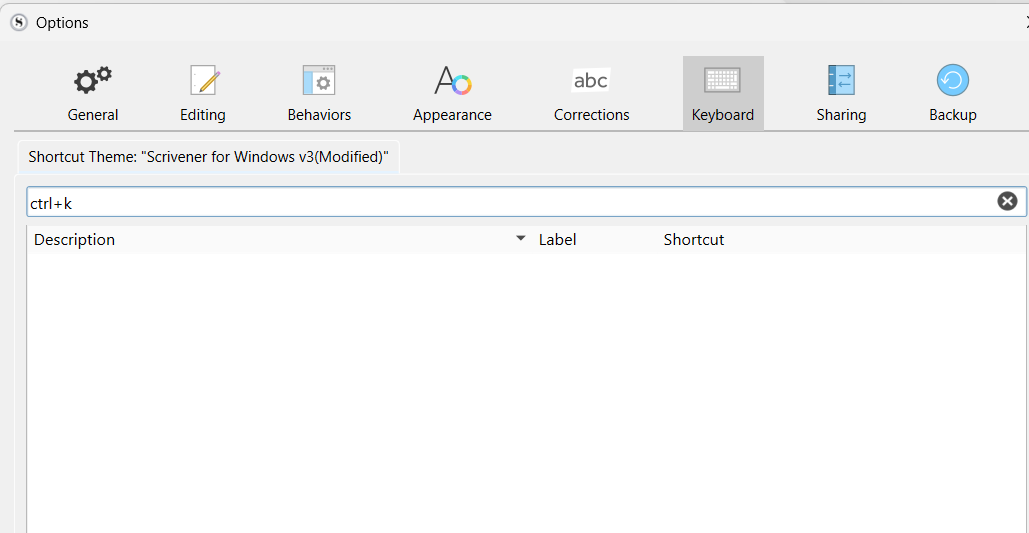
Ctrl+k is not in the list of Scrivener Options > Keyboard and Scrivener does not recognize the default Windows settings for that shortcut either.

I had it working on my last laptop that suddenly died. I had cloud backups for my work, but evidently my settings were not backed up. Okay so live and learn there, but I really need that shortcut to work.

In Scrivener, on the Keyboard Options, there is a tab near the bottom called Edit Shortcut, but it does not appear to ADD a shortcut that is not used.

Can someone explain to me—in elementary terms—how to fix this? I do not want to change any shortcuts and if attaching a link to selected text is already in there, I do not want to learn a new shortcut for it either, because the shortcut is standard in Windows and I cannot fathom why it’s missing.

Thanks for any help!
Hi

I don’t get it.

I am pretty sure that this is the default shortcut. I can’t think of why I would have changed it.
. . . . . . . .

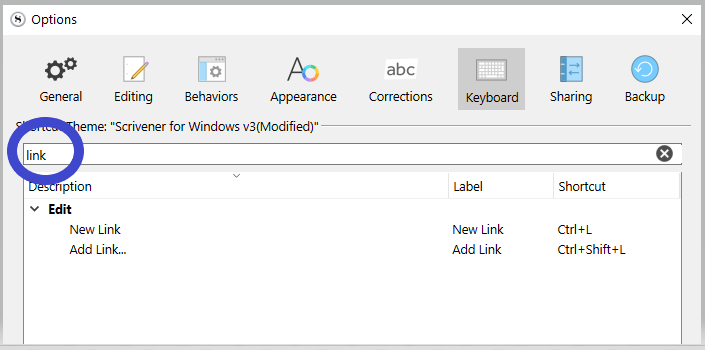
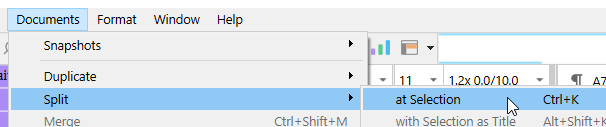
Is this not rather what you want/mean? ⮟

As far back as I can remember, any app, Ctrl-K has always been for split. (Except Scapple …?)
(Maybe you reassigned it in the past. Now it no longer works, but you might be looking for the wrong command.)

The default for Split at Selection is actually Ctrl+Shift+K, as per page 324 of the manual. Maybe you were doing it often and changed the shortcut?

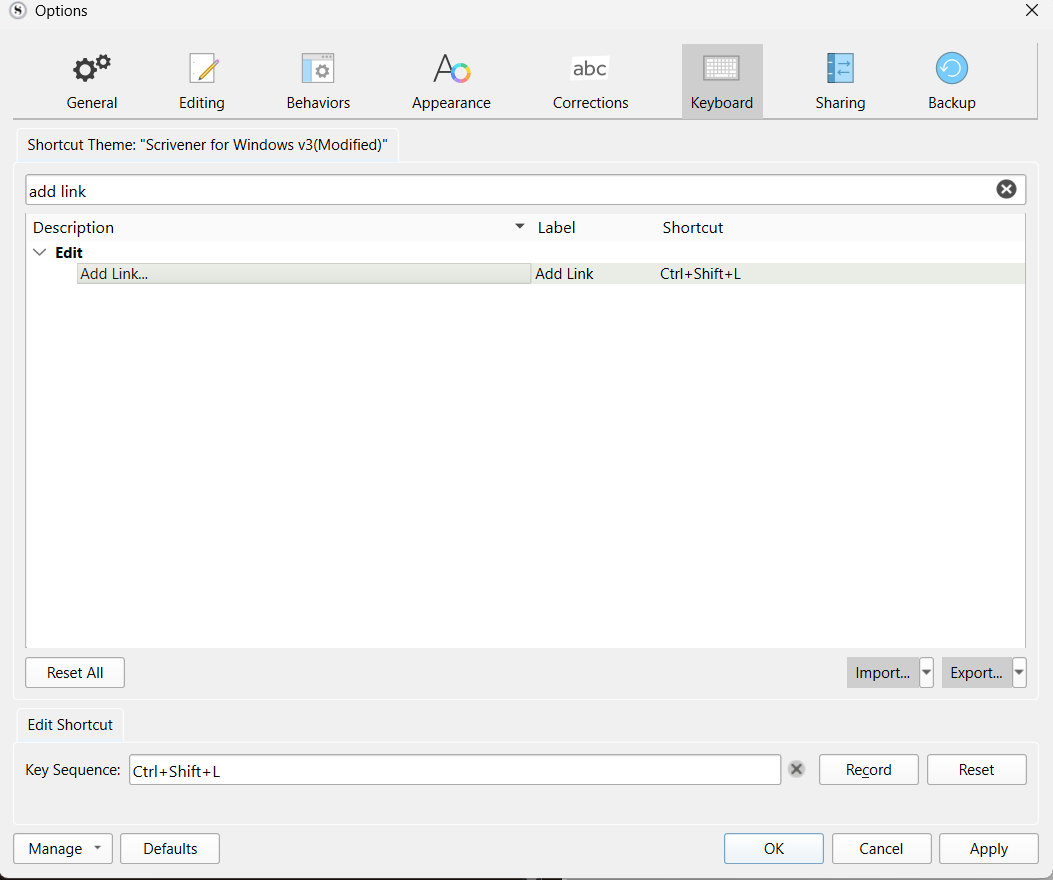
As per the manual page 348 (and @Vincent_Vincent’s screen shot), Ctrl+Shift+L is the default for Add Link in Scrivener.

Yeah, I’m not seeing it in Scrivener’s shortcuts either.

Well, then I guess there’s nothing anyone can do to help you, because you just ruled out the only two options open to you. :frowning:

But if it were me and I felt that strongly about Ctrl+K, I’d try changing Scrivener’s Add Link from Ctrl+Shift+L to Ctrl+K. It might work, it might not. What have you got to lose?

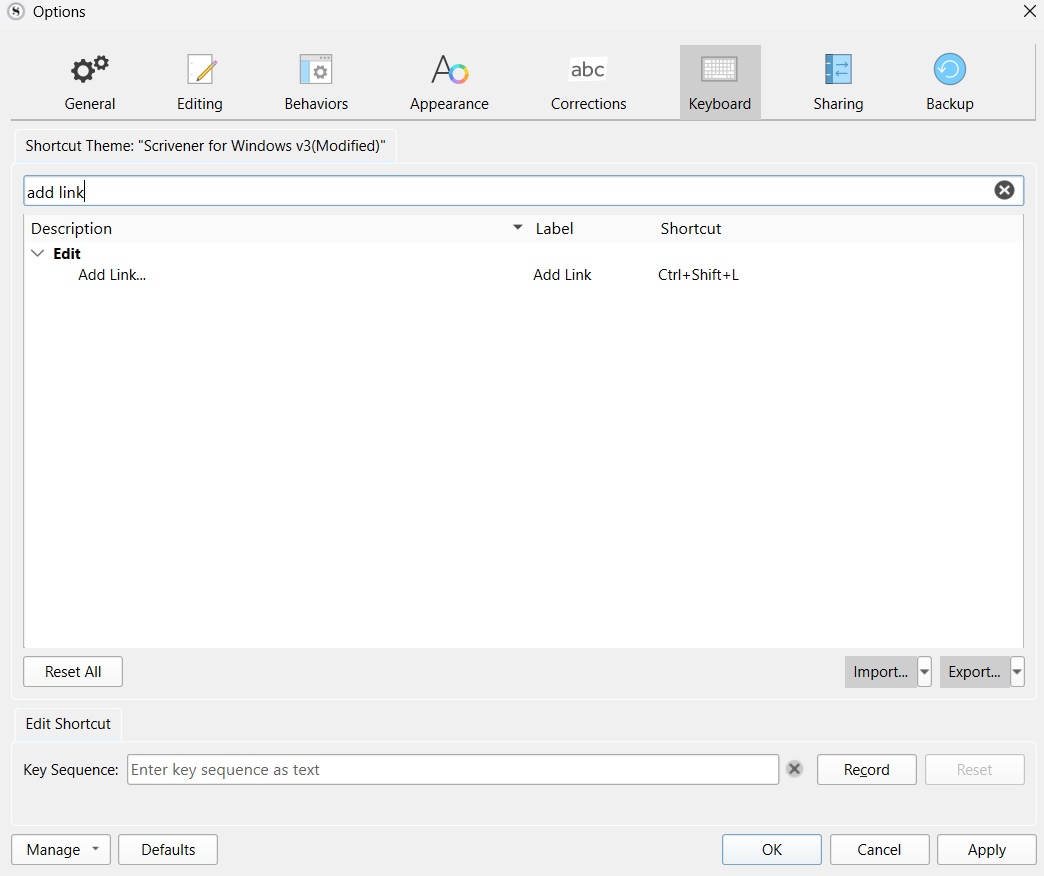
File > Options > Keyboard, then enter Add Link in the filter field to get here:

Select Add Link, then type Ctrl+K into Key Sequence, then press OK.

Best,
Jim

4 Likes

Why would it show? If assigned to nothing ⮚⮚ Empty list (nothing, accurately).

@magnoliasouth You need to look for the command you want. Searching for an unassigned shortcut, no result is the logical outcome.
If the shortcut is already assigned, you’ll get a prompt when attempting to assign it yourself to a new command.

Yes, I was agreeing with the OP, that by default Ctrl+K is unassigned in Scrivener.

1 Like

No worries. I had understood. Apologies that my post came out as it did. :wink:

I was questioning (and scientifically negating) why the OP would expect it to show. (With nothing but the most positive of intentions :slight_smile: )

1 Like

Perhaps this is because Ctl-k is a built-in shortcut for delete to end of line on Macs so it can’t be used on that platform and they’ve tried to maintain some familiarity for people using both platforms?

(Background: It’s one of the those incredibly useful Emacs editing commands, like Ctl-a, Ctl-e, Ctl-n, Ctl-p and so on, that are available in every Mac program by default – and the absence of which make switching to Linux or Windows so frustrating… I’m always creating new documents on Windows instead of going down a line LIKE NATURE INTENDED…)

As an aside, I’ve never really tried to work out the difference between the three shortcut schemes you’re offered on Windows Scrivener – I always choose the Mac option, but I wonder what most people use.

Tried on windows and works like a charm once changed.

1 Like

Hey everyone and thanks so much for the varied answers. I do wish to expand on my original post. I don’t think was explaining this clearly enough.

Where I said:

I should have instead said:

Also when I said:

I would like to know how to change shortcuts, since it is greyed out in Scrivener. Oh and yes, I have the full version.

Now for responding to comments.

I have no idea what “split” means. I even have Microsoft Office, a newer version, and Ctrl+K works as I describe, it also works in various other text editors.

Perhaps, but I don’t want it to work that way. Due to a disability, I cannot hold 3 keys down at once. I can only use 2, at most. It is the result of a very serious fall that I had. My hands and fingers had numerous fractures, requiring multiple surgeries. My fingers are now severely limited.

I also hit my head badly during the fall, but fortunately had no fractures. I have noticed that my memory since that fall is not what it used to be. Which is why I am trying to customize this according to my personal needs.

Well, this is enough to make me cry. If I can change another shortcut, I would, but I can’t seem to do that either and this is incredibly frustrating.

As mentioned, I cannot type into the Key Sequence box, at all. I even tried recording it but since I am not sure what I’m supposed to do. I tried several things, like using Ctrl+k and doing it manually via the toolbar.

Yeah, I just wish I could figure out how to change it too.

Sigh. Well. Thanks to all who responded. I very much appreciate it.

I guess I’ll have to switch to Office, which I really DO NOT want to have to do. Office is more business oriented while Scrivener’s features are rich with options more suitable to writing. :pleading_face:

Before typing into the Key Sequence box, you MUST SELECT the function you want to change. If you don’t select the function, the Key Sequence field remains greyed out. If you think about it, this makes sense, because you can’t change something until you tell Scrivener what it is you want to change.

So–

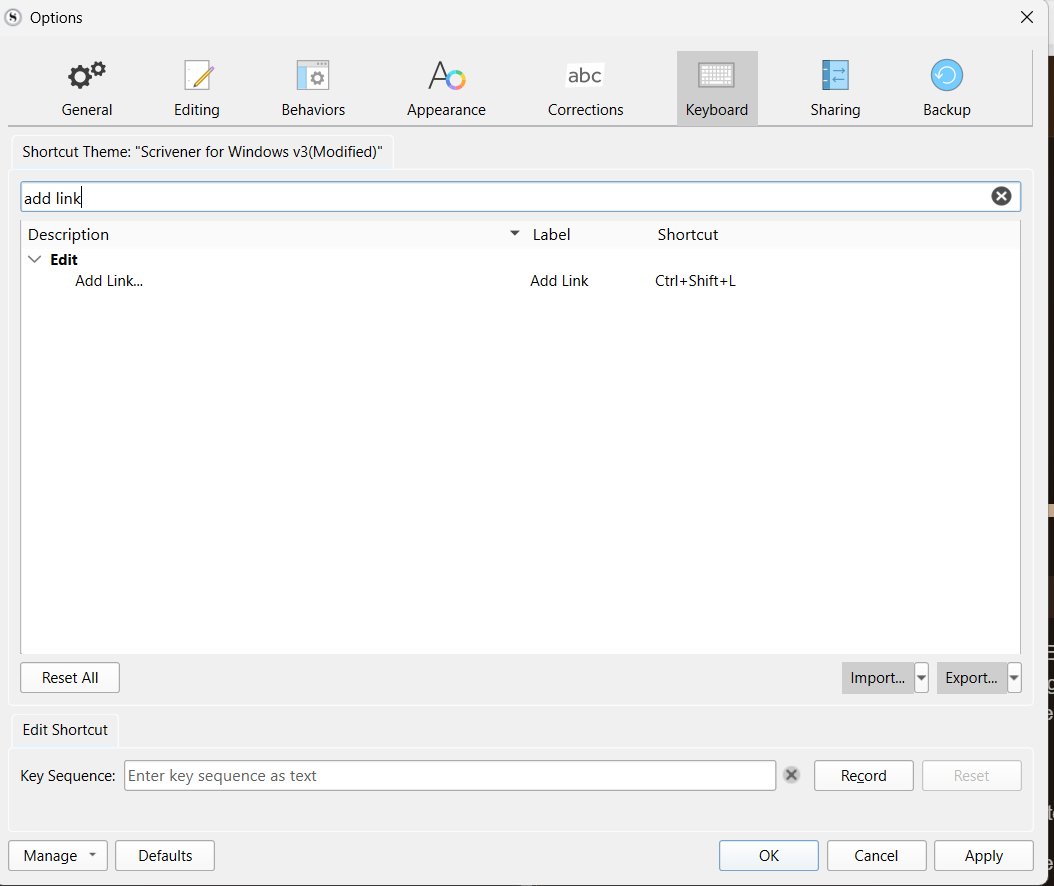
File > Options > Keyboard, then enter Add Link in the filter field to get here:

This is the important part! Click on Add Link with your mouse so it’s selected.

See how the entire line is below is now highlighted? See how the current Key Sequence is now displayed? That’s how you know Add Link is selected.

After you’ve selected Add Link, you should be able to type Ctrl+K into Key Sequence, then press OK. This will change the problematic key combo to something more manageable for you.

Sorry if the above seemed like I was shouting, but you did say in elementary terms. :wink:

Please let me know if that works for you.

Best,
JIm

2 Likes

Yay! Thank you so much! This worked. I must’ve done it back when I first installed Scrivener on my old laptop, but I couldn’t remember what I did. I just knew there had to be a solution.

I am forever indebted to you! :grinning_face:

2 Likes

Thanks for letting me know! So happy it worked for you. :smiley: