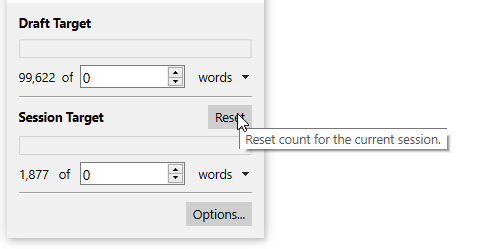
Hello! Here’s my suggestion: create a “rush” mode in the project goals. For exemple, I would like to set up a small 500 words goal WITHIN my 2000 words/day to write (automatically calculated based on my deadlines).
Personally, I have pretty tight deadlines to meet, so I use the writing goals to figure out how many words I need to write per day to meet my deadlines. But sometimes, that number seems so high that it’s discouraging, simply because it’s calculated over the entire day. So what I’m proposing is to create a kind of “sub-goal” to break down the big one into smaller steps, and to be able to integrate a timer, for example, if feasible! For example, every day I could challenge myself to write 500 words in an hour, and do several of these challenges throughout the day to achieve my 2000 daily goal. There you go, I hope most people like this suggestion Happy writing <3
The session target resets every day by default, but you can define it to reset whenever you close the project. It’s unfortunately not possible to combine that with the words/day calculation, though. That is, you can manually set a session target of 500 words (or whatever), but can’t also set a 2000 word daily target.
When I was doing NovNov, when I reached my session target, I would sometimes change the target by adding another 500 words, if I felt like pushing a little longer.
@toscanoury, you could use a similar approach as a workaround, correct? Keep extending the session target by your smaller goals until you’ve reached your daily goal?
You can set word goals for individual documents. Use this for a natural way split your session target into subgoal segments:
Set session target to 2000.
At start of session, create four new documents.
Set the word goal of each document to 500.
Start writing in the first document. Watch the meter working up to 500. Yay!
When you hit that, just segue to the second document and repeat.
(You will need to set a timer for yourself, but your phone and your mac have those built in. I have a shortcut on my mac’s shortcuts menu just for steeping tea.)
Of course, my real advice for the OP is to learn not to be so easily intimidated/discouraged by numbers!
Another idea: leave the overall session counter alone, if you have it set up the way you want it to work on a longer time scale, and for your sprints, use a different tool. There is a technique that that old NaNo template used, which is easy to set up in any project of your own.
First you will need a document templates folder, if you don’t know what that is or how to set one up, then follow the instructions provided in the user manual PDF, under §7.5.1, Using Document Templates.
The key thing to know about this feature is that it replicates all of the settings and attributes you give to a template item. In this case, the goals you set for this item, and the options you use to define how those goals operate, will all be carried over into each new item you create from it.
Setup
So select the Templates folder, and press Enter to create a new text item within it.
Call it “Sprint”, or something to that effect.
In the footer bar of the text editor, click the target icon on the right hand side.
Add your 500 word goal here at the very top, and go over the other options. The main one that might interest you is the notification setting, so that you get an obvious prompt once you reach the goal (like the overall session target might do). The rest is probably not pertinent to what you’re doing here with it.
That’s really all you need to do, but you might wish to embellish this starter item as time goes by, maybe put some prompts into the Document Notes field in the inspector, stuff like that.
Now to use it, just use the Project ▸ New From Template ▸ Sprint menu command, with the binder select wherever you want to put the text for this session. As you write, you’ll note the target icon has become a progress bar, which fills up as you go.
Tips
Be mindful of your session target settings, if you do want these to count toward the overall 2,000 for the day, you should either write them into the Draft folder, or change the session target settings to allow writing to be done anywhere in the binder.
If you mainly do this as an exercise rather than writing into the book, then consider making a top level folder in your binder, selecting it, and using the Documents ▸ Default Template for Subdocuments ▸ Sprint menu command. Now when you make new items within this folder they will automatically be of the right kind.
Scrivener has a bounty of tools for merging and integrating text, so don’t be put off by having to write into a separate text item if the idea is more to flesh out a section of something that is already half-written.
You can drag and drop the 500-word segment into place, with the Alt/Option key held down, to drop the text into the file at the drop point.
There is Documents ▸ Merge for tacking it onto the end of another item easily.
Select text from the 500-word segment, bit by bit, right-clicking, and filing it off to other items via the “Append Selection to Document” command.
One can also split the editor, keeping the 500-word segment on one side, and flip through different sections of the draft, dragging and dropping selections of text into place (which by default will remove them from the original).
 Happy writing <3