Hey all, I really could use your help here about saving, saving as, and backups. The issue is driving me bonkers. And, yes I looked at the handbook but while it must be clear to those who are programmers of Scrivener it’s a nightmare of unanswered questions for me. Any clear outline of what to do will be greatly appreciated.
Because I don’t know what to do, in my file lists of saved documents– I have both saved files with my title such as ProjectMarch1912pm (date and time of save in the title that I put there AND I have files Scrivener generated with extensions like this: [2026_03_08_21_00_02].zip and lots of them.
I assume the first are my save files and the second a Scrivener backup file.
PROBLEMS
I started cleaning up files and had numerous file two weeks old backup.zip files in my list of files (PC Windows Edge, file explorer, downloads). I had backed up a few versions since. When I deleted a two week old file, clearly old by the date on the file title, it deleted my current document. I mean, come on, how do I know what’s current and old if I can’t trust the dates on the Scrivener file titles.
Now I’m terrified to delete any older files via the system.
Question: how do I safely delete old back up files so they’re not just accumulating if I can’t delete one without worrying it’s deleting my current one?
Should I also be “Saving As” each time with a new time and date in the title? Can I go back and delete earlier times and dated files without worrying about deleting my current document? Online I read that Save As creates multiple LIVE versions. No I don’t want that, I want saved, dated copies in case things crash.
Questions: How should I safely delete older files? How should I be saving on say an hourly or daily basis without creating multiple live files, or only zip files?
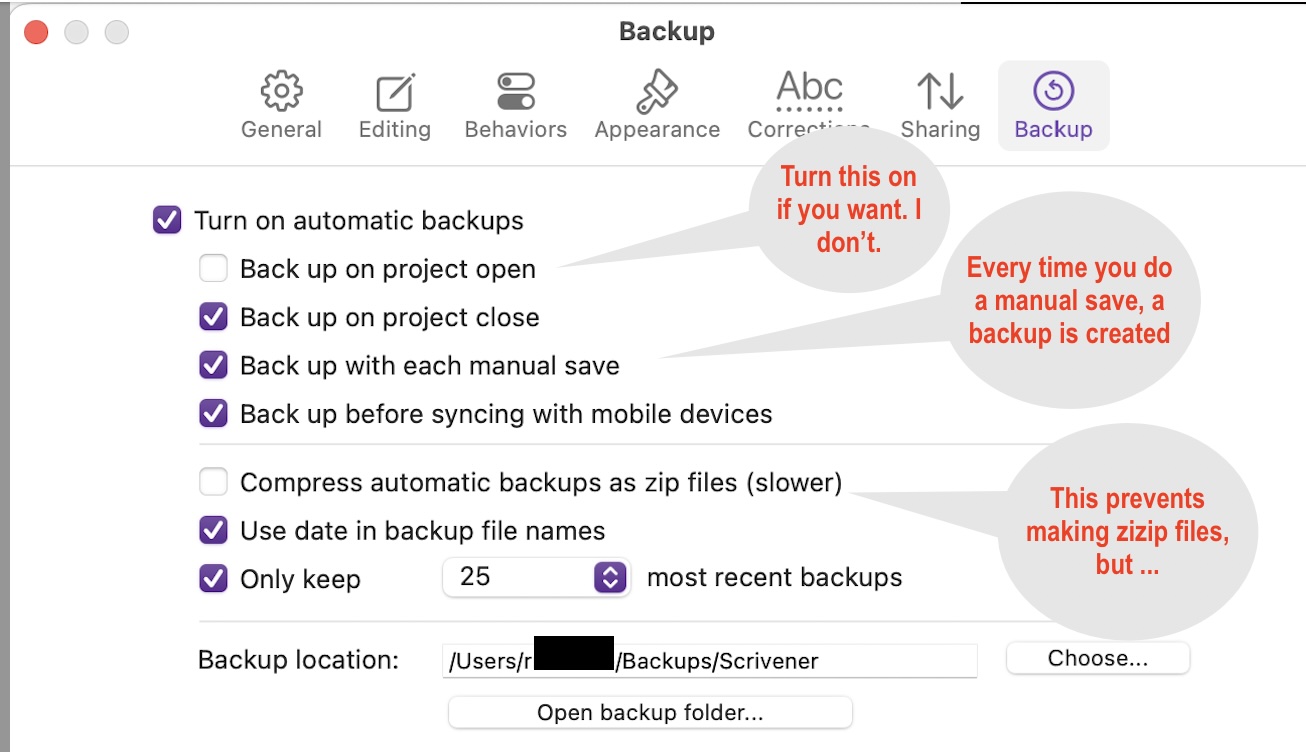
If the backups are created by Scrivener’s automated backup configuration, set how many old backups you wish to keep and let Scrivener delete them. I save 25 “zip” copies of backups.
IMHO, no. Save As is not a backup, and will lead to confusion about what is the current version … the last version of Save As, or other? Do not Save As … unless you have a reason to. Use the backup setting Scrivener provides.
If those “older files” are Scrivner backups made by Scrivener … don’t delete them. Let Scrivener do it. If these are files you created … then it’s your decision what you delete. See above.
That is “self-inflicted” becuase it seems you are “Saving as…” hourly or daily. IMHO, don’t do that.
Thank you. So if I also want to save a non zip, readable file, off this machine, is my best way to continue to complile and save as docx and then to move it to dropbox? (I ask because I did have a zip file a few years ago that did not open, so I am wary. I might have moved to a non Scriv machine then but nonetheless).
Sorry but with this reply I do not know what you are asking and what problem you are trying to solve. please restate what you want and what is your end goal?
I get that Scrivener saves backups. Ok fine. I hope to also save another form of non-zip file on a regular basis as another form of saving, just to be safe. I can keep compiling and saving as word docx, sure.
I am used to saving frequently after major revisions, as with Word for example. It seems laborious to compile every time to have that additional saved version. Is there a way to quicky save a version titled with day and time that is not compiled or not zipped that would be easily accessible in the event of needing the most recent version?
Yes, but IMHO it’s a mistake not to save backups in Zip format. These files are dated as you want in the backup location you defined in the Settings.
I run Scrivener for macOS. I presume the backup settings for Scrivener for Windows the same. See screen shot. All the options you want are already there, e.g. saving as an un-zipped complete Scrivener Project with date stamp. And you can make a lot of them by making, by the setting, backups on each “manual” save.
No need to do the complex compiling, saving into Word, etc.
This is the sort of task that I use Scrivener’s File > Back Up > Back Up To… to manage.
It allows me to create additional backups of my work. I can choose whether to tick the “Back up as ZIP file” option or not. I can even rename these backups and direct them to a new backup location like a USB drive or cloud storage.
I’ll use that just before every major revision, and I’ll name and date these manual backups accordingly.
I also keep 25 automatic backups and have additional backup tools protecting all of my computer’s critical data.
good catch. I forgot about that option on the File menu (mainly because I’m lazy and rely fully on the automatic backup feature to create and clean out old backups). But this overt backup instruction is there also and can be used–downside it’s up to writer to clean out old backups.
Still… saving backups as Zip files, is IMHO, the better way to go. Keeps the project in one file, causes no confusion about which is the working version of the project, and (although in the 21st century not that important to most people) saves disk space. It’s the potential confusion part of this benefit I find most valuable.
A ZIP backup is your project at a specific point in time, stored in a compressed ZIP folder.
Say you’ve gone in the wrong direction that you particularly hate and have deleted something that’s haunting you. All you need to do on Windows is drag the ProjectName.scriv folder out of the ZIP folder to someplace like Downloads. That’s safe and out of the way of where your projects are probably normally stored. Plus, it’s easy to remember, and won’t do the Scrivener app any harm.
Your first step is to keep your project open, or simply open it, e.g. it might be called ProjectName.scrivx.
Then, in Downloads, rename the ProjectName.scriv folder to ProjectName-OLD.scriv.
Double-click to enter the folder. You’ll find the ProjectName.scrivx file (without the -OLD piece added right now). That’s still fine and safe.
Double-click on the ProjectName.scrivx file, and it opens as ProjectName-OLD.scrivx, taking on the name of the parent folder, ProjectName-OLD.scriv.
Now you can safely copy whatever you want from ProjectName-OLD to ProjectName.
After closing both versions, delete the ProjectName-OLD.scriv folder in Downloads.
Then, in your backups folder, look for ProjectName-OLD.zip. (You may have opted to include the date and time of backup too.) Delete that one too.
Keep the latest backup for ProjectName.zip, and you’re back to normal.
If not implemented I urge you to setup and periodically test a full system backup of your computer. I use the 3-2-1 regime methodology and recommend it. Read about that on the internet.