Scrivener 3.2 on macOS very slow save

That’s really helpful, Amber - and very much appreciated.

Good to know. I’m using Scrivener for hours at a time now, making myself a personalized guide to Dorico 6, which I’m also working with extensively. So if I detect a recurrence, I know what to do first :slight_smile: .

I didn’t know (or had forgotten) it does all that. They’re each 230 MB + when zipped, so it’s hardly surprising. I’ll happily live with it.

Once again - very grateful!

1 Like

Amber; so sorry. I spoke too soon :frowning:

After an hour or so away from Scrivener I came to save this same one file and got the beachball back for quite a while (30-45 seconds).

So I followed your steps as here until the Find by Formatting produced no more pages with any graphics.

After another ten minutes I was able to reproduce the beachball on Save (not Backup) and have Messaged you the Sample from Activity Monitor.

I may (can’t be sure because the Saving delay seems to be pretty sporadic) even have isolated on particular Text Document which may be causing it.

It’s my kind of ‘to-do-for-the-rest-of-this-project’ document. I use it most often.

Just now I could get the Save delay 100% of the times I was in that document and Saved.

I’m completely happy to rebuild it and re-enter everything… even though there are many links and a lot of formatting.

But is there a better, quicker, more reliable way to examine it and somehow ‘purge’ it of whatever may be causing this in it (if I’m correct), please?

Okay, if that’s something you are willing to share with support, what I would recommend is this procedure:

  1. Create a new blank project, opened alongside your main project.
  2. Drag and drop the problematic document into the blank project.
  3. For best results, restart Scrivener with only the test project open.
  4. Verify that the save lag still persists in this test project.

If it does, then zip that up and send it to me. I’ll try to get it to happen on my end, and if it does, it’ll probably be something that can be examined more thoroughly in a debugging environment.

2 Likes

Amber,

Of course. Gladly. Thanks!

It does. Just add a space, or change something. Immediately on Save: beachball :slight_smile: .

I tried to send just now. Not possible. The zip with just that one document (the probably ‘faulty’ one) is 115 MB - which I think may explain what must be going on.

Shall I try to remake the doc in my original Project and see if it fixes it?

Many thanks, Amber!

What’s in that document that makes it so large?

If you stripped all the images out, that’s one heck of a lot of text.

(And yes, 115 MB in a single document can definitely cause performance issues.)

1 Like

It certainly is large! But just text - it looks.

Have messaged you and @AmberV with a link to the file. Please say if you can’t access it :slight_smile:

Thanks!

Okay, very interesting! There is a cause to this that may or may not be considered a bug. The first thing I noticed, upon loading the project, is that for all of its 197MB of uncompressed size, the binder had one single text file (as requested) that is in no way taxing or close to requiring that amount of storage, at 560 words.

So I dipped into the UNIX side of the Mac and ran a file system size check on the whole project tree, and found that the Snapshots folder for this item is all by itself all of those megabytes. There are close to 100 snapshots in there, seemingly all created with the auto-snapshot feature that takes them on save.

The mass of actual snapshot files themselves probably aren’t so much the culprit as the loading, modifying and saving of the huge XML file that defines them all. If I turn snapshot-on-save off, then saving is instantaneous. So that’s the part you could kind of see as a bug, but maybe it’s more along the lines of something just being stressed beyond its design paramaters.

This is probably also the reason why backups are taking so long. This was but one file, you may have many other files with large quantities of snapshots. I.e. you might have tens of thousands of files in this project where you think you only have a thousand (I speak from experience!).

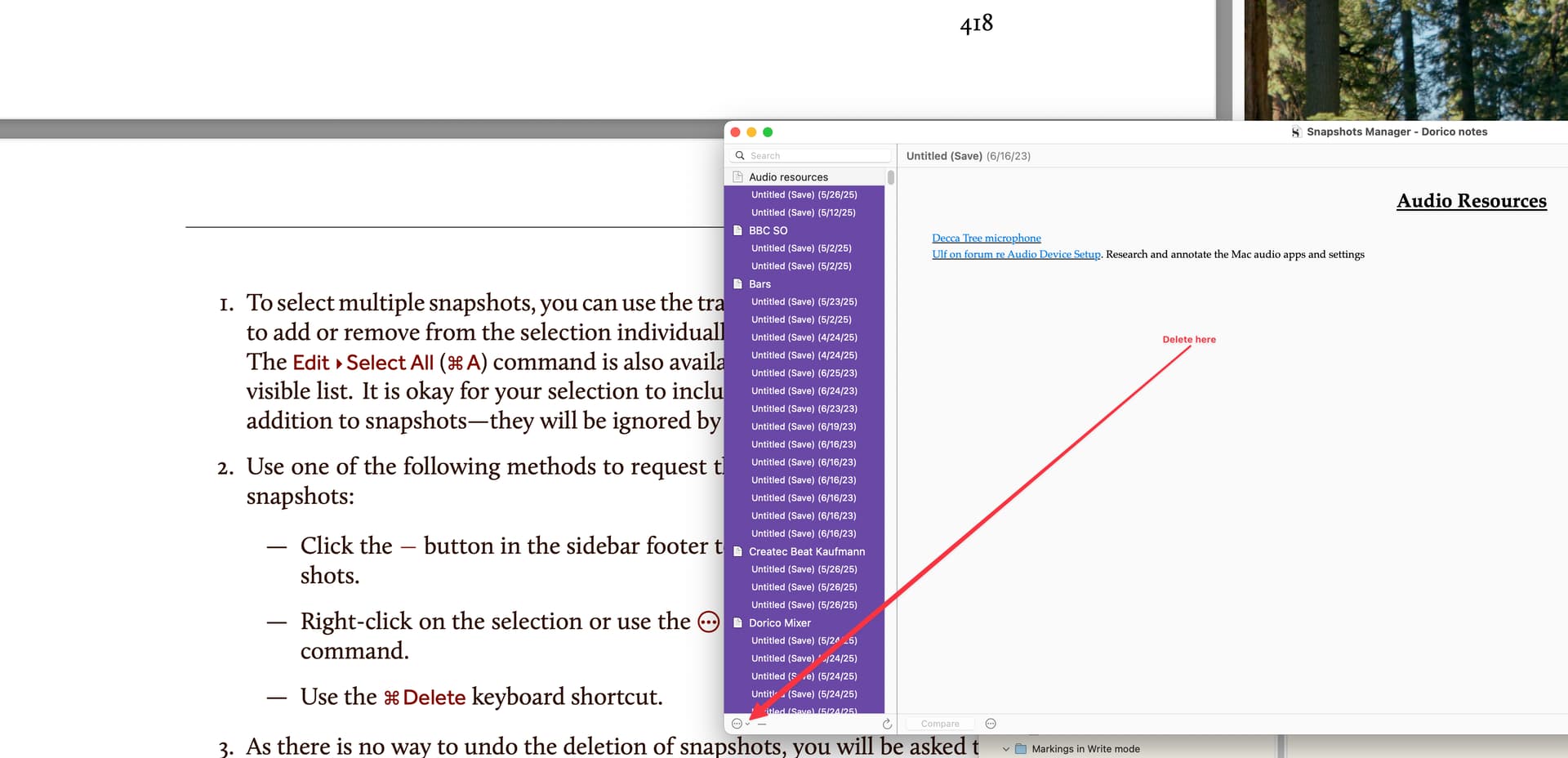
I definitely recommend adding for yourself a periodic reminder, maybe even just once a year or half a year, to run through the instructions on Deleting Snapshots with the Manager, in §15.8.5, on the Snapshots Manager tool. The Searching for Snapshots subheading will also be useful, where you will find a tip on looking for old snapshots.

Now, what I do when I do that is use File/Back Up/Back Up To... with the filename modified to let me know this is a “snapshot_cull” backup. I save that somewhere safe, away from the normal backup rotation, and then delete the older snapshots. Honestly, I’ve never once needed to go back and find an ancient +1y old snapshot, but I do also like peace of mind,

3 Likes

Amber; many thanks :slight_smile: .

Will Scrivener never cease to amaze (me)!

I just had never looked in detail at Snapshots and was unaware of this feature as a possible secondary cause.

I am now.

Not by me, No.

as we might have expected.

which of course explains it in one go, doesn’t it.

I see. Yes. Understood.

Maybe in future releases a Setting for a limit to the number to keep?

Oh I don’t doubt that, Amber!

I bet :slight_smile: !

Thanks. Yes. I have just (re-?) read the whole of §15.8

Yes.

A backup which you are specifically running associated with the act of culling snapshots; not a backup which itself culls, Right?

So it’s safe to just delete (after a suitable Save) like this:

Absolutely!

Pulling back for a moment, if I may, I’ve not run into this before while using Scrivener.

Is that probably because I’ve been engaged in more heavy editing over the last few weeks than I have with any other of my projects?

And I suppose I have to ask, please: I can only find one apparent Setting, in Settings > Behaviors > Snapshots, where I can control the creation of this many such files.

I’m OK with that, of course; and can easily Remind myself to cull them - every tenth save of such a ‘heavy use’ document as this.

But if there were a way to set a maximum number, or a maximum length of time beyond which they would be automatically deleted, that would be good to know, wouldn’t it?

Thanks as always!

The idea is to take a backup prior to doing anything drastic in a project, especially deleting a bunch of data. In my case I like to name these backups and set them aside so I know where the old snapshots are. If I ever think of something to resurrect but can’t find it in the current batch, I can go poking through those old backups.

I’m not sure what you mean by combining the action of taking the backup with deleting snapshots. If you mean a macro of some sort, I don’t know, that’s up to you. Like I said above, I only do this once a year or so, sometimes even longer, depending on the project, it isn’t really something I’ve looked into making efficient, but if you want to, why not?

What you show in your screenshot would delete all of the snapshots in the project, by the way.

Is that probably because I’ve been engaged in more heavy editing over the last few weeks than I have with any other of my projects?

The criteria for how snapshots-on-save are taken is given in Appendix B.2.2, on the General: Saving settings tab, Take snapshots of changed text documents on manual save. While activity certainly contributes (what is there to snapshot, if you do nothing?), it would be more accurate to pin it on the frequent saving you mention doing in the original post.

This setting, along with the one that creates an automatic backup on save, are meant to be used in alignment with the auto-save software approach to saving, wherein one never manually saves and lets auto-save handle that for them. Given the general uselessness of saving manually, these options take that command and turn it into something useful, from the placebo it generally functions as.

If do you use it like a placebo all day, you’ll be rotating your backups off the list before they should be, and building up a huge clutter of nearly identical snapshots. This is why both settings are off by default, as they require this awareness.

Now, considering this got turned on without awareness, you can maybe see why we don’t have an option that would automatically delete snapshots that are “too old”! At least with this one the malfunction, if you will, is that you ended up with too much data.

2 Likes

Amber, many thanks for this!

No. I can’t blame you: I was not clear. Sorry. Being new to Snapshots I was speculating that their deletion also included a backup routine.

But having done it myself, of course - and reduced the Project’s size to barely 7 (s-e-v-e-n!) MB, I can see exactly how it works.

Yes, something which I now know is utterly pointless:

Yes!

I can. It makes sense, of course.

And I believe I’m all set.

Very many thanks - to you and @kewms !

2 Likes

A post was split to a new topic: Keep With Next breaks next list line