I have a collection that I wish to compile and save to a Windows Explorer folder. I have tried saving it as an rtf, a pdf, a docx, but everytime I push the save button in compile, Scrivener shuts down. I can compile and save the binder or folders from the binder, but when I try to save from a collection, that is when it shuts down. I mentioned this problem in another thread (Printing Folder Contents) and was told to post it here.
Would it be possible to modify this test project to produce the result you are describing? I think perhaps it may require some specific conditions (I’ve compiled from collections many times, though granted I very seldom use paper).
collection_crash.zip (166.8 KB)
To test with it:
-
Unzip the project to a temporary location, just keeping it in Downloads is fine, and then open it in Scrivener by navigating into the “collection_crash.scriv” folder, and then double-clicking on the project file.
-
Open
File ▸ Compile..., and in the Contents tab, set the Compile dropdown to “Red Book”, leaving Compile For set to “Print”. -
At this point you would normally click
Compile. You mention clickingSave, which only appears when holding down the Alt key, but I’m pretty sure you just mean compiling.You should get the Microsoft print dialogue shortly after. I chose to use the PDF output, and that asked me for a name. I saved it, and it all worked fine.
-
Back in the project, go back into Compile, and this time in the Contents tab, set Compile dropdown to the provided “Test” collection, at the bottom of the dropdown menu. You should see three sections listed, from the two different groups in the test binder.
-
Again compile to Print.
For me the result is identical. The only difference between the two PDFs I saved via the Print dialogue is their text content, naturally.
If you cannot figure out what is different between your project and this test project, then you may wish to send in a copy of the original to technical support, with instructions on which collection to select.
Whether sending the test project or your real project privately, use the File ▸ Back Up ▸ Back Up To... menu command, with the Zip option enabled. To post the test project here, simply drag the .zip copy of the updated test into the composition window to attach it. For email support, attach it to your email.
1 Like
Here are two screen shots of what I mean. The compile works, but when I press save as the second step, that is when Scrivener shuts down.

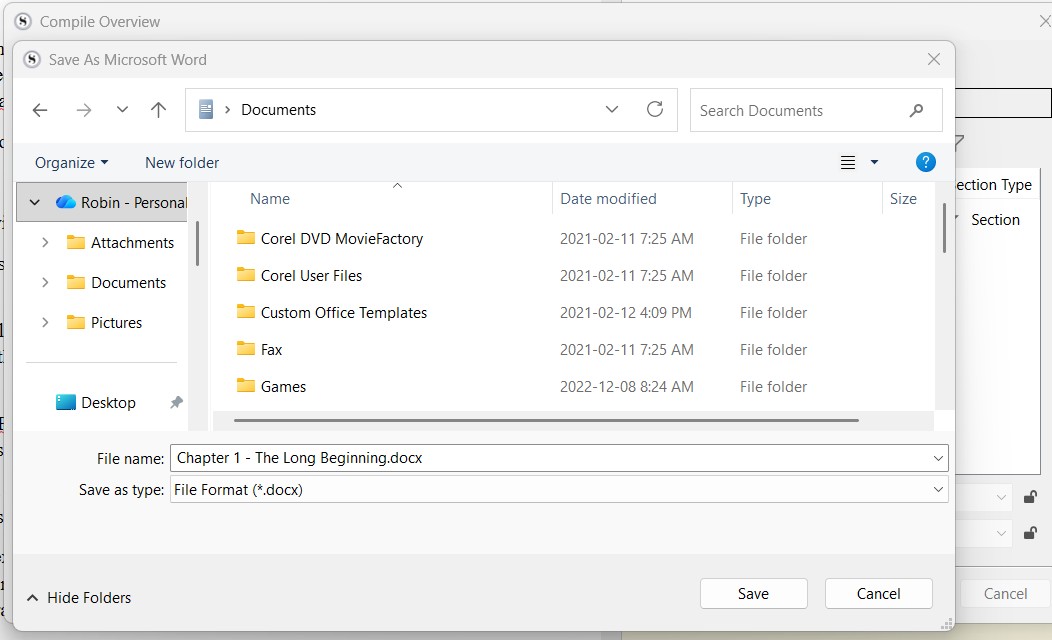
Ah, ok. This is a bug we do know about and have on the list to address; it occurs when there’s no text actually compiling. In this case, the collection only contains a folder, and that folder does not itself contain text. Since the compile format is set to just compile the main text, nothing is being sent to compile and rather than handling that gracefully as it should do and popping up a message to tell you this, Scrivener is crashing.
Meanwhile, what you really want for the collection is to grab the folder’s subdocuments in the binder and add them to the collection, rather than just the folder. You can Ctrl-click in the binder to select multiple items, or select the first and then Shift-click on the last to select everything in between. Or you could select the folder and then grab all its contents using Edit ▸ Select ▸ Select with Subdocuments, which you can access quickly via the keyboard by holding the Alt key and pressing E, S, D.
You can then drag the full selection to your collection or right-click and use Add to Collection.
2 Likes
I followed your instructions and that did work. It is quite confusing because when I look at just the folder in the collections, it shows all the subdocuments in it. When I added the subdocuments to the collection, it finally showed up in compile and saved.
The ability to view the contents of a group by clicking on it in the collection is not meant to imply that all of the things you can see within it are also in the collection list. The sidebar listing is very literal, that is what is the collection and nothing more.
It might be a little confusing at first, but consider how useful it is to create a collection with several groups, no matter where they come from, and being able to browser their contents together conveniently. In fact, that capability can even help you fix a situation like this, where you’ve dragged one group in when you really mean to drag a dozen of its child items as well, because you can drag items from the editor into the collection sidebar to assign them to it—you don’t have to go and hunt down the original group in the binder again and add to the collection from there.
It is perhaps good then to note, in case it hasn’t been already, that Collections are foremost a working tool, not a compile tool. The ability to compile a list of items within a collection was itself added as a useful bonus to their capabilities. Being able to compile them is quite useful, being able to do things you normally can’t do with compile (like compile out of order), but their main purpose as a feature is to give you more ways to work with your outline while writing and editing. Their features and capabilities are going to reflect that.
Have a skim through §10.2, Using Collections, in the user manual PDF, if you’re curious about the various applications of the feature, and what all they can do beyond generating custom compile listings.
1 Like