I have a word that is not in italics, that I need to make italic throughout the project (non-fiction).
I cant seem to find a way to do that, in fact, I cant seem to do it per chapter let alone through the entire project.
change this phrase
to this phrase
through search and replace, how?
I’m unaware of an automated way to do this in bulk as I suspect you wish, in Scrivener. Finding all is easy, but appyling bulk (replace) formatting not something I spot either. Others might have a better idea.
Perhaps show the entire project in Scrivenings View, then do a project find for “this phrase”. All found will be shown, then for each select and make italic. Hopefully not too many.
If this something you think you might have to change again in bulk, apply a Character Style to those words and then when change needed in future, just change the formatting of the style.
Maybe there is a way in the compile settings to locate the phrase and then change the formatting. I’m not at my desk right now to look, but before doing “hundreds”, perhaps look there. Others who are compile experts may weigh in here.
I compile to ebook & pdf for paperback.
I’d sooner have it working in the project than the compile. maybe there is a way through third party software to access the files and change it that way.
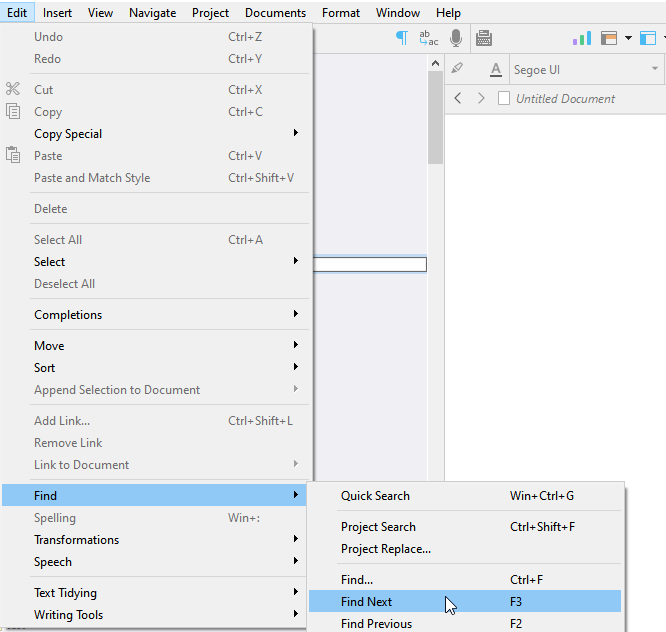
Despite a scrivening not being treated as a single document under Windows, Edit/Find/Find as the ability to travel across documents’ borders.
So, display your whole draft as a scrivening, and,
using Find, search from the top for your specific word.
When an occurrence is found, it is already selected for you.
Find – Ctrl I (Italics) – Find Next-- Ctrl I – Next – Ctrl I etc etc.
Hadn’t found a use for scrivening feature, and now I have. So, this is probably the best approach in the absence of a global change method.
Though curiously my CTRL-I wont work during a Find, though they appear selected. So I have to actually click the tool bar italics, but it’s not a big deal. I tried to do it the other way by CTRL-N to find the Next instance, so I could hover my mouse over the toolbar italic button for rapid change, but CTRL-N then creates a new chapter instead.
But it’s a work around, and the likely approach I will use. Though I am intrigued to know if someone has come up with any kind of code for this. Going to hunt Github see if I can find anything. I surely can’t be the first to need global formatting changes of keywords.
Indeed, the shortcut for italics doesn’t work with the search window active, I just tried it.
Once you have launched the search and found the first instance of the desired word, close the search popup window.
Apply the italics to that first word, then use whatever shortcut you have for this menu command :
Not on mine. The issue is more the window focus is changed, so the Ctrl-? feature is doing something else.
But the additional suggestion provided by @Vincent_Vincent works.
Is there a way to find and replace every word of the project or even just a a document with a kursive version of it? For example turning every instance of “fish” to “fish”?
I have several words in my manuscript that need to be italicized each time they’re used (dozens and dozens of times!). I didn’t italicize as I wrote, so now I’m staring at 50+ chapters of text and lots of words that need to be italicized!
I know that, in Word, I can find-replace-apply Italics format. Is there an equivalent in Scrivener?
I know this is a stretch and not the usual way Scrivener is used, but just in case…
I have over 100 books loaded in one project (over four million words with about 1,200 chapters), and need to find every line with “CHAPTER” and change it to H1. This is a regular thing for me and I usually find, click, command/option/4, find, click… and on and on, over 1,000 times per project. I have a feeling there’s no shortcut for this, but the mind-numbing tedium is really getting to me this time.
Is there ANY way to mass find a word and change every line with that word to a different format? Find and Replace can do spelling/capitalization, but doesn’t seem to do formatting. I know this is a strange ask, but is there any sort of work-around that I’m not thinking of?