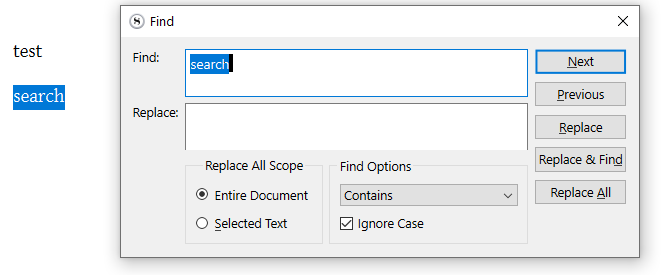
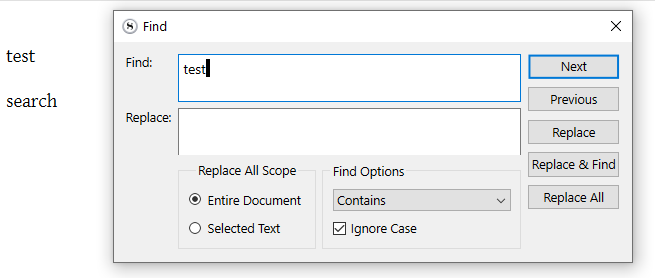
A lot of the time when I use Scrivener, I’m making changes from notes I made on paper. I use ctrl+f to find the line with “problem” and make the change. Then I go to my next note and search for the line with “issue” and I can’t find anything because there’s “problemissue” in the search box.
I’m a software dev and my IDE highlights the old search term, so if you type a new one it overwrites the old one. But when I use Scrivener I have the old search term stuck in there and I fall for it every time. I would love it if (there was an option to make it so that) ctrl+f would either select or clear the search box. I think select makes more sense.
2 Likes
I can’t reproduce. Ctrl-F always clears the searched for word. Or, if nothing is selected in the editor, that word is highlighted in the search box and ready to be overwritten. It is if I want to keep it, that I have to do something. (?)
1 Like
It’s when the find window is still open. When I hit ctrl+f again with nothing selected, it just refocuses the find window with the cursor where it was with nothing selected (unless I had selected something before).
Another solution would be if the find window closed when I click in the editor. I think that’s what my IDE does, and when it’s closed it does always select the old search term. But I can’t find an option for that either.
OK
An AutoHotKey script could easily fix that.
. . . . . .
You could also “fix it” yourself easily, if you can remember to double click a word first (any word, anywhere), so that you have something selected when hitting Ctrl-F. (I just tried and it works.) Unpleasant, but functional.
Also functional : instead of Ctrl-F, go Ctrl+F (release F, hold Ctrl) +A, then type.
Ctrl + (F / A)
. . . . . . .
I can already think of an objection the developers would potentially have against the “Find” field clearing itself up. In many cases, one may wish to refine the search. Not necessarily start anew each time.
⮚ Perhaps a behavioral option (?), but otherwise they would simply be exchanging an issue for another.
1 Like
Thanks for the autohotkey idea. I didn’t think of that, but that totally fixed it. For anyone else who finds this, I’m currently using this script:
#Requires AutoHotkey v2

~^f::
{
    if WinActive("ahk_exe Scrivener.exe")
    {
        Sleep 100
        Send "^a"
    }
}
As for implementing this into Scrivener, I would argue that a shortcut like ctrl+f should behave consistently. I don’t always know if I have a find window open, that’s not where my eyes are looking. If it always selected, you could always use ctrl+f to type a new search term, or ctrl+f and right arrow to append to an existing one, regardless of whether the window was already open.
2 Likes