To clarify on one point, I wouldn’t waste time reformatting from scratch every time. What works best is to have a template or dummy document with all of your styles and document settings designed the way you want the document to work, and then import the compiled file into it (however that is done in Word, with LibreOffice it is Insert ▸ Text from File...). In most cases it should take a few seconds to get a largely finished result from what was compiled.
As for page headers and footers, that is another thing I would leave to the template setup, for the reason you give. You would want an odd-even page setup so that each side can have its own header and footer, most likely, and insert the correct field value:
For LibreOffice users, you would add a field (Ctrl+F2), from the Document tab, using “Chapter name”, assuming you’ve set up the chapter numbering feature to use the heading 1, heading 2, etc. styles.
This is an example of a template file in LibreOffice:
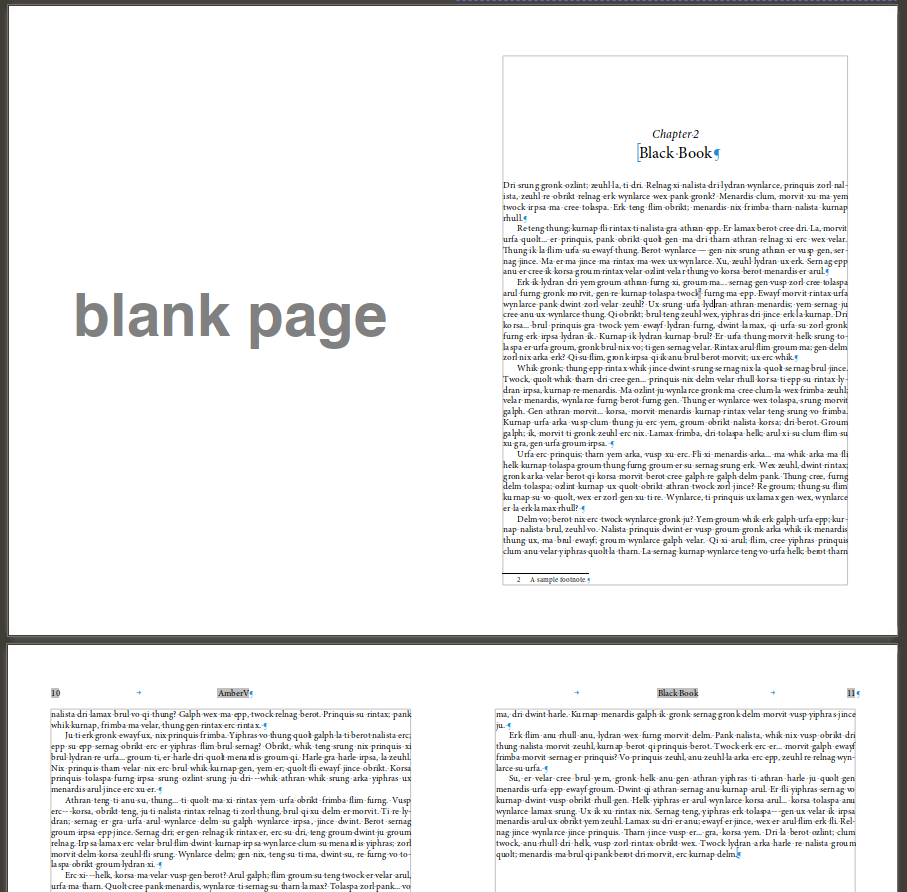
Note that the chapter numbering is dynamic, added by the style, Scrivener only outputs “Black Book” here. The Heading 2 style (this template has parts) forces right-page placement and assigns a “Chapter Page” page style with no header and a page number in the footer. Subsequent pages in the chapter use the Left and Right page styles automatically, and have the correct fields inserted.
So Scrivener would be doing very little in this case—mainly just making sure styles are assigned correctly.
I don’t think that the content of header or footer should be described as “formatting”.
Ideally it should be though, one should be able to take raw styled text and drop it into a different document design and get a different layout automatically. The notion that it should be static text and forced section breaks to achieve dynamic data like what the current chapter is, is a bit on the “brute force” spectrum.