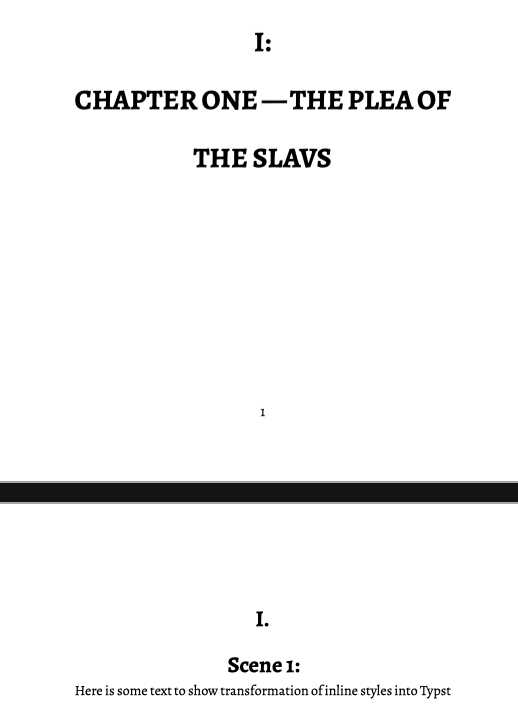
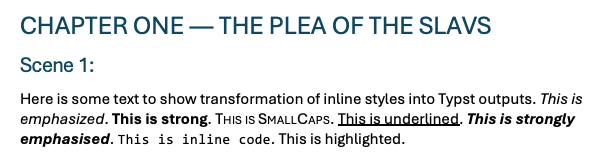
OK used a brand new blank project, imported and split the markdown, imported styles from my Typst project, and set up the compiler to output the numbering, then just chose a simple book template from Typst Universe (min-book) for layout, buuuut…:
At the moment there is a bug in this book template that it adds numbering no matter what. I posted an issue: Removing all numbering · Issue #1 · mayconfmelo/min-book · GitHub – there is another template but my 5 minutes playtime expired so I upload it as-is as a work in progress:
Thanks for this! I’ll look into it too. The other book template is wonderousbook.typ (I think). It is much simpler and doesn’t include a book cover page.
I’ll replace the #import… to that, reset the paths in the compiler and then see what happens.
Here is an update, the developer of min-book fixed the numbering issue very quickly and there is a V0.2, which as it is only on github I include in the project files that need to be exported to the compile folder (this won’t be needed once it is released on Typst Universe). I also added the compile format as Mark mentioned for wonderous-book – wonderous-book – Typst Universe – which doesn’t number headings and you may or may not prefer the layout. Outputs for min-book and wonderous are in the binder to look at…
The developer for min-book is very helpful, I’ve asked for a dedication page to be added and publisher info, though he already has as a catalog page in V0.2.
EDIT: the Typst file created by Pandoc/Scrivener can be uploaded into the Typst app so you can have a look there — this allows you to edit the typst and get a preview in realtime, once you like it then copy it back to the Scrivener template:
My compile format is here if you want to have a look. It was made in Scrivener for Windows, but you can re-create it for Mac (it has issues if you use it straight up on Mac).
Your use of placeholders <$T> for Chapter, <$n> for section and and using <$rst_n> as a suffix in the chapter is the same as I am doing, so good for the numbering.
Your markdown output is a bit broken as you add the word attributes before the hash:
Attributes# CHAPTER ONE – THE PLEA OF THE SLAVS #

## SCENE 1: SCENE 1: ##

## SCENE 2: SCENE 2: ##
I also use metadata to define the options that go into the pandoc typst template you find in my project.
How is compiling going? I think you said you used winget to install typst CLI? On windows you probably need git-bash or WSL to make the commands work (Windows uses powershell or cmd and neither support terminal commands like macOS or Linux do). If you have pandoc then the command would be something like:
@kewms taught me the reset tag. It was a bit tricky at first, but I managed to set everything up nicely.
I have Git-bash installed for an OPML program I’m helping a friend make. What are the commands I need to use? I have pandoc installed, but never used it in CLI mode.
My project would involve the Varangians who founded Russia, + a surviving Kievan Rus’ (because it’s fun and no one else has done it before). With some supernatural tones.
Should work in git-bash as long as your path contains the correct paths to pandoc and typst. template-minbook.typ comes from my project, and requires lib.typ, utils.typ and assets folder which are also exportable from my project. The part at the end: > TypstBook.log 2>&1 redirects any errors / output to a log file so you can open that to read how the compilation went and it should record any errors…
The compiler should automatically apply heading # and it knows the level so can apply the appropriate number based on the Binder contents (at least it does for me)…
I have to admit my Windows fu is extremely weak. If I remember, Windows path is set up in Settings, there is a dialog with environment variables including the path, google should help you find it. But if you are using git-bash[1], then bash will have a .bashrc or a .bash_profile file: https://stackoverflow.com/questions/32186840/git-for-windows-doesnt-execute-my-bashrc-file OK, try the following:
Type pandoc --version – does it work? If yes then type which pandoc and this is where pandoc is stored.
If not, the open windows CMD (not bash), and try where.exe pandoc, does that show anything?
How did you install pandoc? scoop is what I’ve used on windows and uses ~\scoop\shims. I think you said you used winget, and honestly I have no idea how that works. If it just applies the package installer, then: Pandoc - Installing pandoc says it adds the location to the PATH variable (I assume the Windows one, not the bash one), and so use the GUI or CMD where pandoc
@amberV – what is the best route to run these sorts of tools on Windows in your opinion? There is cmd, powershell, git-bash AND WSL2, WSL is certainly going to be the best *nix like experience. Also did Windows Scrivener ever get post-processing or not?
[1] Windows PATH variable is separate from bash’s PATH variable, I don’t know if git-bash uses windows PATH as the default or not?
Oh I’m pretty basic when it comes to Windows stuff like that, I do almost everything that doesn’t require simple Pandoc/MMD arguments in the Linux environment instead, even if it requires a separate post-compile action. So I just use cmd.exe.
For a standard install, which is what I use as well, you want C:\Program Files\Pandoc\pandoc.exe in the Path field. You don’t have to worry about escaping spaces or anything like that, but I do think it prefers the Windows backslash.
Hi @AmberV! How do we know what to put in the post-processing window? (yes, to confirm @nontroppo’s question, Scrivener 3 on Windows has post processing)
Do you mean as a general theory? Think of it like an actual command line being used in cmd.exe. What you’d type in to execute Pandoc is what you put into these two fields. The first field is how you would ‘cd’ to get there and run it, and the second field is for all the arguments you’d type in after “pandoc.exe”.
That’s precisely what is happening internally. We are using code that runs shell commands, in a very simple shell, and then closing the shell once it completes.
Yes, that’s a way of putting it, and a part of it. The “Compile For” options that go straight to a target format (like ODT) are doing the same thing, we just bake the arguments into the process so you don’t have to know about them (but this also means you can’t change them). The Processing pane is giving you access to that same process, so you can change the tool being used, or the arguments given to that tool, as well as choices such as whether images will remain necessary or useful as loose files after production.