So say I want to make a typst file, what’s the command for that?
I do not know the answer to that on Windows, but how one derives the answer to that, or any other tool, would be the same process used above to derive the Pandoc command. Where is it installed? If you opened cmd.exe, what would you type to get to it, and run it? Maybe it is “C:\Program Files\Typst\typst.exe”? I don’t know because I don’t have it installed on my VM, but that doesn’t seem unlikely to me.  A thread like this one might help?
Hmm.
I’ll wait for when Typst gets an MSI version like Pandoc and stick to the web version.
@nontroppo, how do we make a YAML file for Typst directly in Scrivener?
Looking at Github, while it doesn’t have an MSI, it does have a compiled version in .zip format (note two architectures). You’d just drop the unzipped folder somewhere typical, like Program Files, and maybe rename the folder to something nicer to type into the path field, like my previous example.
2 Likes
Eh, I’m typically wary of installations like these because I’m afraid of messing up.
1 Like
Fair enough. I’m sometimes the other way around because with an MSI I have to trust the company to not do bad things with the admin permissions I’m giving them to run it. With a .zip I know exactly what is happening. But I don’t blame you for being nervous around C:\Program Files. You could put it anywhere I’m sure though.
2 Likes
Which is why I go open source for 90% of my software (Scrivener and Scapple are my only paid ones, the rest is either open source or cracked) 
1 Like
So we need to:
- Replace
pandocwith the correct command for windows:C:\Program Files\Pandoc\Pandoc.exe - Create a folder to compile to. On macOS the easiest way is to select the “compile Files” folder from my TypstBook.scriv project and run File>Export>Files to export the necessary files to a folder called
compile-mmd, so in your case create a new folder likeC:\compile-mmd - Check that folder contains
template-minbook.typlib.typetc. – now you have a folder with the neccesary support files. - Your post-processor command should run in the folder you compile to, so as ling as the accessory files are there it should be fine.
- No idea if the
> TypstBook.log 2>&1part will work on Windows, so probably remove it accepting we lose our log. - Hit compile (MMD with the correct style and section rules), compile to the
compile-mmdfolder.
C:\Program Files\Pandoc\Pandoc.exe --standalone --to typst --template template-minbook.typ --output MyBook.typ TypstBook.md
You should test the command in powershell/cmd directly first to see if it works, if so then try it in post-processing.
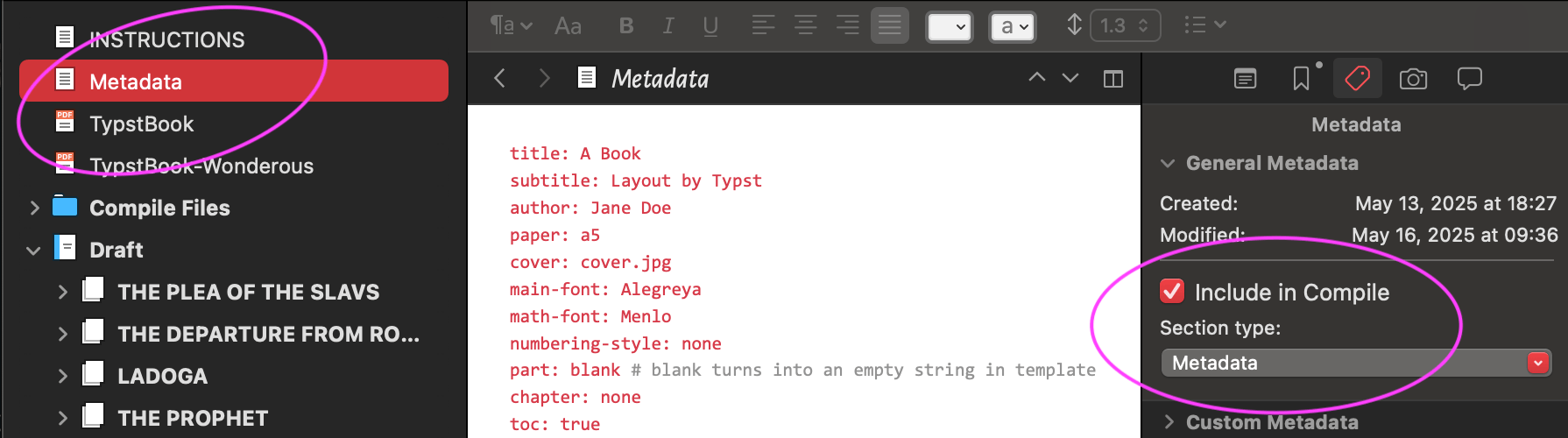
I use a normal document outside the Draft folder, and make a Section type Metadata for it. I also apply a paragraph style named Meta-data to the text which the compiler can use later.
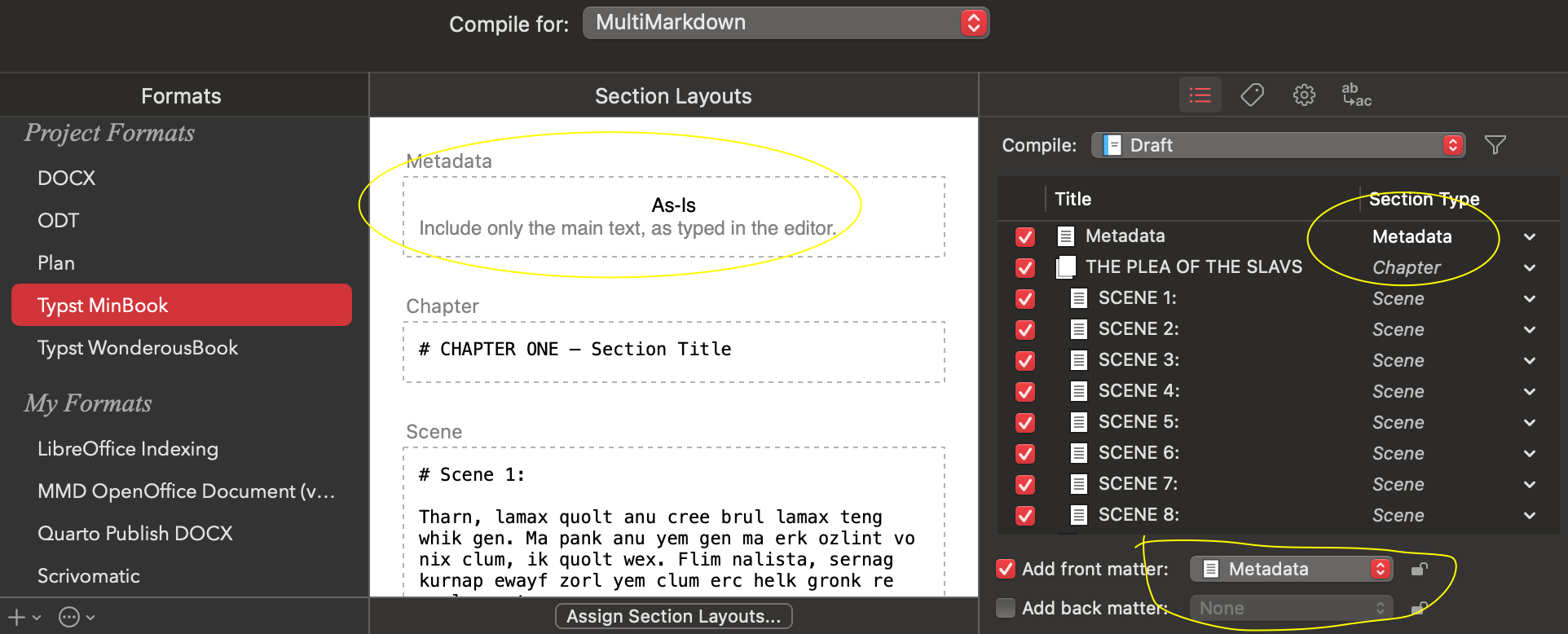
At compile I select it as front matter, and use the As-Is layout.
For the style:
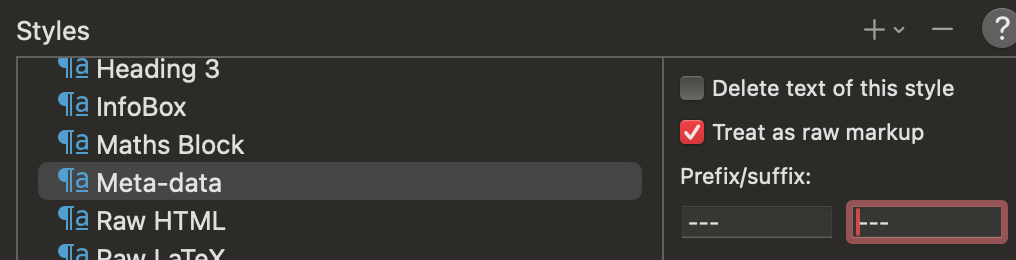
The style rule adds \n---\n as prefix (\n means newline) and \n---\n as suffix so that the yaml block gets defined. You could put — directly in the text then no need for the style, but I like styles!
Installing commands:
I wouldn’t be afraid of zip install for typst, it should just be a single file so no worries.
BUUUUT, why not use scoop https://scoop.sh/ if you don’t have a preferred method. Scoop is a 3rd party winget but with a predictable install location and is widely used. So for scoop:
scoop bucket add main
scoop install main/typst main/pandoc
Gets you BOTH pandoc and typst latest version. To keep up-to-date: scoop update it couldn’t be simpler. scoop installs everything to a single folder so only a single path to add, no files sprawling everywhere and simple scoop uninstall.
Another option, one I now use for both macOS and Linux is https://pixi.sh that is also supposed to work on windows though I’ve not tested it. But being able to setup the same programs on both macOS AND Linux with a single interface is great. It has both Pandoc and Typst, again installs everything to ~/.pixi/bin so it is easy to manage the path. But if you only use Windows, perhaps scoop is more “native”…
4 Likes
Thank you for the tips!
I already have Pandoc installed through the MSI, so I might use the scoop method for typst.
@AmberV Tagging you because you’re tech-savvy!
I found a (possible) solution for the Typst installation, but I haven’t done it yet because I’m scared of accidentally breaking things (+ I would love some feedback). If needed, @nontroppo can jump in as well. Here goes:
- In
C:/Program Files, create a Typst folder and paste the files downloaded into that folder - Add the folder into PATH.
Would this work?
Yes, that sounds right to me. Unless you intend to run the command yourself now and then, you can probably skip adding it to the PATH, as you can just as easily put the full path into the Processing pane (and I haven’t double-checked, but these kinds of stripped down shells like software uses to run stuff often don’t read the PATH or other environment variables anyway).
And again, if you are nervous about messing things up, I don’t think it needs to be in C: at all, let alone the program files folder. You could probably even test it straight out of your downloads folder if you give Scrivener the right path to it there, and if it works, move it some place less awkward.
1 Like
I only chose the root folder since I clean the Downloads and Documents folders. Would my user folder work better?
I really don’t think it matters where it is. That’s typically the advantage of self-contained programs, they don’t install, they can be in the same folder as your project, on a floppy disk…
2 Likes
Oh, I see.
I want to put it somewhere and forget about it until there’s an update, TBF 