When I am writing, I split the screen so that the synopsis card and its notes are visible as I write. Lately, when I begin writing in the editor, the inspector clicks and moves to the next card and its notes. I also see that the editor page I want to write in does not stay dedicated to the index card I wanted to write to!
What have I done or what can I do to repair this?
[Not sure it is the right answer, but I leave it, based on this below]
Make sure that this is on (blue) at the bottom left of your corkboard side of the split.
And make sure that your editor is set to display a single document, not a scrivening. → Not
. . . . . . .
If that’s not it, technically the inspector can’t dictate a document selection and what is live in the editor.
If you are not using the corkboard, and your “split” is actually a single editor with the inspector visible and you get the described behavior, that is not normal. I would reboot my computer. (Assuming you’ve already tried quitting and restarting Scrivener.)
. . . . . . .
After further investigation:
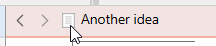
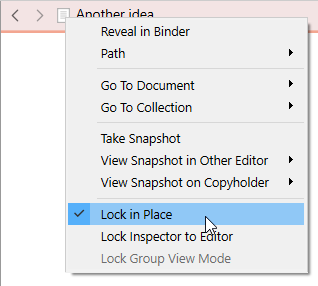
If your editor’s header bar is red, right click on the document’s icon (in the header bar) and uncheck this :
Another thing that might help is that option right below the editor lock, in the screenshot. If what you are asking is how to make the inspector stick to one of the splits, even if you click over into the other one, then use the “Lock Inspector to Editor” command on the split you want it to stick to. The inspector itself will turn red in that case, and you’ll see an icon appear to indicate which split it is locked to. That icon is in fact a button that will turn off the lock once you’re done with it.


 → Not
→ Not