I’m a long-time Scrivener user, but have just started using Aeon Timeline. I’ve run a few experiments syncing between the two programs and have run into an issue that I can’t find a solution for (in either the documentation or forums for each program). If this question has been answered previously, please point me towards the appropriate thread(s).
What I’m attempting to do: Set things up in Scrivener such that, after synching to Aeon Timeline, Aeon’s aware which characters are present in each scene. If you have a method for accomplishing this, please share how you’ve done it.
What I’ve tried:
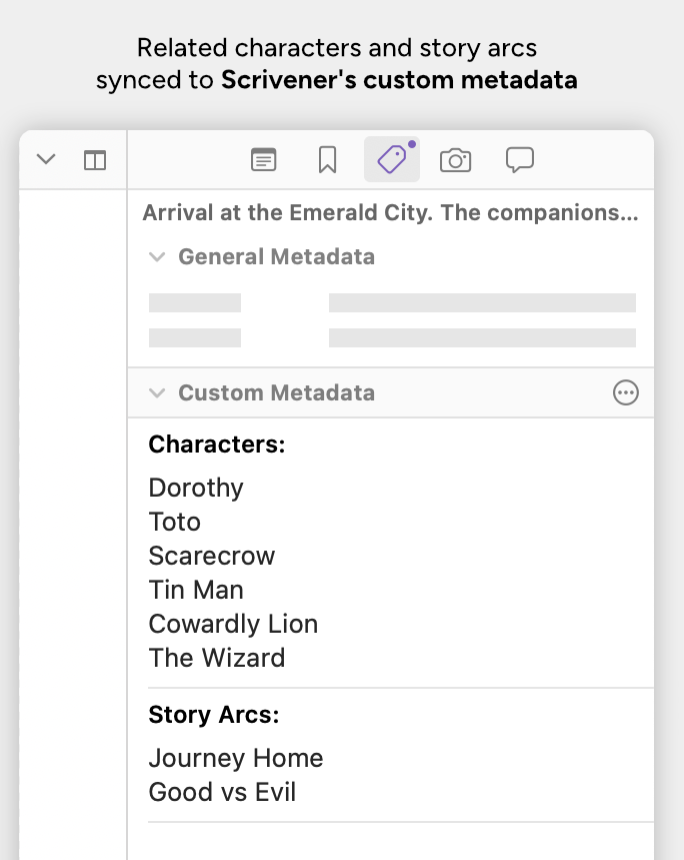
Aeon Timeline’s documentation at says this can be accomplished by creating a custom metadata field in Scrivener containing the names of the characters present. This is the example they show for a Scrivener project:
Note that the custom metadata fields they’ve set up have a separate line for each item. Scrivener doesn’t allow carriage returns within custom metadata text fields, as far as I can determine from Scriveners’s documentation and these forums. What one can do is enable “text wrap” for a custom metadata field, then pad with spaces between each entry to make them show up on separate lines. However, when I do this and then sync with Aeon Timeline, only the entry on the first line of the custom metadata field gets synced to Aeon. The others don’t.
Since Aeon’s documentation indicates this should work, I suspect I haven’t set up the custom metadata field in Scrivener appropriately. Any suggestions on how to accomplish my goal?
I’m using Scrivener version 3.5.2, and Aeon Timeline version 3.5.123 (shell version 3.5.123)
I think this is a question for the Aeon folks. They’re the experts on what their software requires.
My reading of the documentation, though, is that you set up the Custom Metadata field in Scrivener, but actually assign the values in Aeon Timeline. Then the Sync operation populates the field in Scrivener.
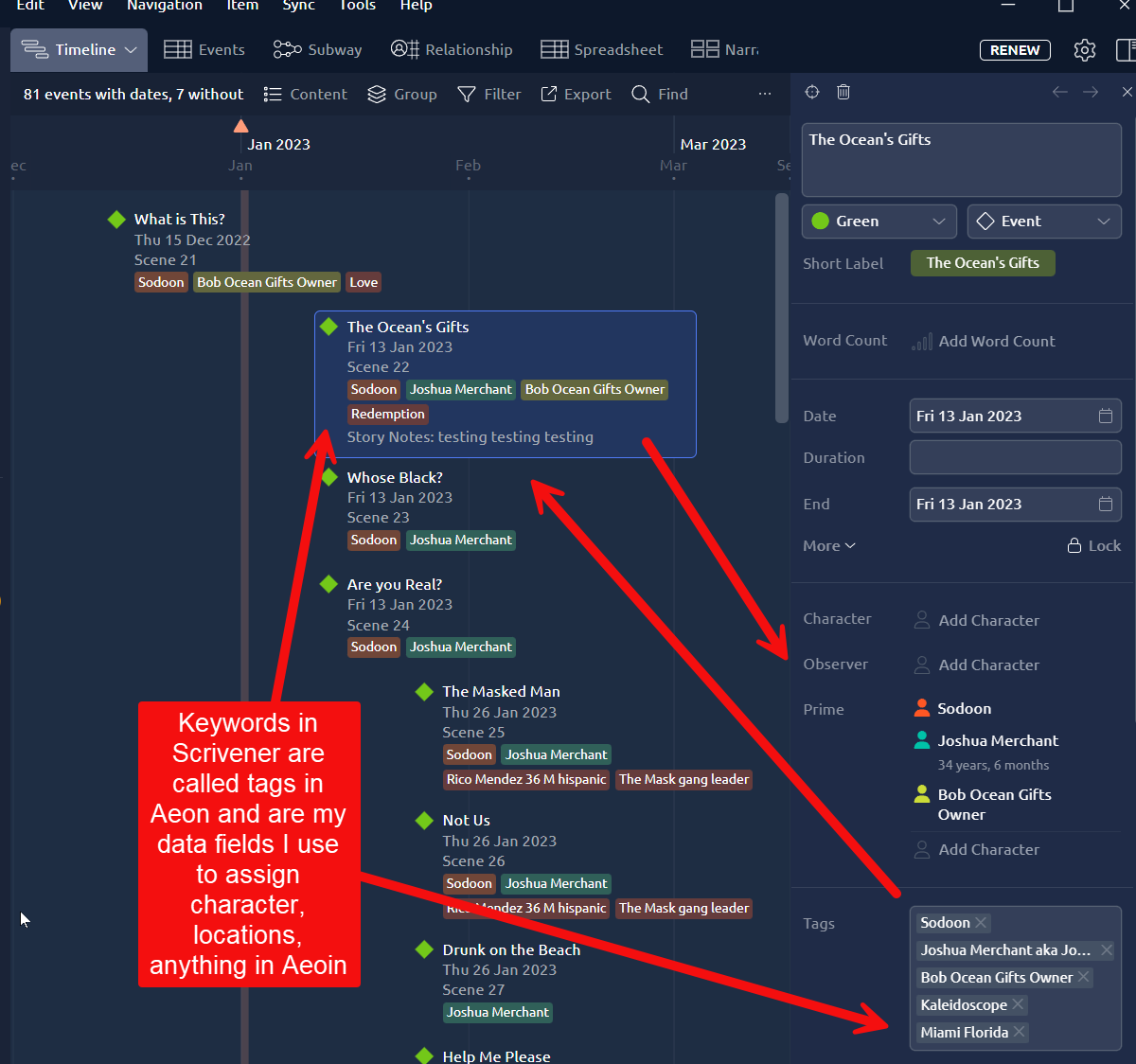
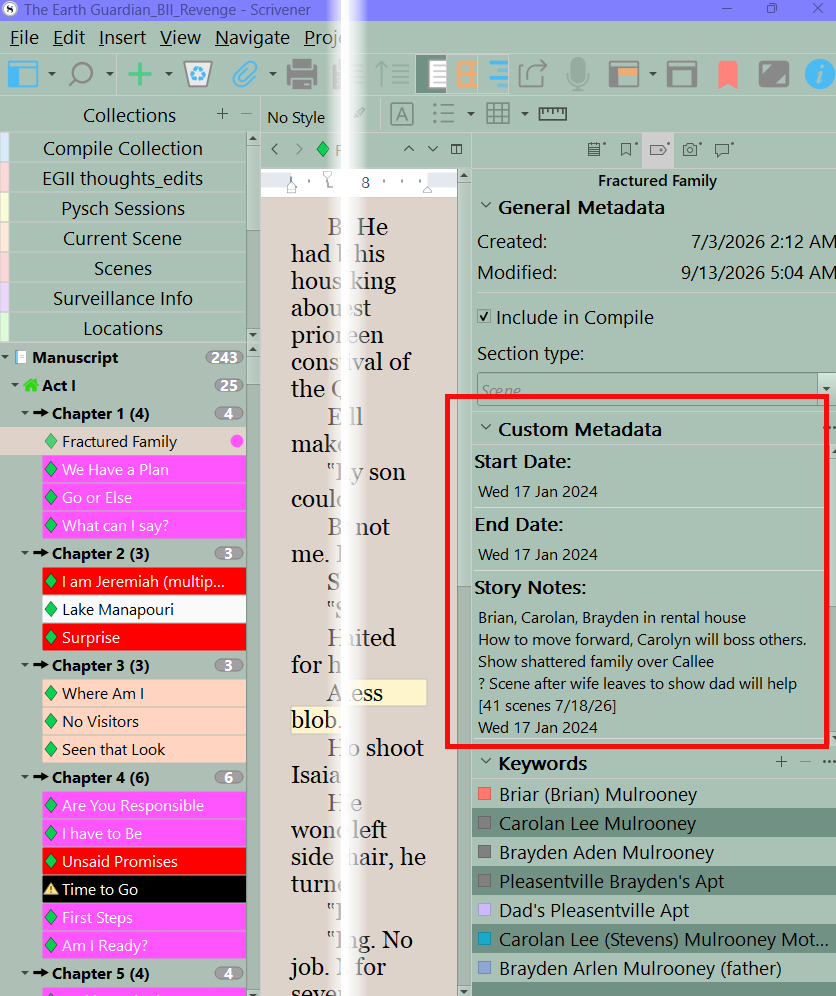
I use keywords to tag scenes. I use keywords for characters, locations, etc The keywords are then used to create the characters in the Aeon interface and I use the keywords to assign characters, locations etc. I did create a custom metadata field called story notes and what I write in Aeon syncs to Scrivener and vice versa.
I have a custom metadata text field for start and end dates which is pulled into Aeon, and a Story notes which is a copy of my synopsis, but I could type in this while in Aeon and it would appear in Scrivener when the project is open.
Thanks for the reply. I think you’ve nailed it—set the values in Aeon Timeline rather than Scrivener, then after a sync they appear one-per-line in Scrivener as shown in their example.
Thanks for the reply and the examples from your own work. Aeon Timeline’s documentation recommends using custom metadata fields for things like characters and locations, saying that using keywords can become difficult to manage for a large project. That’s why I’m attempting the custom metadata route. Fortunately kewms’ response above has allowed me to resolve my immediate problem, but I’ll keep keywords in mind as an alternate approach if I run into additional issues.
I use keywords in scrivener extensively to track all my characters, locations, foreshadowing ,plot beats etc. The keywords can be made visible on every scene card when need to add data, and are in the Inspector. I just use them as a resource to add the needed info in Aeon. I find it easier to attach keywords and do searches that way then 30 or 40 custom metadata fields.
You’re probably on Mac, where a carriage return in a custom metadata text field is Option+Enter. On Windows it’s just Enter, and had me puzzled until I started fiddling around.
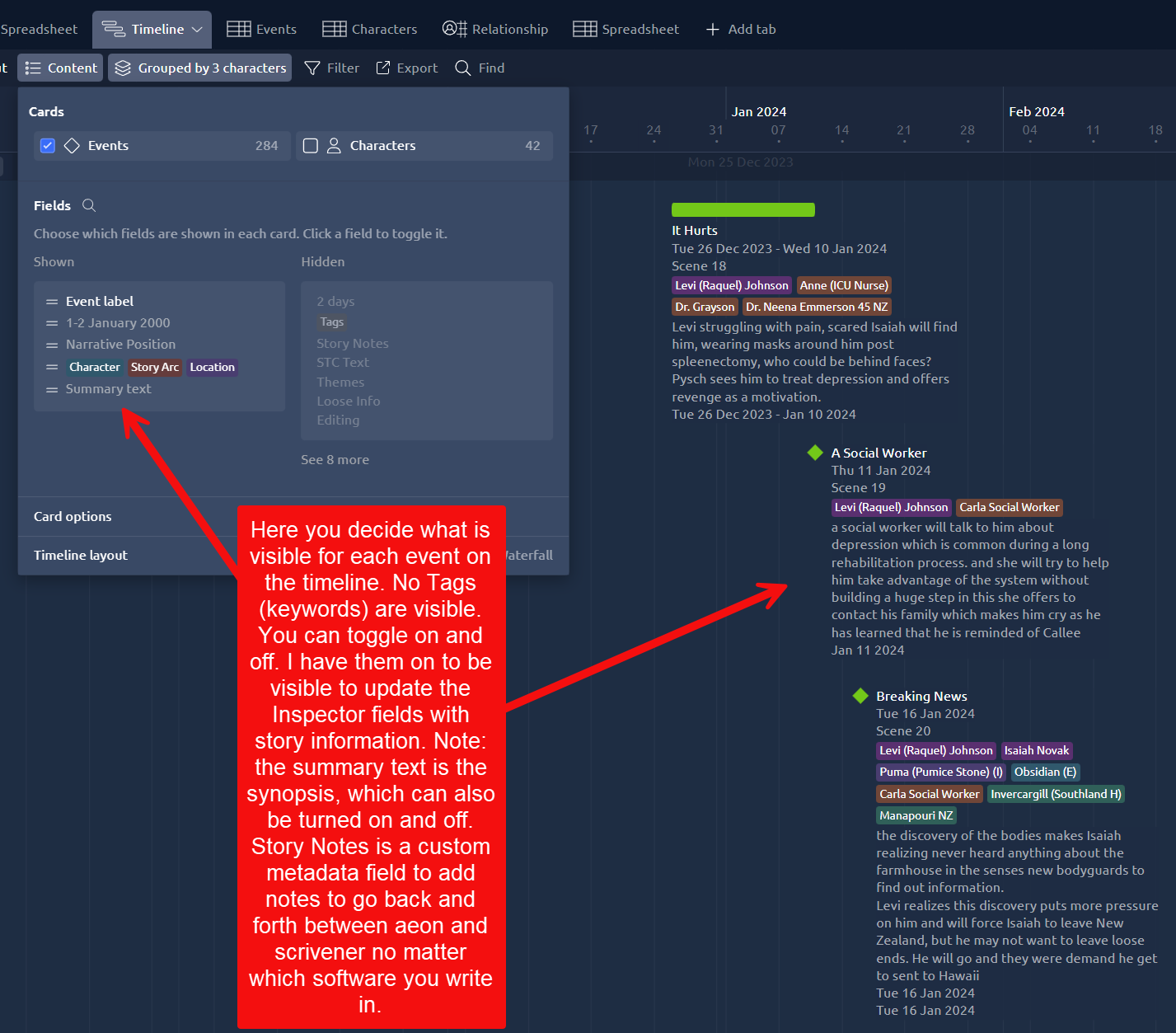
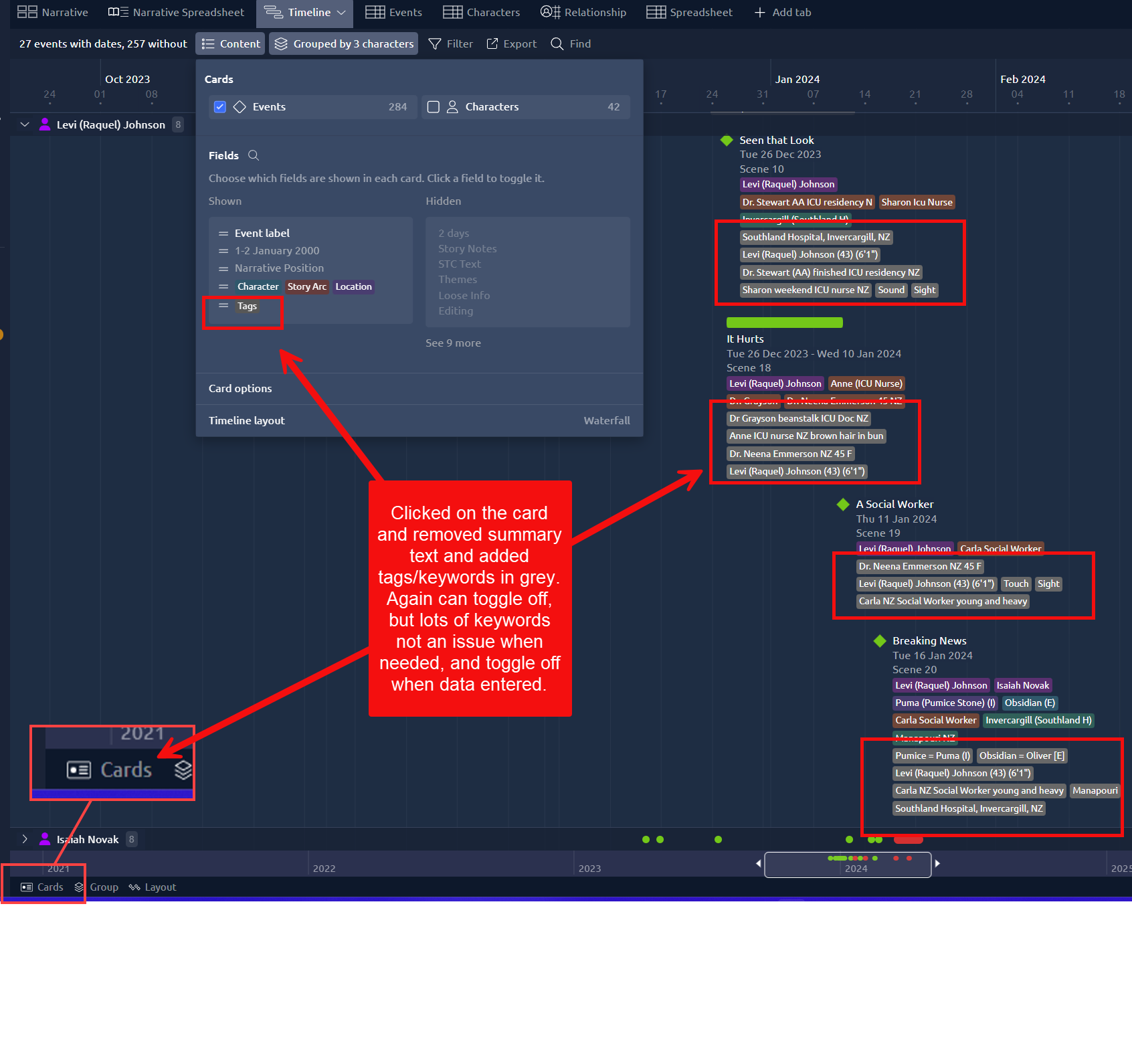
You can take the keywords out of the timeline view by toggling this off after data entered. I think it is easier to quickly assign keywords to scrivener, especially multiple characters. Look at how they appear and can disappear.
Whatever works for you is the best, but you can toggle data displayed categories on and off for events. You can double click on the images to enlarge and then click the magnifying glass + sign to enlarge if needed.