When I view a chapter in outline mode, I am able to see the synopses for each document in the chapter, but not the synopsis for the chapter itself. This means that when I print the outline for a chapter, only the sub-documents appear. The title of the chapter (the name of the parent document) does not appear. So I’ve been handwriting all the chapter titles when I print out the outlines. I would appreciate any assistance in getting the metadata for the parent document to appear in outline mode.
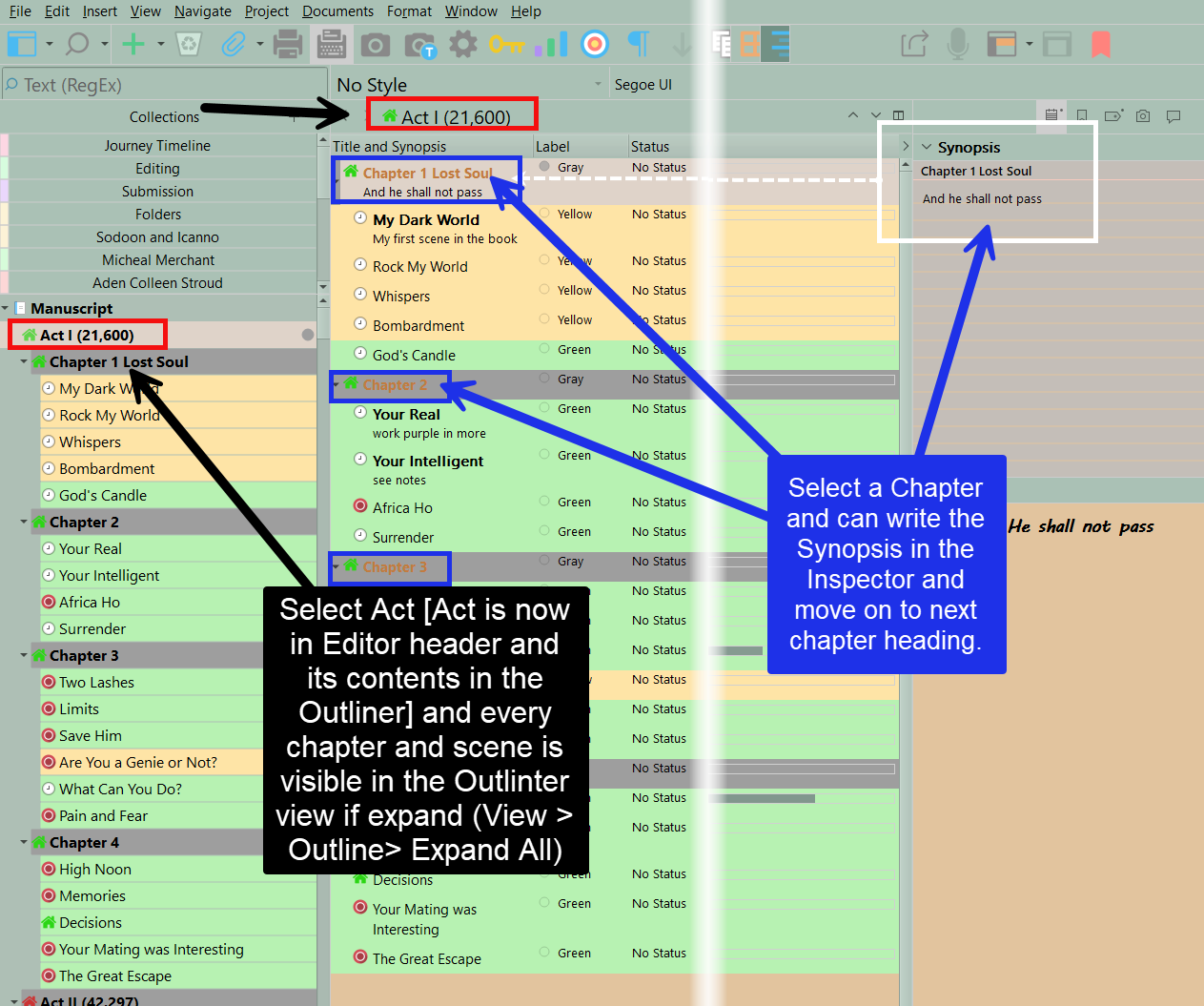
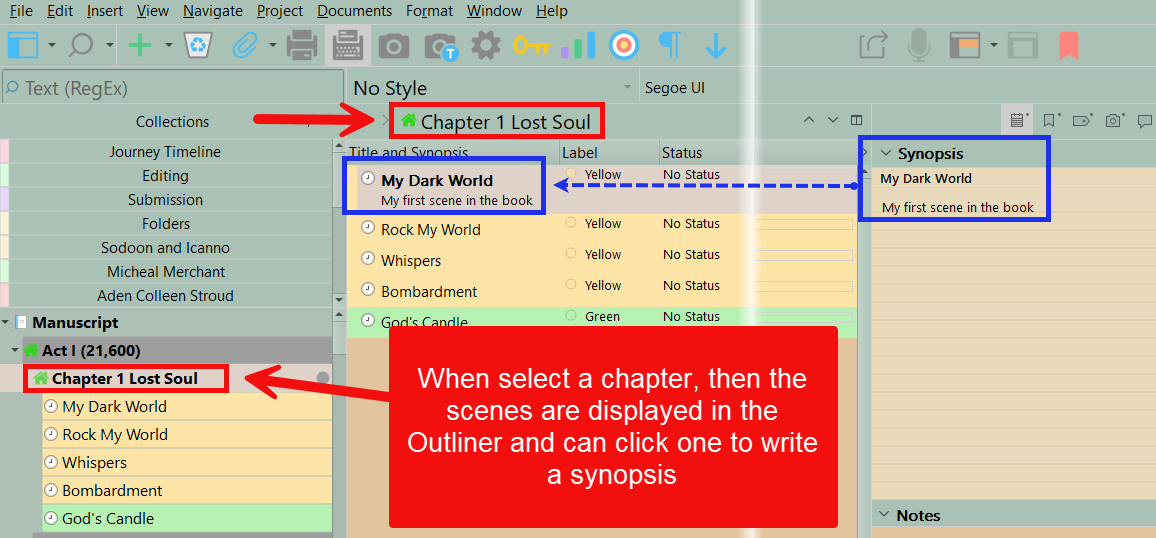
A key thing about how the outliner works (and the corkboard too for that matter, although it only shows one level of depth at a time) is that they are downward facing from what you select to show in them. What you select is represented at the top of the outliner, in the header bar row, but not within the content area. To see that you need to be one level “up”—perhaps the group for the Part these chapters are in, or the Draft folder itself.
A little trick to know about is that if you have nothing selected within the outliner or corkboard, then the Inspector shows the information for the group you are viewing—or what is printed in the header bar. So that is how you could reference the synopsis for the whole group you are examing its contents of.
As for printing, I presume this means you are simply pressing ⌘P / CtrlP, in the outliner? Here are two things you could try differently:
-
In the binder, after selecting the group that stands for chapter, use the
Edit ▸ Select ▸ Select with Subdocumentsmenu command (there is a handy shortcut for this, too). Since you are now viewing a multiple selection in the outliner, and that selection includes the group itself, it will be available for printing. -
The downside of that method is that multiple selections have no hierarchy, so the printout will be a flat list. For a simple chapter-section setup that may be okay, but it would get a bit awkward with more complex chapter-section-subsection and deeper outlines.
So an alternative is to use the compiler to print the outline instead:
- Again, select your main group in the binder and leave the selection in the binder sidebar.
- Open
File ▸ Compile... - In the Contents tab, on the right side, select “Current Selection”, from the Compile dropdown. (You’ll probably need to tick the Include subdocuments checkbox the first time, too.)
- In the left sidebar, select one of the outliner oriented formats, like Full Indented Outline.
- Click
Assign Section Layouts...in the middle preview column, and set up how the various types of the outline should print. If you want them all to be the same (like regularFile ▸ Printdoes), then select all of the Section Types in the left sidebar, and click on a tile to choose it.
That will give you an indented outline, including the group and all of its descendant items.
3 Likes
Thank you for your help. Is it possible to get the compile option to include word count, status, and keywords (as can be done when printing from the outliner)? If not, I will go with the other option to print from the outliner by selecting with subdocuments. I do prefer having the hierarchy, but it is a good solution otherwise. Or I might create a dummy document to contain my chapter.
Oh, I did mean to mention it, but per-item word counts is the one thing the compiler doesn’t do. You can kind of see the conceptual divide in how that is difficult, with examples like this in fact. Is the first section in a chapter only 15 words long, because that’s how much of it we just compiled? And it’s not as simple as having a checkbox that makes it print whatever the outliner would put in a column, because that value is an estimate (annotations for example, pad the count), and the compiler could radically alter it based on how styles work, whether you include content from one part of the outline into another, etc.
That aside, yeah you can add all of the metadata you want. Here’s a simple example, going off of Full Indented Outline compile Format.
Checklist...
- First, open “List of All Placeholders” from the Help menu, so you can have that as a reference.
- Next, open
File ▸ Compile..., and double-click on the Full Indented Outline format, to duplicate and edit it. - In the Section Layouts list, select the layout you chose to use, and want to add additional metadata too.
- Now at this point you could click the Metadata checkbox. But if you try actually printing with that, you may find it prints too much metadata, and not in a good format for a concise outline. But that’s worth keeping in mind.
- In the lower half, click on the Title Options tab. You’ll see, in the Title Prefix field, where the numbering style can be changed. In the placeholder cheat sheet, search for Auto-Numbering to find the other options.
- You might think to use the Title Suffix field, but this is a little limited for printing multi-line metadata. Instead click over to the Prefix tab, and tick the Place prefix after title checkbox.
- Type in a space, to separate it from the title text, and then
(<$label>). Press Return, and type in<$keywords>. - Format this how you’d like them to appear. Maybe label could be grey to set it apart from the heading. Maybe keywords can have a little paragraph spacing below it, between it and the synopsis, etc. You have a lot of flexibility here, including tab stops, indents, and even more complex things like tables.
At this point you might want to give it a better name, at the top, and switch the Save to dropdown to “My Formats”, so that it is globally available to all of your projects.
Play around with it, and the various many placeholders. There is of course a lot of flexibility here. The caveat remains an itemised word count ability, of course. In every other way this is going to answer a lot of desires for the simple outliner printer feature to do more, or do things a little differently.
If not, I will go with the other option to print from the outliner by selecting with subdocuments.
Yup, and that is by far the easiest answer.
Or I might create a dummy document to contain my chapter.
You could do that, and set its Include in compile checkbox off, so that there is less of a burden in remembering to clean such things up eventually.
2 Likes
Thank you. I appreciate your help.
Binder view on the left.
Next is outline view.
Outline view does not have lines for any folders.
Ideally I’d like the folder to show up, and create a synopsis for it. I can work around this by creating the first doc in a folder a synopis, letting it autogen, and tagging it non compile.
Am I missing a setting somewhere?
Note that the Outline view only shows the contents of whatever container is selected. So if you select a chapter, it will show the scenes within that chapter, but not the chapter itself. (Similar to the Corkboard view.) To see folders, you may need to go up one level in the hierarchy.
If that doesn’t help, please post a screenshot. I’ll check your trust settings to make sure you can.
1 Like
Also note that the Inspector will refer to the group you are viewing when nothing is selected within the main editor. Often this can be easily achieved by clicking on the corkboard or outliner background, though with the outliner if there are enough lines to fill the view you won’t have a background to click on any more. In that latter case you can use the Edit ▸ Deselect All menu command, or Ctrl/⌘ click on the row that is selected.
You will find this, and other tips, in the user manual PDF under, §13.1, Inspecting Items.
1 Like
Thanks.
The user manual is a bit overwhelming. On mac it’s 900 plus pages. and in preview it’s hard to find stuff.
A suggestion (am a windows user, but most the same) Make a Scrivener learning project and add information as you learn and organzise how you want. I did alphabetical by topic. I copied information I read here on the forum, or in Oliver’s monthly webinars (free), or the helpful blogs on site. Over time you add information as you learn. But for the Outliner maybe some images will help. The first is the expanded outliner using the Act I folder and the second is the Chapter folder in my current wip after the first draft.
Yeah, Preview is very basic—okay if you don’t really need a PDF reader I suppose, just something that opens them. I always used Skim, on the Mac, but maybe there are better options these days.
As for finding things, the main ToC can be largely ignored. Use the sidebar contents instead. It’s a pity because the full form ToC was designed as a search net, using common words and feature names in sections. Now those searches get lost somewhere in the intro, where they aren’t always useful. Well at least some PDF readers have a decent sidebar contents search. More navigation tips are given in 2.2.
2 Likes
There would be merit in providing the document as a Scriverer document, or even as a more finely grained set of HTML documents
One of the things I wish that project search could do is “AND”. Find docs that had Aardvark AND Koala
There is that! Go to this page, and select the Scrivener project through the dropdown.[1] It is an older copy though, which is the main downside. I really need to update that, it’s just that I kept putting it off until the Windows version could compile the project correctly, so that it would be an example for both platforms, but it’s taking so long to get to that point that I should just live with disclaimers.  Besides, compiling it is really only of interest to Markdown users, and primarily those interested in LaTeX at that.
Hmm, maybe I’ll make that my afternoon project. If I get it done, I’ll post an update here. It does take a bit of work, as the original project itself is stuffed full of internal notes and such.
One of the things I wish that project search could do is “AND”.
That is what the “All Words” search operator does. You can also negate a term in a similar fashion to how some web search engines work, so “aardvark koala -panda” will find documents that must contain both aardvark and koala, but not panda. Negations work for both All and Any search types.[2] You can also include phrases with double-quotes, which will for the purposes of these two search types be counted as words.
That’s a good page to bookmark anyway, as corrections are posted there several times per year. There is in fact an updated PDF from what is currently in the software (mostly minor typo fixes). ↩︎
Uh, well, on Windows—sort of, with “Any Words”. In quickly checking that I see it incorrectly treats the negation as a separate OR clause, so it not only returns the documents with either koala or aardvark, not containing panda—but also everything else that doesn’t contain panda. Well, time to write a bug report.
 ↩︎
↩︎
1 Like
gaack.
I missed that. Wish it were search box syntax. But having it as a checkable option helps.
Google used to implement
“an exact phrase” must be there.
-”not this” this phrase can’t be there.
word* Anything that began with word
something | other find either word.
(something | other} thing. one of the two or words AND thing.
This is fairly easy to implement as a side effect of having regex capability in find / replace stuff.
I don’t like this behaviour. I would rather have the container included. If I have to move a level up, I get a whole bunch of other stuff I don’t want.