I have a scrivener project where I have many text documents in my binder in which I am constantly writing and editing material.
I would like to find a way to copy and paste sections from those texts into a master document and to automatically track back to the exact source text in the original text document in the binder.
I have looked at the “link to document” function but I find it cumbersome to always select the document from the menu and also it does not show where in the text the snippet actually comes from, only the whole document.
Is there a solution to this, especially without external bibliography managers?
Two potential methods-
You can copy the phrase and paste into the master document. Now copy the phrase you are interested into the project search bar and select text and choose the exact pharse. This will generate a list of documents containing the whole phrase and the phrase will be highlighted when you open the document. You can repeat this process for any phrase in your master document to generate a list of documents containing the phrase and it will be highlighted, so it becomes easy to locate its exact position in the text.
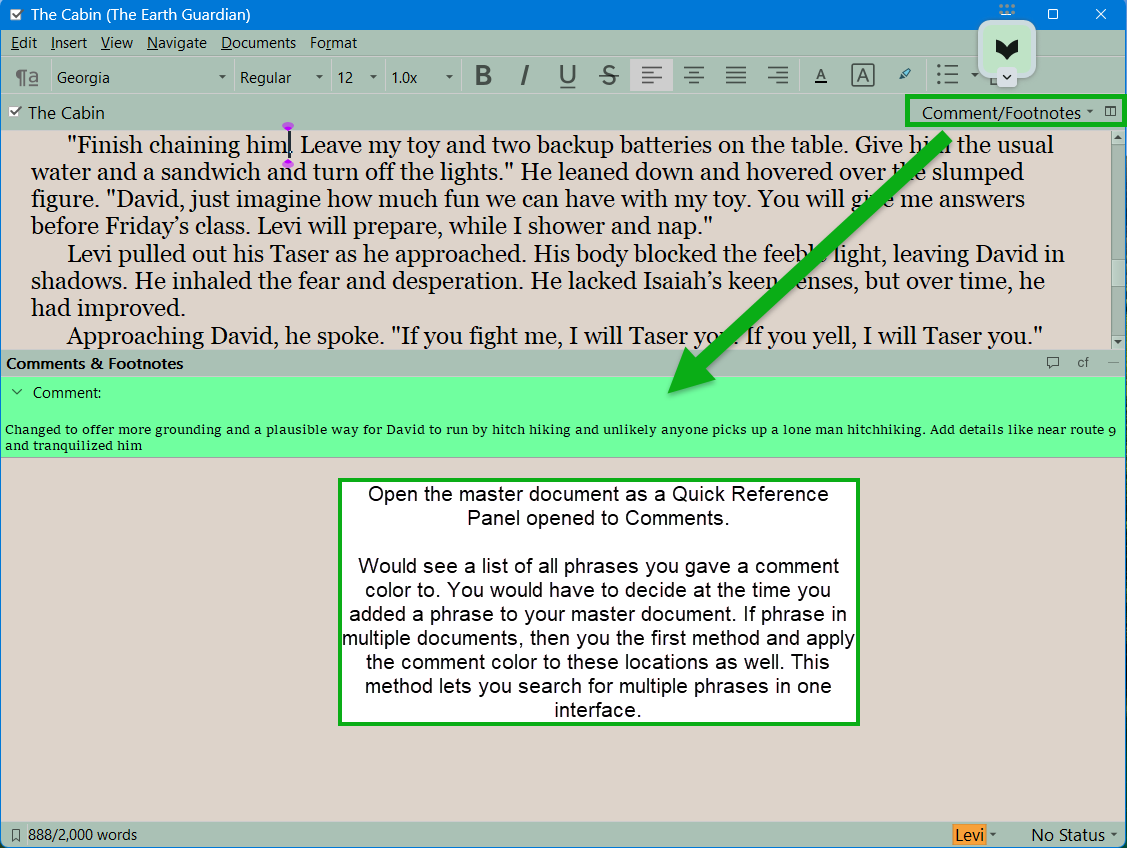
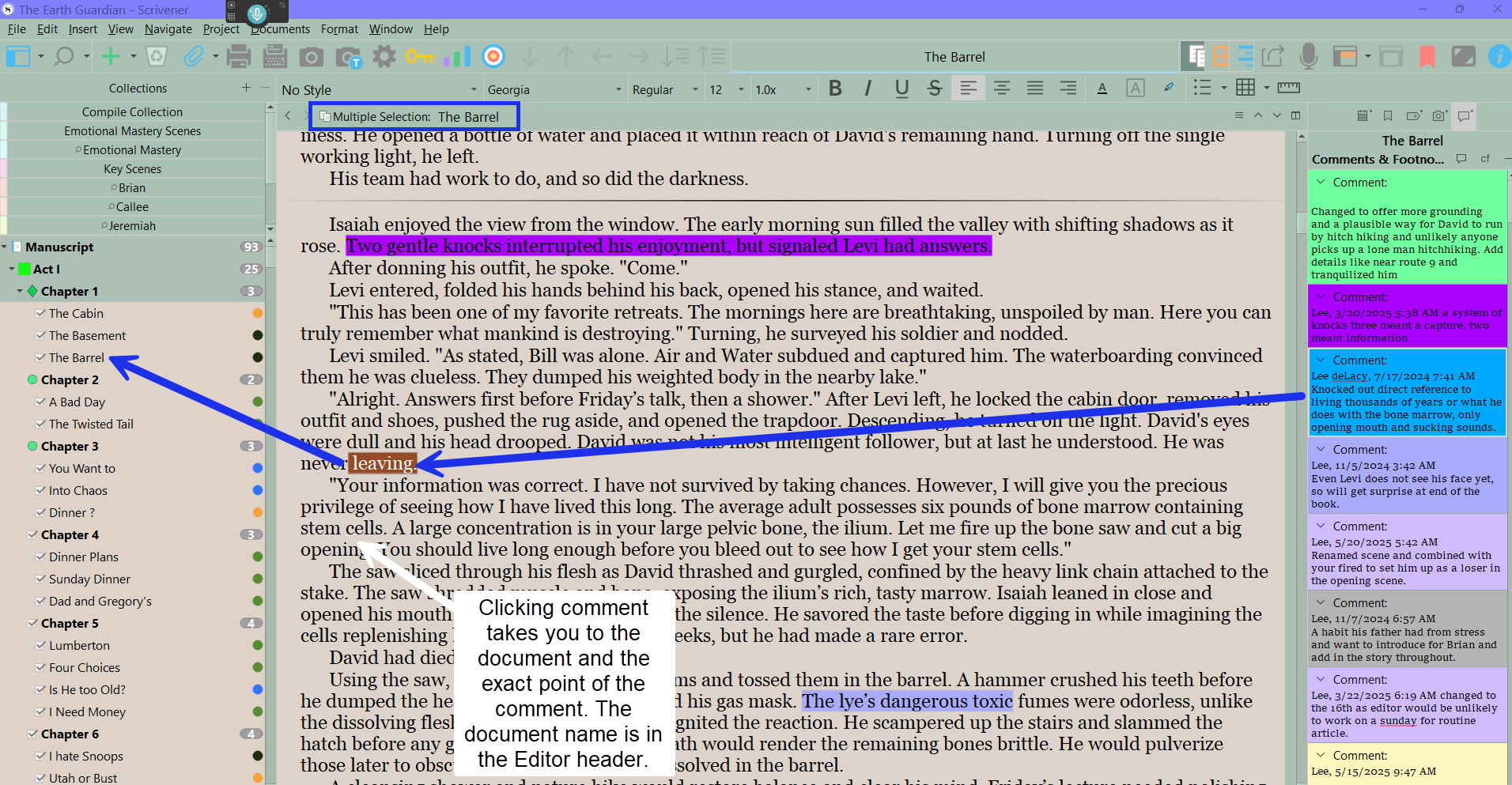
The other way would be to use comments and give a set color for a phrase in the master document and any source(s) it came from. If you look at at the whole manuscript and have the inspector opened to comments, you have a list of every comment and clicking on it takes you to the exact point in the document. You could color code phrases (can have 6 default colors and up the 16 custom ones.) You could open the master as a quickreference panel and opened to comments and would look like this below.
Remember that the “master document” doesn’t have to be a single document. Neither do the source texts. If document links aren’t working, you might consider breaking the source documents into smaller pieces. You might also consider duplicating the relevant pieces and using drag and drop, rather than copy/paste to put them in the appropriate place in the Binder.
Depending on the nature of the project, Scrivening’s mode – possibly in combination with some Collection by label or keyword – might be the magic.
Scrivening’s mode – being able to see a whole swath of documents lashed together in the editor pane whenever you want. This could be every doc in your Draft folder, or just a subset of them.
Labeling and keywording: You could mark all the docs that form part of the master doc with a keyword or label.
Collection (Saved Search): You can then define a search for that label/keyword and save it as a (dynamic) collection. Now, you can use Scrivenings mode to have it show you just the docs in the collection – all lashed together on the fly in the editor pane.