One can find all styles, but maybe not ‘no style’, which is I guess not a style.
But that would be handy. If you compile As-Is text and miss adding a style to a line of text, it comes out really wonky looking in a mobi, and such lines are often invisible in the Scrivener editor, so are hard to spot.
So this would be a great addition to Scrivener. Until then, are there workarounds I could try?
Most of the text in your manuscript should typically not be styled. We recommend assigning styles only to block quotes, headers, and other “special” text. There is no Scrivener equivalent of Word’s “Normal” style.
For that reason, searching for text with “no style” should find most of your manuscript and will not be terribly helpful.
So the solution if you are compiling As-Is is to set the default text formatting the way you like it.
Katherine
PS Incidentally, styles are not changed by the compiler unless you explicitly redefine the style in the Compile format. So compiling styled text “As-Is” is somewhat redundant.
Do you want simply to change all ‘no style’ unformatted paragraphs to a named style in one go? In that case, the tools already exist to do that (see A below).
Or do you want to cycle through every paragraph and make the choice one-by-one? You can do that as well, but it takes a further step (see B).
A: change all unformatted text to a certain style.
Format > Styles > Show Style Panel (ctl-s on the Mac, not sure on Windows)
select an unformatted paragraph in the text, then in the panel, click on the gear icon and choose ‘Select similar formatting’, which will highlight every matching paragraph.
In the panel, click on the style you want to change to, to apply that style to all the selected paragraphs.
That’s it. BTW, if you’re trying to replace the ‘no-style’ default formatting (e.g. so you can have your own ‘body text’ or ‘normal’ style, as in Word) then this is generally a bad idea. Your basic, most common paragraph should almost always be the default ‘no style’. If you want to change it, you do that using the Project > Project Settings > Formatting dialogue, not with a dedicated style.
This involves the same steps as at A, but with the addition that you create a dummy style first, which you then feed into the Find by formatting process.
Select an example paragraph and format it the way you want, then create the new style based on it. Give it a sensible name (‘dummy’).
Go to another unformatted paragraph and again select it, then in the Style panel, ‘Select Similar Formatting’. This time, choose the ‘dummy’ style.
Go to the beginning of the project (or Scrivening) and Edit > Find > Find by Formatting and choose Find: Style and Style Name: dummy.
You can now run through every style sequentially, using cmd-opt-shift g to move to the next one, and changing to the correct style or reverting as you wish.
Assuming the ‘real’ style you want to change to is called, ‘Real Style’ and has the shortcut cmd-opt-2, the entire process would be:
Go to head of the documents / scrivenings you want to change and choose Find > Find by Formatting and set it up to search for the dummy style
If you want to change this paragraph to ‘real style’, press cmd-opt-2. If you want to revert back to the unformatted original, cmd-opt-0. (Mac shortcuts – there are windows equivalents, of course.)
cmd-opt-shift-g to move to the next match and repeat step 2.
How are you getting the text from Scrivener to CSV… Export or Compile? If you are compiling, then you need to give your styles the minimum defined formatting possible; if your style includes font information, then you risk losing any inline italics, bold etc., if that is important, as compile enforces the main variant throughout. If your style is little more than a name ID can recognise, that’ll save issues down the line.
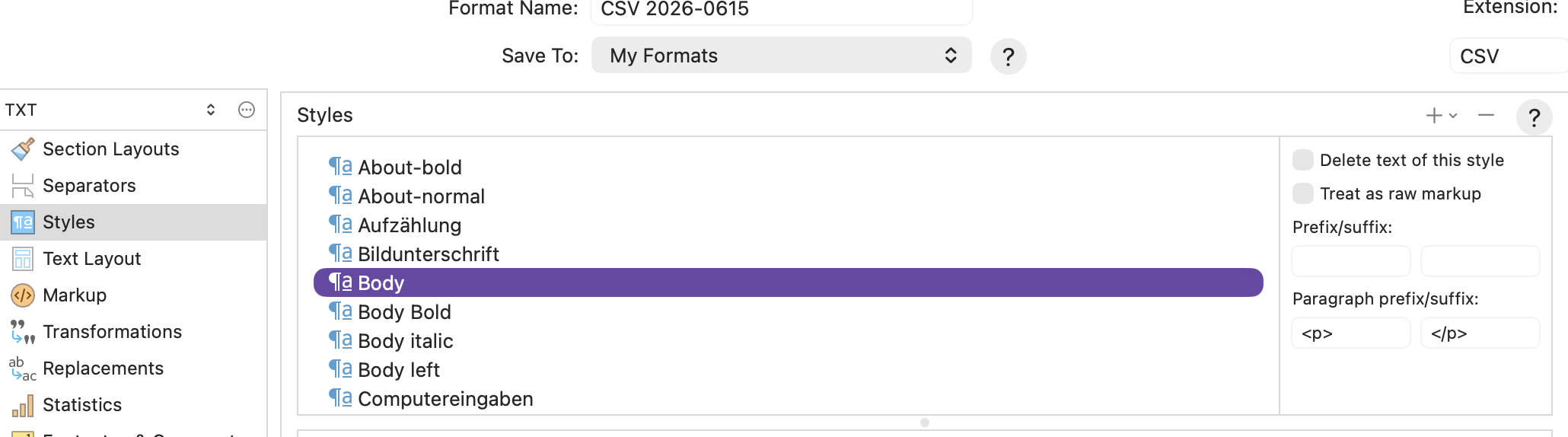
assign to every style a prefix/suffix of your own choosing.
for me for example style Body Bold is my prefix/suffix ,
or
and so on.
This should give you a usable output like
"Id";"nr";"text"
"author-01";"1";"Julia Jones"
"titel-01";"2";"Der Löwe von Sole Bay"
"titel-02";"2";"Strong Winds · Band 4"
"datum-01";"3";"2026"
"Description";"2";"
<h1>Der Löwe von Sole Bay</h1>
<zwi>Halloween an der Küste von Suffolk</zwi>
<p>Der zwölfjährige Luke freut sich auf eine besondere Woche mit seinem Vater Bill. Gemeinsam wollen sie auf der Lowestoft Lass, einem alten Fischerboot, arbeiten und zum ersten Mal wirklich Zeit miteinander verbringen. Doch als Luke am Abend ankommt, ist sein Vater verschwunden.</p>
<p>Zur selben Zeit gerät Angel in der Bootswerft in eine Katastrophe. Ein Boot kippt von seinen Stützen und begräbt einen Mann unter sich. Die anderen Jugendlichen fliehen. Angel bleibt zurück – allein mit einem Schwerverletzten und der Angst, dass alles ihre Schuld sein könnte.</p>
<p>Während Luke durch dunkle Wälder irrt und verzweifelt nach seinem Vater sucht, kämpfen andere auf dem Fluss mit ganz eigenen Geheimnissen. Auf einem unheimlichen holländischen Lastkahn bereiten Mutter und Tochter ein rätselhaftes Ritual vor, und niemand ahnt, wie sich all diese Wege in derselben Nacht kreuzen werden."</p>

"Words";"w";"79.979"

"Über dieses Buch";"1";"<h1-left>Über dieses Buch</h1-left>
<zwi>Halloween an der Küste von Suffolk</zwi>
<p>Der zwölfjährige Luke freut sich auf eine besondere Woche mit seinem Vater Bill. Gemeinsam wollen sie auf der <i>Lowestoft Lass</i></p>
<p>Zur selben Zeit gerät Angel in der Bootswerft in eine Katastrophe.</p>"


"Imprint";"2";"<imp><bold>Impressum:</bold></imp> …
An alternative to consider is that if you apply your Body style to the sample body text in the Section Layout, this style will be applied to all normal text (not styled otherwise in the editor). This is how you could have properly named styled paragraphs for your InDesign template, without having to manually keep them styled in the projects that use this workflow.
Either works! For myself, the main reason I avoid editor body styles is that it often means having to customise every single compile Format to a greater degree. You have to override, whereas if the text is left unstyled you can use defaults without tweaking each one.
It also means I can change the function of text depending on which Layout I use for it. Using a singular editor style kind of locks all of the text in to one role, or requires using more and more editor styles for different roles (glossary, citations, body, excerpts, etc.) If I leave the text be, then the outline structure, or manual Section Type setups, can define text roles in an abstract way that a compile Format could do something specific with, but isn’t required to.
The main reason we advise it here and in documentation is that the learning threshold for newbies is way higher than just letting defaults work. You go from clicking a few buttons in the Compile overview, to much more advanced and unusual concepts. But in your case you are obviously well past that learning bump (nice setup by the way).
By the way, for Windows users, the Find by Formatting tool already provides “No Style” as a search option, so I’m moving this to an existing Mac-specific feature request.
On Mac, the Edit ▸ Select ▸ Select Style Range command also detects “No Style”, and can be a bit more reliable if the text is formatted, or even character styles, so long as you start with the cursor outside of one (it scopes to the current context). Since it is a menu command, you can throw a keyboard shortcut on it (or the Select Similar Formatting command).
On Windows you can put a shortcut on Select Similar Formatting, but not Select Style Range (which doesn’t work very well anyway, it’s buggy).