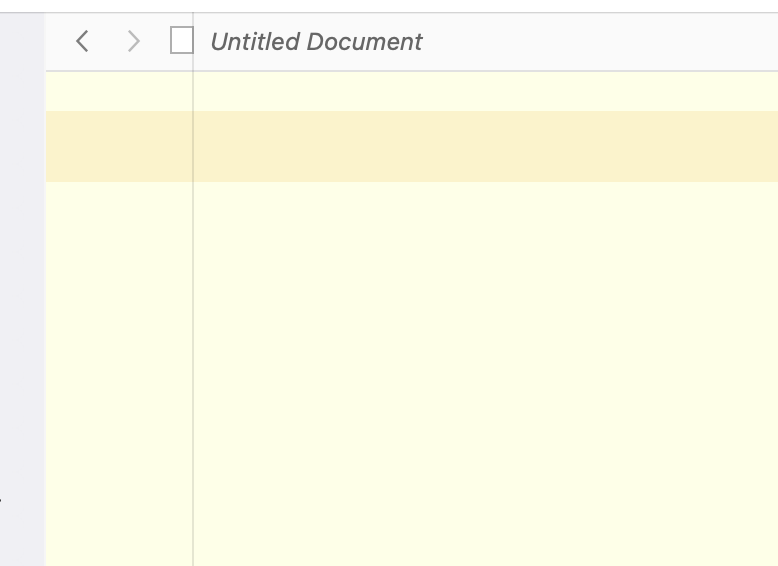
Just updated to 3.5 and seems fine… apart from my working pages now have a very fine vertical rule going from top to bottom, as in attached image. Wasn’t there before update. Can’t find a setting that would remove it. Any ideas?
1 Like
There is nothing that would do that on purpose, and I haven’t seen that myself. Before going to into it, does this show up in any project, including a new test project? If it’s just one project, it might be worth resetting the UI settings to see if that makes it go away (and perhaps more interestingly, if you use the Layout that checklist recommends creating to bring your settings back, if the problem returns).
2 Likes
Thanks Amber. It affects some projects but not others. I was about to try what you suggested. However, I noticed that if the line appears when I first open a project, when I apply one of my layouts, it disappears. Even if that layout is the same as the one the project has upon opening (with line), applying that layout again removes the line. Does that make any sense?
Yeah, that could certainly make sense. A layout is simpler than the full UI state file, and in theory a Layout will not save invalid states, meaning you could save your settings from a corrupted project window and later restore the settings without bringing the corruption back (if using the layout did bring it back though, that would most likely indicate some kind of bug being triggered by a combination of settings).
So is the problem then gone at this point, or are you having to continually reapply the layout to get rid of it? I wasn’t quite clear on that.
This looks like a bug I thought I’d fixed. That’s the split view divider drawing in the wrong place - there are some weird issues with divider drawing on macOS 26 (actually I’m not sure it’s limited to macOS 26 or to the changes made for macOS 26). I saw this bug when I double-clicked on the divider to resize panes equally, but fixed it there and thought I had fixed it across the board, but obviously not.
Could you please send us a sample project where the bug appears? If I can reproduce it, I can track down what I might have missed.
Thanks!
1 Like
Thanks Keith. I should mention I’m still on MacOS 15.7.1 (for 26 I’m waiting til .1 arrives before I update). Anyway, yes, happy to provide an affected project for you to poke around in. How do I send that?
Great, thanks! If it’s just a sample project containing dummy text, you can zip it up and attach it to the forum post using the upload button in the row of icons with bold, italic, etc. Otherwise you can zip it up and send it to us at scrivener-mac@literatureandlatte.com - mark the message FAO Keith and link to this thread in your message so that the support staff know it’s something I’ve asked for and what it’s about.
All the best,
Keith
OK, zipping up now and following your instructions.
1 Like
Great, thanks for sending the project. Please download and test this build of Scrivener, and let me know if the project persists:
(I saw the same problem with your project as you did and this build fixed it for me.)
2 Likes
Replace existing Scrivener with this?
Yes - this is just 3.5 with a fix for this bug.
1 Like
Bingo: fixed it for me, too.
Great, thanks for checking! I’ll roll out an official update with this fix in the next week or so, but until then just keep using this build.
1 Like
Thanks Keith, as ever, for swift and helpful attention.
1 Like