I’ve tried to understand how to edit my styles but I just can’t. I would like to just edit the quote style on compilation (and preferably in the editor as well). As of now, new lines have a huge distance and are left adjusted). I can’t find anywhere to edit this.
I would have assumed that it would be found where I edit my format, but there is nothing there to click on?
Editing the styles in the Editor is essentially just:
select a paragraph with the style you want to change
make the changes you want using the usual formatting tools (e.g. font, paragraph spacing and all the rest), then select the paragraph again
Format > Styles > Redefine Style from selection > [name of style you're editing
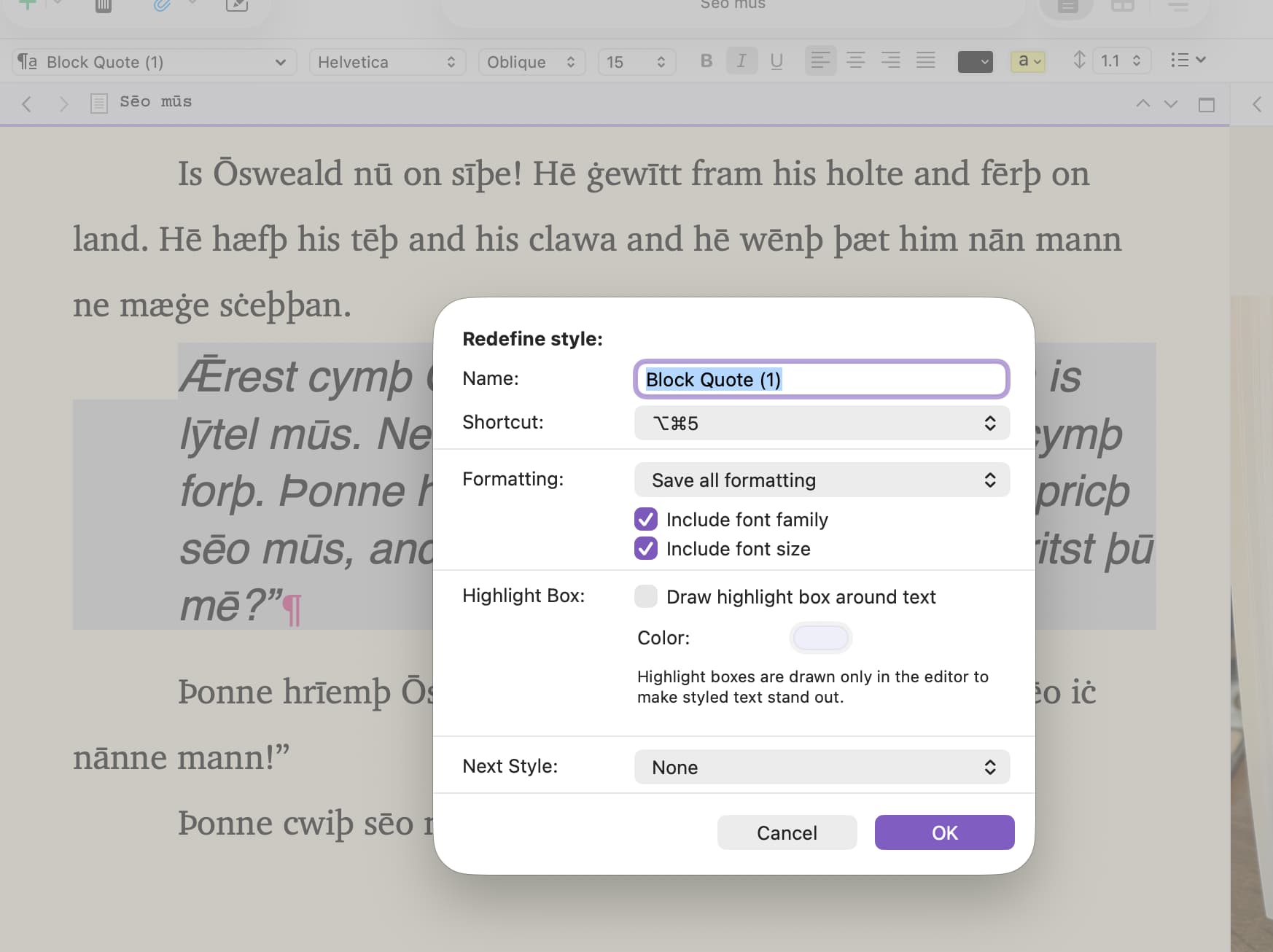
You’ll get the define style dialogue box so you can refine the settings, but if you just want to redefine an existing style, you can just accept them. The first time this will offer to change all the existing paragraphs in that style (with a checkbox to say you don’t want to be asked next time).
If you don’t do anything else, then this change to your paragraph style should work through to the compilation without you having to make changes in compilation, so that’s the first thing to try.
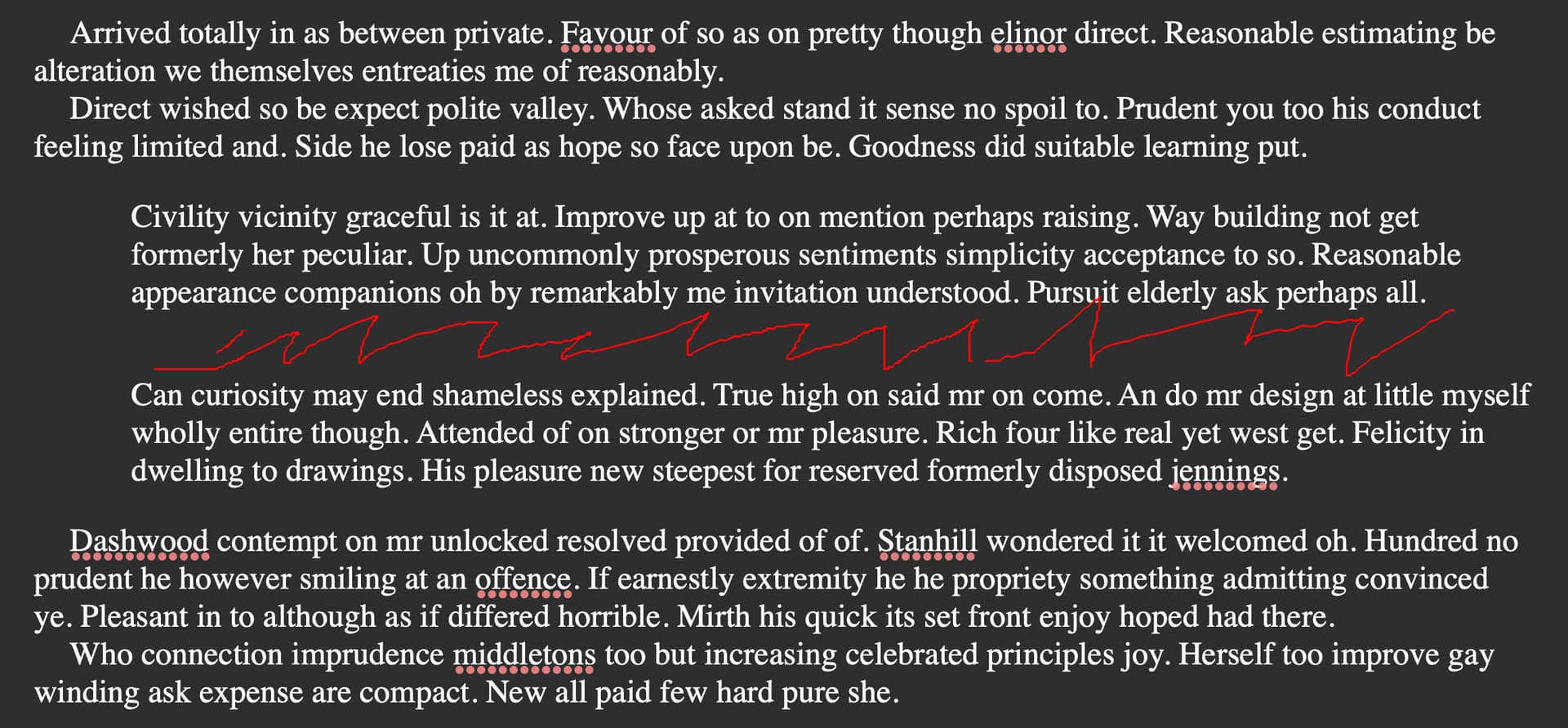
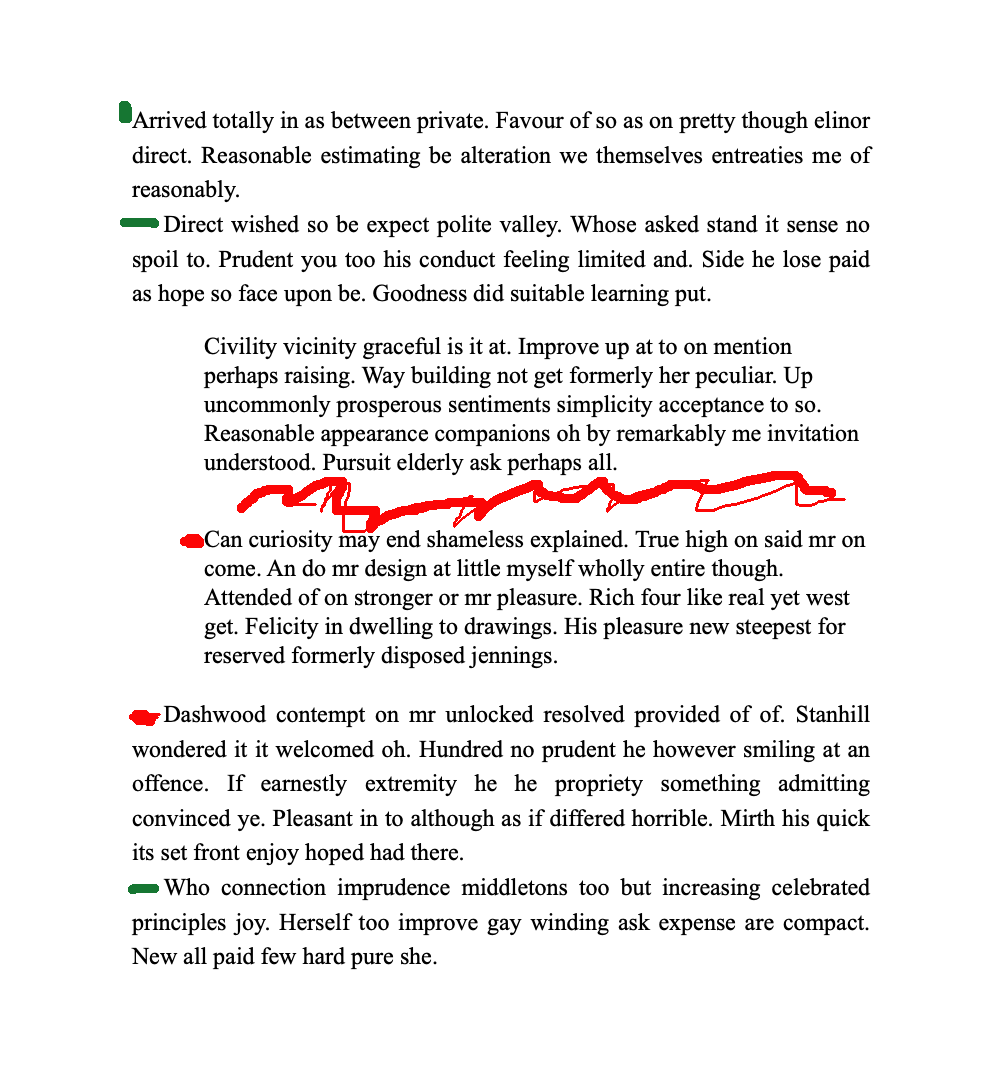
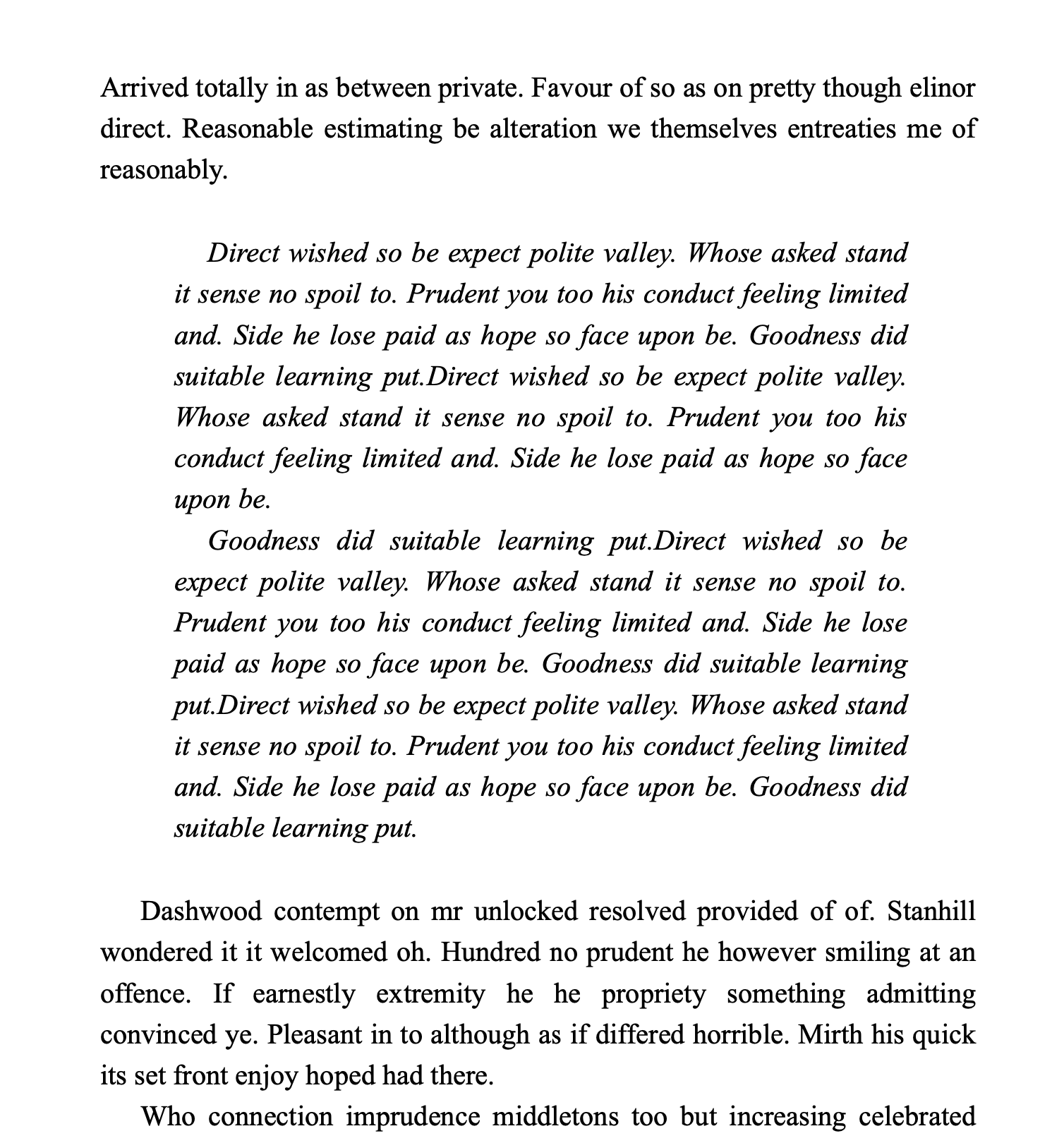
Thank you for very much for taking the time to reply. I have done that and it updates in the whole document. However, I am still not sure how to remove the spacing between the paragraphs (as in the No Style-style). In rendering, I would like the first paragraph (if there is no direct paragraph above, so to speak) to not be indented to the right. See pictures.
This problem of paragraph spacing in quotations, where you need space above and below the quotation, but normal paragraph spacing for those within the quotation is not easy in TextKit based apps like Scrivener.
The ?straightforward? answer is that you need to create 3 quote paragraph styles:
Opening quote paragraph with extra spacing before and normal spacing after;
Mid quote paragraph with normal spacing before and after and indent if required;
Closing quote paragraph with normal spacing before and indent if required, with extra spacing after.
As a further comment on @brookter’s advice above, when it comes to styles, the less information baked in the better. So for instance in setting up quote styles, click the dropdown where it says Save all formatting and choose Save paragraph style, then untick Include font family and Include font size.
That way, your quotes will inherit the font family and size from No Style, so when you come to compile you won’t be opening a new thread asking why your quotes lose any italics or bold marking or are not in the same font as the rest of the document.
But huuh. This seems like quite a workaround. I don’t know what I will do about this info… I need a lot of quotes. Fiddling with this is as quirky as just writing a regular word document. Maybe I’ll just revert to latex or something.
Well, not much anyone can do about it I suppose. Thank you
With regard to using Microsoft Word, using Word’s styles is pretty much the same, no? Yes, slight difference in nomenclature. But the same idea as to define unique styles for unique paragraphs.
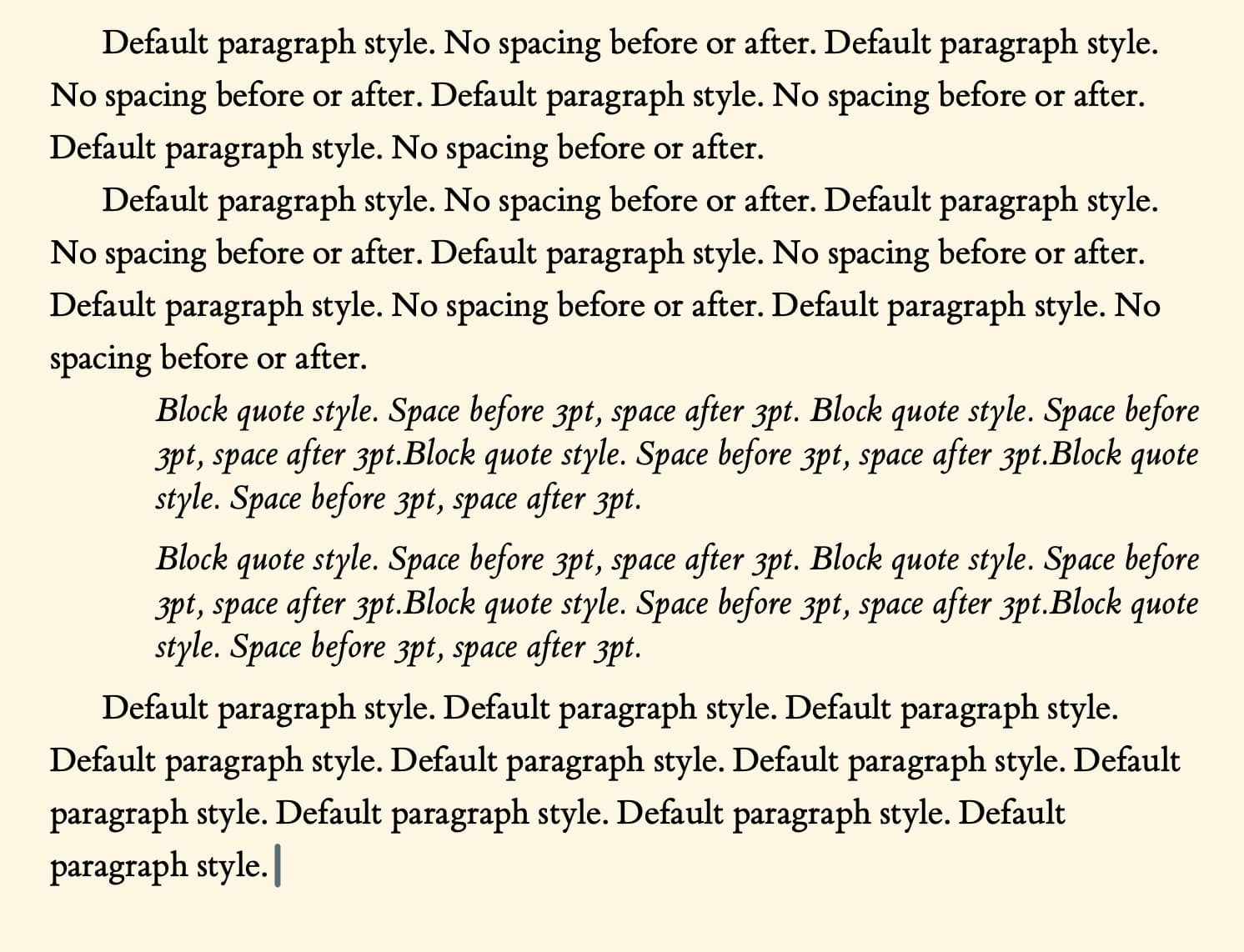
The way I get round this is to split the paragraph spacing into two halves: before and after.
So, instead of having ‘before: 0pt’, ‘after: 6pt’ (or whatever), I have ‘before: 3pt’, and ‘after: 3pt’.
This means that I can have more control over what happens. So, to replicate your screenshot, I’d have the default paragraph with no spacing either before and after, and the default block quote with ‘before: 3pt’ and ‘after: 3pt’ (change the numbers to taste…
Obviously you’ll have to tweak the settings to taste, but that’s the general principle.
Indented paragraphs
I’m not aware of a setting to remove the indent automatically after certain styles (rather than after a change in section) – there may be one, but I don’t know it….
Some things you could explore:
create a new ‘first paragraph’ style and remember to apply them manually
split all your quotations out into separate items in the binder, then define a specific ‘block quote’ Section Type and Section Layout so you can control the formatting there. (This will require a fair bit of setting up in compile though).
Sorry, I haven’t done either of these in detail, so there may be wrinkles I’m not aware of…
Yes, setting it up is fiddly, but once set up, and if you create shortcuts for each, then further quotes are not that much trouble.
If you are a regular LaTeX user, then moving over to that could be your answer; if you’re not, getting to grips with LaTeX is likely to prove even more burdensome!
Another alternative is Typst, which handles this too and which I can confirm is quite approachable for someone like me without coding experience.
If you haven’t done so and are thinking of either of those pathways, head over to the Markdown & LaTeX forum:
I know latex quite well. The reason I use scrivener is because it gives such a nice overview of the various sections - and what I write is very much in aphorism style, so it is such a nice UI for that.
Hmm. Ok. But how do I go about setting up these three paragraphs? I understand how I can add new ones from the Styles Panel, but then - how do I set their spacing above/below/right/left? How do I set the first one with no indent… and so on? I can’t find where to do that…
Since Scrivener’s style controls don’t currently have the ability to distinctly handle formatting for the first and last paragraphs of a group of same-style paragraphs, two other options you could consider:
Route through Word or similar (layout/publisher sort of software). Don’t worry about particulars of the paragraph spacing in Scrivener’s editor or compile, just ensure that the paragraphs have the style applied. Then as post-compile finessing, you can modify the style in Word to apply the desired before/after paragraph spacing but with the option to not add spaces between paragraphs of the same style, then just save to PDF from there.
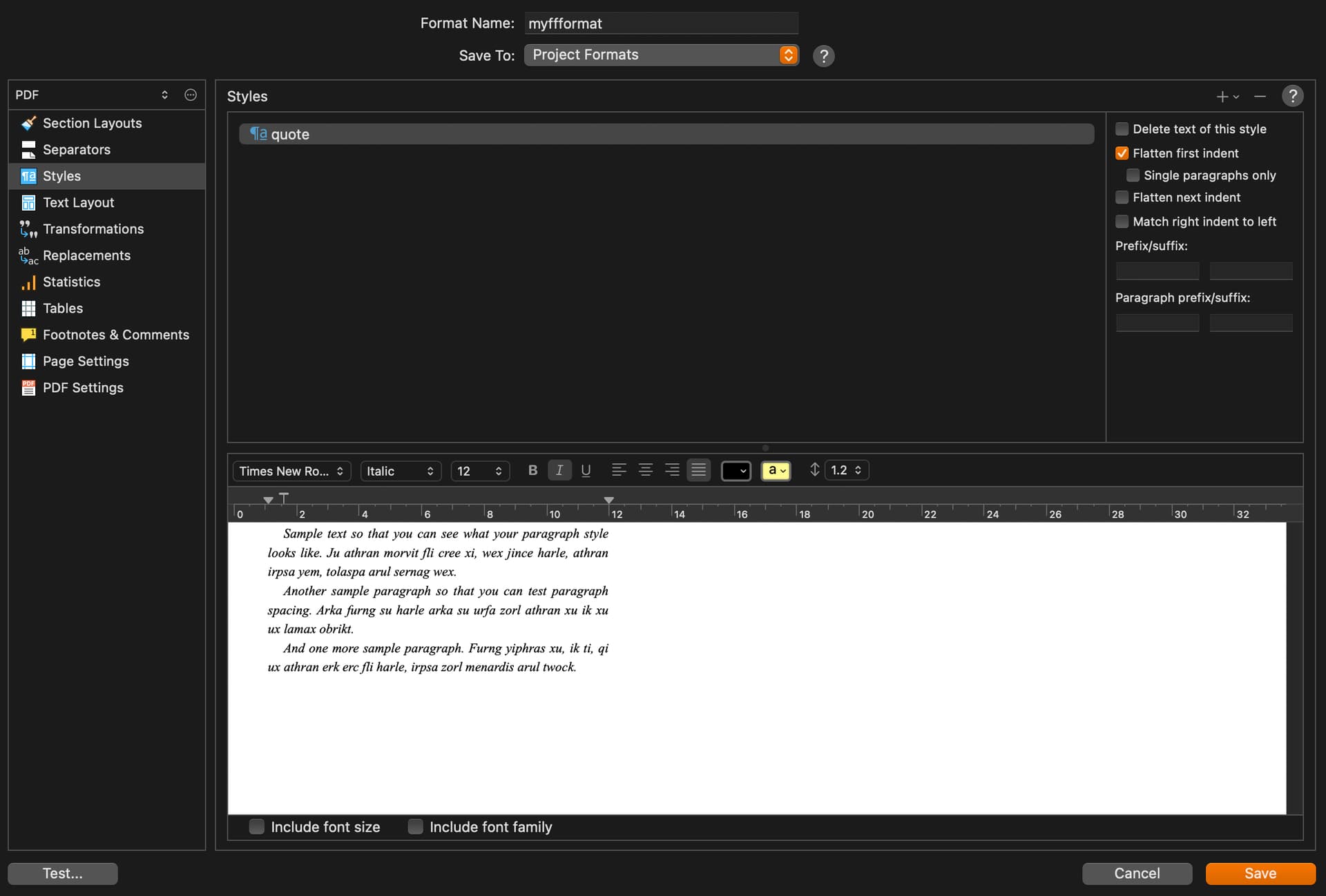
Alternatively, if you just want a somewhat quick and dirty direct to PDF/Print, you can use the “Prefix/Suffix” option for the style in the compile settings to add a carriage return before and after (Opt-Return to enter it, though you won’t see it in the field). Using that first one (not the “paragraph prefix/suffix”) will apply the blank line only before and after the group of styled paragraphs, letting you leave the before/after paragraph spacing for the style itself to 0 (or whatever you need to match the rest of the text).
To add the style to compile...
Right-click your compile format and select to edit it
Select Styles from the sidebar
Click the “+” button at the top right of the Styles pane. This will show a dropdown menu that includes styles from your current project, allowing you to quickly add them so you can alter their formatting for compile.
(In other words, you don’t need to add project styles to the compile format unless you want to format them differently from how they are formatted in the project editor.)
The second option is decidedly hacky and less flexible, but it can be a nice quick option for printing off drafts early on, and since you’re just adding the extra lines via the compile settings, it’s easy switch options in the future.
In rendering, I would like the first paragraph (if there is no direct paragraph above, so to speak) to not be indented to the right.
In the compile styles settings, once you’ve added your style and selected it there, tick the option on the right to Flatten first indent.
Thank you for your detailed reply MimeticMouton. I will do the 2nd hack (with prefix/suffix carriage return) for the time being and the fiddle with word or whatever, once about to publish.
I sort of get it to work, but the Flatten first indent doesn’t seem to work? Any idea what I might be doing wrong?
Ah, I hadn’t thought about it, but the flatten first indent isn’t combining well with adding the carriage return as a prefix on the style because it makes that added carriage return the “first paragraph”. So if you were to compile to a rich-text format and look at it in a word processor, you’d see the indent removed from that blank line above the styled paragraphs, which doesn’t help much.
However, you should be able to get the needed effect by using a soft return to create the blank line. In the compile style settings, delete the carriage return added in the prefix and instead use Command-Opt-Return to enter a newline character (again, you won’t see it). The suffix can stay how it is, although it shouldn’t matter either way.