I tried both of these, neither one seems to be the issue.
I wouldn’t worry about the specifics, as it sounds like they are going to give you a script that helps you run it the right way more easily.
But, it’s a good Linux trick to know about: if you run a program from a terminal window, it will often print information that we wouldn’t get otherwise. It also gives us a “parent” window that we can use to more easily kill a hung process if that ever happens. You can Ctrl+C in terminal to immediately shut down a GUI program it is currently running. So it’s something I’ll do if I’m having troubles with a program.
I really want to try this out, but it looks to me like this overwrites the system Flatpaks?
I’m running Fedora 44 and, for example, I have the latest org.freedesktop.Platform 25.8.11 currently.
Will this downgrade it to an older version?
No, it won’t overwrite anything. Flatpak will happily let you install different versions of the same runtime. The apps all know which one they require and will use that one. I originally had this running on the 23.08 runtimes and moved to the 24.08 variants about a month ago. I still had the 23.08 runtimes installed until about three days ago when I did a clean install of Fedora 44. Never caused me any trouble.
Another thing, if you look at the commands in the install.txt file that you would be running you’ll notice a –-user flag on each command. That means these dependencies are not being installed system wide, only for the current user profile. If you ran the command without that flag you would get a prompt to choose system or user.
Lastly, if you decide you want them gone, it’s as easy as running the command again and replacing the word ‘install’ with the word ‘uninstall’
Hope that sets your mind at ease.
I’ll be moving to the 25.08 runtimes in a few months.
2 Likes
Confirmed; it added new packages.
I’ve installed Scrivnix and it completed successfully. But the fonts aren’t being displayed properly. I suspect there’s no smoothing happening and the DPI setting does nothing.
Edit: I’m using Fedora 44 KDE Wayland
I’m also on Fedora 44, but with Gnome.
Couple things to try:
- Restart the computer to ensure there are no lingering Wine servers, etc open
- Find Scrivenix in your app menu/launcher and right click it. Select ‘reapply font configuration’
- Right click it again and select ‘display and font settings.’ Make sure the Windows version under the ‘Application’ tab is set to Windows 10 or 11, then go under the ‘Graphics’ tab and see what the DPI is set at. Adjust it, hit apply, hit okay.
- Relaunch and see if that made the difference.
If it still looks bad let me know and also tell me a bit about your monitor. If you have any special display scaling setup in KDE, etc.
I tried what you suggested. The result is the same.
I have windows 11 set. And DPI at 120.
I don’t think my monitor is anything special. I have a 27’’ 1080p VA 144Hz panel adaptive sync set to automatic in the settings. And the scale set to 100% in KDE.
I’ll also mention I removed the “All User Files” filesystem access when I built Scrivnix Flatpak. Something I do for all Flatpaks who don’t need access. Though now I’m thinking it could have somehow interfered with the installation? I had to re-enable “read only” to all files, because Scrivener would crash when viewing “Project Location”. Meaning, it crashed when it tried to open file manager.
Launch it with this command and tell me it respects your DPI settings.
WAYLAND_DISPLAY="" flatpak run com.local.Scrivenix
I’m sort of doubting that it will, but curious if the newest version of KDE is perhaps handing WINE your monitor’s actual DPI and it is a non-standard value.
If not, close it and wait a bit, or maybe even restart the computer (all Scrivenix processes need to be dead) and then let’s try changing the font smoothing type from cleartype to grayscale
flatpak run --env=WINEPREFIX=$HOME/.var/app/com.local.Scrivenix/wine --command=/app/bin/wine com.local.Scrivenix reg add "HKEY_CURRENT_USER\Control Panel\Desktop" /v FontSmoothingType /t REG_DWORD /d 1 /f
You’ll see some Wine output which may look like errors, that’s normal. What you’re looking for at the end is:
reg: The operation completed successfully
Once you see that, relaunch Scrivenix and let me know if the fonts look any better.
The ironic thing is that I spent all of last week trying out Fedora 44 KDE, but got frustrated by a touchpad issue that I could not reliably fix and ended up switching back to Gnome after wasting way too much time. I never did get around to testing out an install on KDE Fedora.
If the issue persists after this I may try to reproduce it in a VM to see if I can find a solution.
Send me a private message and I’ll coordinate getting a modified script to you with Wine Debugging enabled and we can run a test to see if we can pinpoint the cause of the crash. Sorry about the delay getting back to you. It’s been a hectic week.
Okay, so the DPI setting is working now. But, I’m sorry to say I’m not sure when that happened. Thinking back, it’s possible the 4 steps yesterday fixed the DPI issue. I was more focused on how the fonts look. Though, perhaps the WAYLAND_DISPLAY did fix it. I don’t know.
But the Fonts still look bad. Their rendering, not the size.
So, I tried the WAYLAND_DISPLAY command and now the DPI is working. But like I said, I am not certain if the command helped. Because now it respects the DPI setting running it with the command and also running it from the GUI.
Then I tried the long command and the DPI set itself to 144 and I wasn’t able to change it.
For example: I set the DPI to 96. Clicked apply, and OK. Made sure there were no processes running named “wine, Flatpak, Scriv*” and reopened the display config. It was set to 144 again.
Then I “re-applied the Font” config and that fixed it.
Neither command made a difference to how the fonts are rendered. At least none that I could see.
And I don’t know if this is significant but on my screen, DPI 96 looks best size-wise.
Reapplying font config will have set the font smoothing back to Clear Type which is fine especially since the gray scale did nothing to help you and it seems to have unstuck the DPI at 144.
My next theory is that the very first step of the install which is installing Microsoft Core Fonts failed for some reason and the system is defaulting to the next best thing it can find. It’s easy to check, just run this commend and it should show you a list of fonts available inside the WINE prefix:
ls ~/.var/app/com.local.Scrivenix/wine/drive_c/windows/Fonts/ | grep -i "arial\|verdana\|georgia\|times"
If you see arial.ttf on the list then we can rule that out as a cause.
Also, can I see a screenshot of how the fonts are rendering for you?
Thanks,
TG
Command output: arialbd, arialbi, ariali, arial, georgiab, georgiai, georgia, georgiaz, timesbd, timesbi, timesi, times, verdanab, verdanai, verdana, verdanaz
And here’s the screenshot. I feel like the page contents look a bit better than how they did when I first installed them. DPI dependent perhaps? Though still much rougher than Arial on LibreOffice for example. But the bottom statistics and to top toolbar look about as rough as they did the first time.
Also, I noticed the screenshot looks a bit better, so make sure you’re viewing it at 100%. So, without scaling.
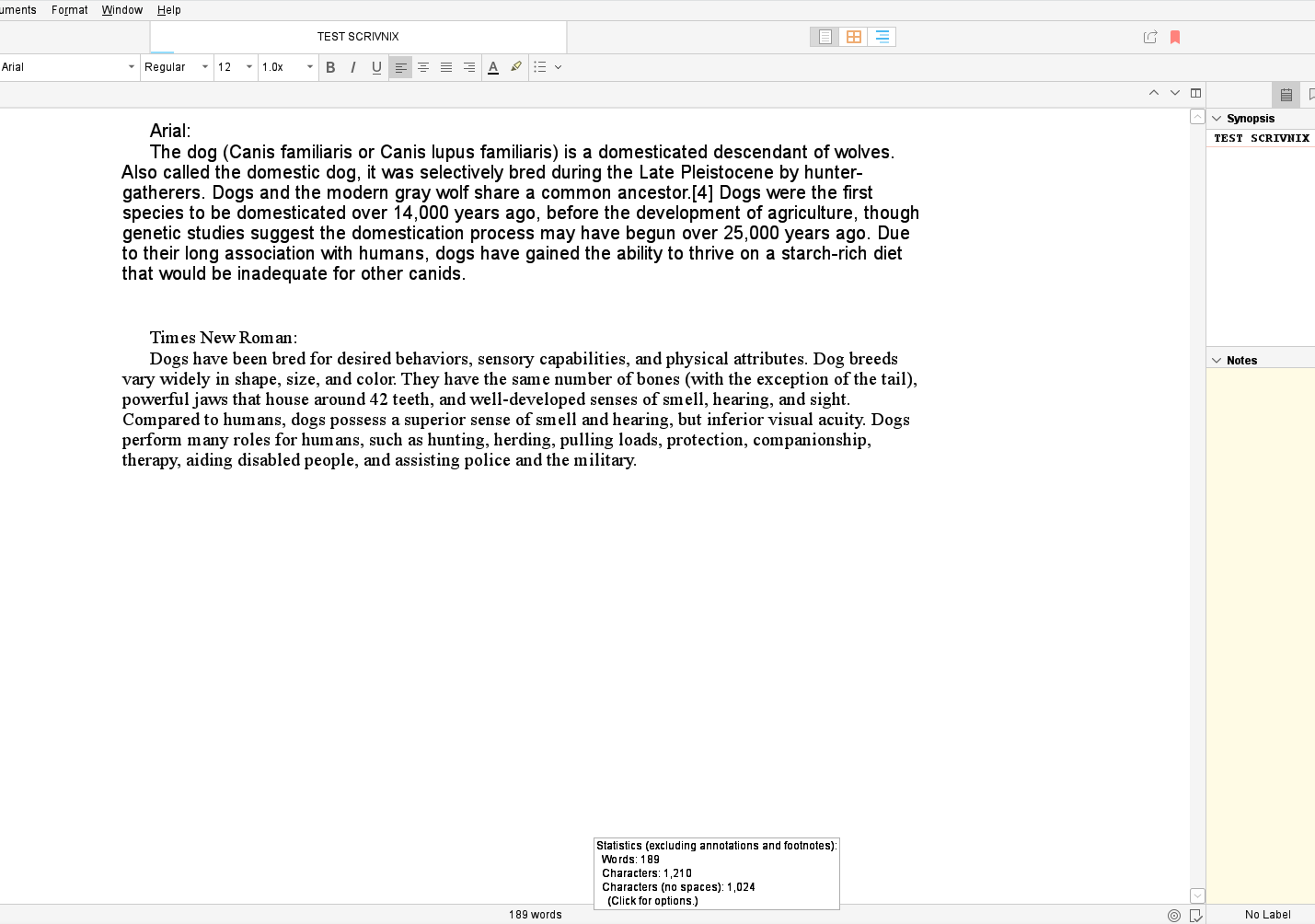
As a parity check, do you have a Windows computer you can compare with? I find the Qt text engine can treat some fonts really rough, some to the point that they are basically useless, and it doesn’t have much to do with the platform it is running on. There are some fonts that are definitely worse through Wine, I’ve found (Microsoft fonts in particular are hit and miss), but some that are better than in Win10.
1 Like
Amber, have you ever installed Linux Fonts and tried those in Scrivener? Just curious. Might be a way around font issues to just use some native ones in place of the Microsoft ones. It’s not hard to make them accessible, but not sure if Scrivener will pay nice with them or not.
That’s all I’ve ever used, in fact. My font menu in Scrivener matches the font menu in native LibreOffice, Gimp and everywhere else. When I install a font, either to my user folder or to the system, I only need to restart Scrivener to use it. For the interface font, I use Noto Sans (set in Appearance: General Interface).
There are still some fonts that just don’t work well, for whatever reason, but like I say those tend to look bad on Windows in Scrivener, too.
1 Like
Are you asking if the same fonts looked better on Windows?
If so, then yes. I used Scrivener a bit on Windows before switching to Linux and everything looked nice on Windows. The same project opened on Linux does not look nearly as good.
Totally not a rush! Thank you for replying. Would you be able to message me first? It isn’t giving me a private message option when I click your name
I just sent you a message. I have the files ready for you and just need to coordinate getting them over to you along with some instructions.
I’m successfully working with Scrivner on Fedora, KDE Plasma - thanks! Recognises my Insync drives and everything.
Only downer is the fonts look terrible, same issue as nitram3. I’ve confirmed that the window fonts have installed successfully. I’m able to alter DPI with wineconfig with no issues. I’m using an Asus Vivobook 14 if it helps to know about the panel.
Can you tell me what your display scaling is set to?