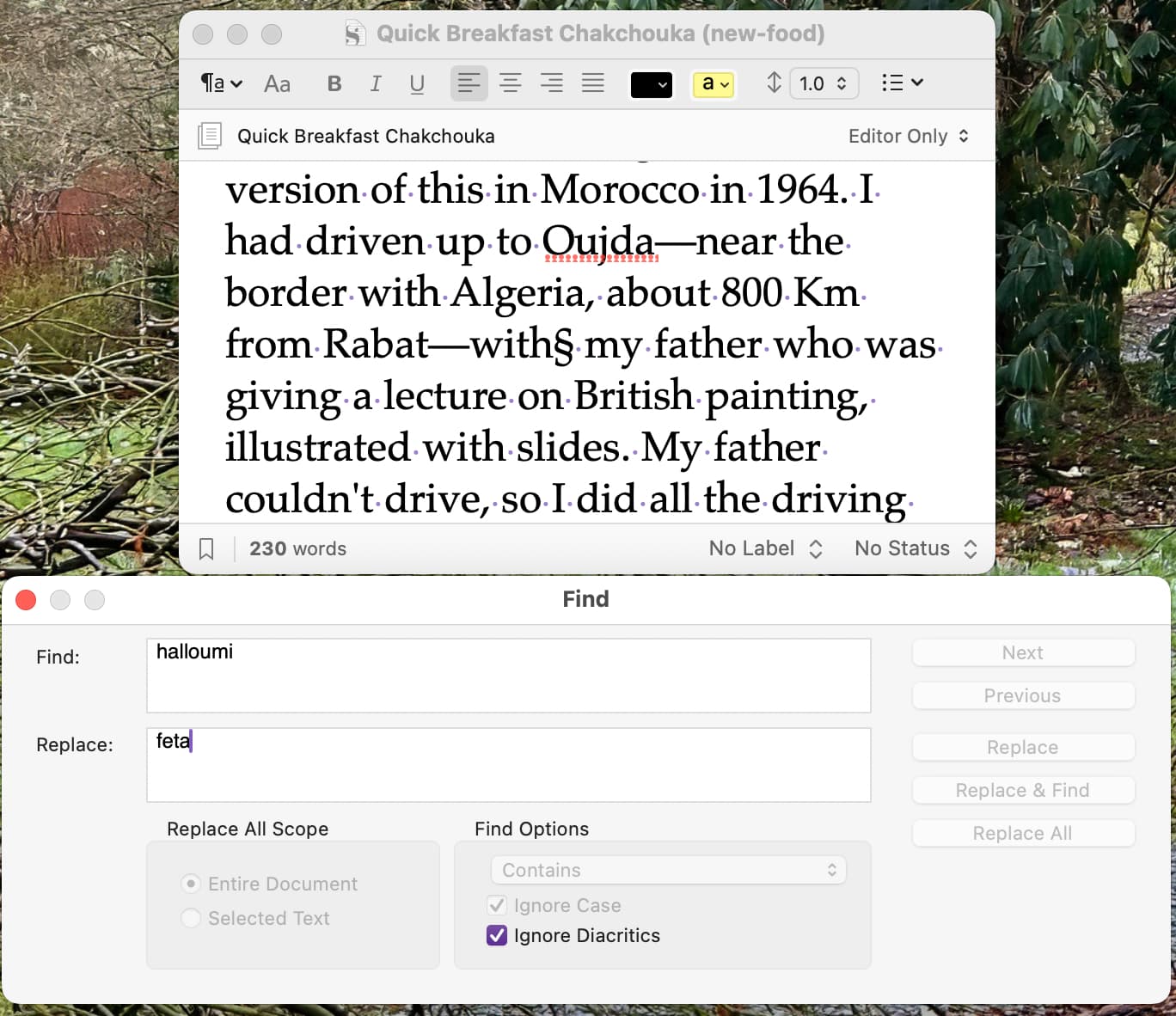
When opening a new window, the focus does not switch properly.
It seems this issue is not introduced by macOS 26, as I did not reproduce the problem when testing Scrivener 3.4 on macOS 26, but it appeared in 3.5.
I want to know why.
Perhaps the new version needs more testing and bug fixes.
By chance, @AmberV, is there an ETA for when this bug will be patched?
I don’t mean to be pushy, but I rely on the Quick Reference / Find feature quite a lot, and this bug has made it pretty difficult to work since updating to version 3.5.
If a patch isn’t coming anytime soon, is there an easy way to roll back to a previous version of Scrivener without the issue—like version 3.4?
If you’re using Tahoe, you might want to read the 3.5 release notes first. Unfortunately there’s a tradeoff between fixing this issue and exposing yourself to a variety of Tahoe compatibility problems. Release notes are here:
Thanks for your help, @kewms! Since I’m on macOS Tahoe—and you mentioned there might be other issues I could run into—I’ve been hesitant to reinstall the old version of Scrivener (3.4). But at this point, I may not have a choice. One of the main reasons I started using Scrivener was the ability to open and use Quick Reference panels while working in the main editor—and being able to use the search function within those panels has always been a key part of that. Now that we’ve lost that ability, I’m really struggling to use the app effectively.
Do you know if there’s going to be a patch for this anytime soon, or is that functionality permanently gone from Scrivener (at least for now)? I don’t mind rolling back to the old version temporarily, but I’d rather not do that if it’s something that may never get fixed. And since it’s been a few weeks now, I just wasn’t sure if—or when—this might be addressed.
Lastly, if I reinstall the old version, will it mess up any projects I’ve worked on in Scrivener 3.5? I’ve got some massive academic projects with thousands of footnotes, so that could turn into a real nightmare.
As always, thanks for your help—I really appreciate it!
@Benjamin621 By chance, did you find a workaround for this problem?
Unfortunately, I updated to MacOS Tahoe before I was aware of this issue. I’ve also been hesitant to reinstall the old version of Scrivener without confirmation that it won’t create a slew of new problems (see pervious post). In any case, at this point, I really don’t know what to do (i.e., short of just finding a new writing app). I’ve been using Scrivener for almost 15 years now, and would like to stick with them… but this has been rough.
Not working on MACBook (Can double check) but I’m finding this on Windows 11 too. Anytime I go to find, it’ll open but refuses to actually let me type in it and I end up adding words to the scene instead.
Since this is a macOS thread and you’re on a Windows system, the issue you’ve encountered is likely not related. Scrivener is built specifically for each operating system with different development tools.