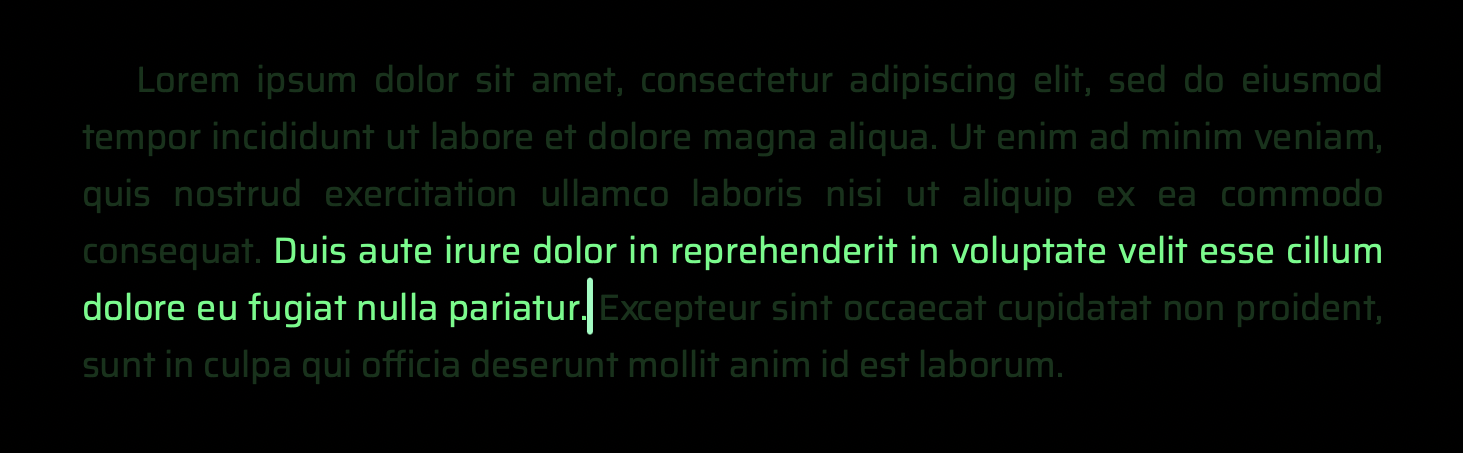
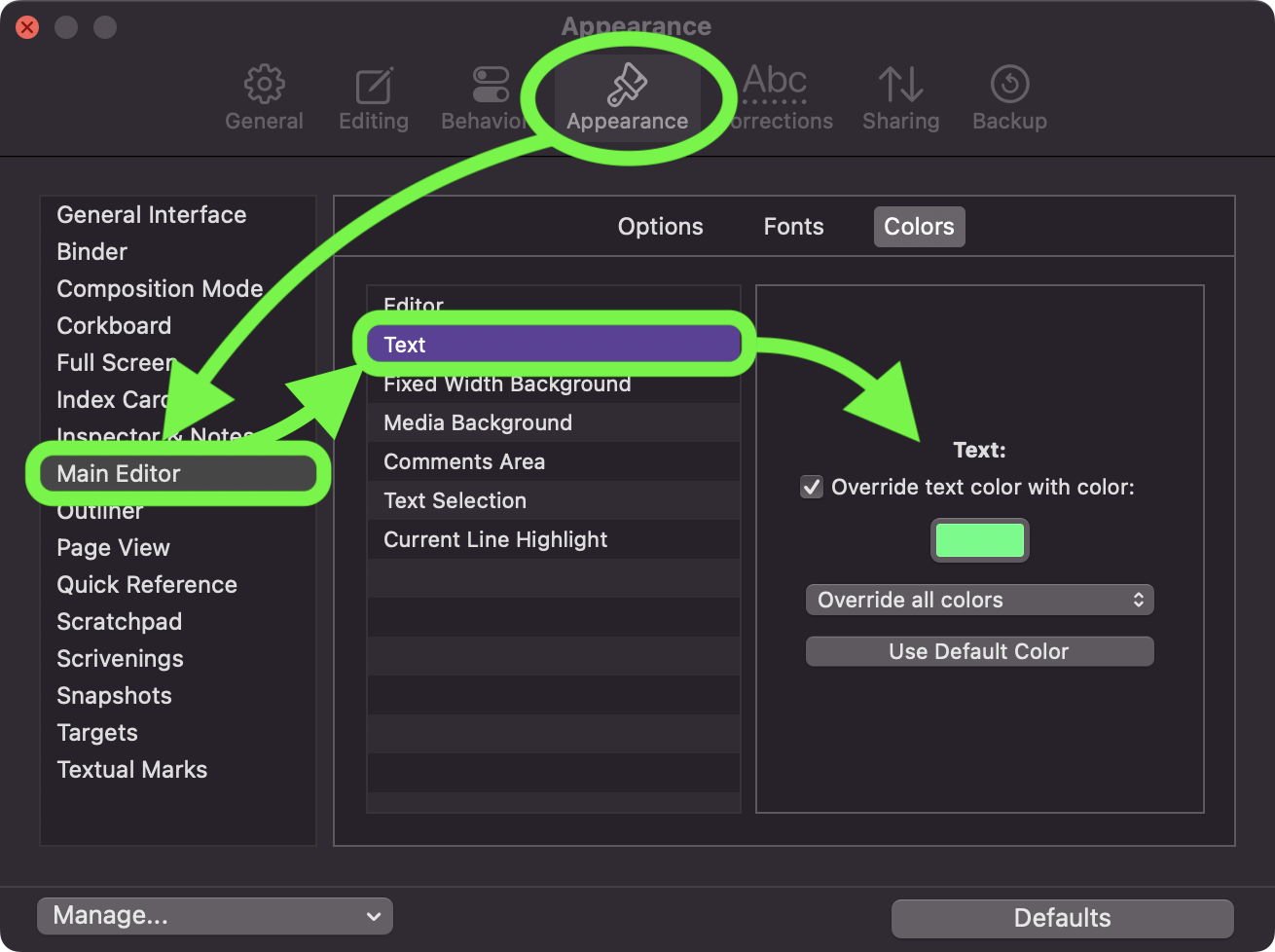
I’m typing on a black background with a green-colored text font. I’d like the text font to be a bright, neon electric green. How can I accomplish this? I tried the “color” button but nothing happens.
PS there doesn’’t seem to be a link from the L&L home page to these forums.
2. The color the text displays in while typing. In a printed book, text is normally in black on a white background. My background is black and I want a bright, electron green font color. In composition mode I;ve got white on blue; I’d like this to mimic the new default, i.e., electric green on black.
Keep in mind that there are many other colors, text selection, textual marks, insertion point (“cursor”), etc. in other places that need a bit of tweaking to make it look cohesive. You’ll figure it out.
Heads-up: These are all settings that concern (the current) theme. Unless you save them, they’ll get lost when you switch themes. So check out the manual first, “B.1.1 Settings Presets and Themes” (p.779), save your experiment to a new theme with a unique name, and remember to save your changes to that theme whenever you make adjustments.