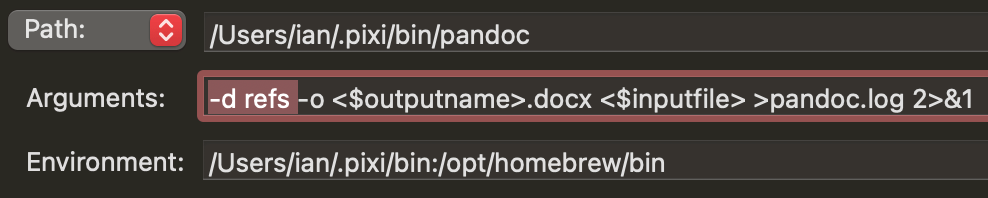
I’m adapting the pandoc workflow to use Scrivener with Zotero 7, so I can export in MultiMarkdown and convert into a Word document with live links. If possible, I would like to automate setting up live linking using post-processing, however, I don’t completely understand how to use the arguments field. The terminal command I’ve been using on the exported Markdown file is:
The arguments field is where you would put everything after the “pandoc” part (that goes in the path field, though you might need to give the full path if that throws an error).
For the output filename, use <$outputname>.docx. Scrivener will fill that part in with whatever you type into the file save dialogue (sans extension) when clicking compile. You can hard-code it, but you might as well let the save mechanism handle that for you—it makes it easier to use this Format you are setting up on multiple projects.
As for the input, you can actually leave that off. Unless you use the <$inputfile> placeholder somewhere in arguments, Scrivener will tack the compiled Markdown file’s name to the end of the command for you.
You probably will need to give full paths to bib and csl files though, unless they actually are in the folder you are compiling into (and then, make sure to name the folder in accordance with the tips given in the user manual, in §21.5.1, Compile Folder.
Thank you both! Managed to figure it out and am now able to export straight to a Word document with properly linked citations. I ended up putting /opt/homebrew/bin/pandoc for the path and --lua-filter=/Applications/Zotero\ Pandoc\ Workflow\ for\ Scrivener/zotero.lua --citeproc --output <$outputname>.docx --bibliography /Applications/Zotero\ Pandoc\ Workflow\ for\ Scrivener/My\ Library.bib <$inputfile> in arguments.
Just for completeness, pandoc does allow you to centralise and reference your filters, CSL files and templates in its data directory. So for example if you copy your zotero.lua to ~/.local/share/pandoc/filters, now you only need to enter its name --lua-filter=zotero.lua
In fact I do copy symlinks for all my exported bibliographies in Pandoc’s data directory. While Pandoc doesn’t know explicitly about bibliography files it can reference this folder location; so for example in my Pandoc defaults[1] files that sets up al my bibliography options consistently (~/.local/share/pandoc/defaults/refs.yaml), I can then do this:
verbosity: INFO # verbose by default
citeproc: true
cite-method: citeproc
bibliography: ${USERDATA}/CoreFast.json #JSON faster than BIB, symlinked into Pandoc data dir
csl: ${USERDATA}/csl/apa.csl
citation-abbreviations: ${USERDATA}/cite-abbr.json # my journal abbreviations
metadata:
  reference-section-title: Bibliography
  notes-after-punctuation: false
  link-citations: true
  link-bibliography: true
${USERDATA}/CoreFast.json is my full bibliography and will expand to ~/.local/share/pandoc/CoreFast.json[2].
Then you call pandoc with pandoc -d refs and pandoc loads the ~/.local/share/pandoc/defaults/refs.yaml file during compile:.
You can see all I use in Scrivener is -d refs and Pandoc does the rest. You can confirm it works by redirecting Scrivener’s pandoc output ( the bit >pandoc.log 2>&1 does this for us) to a log file and checking it:
[INFO] Running filter citeproc
[INFO] Loaded /Users/ian/.local/share/pandoc/csl/apa.csl from /Users/ian/.local/share/pandoc/csl/apa.csl
[INFO] Loaded /Users/ian/.local/share/pandoc/cite-abbr.json from /Users/ian/.local/share/pandoc/cite-abbr.json
[INFO] Loaded /Users/ian/.local/share/pandoc/CoreFast.json from /Users/ian/.local/share/pandoc/CoreFast.json
[INFO] Completed filter citeproc in 310 ms
[1]: Pandoc’s defaults files are a great way to build “recipes” so you can easily swap different configs, it makes fiddling in Scrivener’s post-processing pane much easier… Pandoc - Pandoc User’s Guide
[2]: I prefer json as that is muuuuch faster for pandoc to parse and use, Bookends can sync to either .bib or .json, but I think you can also get Zotero BBT to do the same…
If you use/install the BetterBibTeX plugin, there will be a BetterBibTeX setting within Zotero for “Automatic export” of your Zotero library. Choose to have the exported file be a .json file. Then with Scrivener use the pandoc command --bibliography /Applications/Zotero\ Pandoc\ Workflow\ for\ Scrivener/My\ Library.json rather than .bib. Then when you post-process the md file that Scrivener creates, it will draw from your auto-updated MyLibrary.json file.
If later you want a bib file containing all and only the references you use in your project, you can go to Zotero and select File > Better BibTeX > Scan BibTeX AUX/Markdown file for references. Then choose your paper’s markdown file, and you will be able to save a bib file that contains just the references you used in your paper.