Dropbox is correctly linked to Scrivener iOS (correct account, correct folder)
The project appears in the Scrivener iOS project list
A smaller project (Reflechissements.scriv) opens without any problem
The problem:
When I try to open Corpus Vivant.scriv, I get: “Invalid Project. Failed to open project because it does not contain a valid binder structure. Please ensure the project has been fully loaded from other devices then try syncing with Dropbox again.”
Root cause identified:
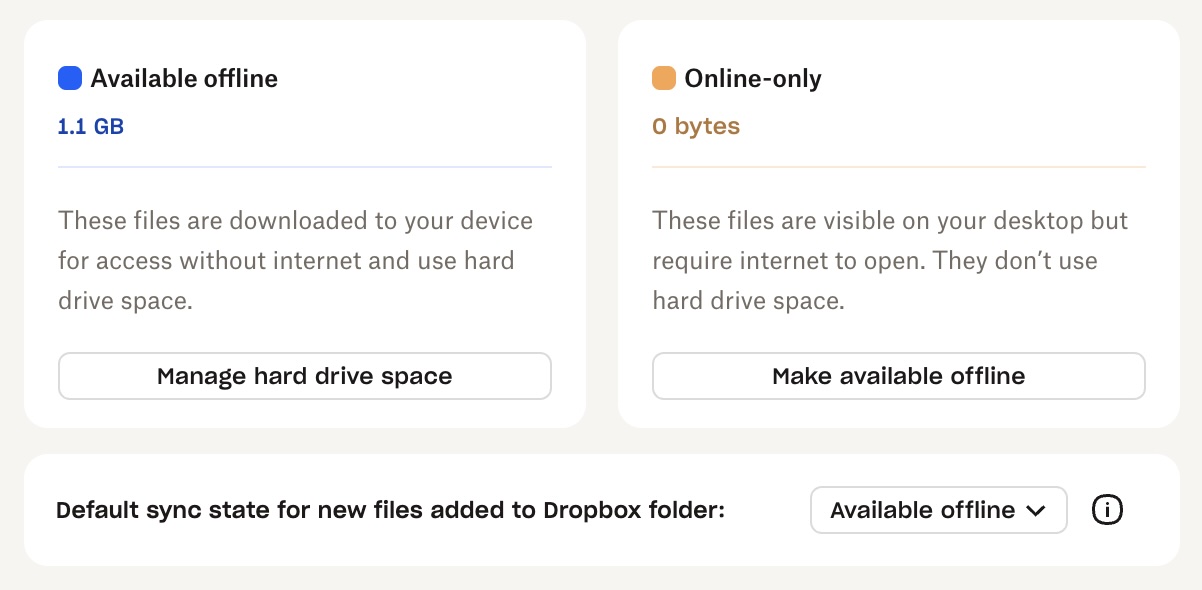
Inside the .scriv package on the Mac, all internal files and folders (Files, QuickLook, Settings, .scrivx) show a cloud icon in Dropbox, meaning they are online-only and not downloaded locally. Even after using “Make available offline” on the parent .scriv package, the contents remain cloud-only. Dropbox is therefore unable to fully upload the project contents to its servers, so Scrivener iOS cannot download a complete project.
What I have tried:
“Make available offline” on the .scriv package (only downloads the package shell, not its contents)
brctl download command (does not work — path is outside iCloud)
dropbox CLI command (not installed on this Mac)
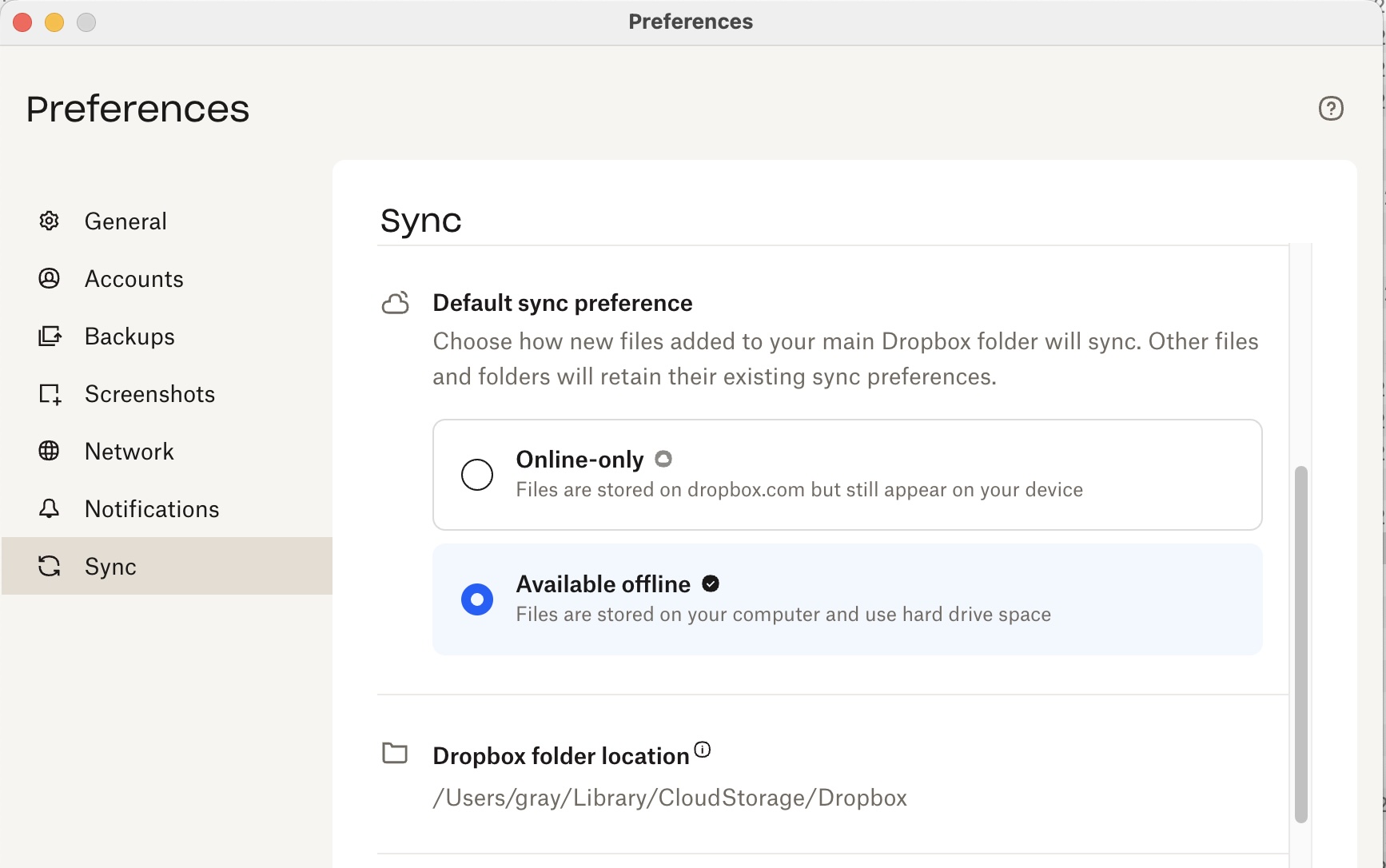
Dropbox Preferences > Sync — no selective sync option visible that would fix this
How can I force Dropbox to download all files inside a .scriv package locally on the Mac, so that the full project can then sync to Scrivener iOS?
This is a question for Dropbox. If Dropbox has been told to keep the project available offline, and isn’t doing it, then something outside of Scrivener’s control is going wrong.
It seems to me that if Dropbox has the constituent project files in the cloud (on its servers), then your Scriv for iOS would be able to sync to it.
And it seems to me that the fact that Dropbox is keeping your files in the cloud and off your Mac would only mess up your ability to use that project on your Mac.
So, while you have uncovered a puzzle (why is Dropbox not giving me back my files?), you have not identified yet why your Scriv iOS is not syncing that project.
Do you want Dropbox removing to the cloud ANY of the files in your blessed dropbox folder? If not, tell dropbox to make everything in that folder available offline to try to force the issue.
You would think that, but we have seen other cases like this one. I’m not sure exactly how iOS Scrivener validates the manifest from Dropbox, and I’d have to see the OP’s Dropbox account to be sure, but I think iOS Scrivener is able to detect “something wrong” in the list that it gets. Mismatched date stamps, maybe?
I am working from my MacBook and I wanted to be able to do so from my IPad.
I had an issue on iPad because I had to migrate from an old Dropbox to my new one ( works perfectly on the MacBook)
I even désinstalled Scrivener on IPad to start fresh. I disconnected scrivener from the old Dropbox. I reconnected the « new » Scrivener to the new Dropbox, got all the file content synch properly but I am unable to open the file I am working on.
I thought it could be because of the size of the file but it is downloaded properly on my iPad
“I don’t have the ‘Make available offline’ option when right-clicking on the Scrivener folder on my Mac. The files inside the .scriv package all show a cloud icon in Dropbox. How can I force Dropbox to download everything locally on the Mac?”
Just to clarify: the problem is not a general Dropbox sync issue. One project (Reflechissements.scriv) syncs and opens perfectly on my iPad. Only Corpus Vivant.scriv (57.9 MB) fails with the ‘Invalid Project / does not contain a valid binder structure’ error on the iPad.
Both projects are in the same Dropbox folder, synced to the same iPad. The project appears in the Scrivener iOS project list but refuses to open.
Is there something specific about the size or complexity of Corpus Vivant that could cause this error on iOS? And is there anything I can do on the iPad side to force a complete re-download of this specific project?
I found this procedure by reviewing Dropbox’s documentation, found by a Google search for “make Dropbox files offline on iPad”. Nothing to do with Scrivener, as @kewms has advised.
On iPad, try:
Launch the Dropbox app
Navigate to the folder holding the Scrivener projects. Mine is ../Apps/Scrivener/
Press on and select the folder holding the offending project. You’ll see a message that “.scriv files can’t be previewed. Ignore that message.
Press on the “…” upper right corner of Dropbox screen.
See all the options to do things available there, including “Make Available offline” and “Save to device”.
Might help. Might not. I’m not familiar with how Scrivener on iPad interacts with Dropbox’s API as I’ve never had need to dig into that detail–just works for me. Might be that the project is indeed corrupted. Can’t tell from here. Before doing this action on iPad, check to make sure on Mac you have a Scrivener-created backup (preferably as a zip file) created and available in case needed to recover from any mistakes or unintended consequences.
Thank you all for your help. Here is a full update after trying everything suggested.
What I tried:
Making the project available offline from the Dropbox app on iPad → did not work
Setting Dropbox preferences on Mac to ‘Available offline’ for the entire Scrivener folder → did not work
Removing Corpus Vivant.scriv from Dropbox entirely, deleting it from Scrivener iOS, then putting it back → did not work
New information:
I tested on my iPhone and noticed that Reflechissements.scriv shows the Scrivener logo in the Dropbox folder, but Corpus Vivant.scriv and Tutorial.scriv do not. This rules out file size as a factor — Tutorial.scriv is only 5 MB and has the same problem.
All three projects open perfectly on the Mac with no error messages. Only Reflechissements.scriv works on iOS.
My hypothesis is that the migration between two Dropbox accounts corrupted the internal structure of the .scriv packages for Corpus Vivant and Tutorial, even though they appear intact on the Mac.
I am going to try saving Corpus Vivant as a new project on Mac (File > Save As) directly into the Dropbox folder, to see if a fresh copy is recognized by iOS.
I will report back. Any additional insight would be very welcome.
I tried saving Corpus Vivant as a new project (File > Save As) directly into the Dropbox folder — same result, no Scrivener logo on iOS, cannot open.
I then created a completely blank new project directly in the Dropbox folder. This new project appears immediately with the Scrivener logo on iOS and opens perfectly.
So the problem is clearly not Dropbox itself, and not the folder. It is something specific to the migrated .scriv files (Corpus Vivant and Tutorial) that Dropbox on iOS cannot handle, even when saved as a fresh copy via Save As.
Corpus Vivant is a very complex project with extensive structure, keywords, and metadata — manually recreating it is not a realistic option.
Is there a way to ‘clean’ a migrated .scriv file so that Dropbox recognizes it correctly on iOS? Or is there another approach to transfer the content into a fresh project while preserving all structure and metadata?
I’m not Scrivener Support … but might be good for them to get a copy of the zip backup from your Mac (where all is well) and them to try to open it on their iPads … then go from there. Time to eliminate hypotheses.
I would try getting the project onto the device using simple file copying methods, into the right place, so that you aren’t using slow and complex syncing to do the heavy lifting for that first big sync. Here is the guide for doing that.
Proceed with caution of course, taking frequent backups while mobile, but in theory if it copies over correctly and opens fine, it should continue working fine once you start using sync, too.
But do also visit Scrivener’s section in the device’s Settings tool, and in the “Reset Scrivener” area, clear the Dropbox cache. A jammed up cache database can cause symptoms exactly like this.
Following AmberV’s suggestion, I transferred Corpus Vivant.scriv directly to the iPad via USB cable using Finder. The project opened immediately on iOS with no errors.
I then moved it to the Dropbox section in Scrivener iOS, synced, and everything is now working perfectly on both Mac and iPad.
Thank you all so much for your patience and support throughout this process. Special thanks to AmberV, kewms, gr, Shell, and rms for your suggestions.