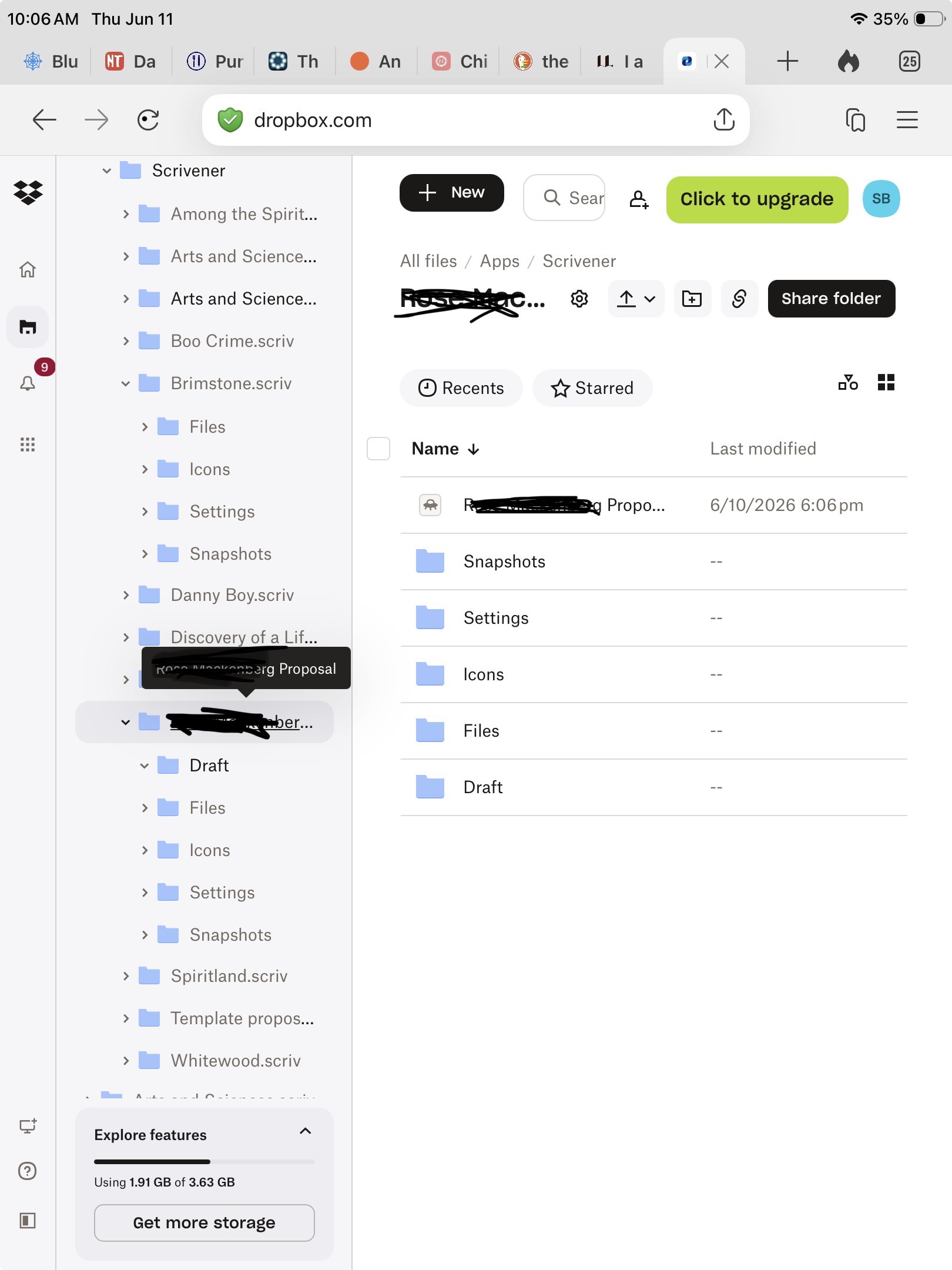
Ok I am now having the same problem between Dropbox and Scrivener on iOS.
I write mainly on a windows 11 PC. I can open ALL my other projects on my iPad (iOS 26.5) except my current most active one. I can see the file on the iPad Dropbox App and at Dropbox dot com. However I cannot see it in my project list in Scrivener (1.2.4). If I try to open the file itself I get the error response: “missing or incorrect extension”. As a test I tried a test edit (using Pc) , on a project I can see on the iPad, and synced. The update did not update the version in Dropbox iPad app.
The only difference I’ve noted is that the recent project saved with the extension .scrivx while previously everything had .scriv extension. That probably is part of the problem but not all of it since the edits on the older project didn’t sync either.
Is there an option to use something other than Dropbox? I spend more time fiddling with that trying to get it to work than writing!
The only difference I’ve noted is that the recent project saved with the extension .scrivx while previously everything had .scriv extension.
If you’re looking at Scrivener’s storage folder in Files.app, then that makes sense. If you have a bare “.scrivx” file in there it explains why the iOS version cannot do anything with it. That’s not a project, it’s just one file that describes the binder. Sounds like not enough got dragged between folders, on the PC side. You would want to copy the whole project folder, just like you did with the other projects.
Is there an option to use something other than Dropbox?
Yes, the user manual has a number of methods described, in §14.2.3, Managing Projects Directly. The method that I often use myself is most fully describe in this thread.
When I’m not using that, I am using iFuse, which lets you attach the device to your computer directly like a disk (no jailbreaking necessary). With that I can load projects straight off of the device with the desktop version, rather than copying things around, but that’s also very easy to do as well given the nature of how it works. I don’t know if that tool specifically is available for Windows (I use it with Linux), but it wouldn’t surprise me if there was something similar, if not.
Except nothing was dragged anywhere. That’s how scrivener saved the project. There’s the folder, all the sub folders, and the document exactly like every other project. When I sign in to Dropbox website, the entire project is there. The .scrivx file is there in the project folder with all the related sub folders.
It’s identical to every other project I am able to sync to the iPad. It just will not appear in my projects when I open the Scrivener app. It’s been months since I attempted to use the IPad app for reasons just like this. Updates made to other projects simply do not sync—as in the test example I mentioned. Updates made on one platform do not show up after syncing whether PC to iOS app or iOS app to PC. And of course this current project is completely invisible in the iOS app.
To view what is syncing on the iPad, you should use Files.app and navigate into its local storage area, then into the Scrivener folder, where you will find a Dropbox folder. That is where it stores the local copies of everything you sync. The contents of that folder should match what is on the Dropbox server, in the folder that you have designated as the sync location in the iOS Scrivener sync settings. Granted, iOS makes it very difficult to really examine the differences, so that will really only give you an overview of what projects are physically on the device.
It sounds to me like maybe Dropbox is all confused at this point, but it’s hard to say. You would probably do better by resetting everything from scratch, as described in this post, above.
The only modifications I would make to that checklist are:
Before step 5, unlink Dropbox in the iOS version, then go into System Settings, under Scrivener’s section, and at the very bottom go into the Reset Scrivener subsection and toggle the option to clear the Dropbox cache. After doing that, force Scrivener to restart from the multitasking view.
On your PC, in File Explorer, drag only one project back into the Scrivener sync folder, then go back to the iPad, link it back up with Dropbox, and ensure you are selecting the correct sync folder, matching the path that you see on your PC.
Let it sync, and test that one single project after it downloads, for two-way syncing.
If that all works, then drag the rest in and let it sync. You can skip the long sync phase with the process I described in this post. Sync just looks for what is different between the iPad and the server, if everything is identical because you copied it straight to the device from your PC with a USB cable, then it will have nothing to sync, and should only take a few seconds.
As an aside, you might want to take this opportunity to consider how much you are syncing as well. It looks like you have a lot of projects—maybe you need them all on the go and that is fine, but if they are just there as a reference, you should consider leaving them offline on the iPad rather than in the sync area. If you need to adjust something in one of them, you can always drag it back into the sync area via the Edit mode in the project manager screen. Sync will slow down the more you have in that folder, and it will also increase the odds of caches getting messed up, the more files you have. That’s why I recommend giving some thought to trimming it down.