So, just curious… based on what I read here my table(s) in Scrivener are hosed. They will break formatting every time I close the app - in every project - is that correct? The advice here is to put tables elsewhere and then link them in. Really? Why is there even a table format then? I really want to love this program, but it is constant roadblocks like this that keep pushing me away. I have told them before, repeatedly, charge me more $$. I will gladly pay to see more frequent (and logical) updates - especially for us poor ignored Windows users…
Welcome to Scrivener and the Scrivener Forum.
Have you experienced any actual problems with your tables? Or just from reading? If you have experienced problems, perhaps give some Scrivener version numbers, screen shots or something here and maybe get some assistance. Also if you are saving to any third party cloud services, mention those details too.
1 Like
I have continued to test. What I experienced on open today (before reformatted again). It was a complete loss of format. I have made a couple of tests, and it has not reoccurred - yet. That does not explain what I saw and I am going to check a couple of other workflows and projects to see if I can determine what happened. Based on what I read here I am not optimistic but will standdown a bit until I can replicate. If you have suggestions that would be great. I am on Windows 3.1.6.0. I have an open support ticket and may add to that if I can replicate issue.
Can you specifically state that there are no know limits and/or issues with table sizes and formatting?
Thank you for your quick response
PS - It appears to respond adversely to format changes in other parts of the app. I don’t think I should be surprised by that due to the lack of WYSIWYG support. What does Preserve Formatting do? Is there any way to lock a documents format so that it stands independent of others? Are all documents tied to global changes like that? What does Page Setup do/affect?
I am happy to go back to the documentation if you send me a link to relevant topics.
I just opened another project. My table was wrecked. I tried to post image here, but it will not let me. I am going to reach out to the tech I have open ticket with (.rtf files and weblinks), Something is not right here…
Most of the time (if not all the time) when a table loses formatting it is because the table was imported from outside of Scrivener.
It looks ok until you close and reload the project.
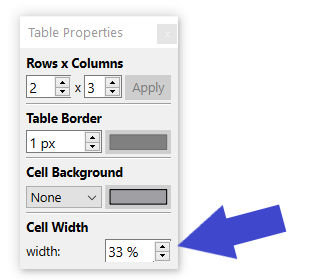
The issue is the % of the columns’ width.
Fiixing that in the table’s setting clears the issue for good.
. . . . . . .
Plain pasting content from outside of Scrivener into your project is never a good idea.
For text, use Edit / Paste and Match Style. That will strip the content of any foreign formatting.
As for a table and its content, yes: if you unknowlingly grabbed code from a website, you will have issues.
4 Likes
Sounds like using L&L Support the best way forward.
Tables are complicated (behind the scenes) and Scrivener’s table capability, while impressive, are not a sophisticated as you may have experienced elsewhere, e.g. Microsoft Word. For any “fancy” table formatting I need to do I most always do that work in Microsoft Excel, saving the Excel file in Scrivener Reference binder folder, and the copy/paste a PNG image. That way I can do pretty much what I want to do without messing about and wasting time. For simple, smallish, and only a little bit of formatting tables, I’ve never seen a problem so I have no more advice to give on fixing.
2 Likes
Thanks for all of the advice! I have contacted Scrivener directly. I may have been victim of the table paste issue but some of them were created long enough ago that I forgot how I created them. I have reformatted 2 and will keep testing. I guess I should not inquire then about table merges and appends (vs 1 row at a time)
Thanks again for the advice
1 Like
? Why not?
What I would do, should it be me, is that I would simply create a dummy document (or project) with a table in it, one that doesn’t matter the least bit, and play around with it, try whatever you are into trying.
And designing complex tables can be made easy. You just need to know what you want to achieve ahead of designing it. Then, you mostly need to figure out a base value for the width of a column, and how many columns you need so that it sums to 100% or close, and so that merging horizontal cells will allow you to design the grid you wish to have, without having to compromise on some rows because you’ve had to tweak some columns’ width to accomodate other rows.
In short, you need a column’s vertical edge to fall everywhere you want a cell’s side-edge in your final design. How many columns (slices) of equal width you need for so is what you need to plan ahead.

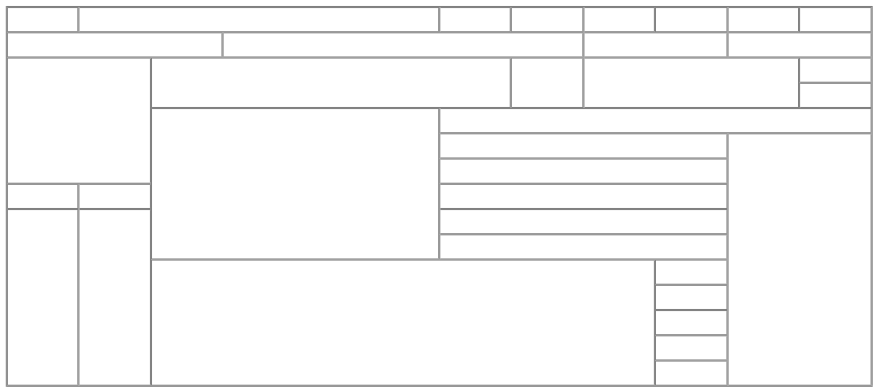
If you want to be able to fine tune the width of some columns later on, during design, a good trick is to leave yourself a dummy row at the top, cells not merged at all. Use this row’s cells to tune the width of specific columns. Ditch the row once you are done.
→ Do not sum up over 100%. (You can sum up below 100% without any issue.)
[And no, in case anyone wonders : you can’t have L or T shaped regions. It’s all rectangles.]
2 Likes
Don’t really want a debate here. Thank you for your suggestions. What about: sorting by columns; dragging column dividers to change width; different cells (not rows or columns, just cells) with different shades or colors; column totals; etc. How about tables that maintain their shape and fonts dynamically? I am just trying to post an opinion. I can’t imagine trying to maintain what you have drawn above. Cell merging is not a very good method. Merging an embedding tables within tables is far more elegant and powerful. Given all that, I just want the simple stuff and for it to work consistently… I can do the complex stuff elsewhere. I am ok with that. IMO - tables are a very important part of not only presentation but are strong allies when doing research and collecting data.
Again, thank you for your input
Yes
Table yes (horizontal distribution), font no.
. . . . . . . .
Everything else you’ve mentioned : ≠

Saw what vincent did and agree. I keep a folder with pages with tables and templates with buillt in templates I have created and saved and then can copy and paste where I need them.
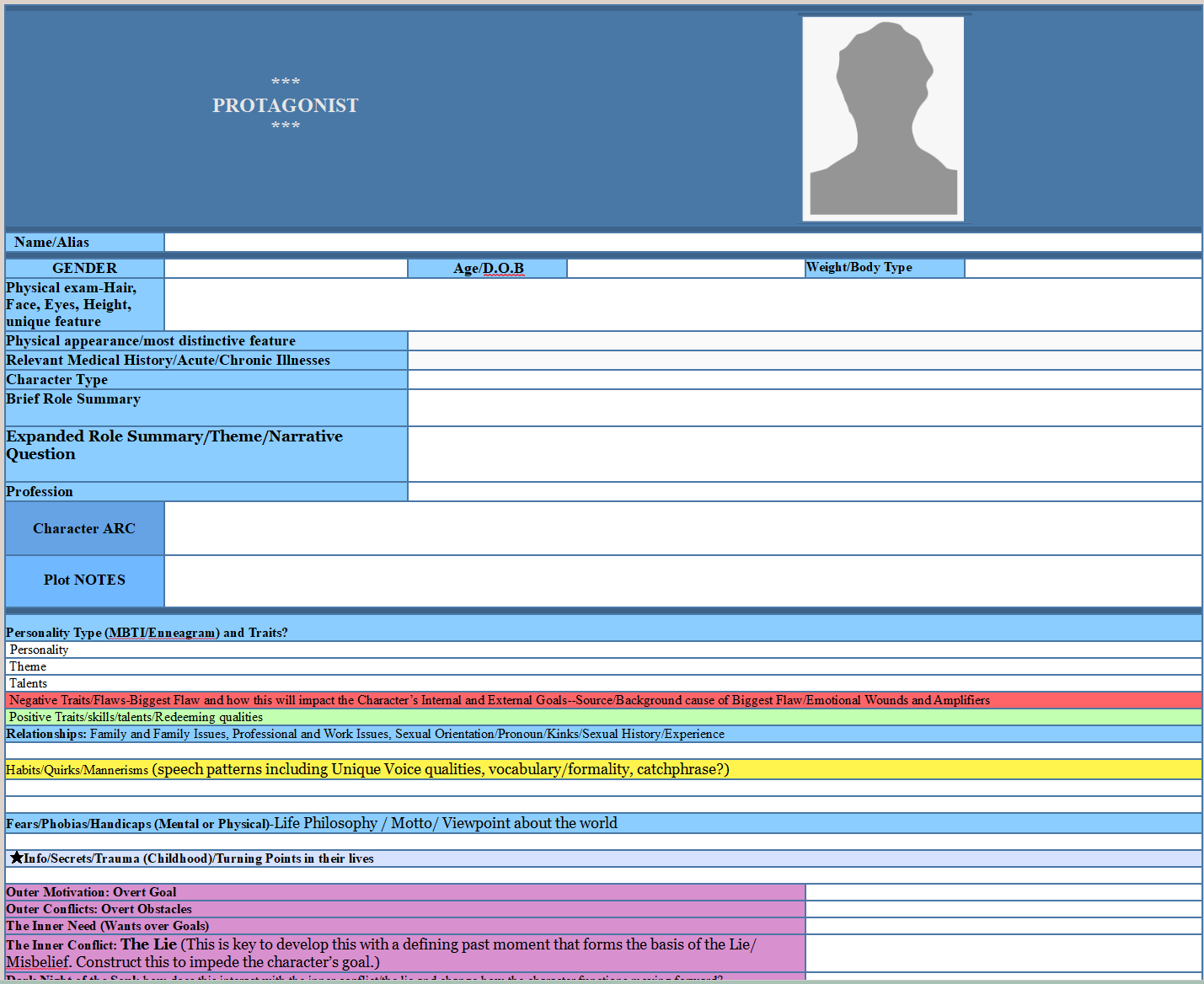
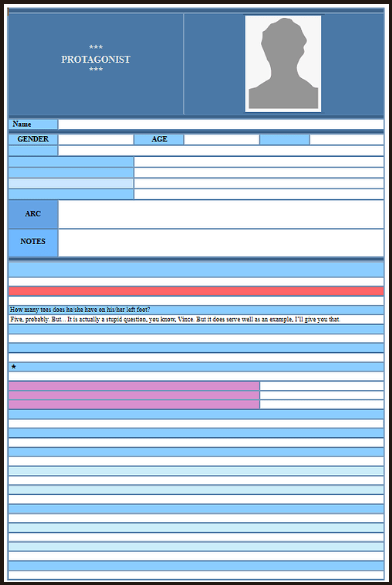
Below is part of a POV template table.
1 Like
With all due respect, that is a form. A table is: a structured arrangement of data organized into rows and columns, forming a grid. Each row represents a single record, while each column represents a specific field or attribute of the data.
Using table constructs to create forms is very common (across many apps and programming languages) but, as Representative Dudley Dudley (yes, that was her name - no typo) once said when Aristotle Onassis wanted to build an oil refinery in NH “You can put kittens in the oven. It does not mean that you can then call them muffins…”
Thank you for the response and that is one cool protagonist tool you have built!
1 Like
See your point on classic data presentation with a table. That is certainly easy to do and have other tables in classic rows and columns. My point was you can save table constructs like templates to use again and again and customize/ tweak as needed.
2 Likes
Thanks again so much for your attentiveness to this. My question with a template would be how do you fill it in? I have tried numerous methods to take a dataset and paste in into an empty table in Scrivener. None work (and boy do I hope I have missed something).
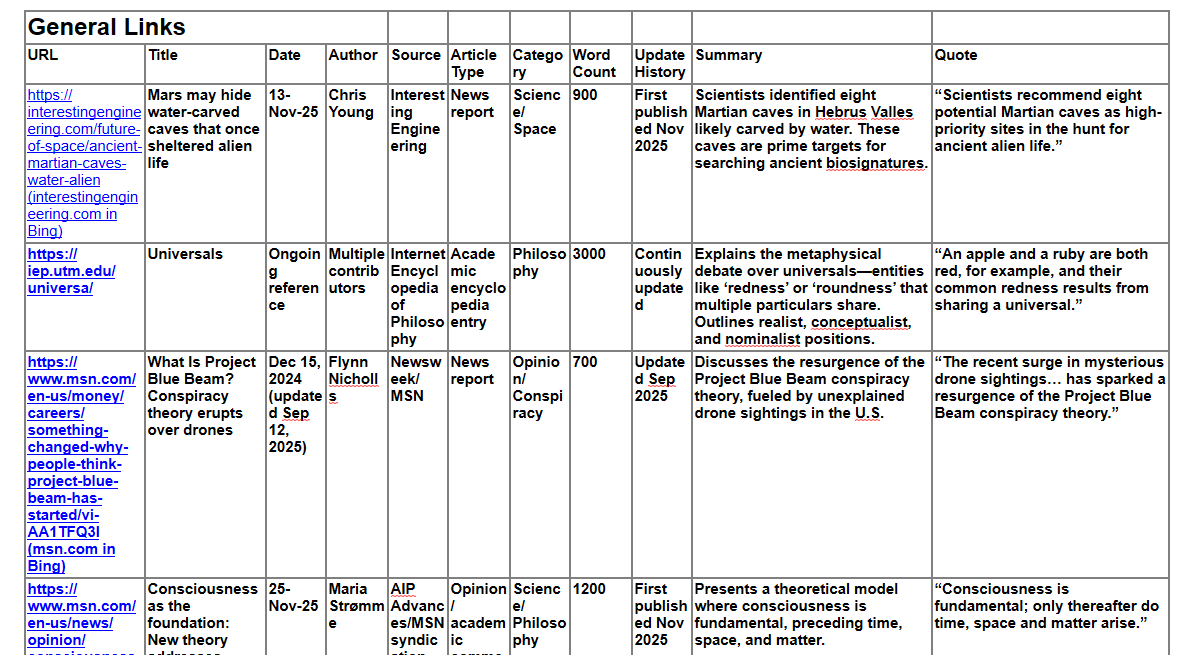
More importantly in my Use Case the table example above was essentially generated by CoPilot. I just passed it a list of URLs and it did the rest. It is still a bit wonky and I am trying to iron it out. My goal is to continue to capture URLs for articles that I find relevant/interesting (I paste them into a Scrivener text document “Unprocessed Links”) as links and then periodically copy and send them to CoPilot for processing - (BTW - Wonkyness part 1 starts right there…). Instead of stopping and trying to read and remember them, I use the table and the generated summaries and do a Find in Scrivener. When I find an article that is now worth reading based on my writing or research activity I can just click and follow the URL. I do not know if that has any value to anyone but me and certainly not before I beat the gremlins out of the process. If I stopped and read everything interesting that shows up almost non-stop via the internet, I would never write a word…
BTW - I tried the suggestion above about Paste and Match Style (I even tried to create a Table Style - sigh) and it destroyed the table when I did and I got one long text column instead (as above boy do I hope I have missed something). I did though proof out the Paste (Table) issue and format loss on close. In my case the table came from Excel, but the format loss was the same. Annoying as all get out but I at least know what going on now.
If yo get a long text column if right click in blank area should see table option and usually a column is 100 % width so if decrease the swished text expands and then can read table.
Off topic, but…
Since the source wasn’t mentioned and it is work shared and made available to anyone who wants it, if someone wants the character sheet shown a few posts up, you may grab it from here.
1 Like
If you need these sorts of features, you will be happier with a tool other than Scrivener. Scrivener’s tables are best suited for tabular display of static data, not the kind of manipulation you’re describing.
4 Likes
I can’t speak for MacOS, but on Windows in Scrivener you don’t get entire columns of varying width that are not a set percentage of the total screen width. Wider screen, wider columns.
Word / Pages tables are supported in those apps by a dedicated team.
I apologize, I had forgotten the original source for the template I had used and modified.