Scrivener User Manual Corrections

That tip box could indeed be put some place else, because in this particular phase of the tutorial you have been instructed to examine the Research folder. This tip states that if no cards are selected in the corkboard, then it will inspect the container, or the research folder—but that’s a bad example because there are three folders in the binder that can’t be inspected: draft, research and trash.

So what you’re really seeing in the inspector is a fall-back behaviour whereby if nothing valid can be inspected, it shows global Project Bookmarks, and guess which document has been added as a global bookmark: Start Here. That list is available to every item. Try clicking on the Sunset photo, then the Bookmarks tab in the inspector, and if necessary, switch the dropdown toward the top from “Document Bookmarks” to “Project Bookmarks”. There it is again. Any item you drag and drop into that list will be globally available like that.

Section 26 for printing has incorrect information (incomplete) and uses incorrect graphics for the printing interface. I found this out when reviewing to refresh myself.

Sorry, could you be a bit more specific as chapter 26 has a fair amount of text in it, what is incomplete? I do see the Mac screenshot though.

Also this question I had above is still in need of clarification.

Figure 26.1 is a MAC graphic and not represent the Windows interface.
In 26.1.1 the Header section does not mention or explain page number option in windows. Nor does it mention options to include notes and the synopsis.
The options part does not include insert Linked comments.
26. 2
index card options does not include force landscape orientation

Those are several of the most obvious issues.

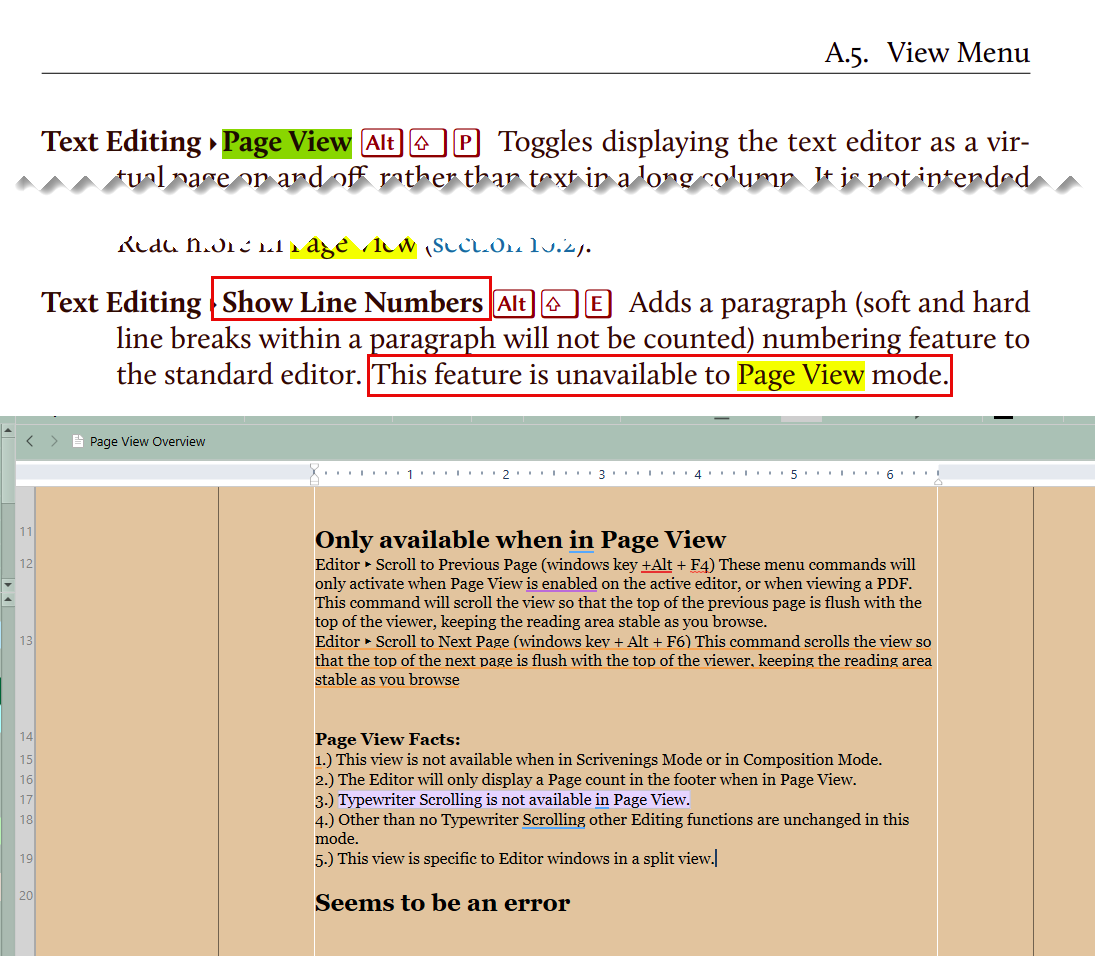
An here is another issue. I can show line numbers in page view despite what the manual shows.

1 Like

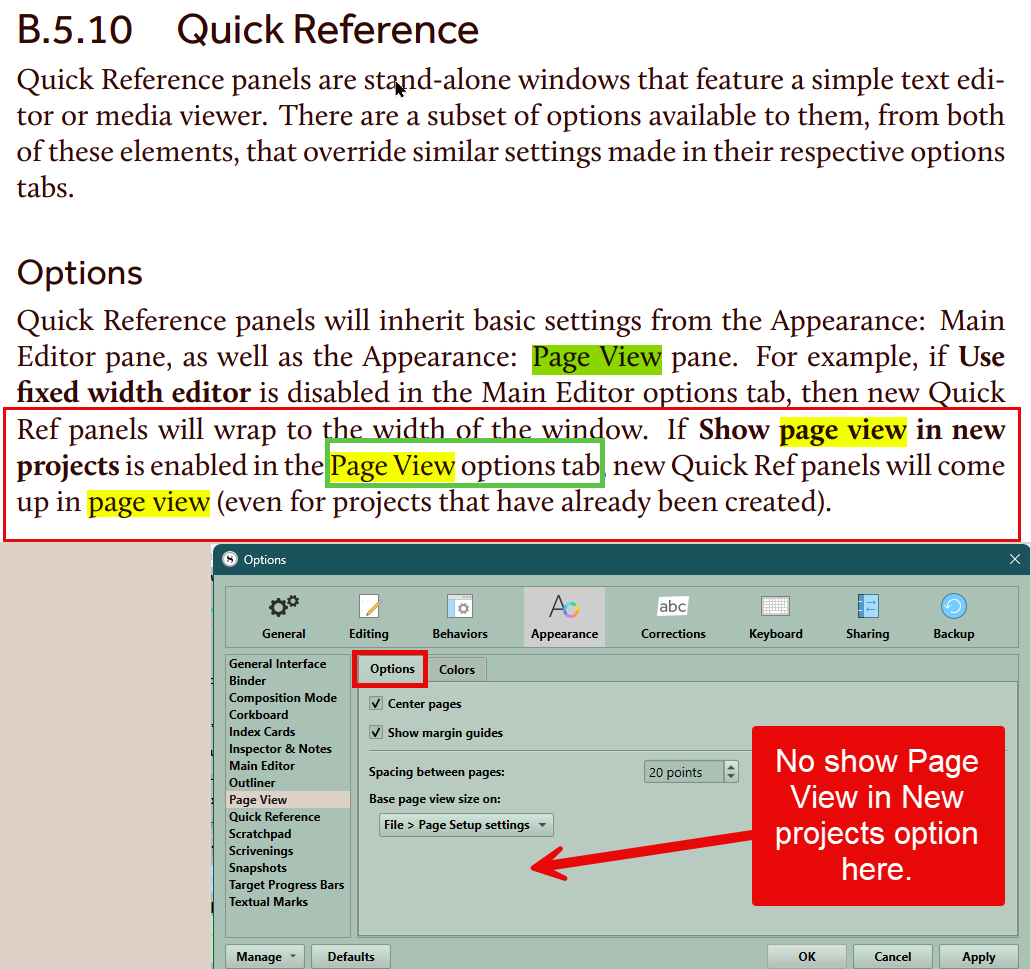
Here is another Manual error about the Page view options tab.

1 Like

I hope this image helps narrow it down, included page numbers of manual when looking with Microsoft browser

1 Like

In 26.1.1 the Header section does not mention or explain page number option in windows.

Thanks, that was fixed at some point without marking it as done, so I never got the proverbial memo (as were a few others you caught).

Generally though, if you run across an undocumented feature the first thing to try is whether it does anything at all (for example, anything in the “Other” tab of Print Setup). Many descriptions were removed for that reason, as I feel it is less confusing to have undocumented features that don’t work, than it is to have documented features that don’t work. Neither condition is great, but it’s a judgement call.

Nor does it mention options to include notes and the synopsis.

The “Content” section is covered generally, as one is expected to know what these things are by this point (and if not there is a cross-reference to where they are explained). So all it explains here is that ticking boxes will include these things. Any more detailed listing would just be printing that sentence over and over again with a different noun. :slight_smile:

index card options does not include force landscape orientation

That one on the other hand, I don’t know about… I mean the checkbox certainly does something, but it doesn’t produce anything we’d think of as “index cards” you could cut out of the paper.

Intended result...

So I don’t know. I think I’ll leave that undocumented for now.

An here is another issue. I can show line numbers in page view despite what the manual shows.

Ah, thanks! That is something that was always a limitation on the Mac, and I never noticed it wasn’t on Windows.


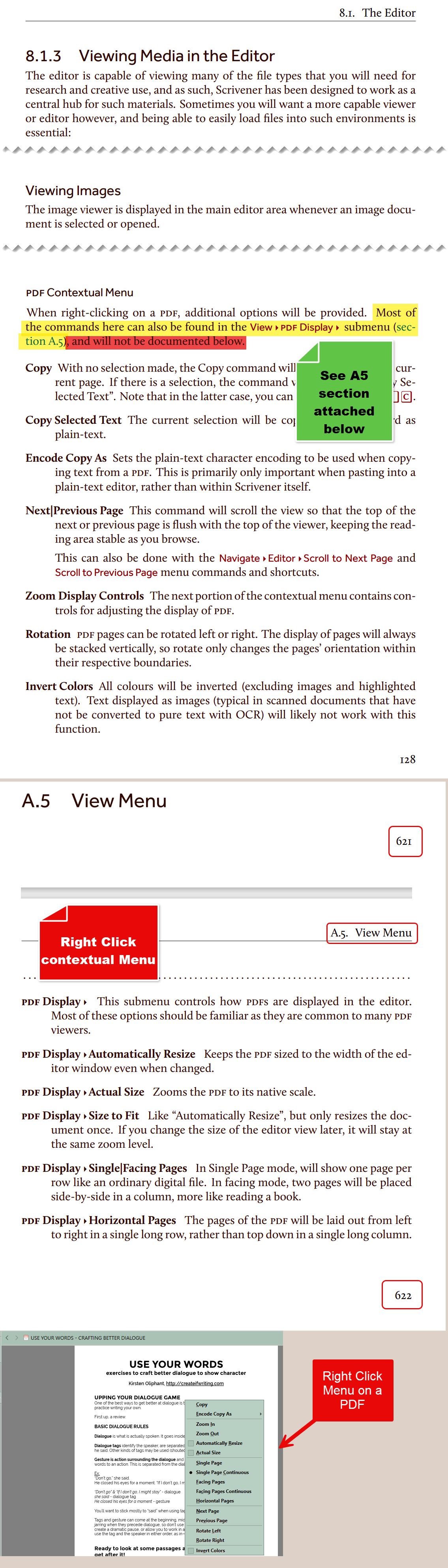
I hope this image helps narrow it down, included page numbers of manual when looking with Microsoft browser

Okay, these are the two sections I was looking at as well, but I don’t see anywhere in here where it is implied that this command should be found in the contextual menu.

There are some commands unique to the latter, which is what that first list in §8.1.3 is all about. The context menu also has some commands found in the main View menu, so they aren’t documented redundantly, to save space, hence the redirect to the View menu appendix if one isn’t clear on anything that is absent from that list.

Perhaps what is being missed here are the words, “Most of the commands”? It’s not saying all of the View menu commands are in the context menu, but most of them—and notably not the Size to Fit command.

Maybe I’m being thick though and missing something obvious to another reader.
Someone was busy as a beaver! :+1: But I may have discovered a new one:

(Foodnote 3) Recent versions of MultiMarkdown, which are embedded in Scrivener, are not compatible with macOS 10.13. You will need to install your own copy in order to regain access to the conversion options in the compiler.

Page 18 (footnote 3), Win manual Rev. 3.1.5.1-05

1 Like

Thanks! Some of these can be a pest because I use <$include> for repetitive footnotes or disclaimers, and that placeholder sits in an awkward precedence snarl that results in it being more important than styles you put over it that are meant to delete the (Mac-only) text within them. I have to make sure and not only set the footnote text to Mac-only, but the text of the footnote itself that is being included, so that it includes… nothing.

I.e. don’t bother tracking down other instances (if there are any, I haven’t double-checked if this is actually one like that), because they’ll all be fixed in one place.

2 Likes

A post was split to a new topic: Blog post formatting needs to be fixed

Forgive me if this has already been mentioned, as this is a very long thread with many replies. I did a search for the typo here and had zero results, so I don’t think it’s been mentioned yet.

On page 407 (under 15.7.2 The Format Bar), the first two sentences on the page are:

d) The text and highlight colours are selected from these two buttons, re-

spectively. They have two dCifferent modes of operation.

I’ve bolded the typo, where instead of “different” it says “dCifferent.”

I hope this helps!

2 Likes

Thank you! Found and fixed.

2 Likes