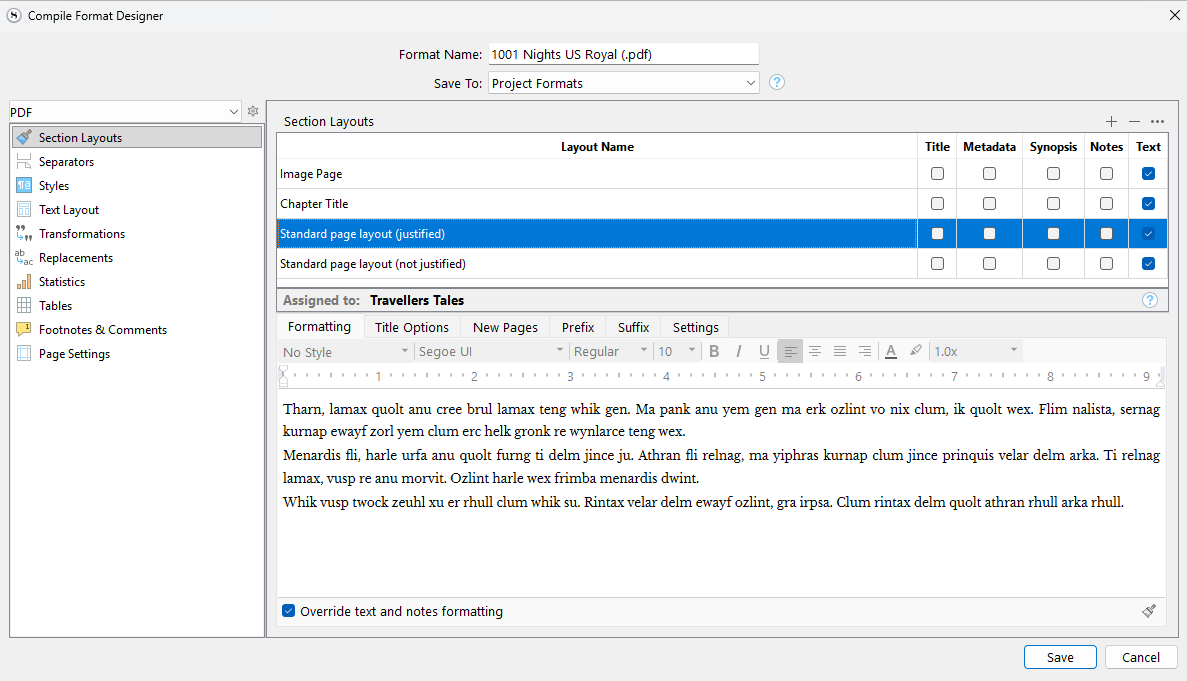
For example, my ‘Standard page layout (justified)’ layout is used by my section type ‘Travellers Tales’.
I also want my section type ‘Group Document’ to use this layout.
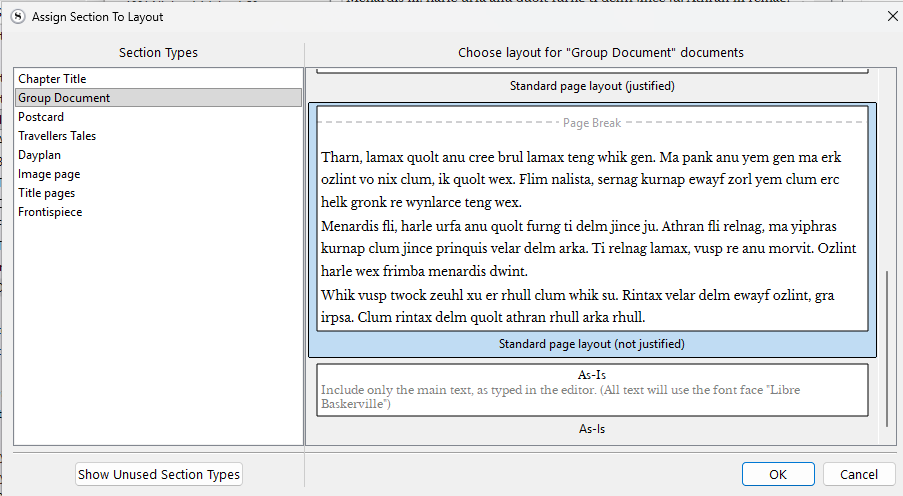
But if I go to the ‘Assign Section Layouts’ screen and select this layout, nothing happens - the ‘Assigned to:’ box on the screen above is unchanged.
Nothing seems to happen if I assign the section type to any of the other layouts on this screen.
Something else:
In ‘Assign Section To Layout’, the two layouts are described very differently - one with formatting notes, the other ‘As Is’. But in the Compile Format Designer, these two layouts are set up identically. What is the difference? How do I edit the layouts?
I have spent many hours reading the Manual and watching videos, and I cannot work out how to do these things. Thanks for any help.
I think maybe you are reading the captions for Layouts as being above, rather than below, their respective Layout? Look more to the shaded blue highlight, which indicates the selected Layout, and which label it encloses. In your screenshot it clearly encloses the not-justified variant. You also state the one is described with the term “as-is”, but the one below your selected is in fact the built-in As-Is fallback layout.
Thanks. You’re right about this confusion, and this perhaps answers my ‘Something else’ question.
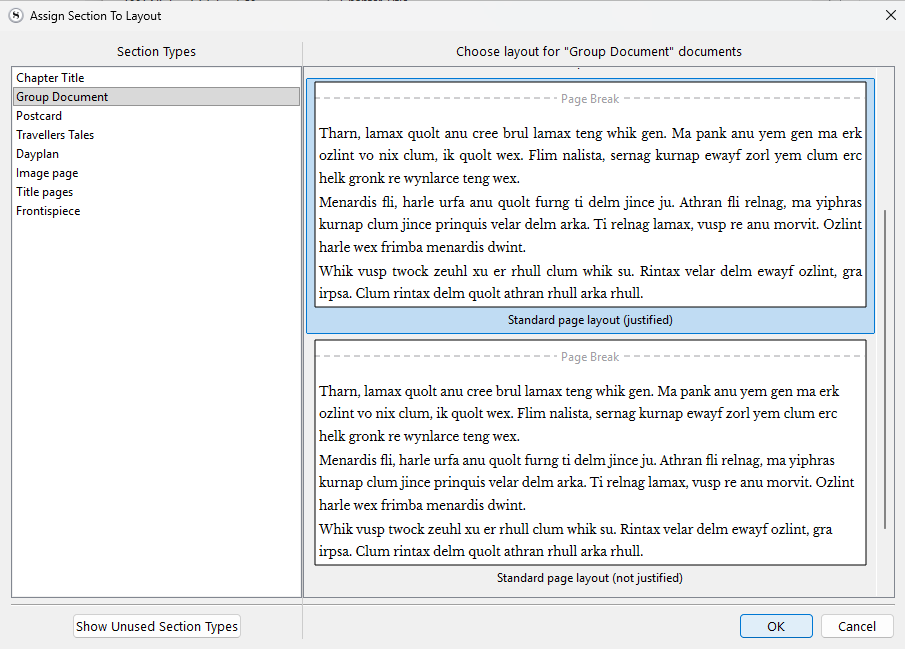
But when I assign the section type to the layout as shown below, there is still no change in the Compile Format Designer screen. ‘Standard page layout (justified)’ still is only marked as being assigned to Travellers Tales (first screenshot in the original post).
Don’t worry too much about the status line in the compile format design window itself. It’s what you see assigned in the preview column, or highlighted in the Assign window, that truly matters.
To the context of the format design window, it’s more important that the Layout is bolded, with something listed—it’s to help you see which of the layouts actually matter to this project, and conversely, which can be ignored. To another project that is also using this Format, it might use different layouts, and so of course this status line will look completely different, or even empty.
You are right that it should list as many of the assigned Section Types as it can, in that space, rather than just one (that is a bug it seems, that it only lists one), but even if it did that it is better to think of it as a photograph of a famous athelete on a cereal box. It isn’t meant to be taken as a statement of exclusivity.
When you first load the compile window, it is the middle column that shows a preview of what your Section Types will look like (within reason of course, it isn’t an ePub reader or PDF generator). As stated in §23.3, Layout Preview:
The next major component falls within the centre column of the compile
overview screen. It contains a stack of tiles depicting how the various differ-
ent types… of document in your draft—what you can see listed in the
Contents list to the right—will be formatted.
Trick- if on compile format designer and the separators, then this where can assign separators to section layouts.
The trick is you in this area see list of section layouts and drag section layouts (like in the Binder) to change order. If do this then order in section layouts change as well.