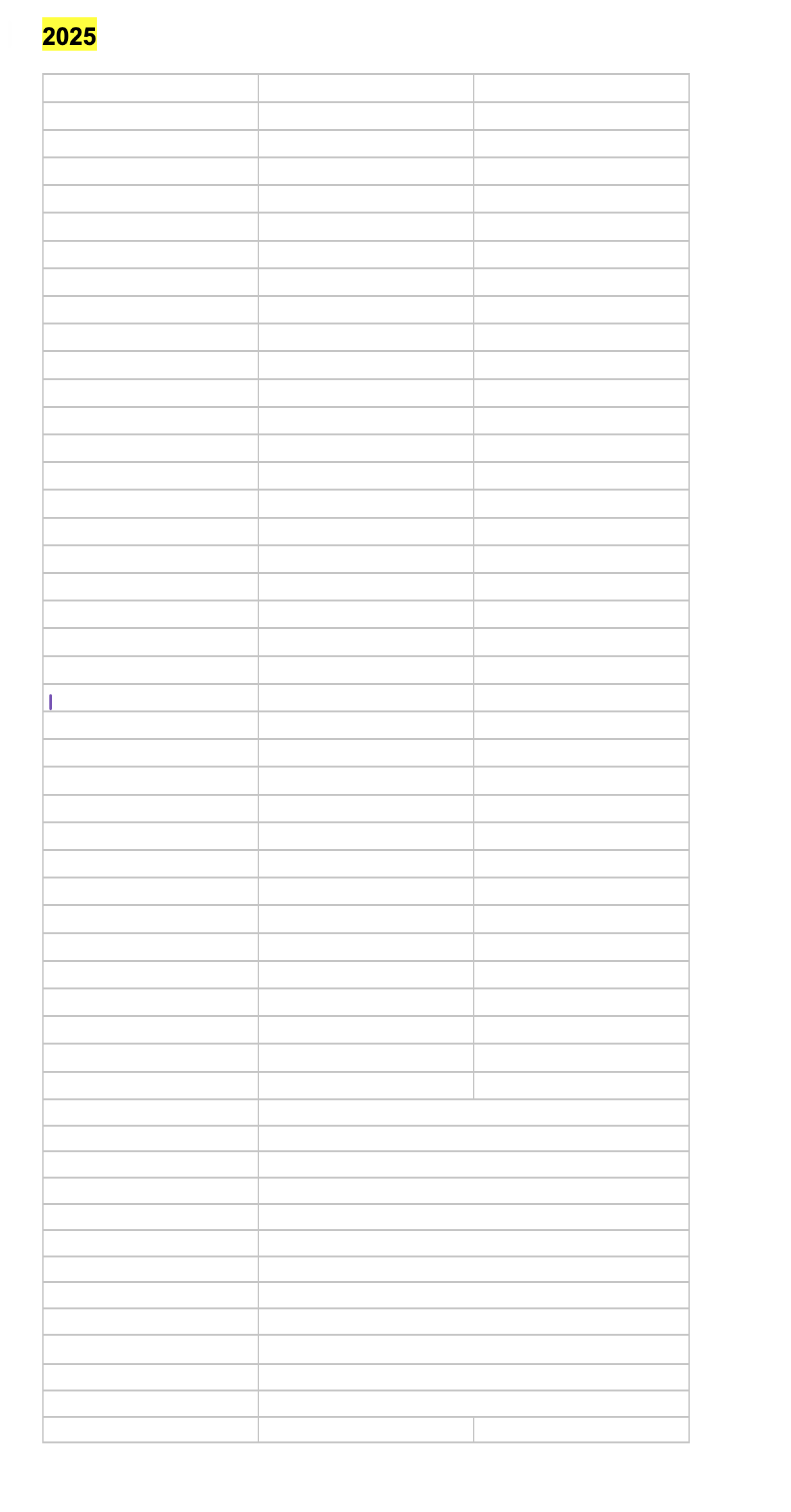
Nearly every time I close and reopen the project, the table’s formatting becomes disrupted.
In the lower rows of the table (the last five to ten of forty rows), the three columns often change to just two (the rows above still show three), and the content from the last column appears in the first column of the row below, before the actual content of the column.
I have already created a new table, but this issue persists.
Is there anything I can do to resolve this problem?
If you have pasted the initial table off of the internet, this is something that happens regularly.
If so, in the current case likely you have bits of foreign formatting code (invisible to you) still there in your document.
The best thing to do in this case would be to create a new document, and paste the whole from the problematic document to the new one, using Edit / Paste and Match Style.
Then reformat the document.
(You could cut and then paste it back in the same document, using Edit / Paste and Match Style, but I am not sure it is 100% guaranteed to work, say you have foreign formatting at the top of the document.)
. . . . . . . . .
Always use Edit / Paste and Match Style when pasting text/content that originated from outside of Scrivener. (Especially off of the internet. A website is a bunch of rectangular zones – even if it doesn’t necessarily look so –, and you don’t want this in your document. … Paste and Match Style strips it all off.)
Only point I would add can try paste but can get formatting issues. If paste not work then Ctrl + Z and then do paste and match style. Sometimes straight paste works better.
Forty rows sounds awfully big for a Scrivener table, to me. And being “formatted” also sounds complicated. Scrivener has table features, but not as sophisticated as you may have experience or expectations, say, with Microsoft Word. For my Scrivener projects, I usually use Microsoft Excel or Apple’s Numbers to construct formatted or otherwise complicated tables and then paste an image into the Scrivener manuscript as a PNG file. For complex tables, much easier to make and produces superior results.
I have found when I copy a table and columns are squished that often several columns somehow are set to 100% and cutting back on 1 or two will bring the squished information back into view.
Sorry if there was any lack of clarity, which might partly be because English isn’t my first language.
The table I generated in Scrivener was created via ‘Insert’ > ‘Table’.
My wording “formatted” may have been a bit misleading. What I meant by format was the number of rows and columns: 40 rows with three columns.
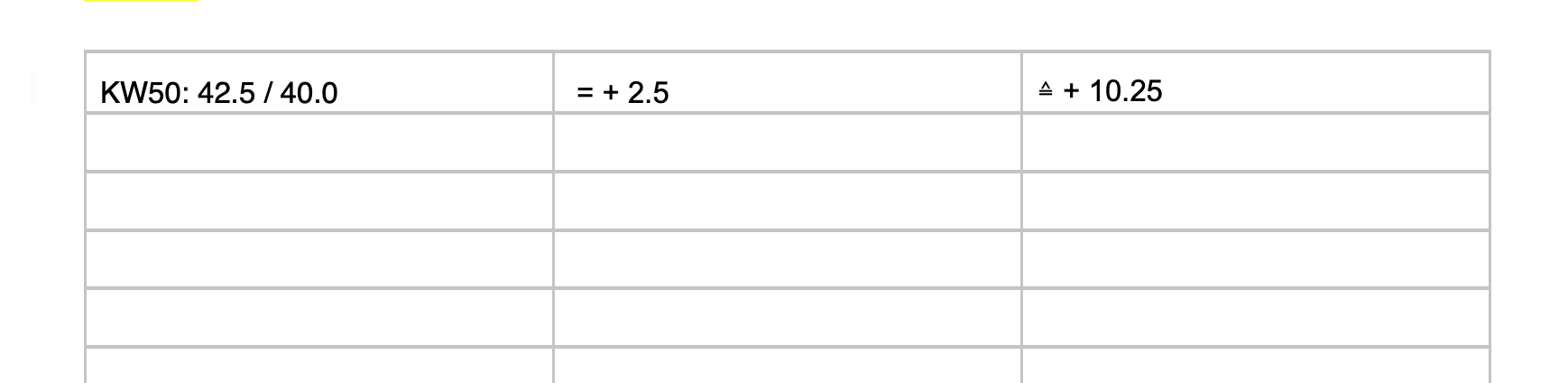
I would say it’s a very basic table, mainly to track my working hours.
Each row represents a week of the year.
First column: hours worked in that particular week, second column: +/- hours for that week, third column: total overtime for the year.
Since no complex maths is needed here, I calculate the numbers mentally, and the table content is simply text.
I use Excel and Numbers for other tasks, but I like to track the project hours directly in Scrivener in this case.
Regarding the suggestion „… to use percentages for column widths, and make sure the total of the columns is exact 100%.“ Is it possible that this is not an option in the Mac version of Scrivener? I can’t find any setting to do so.
You might like to check this thread from a short while ago:
It doesn’t give a solution, but you could check your set-up against the questions raised there.
I think, in your position, I would use Numbers/Excel and import the sheet into Research and open it in whichever from there when I wanted to view it/add data, or alternatively add a link to the file in Project notes which would open appropriately on clicking.
I have never used native tables in Scrivener, but on a quick trial of a 4 row 3 column table, I found problems/issues that mean Apple’s TextKit tables code is really borked (on my machine: M2Pro Mac Mini, MacOS 15.7.3, Scrivener 3.5.1). I’ll post that separately.
@xiamenese, thank you for pointing me to this thread!
I searched the forum for similar problems but didn’t find any, so I apologise for starting a new one.
I’ll review my setup.
As a side note, I also have issues with tables in the Apple Notes App on Mac, where, for example, the cursor often jumps to the beginning of the word. So this table problem might be a broader issue with Apple Textfiles.
And I realise that using tables outside of Excel or Numbers might not be ideal
You can add the table document (Excel or whichever app) in your project bookmarks, so this way you can see it.
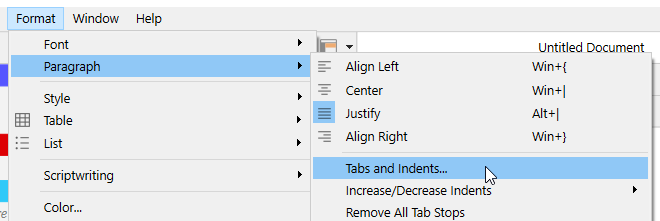
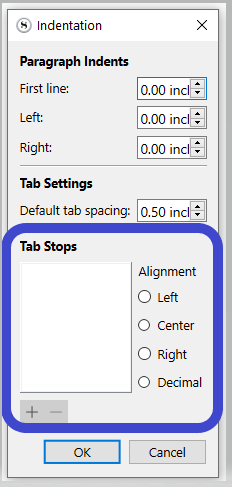
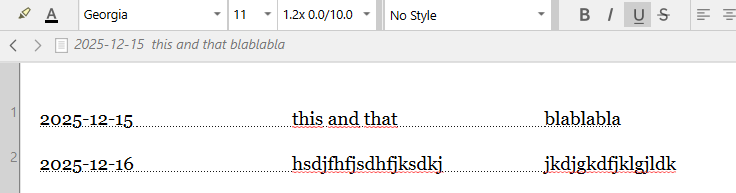
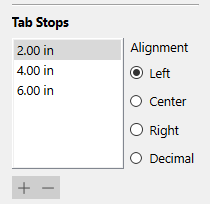
Also, perhaps it doesn’t have to be a table. ? In Scrivener, you could create a dedicated document and adjust the TAB stops to have your three columns.
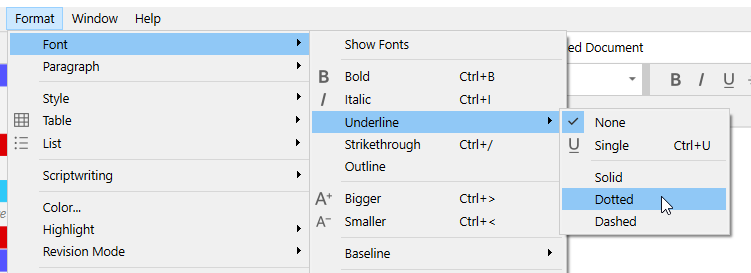
Use the dotted underline for clarity.
Agree with Vincent and add you can manually set tabs by dragging them. If you set this up as a template. Call it Table 3 columns (or whatever) as long as leave some replaceable text in the first entry and type over it the underlining and Unique (if want) formatting will be preserved and this should avoid breakage.
Once upon a time, I did a table for multiple characters that ran on forever. It basically outlined my novel. I could comfortably compare five characters’ activities in a table and a further five in another, and so on. If I were to print one table, it would probably generate 30 pages, which would be significantly more than 40 rows.
I’ve since taken those tables and collapsed them into a single long narrative document, with no adverse effects, and I find it much easier to follow.
But the main point is that Scrivener never acted badly because of the number of rows in a table— when that was part of my workflow.
@Vincent_Vincent@GoalieDad Thanks for the tip about tap stop. I’ll use this solution next time. It fully meets my requirements.
@RevoTiLlor Thanks for sharing your experience. From a powerful app like Scrivener, I suspected that my use of tables wasn’t very advanced. Over the past three years, I’ve used tables for the same tasks without issues. But for now, I believe it’s best for me not to use the table option.
Good to know. The OP was talking about a formatted table and from my experience with tables I thought of Word’s formatted tables on a normal piece of paper.
As we learn more about what the OP is doing, I still wouldn’t do it that way and use Scrivener to have large formatted tables, or even “large” tables. I’d keep a spreadsheet file (Excel, Numbers, other) putting that file in the Reference part of the binder to keep integrated. Just me. Different strokes for different people.