19.6 “Keep with next paragraph Strive to keep this element bound to the following paragraph in cases where the two might become separated by a page break.”
A.9 “Paragraph ▸ Keep with Next Inserts formatting on the current paragraph that will attempt to keep it glued with the next paragraph”
Noted I can also search for KWN (nice!) see sect 11.7
Tried to force KWN by
Removing named style from paragraphs, and add styling manually to a No Style paragraph, including KWN
Tried to “preview” KWN as suggested by @Vincent_Vincent in Show Keep With Next only to find that Page View is not enabled for Scrivenings of >1 document
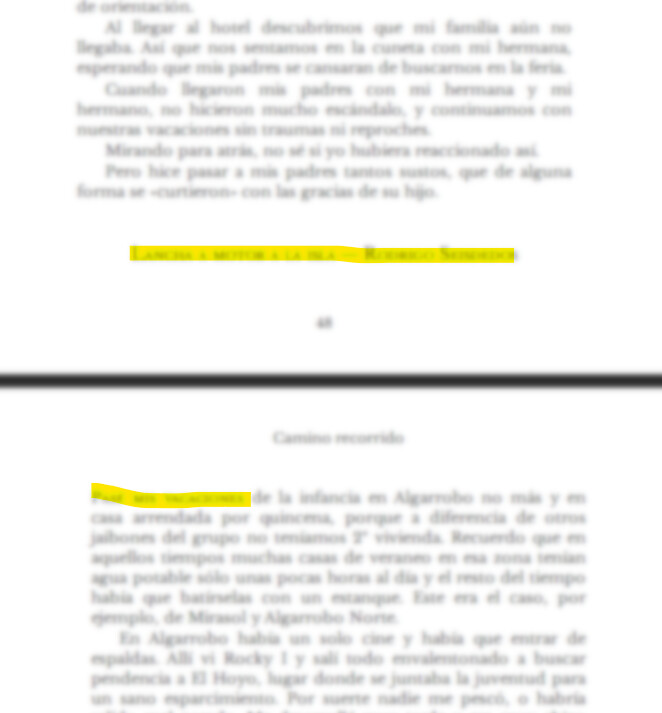
The specific location of interest is near the TOP of a “Scene” document that appears near the BOTTOM according to the Compile setup when “Scenes” are concatenated with separators but without page breaks into “Chapters”
i.e. if I compile the Scene alone there is no natural page break between the paragraphs of interest
LET IT BE KNOW THAT I WOULD REALLY LIKE TO KNOW
Under what conditions is KWN expected to work for Compile to PDF
To what extent does Scrivener “Strive to keep this element bound to the following paragraph”? i.e. when might it be expected not to work.
What do I need to do to have the best chance of KWN working
Thanks for bringing this up. Based on your description, the Keep With Next setting should be moving the indicated paragraph to the next page in compile, but it looks like the setting is being ignored in PDF/Print compile. It is, unfortunately, not the only bug we’ve run into with the page layout tool for those export formats, so on the whole I’d say you’d be better off for now compiling to a format like RTF or DOCX, which does currently support the KWN setting, and then saving to PDF from a word processor. (Or, if you move in the MMD/LaTeX/Pandoc crowd, you could handle conversion that way.)
Thanks for acknowledging a potential issue. I’m not publishing, so my PDF for beta readers is “good enough”, I just wanted to know, if I wanted to have more control, how best to approach it.
Here is the thread you were looking for. As is typical for limitations with PDF output, the recommended route is through LibreOffice or another word processor instead.
Unfortunately that is not a feature provided by formatting in the compile settings themselves.
If you are making sure to keep headings styled though, rather than just using raw direct formatting like the defaults do, then the stylesheet in the word processor can handling detailing like this (and many other things).
Sure, if you want every section to start on its own page, but that would be a very unusual design choice in most cases and unnecessarily bloat the page count.
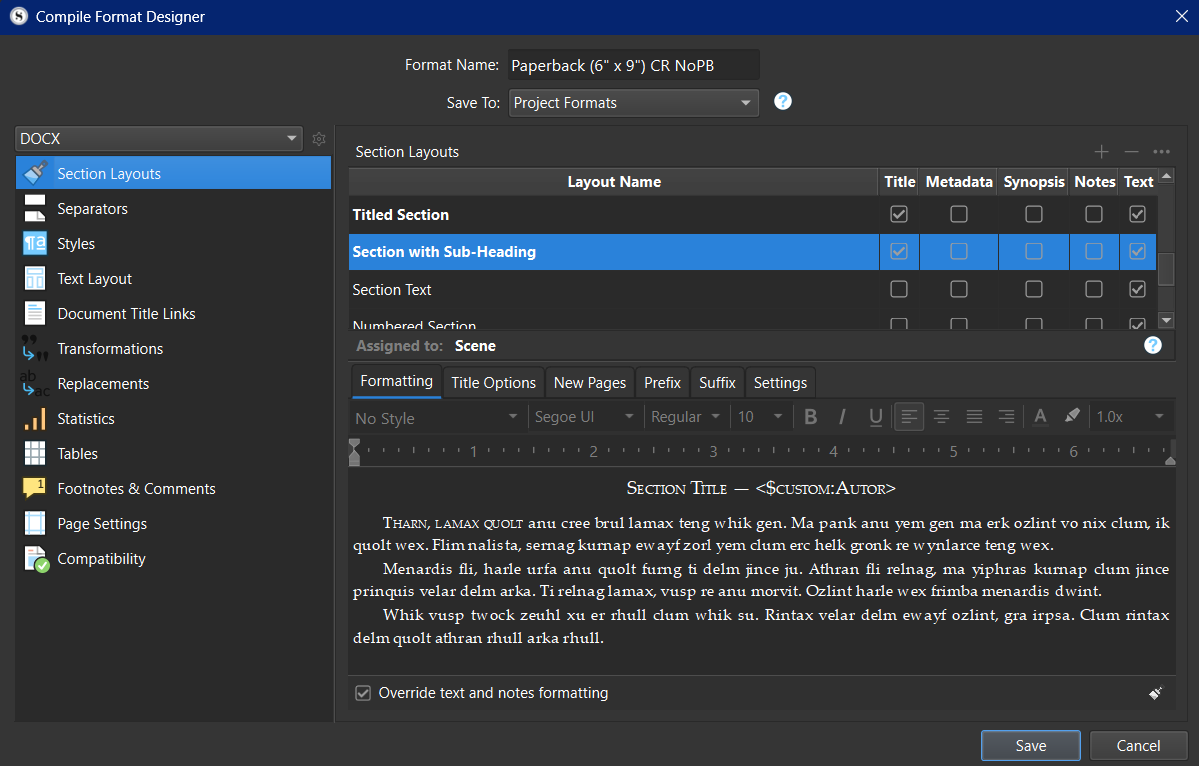
Section Layouts is where you can apply styles, there is a button on the format bar just like normal. It only uses Format styles though, not project styles (those need to be imported in the Styles tab if you want them).